
Situatie
To boot Windows 11 into Safe Mode from the Command Prompt (F8 key method), use these steps:
Solutie
1. Open Start
2. Search for Command Prompt, right-click the top result, and select the Run as administrator option
3. Type the following command and press Enter:
Bcdedit /set {bootmgr} displaybootmenu yes
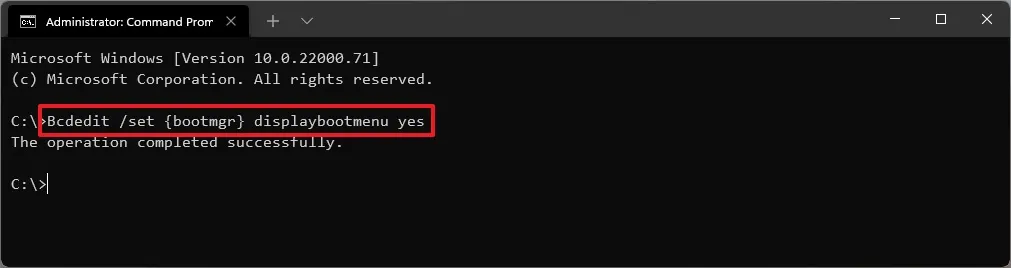
4. Restart the computer.
5. In the “Windows Boot Manager” menu, press the “F8” key to access the Startup Settings menu options.
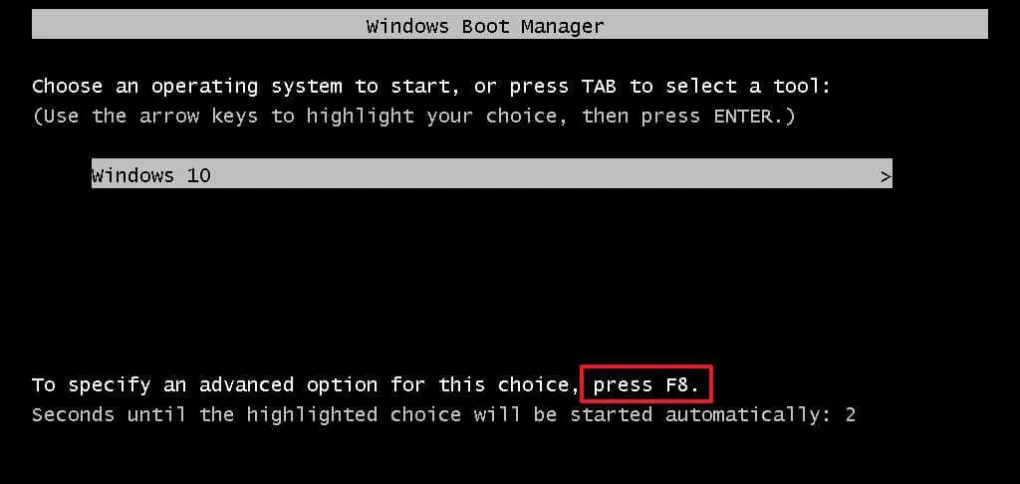
6. Select “4” or press the “F4” key to boot the computer in the Safe Mode environment.
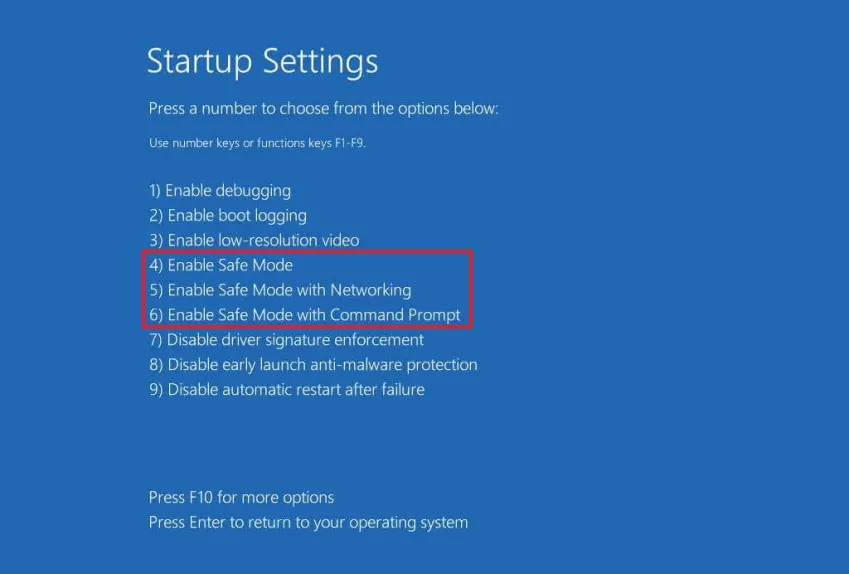
7. Once you complete the steps, Windows 11 will start in Safe Mode with the specified option. If you select the “Networking” option, you will be able to access Ethernet and Wi-Fi connectivity.
You can always exit the basic boot level using the same instructions, but in step 3, make sure to use the
“Bcdedit /set {bootmgr} displaybootmenu no” command.
Leave A Comment?