
Situatie
The process is surprisingly simple. Amazon simply gets you to fill in forms which tailor a whole bunch of skills to your needs. There are loads of suggestions from countdowns and school schedules to activities for kids and games that can be tailored.
Solutie
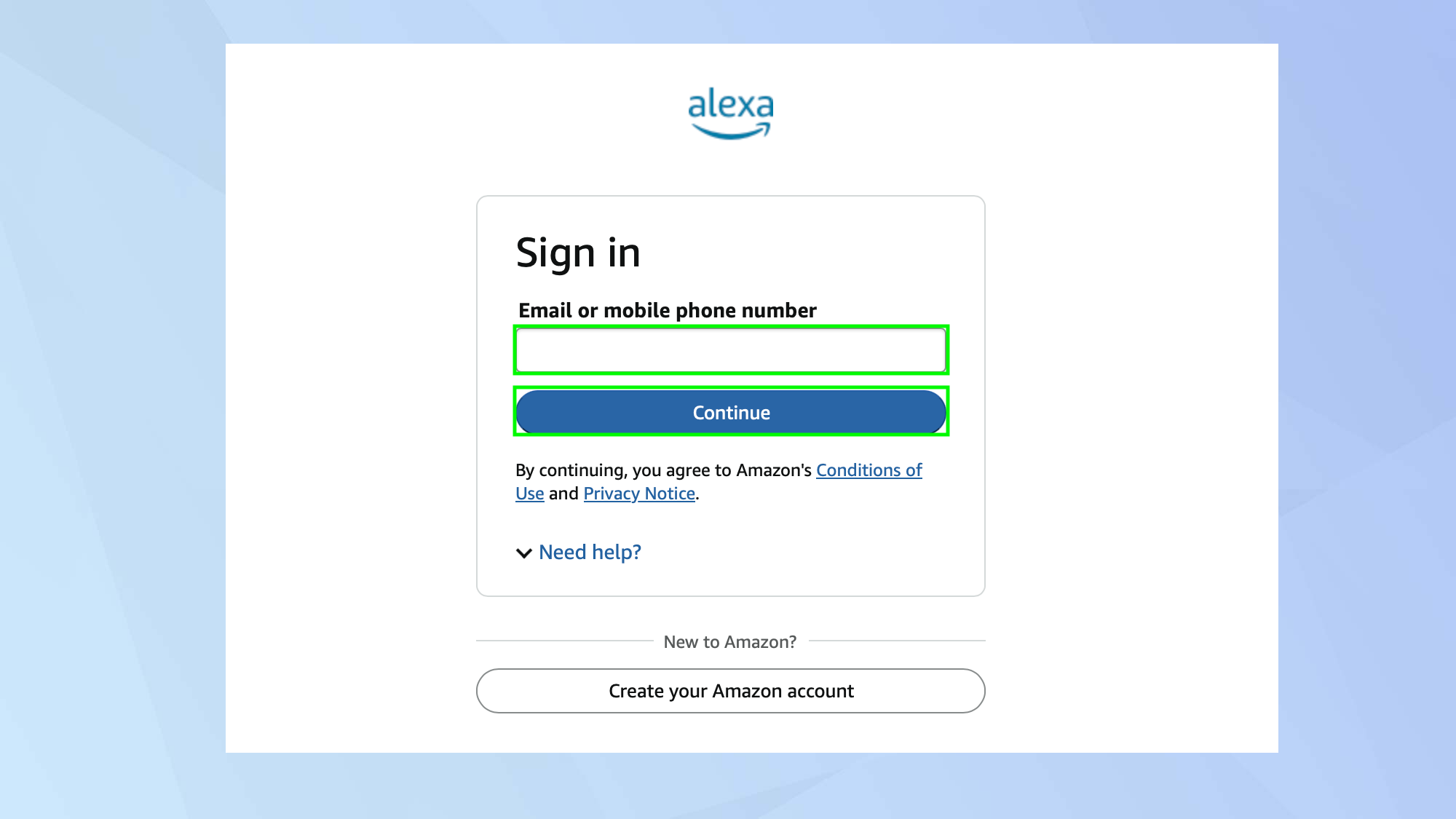
To create skills for your Amazon Echo, you need to visit Skill Blueprints and sign in using the account that’s associated with the device.
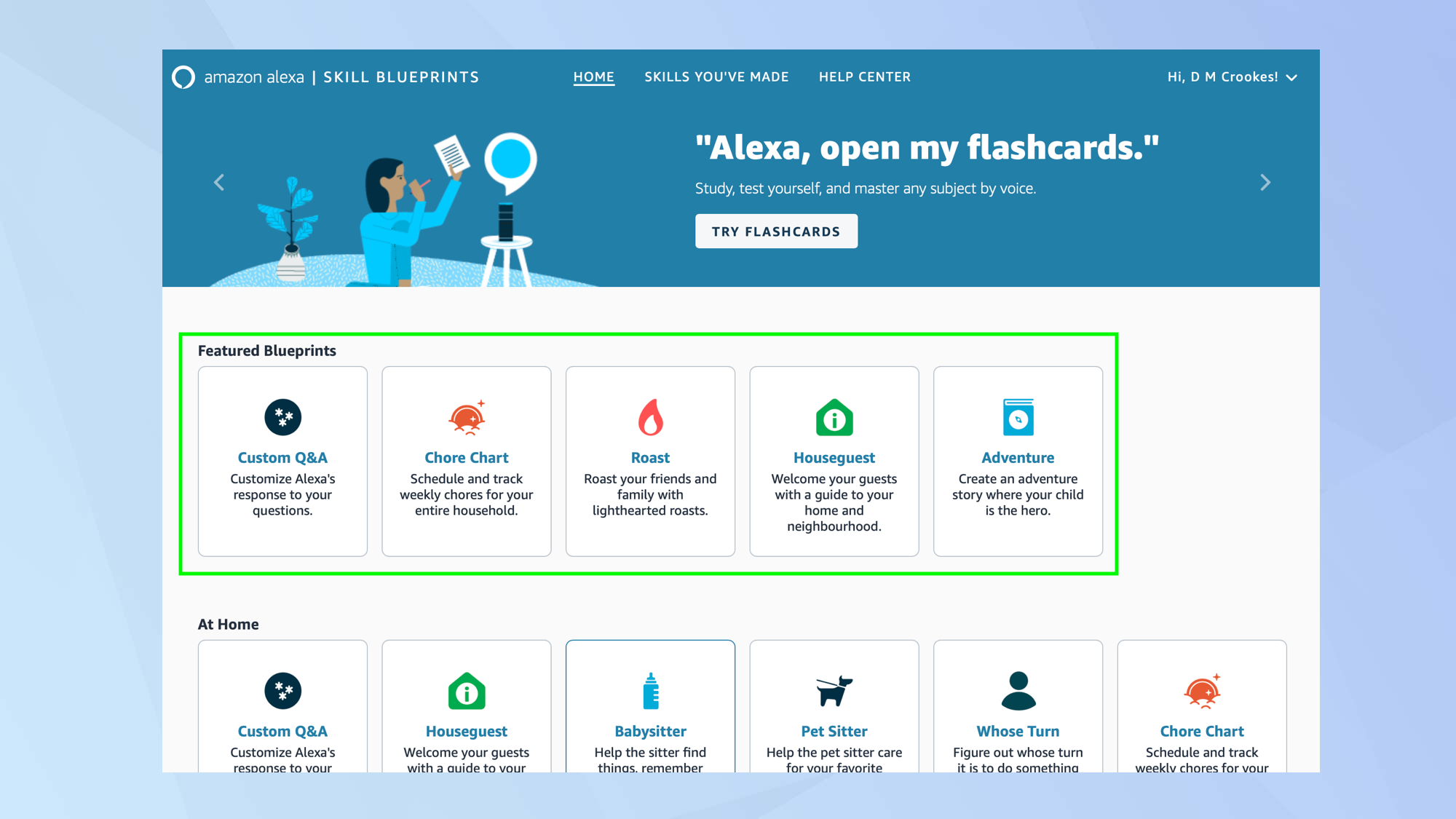
You can then browse the many Blueprints, whether that’s the featured set or those separated into categories.
It’s simply a matter of looking for a skill that interests you — the idea is that you will be able to personalize it by making tweaks to a template.
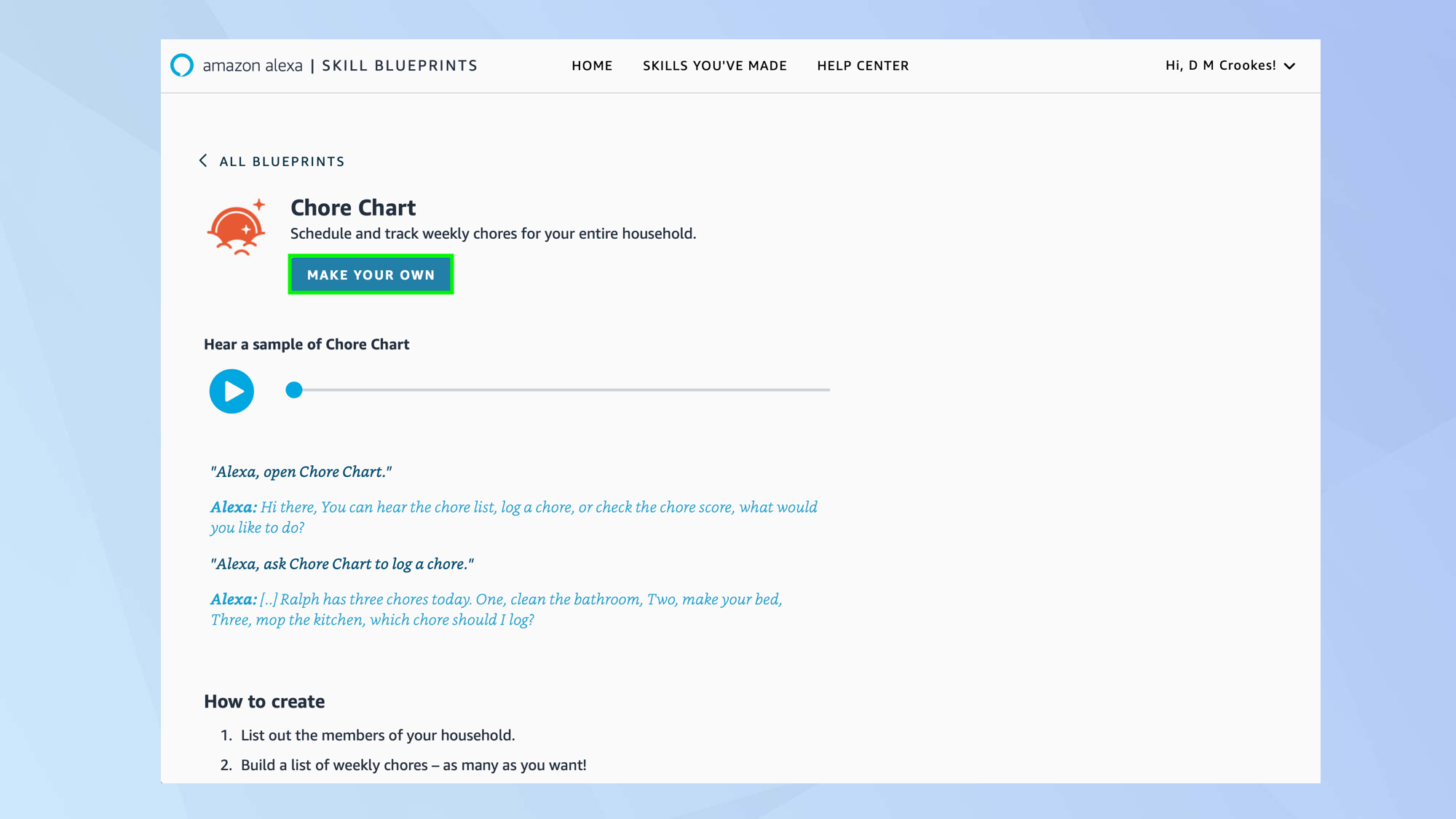
In our case, we’re going to look at the Custom Chart skill. This allows you to schedule and track chores for each member of your household. You can select any skill, of course, but this is as good as any to demonstrate how the skills are set up.
To get started, click the skill, check out the description which details how it works and the work involved, and select Make Your Own.
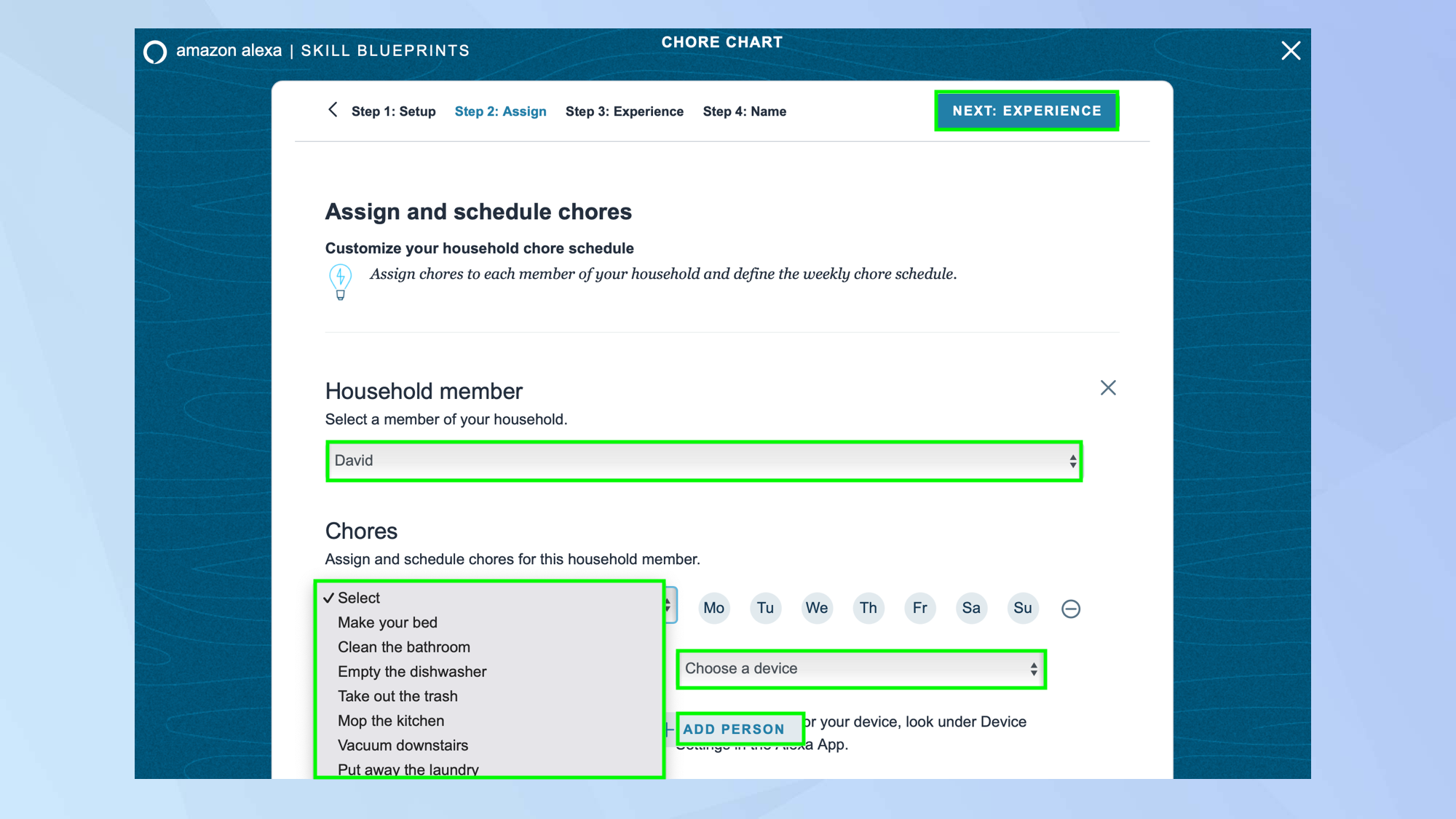
You can now go through the screens that make up the skill — you are, in effect, going to be filling in a form.
Change placeholder text, use dropdown menus and select the device that you wish to use if you’re asked to choose one. Then select the button in the top-right corner to continue.
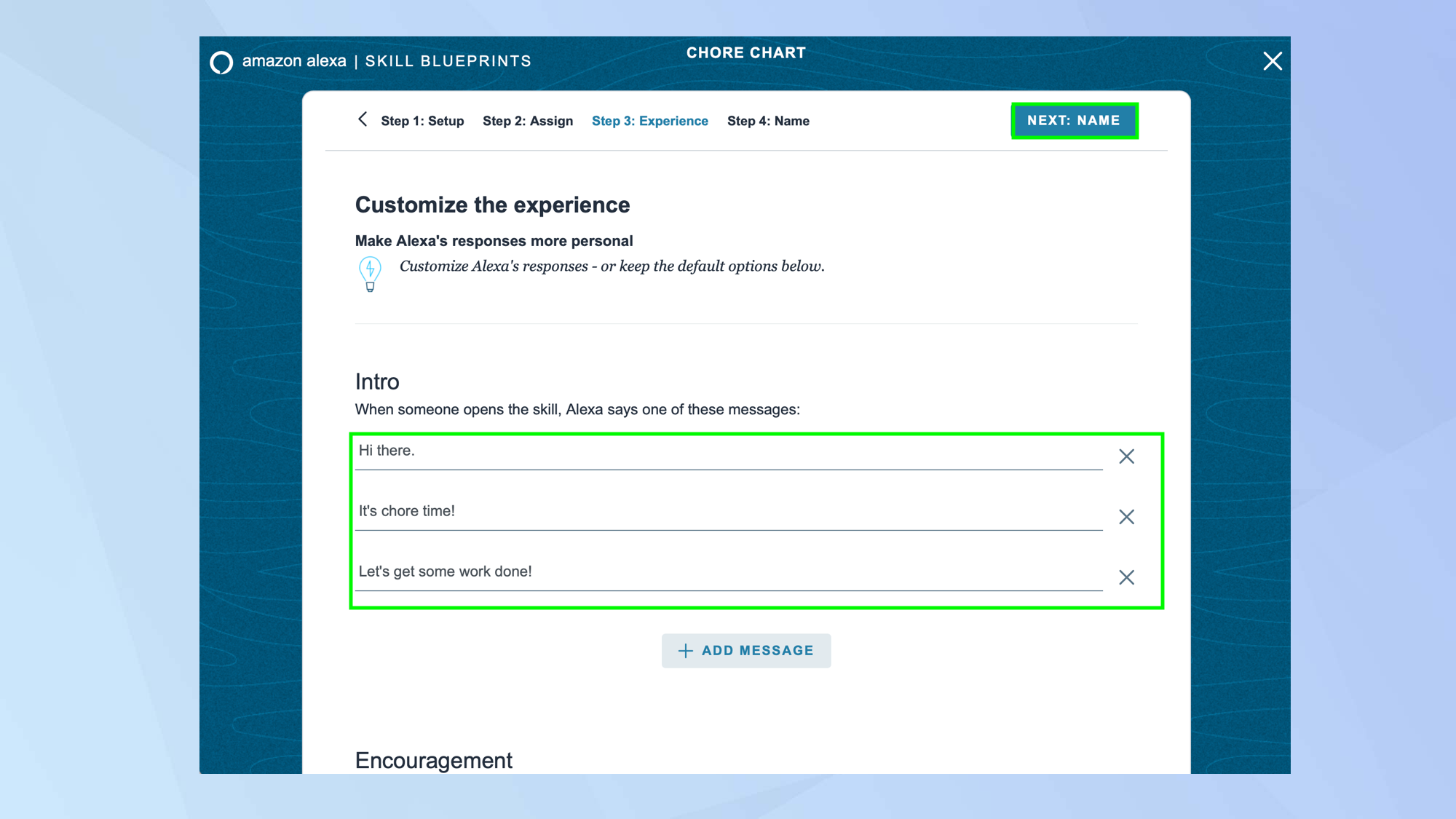
In many cases, you will be able to change how you experience the skill — you may find you can customize the messages, sounds and responses, for example.
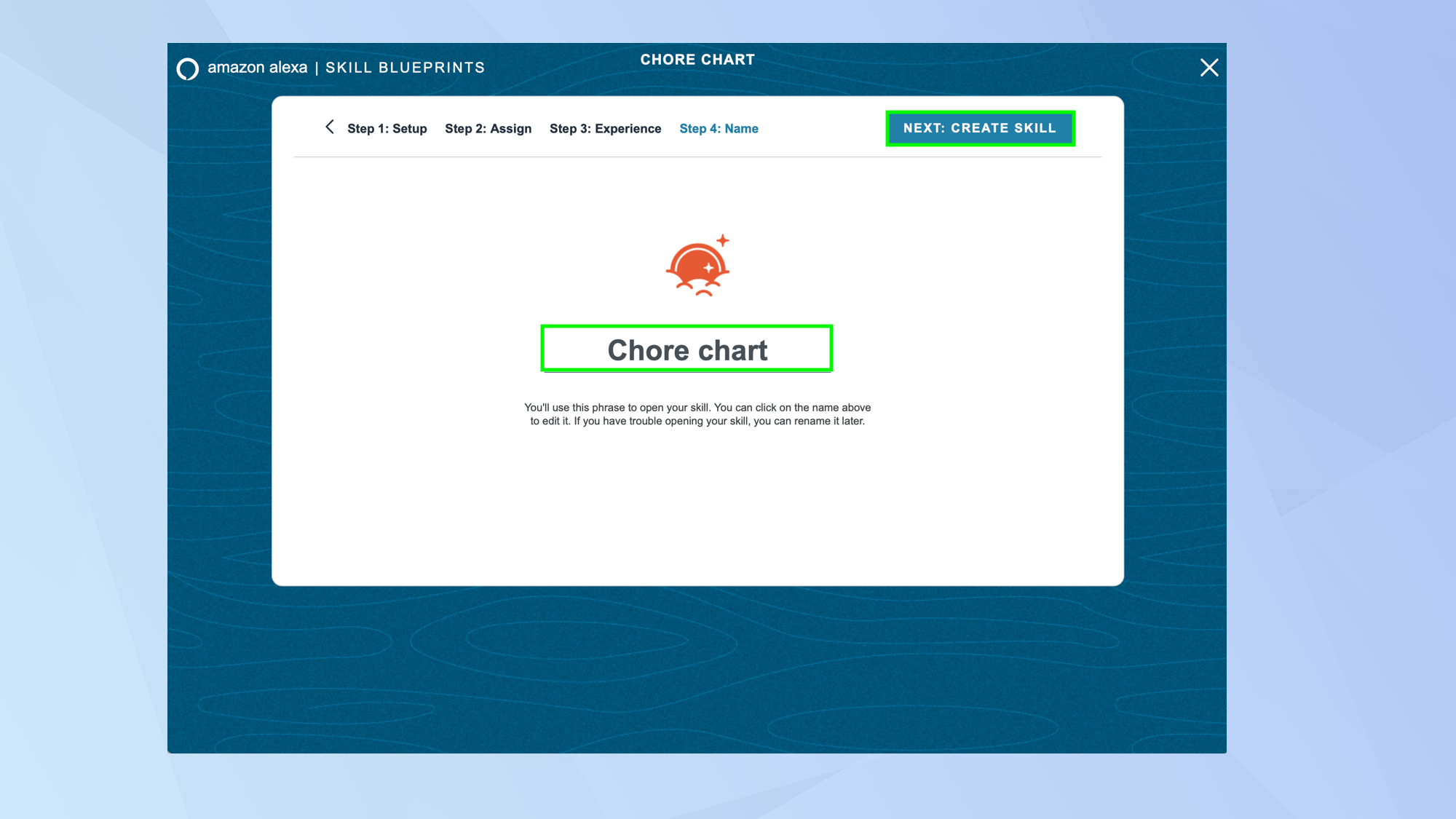
You will also be given the opportunity to name your skill. You should choose something memorable and catchy, something that rolls off the tongue so that it’s easy to say.
The skill name has to be short so stick to two or three words, and they cannot be the same as other skills you use and make otherwise it will cause confusion. Skill Blueprints advises that you don’t use Alexa, Echo, Amazon, skill, app or computer in the name
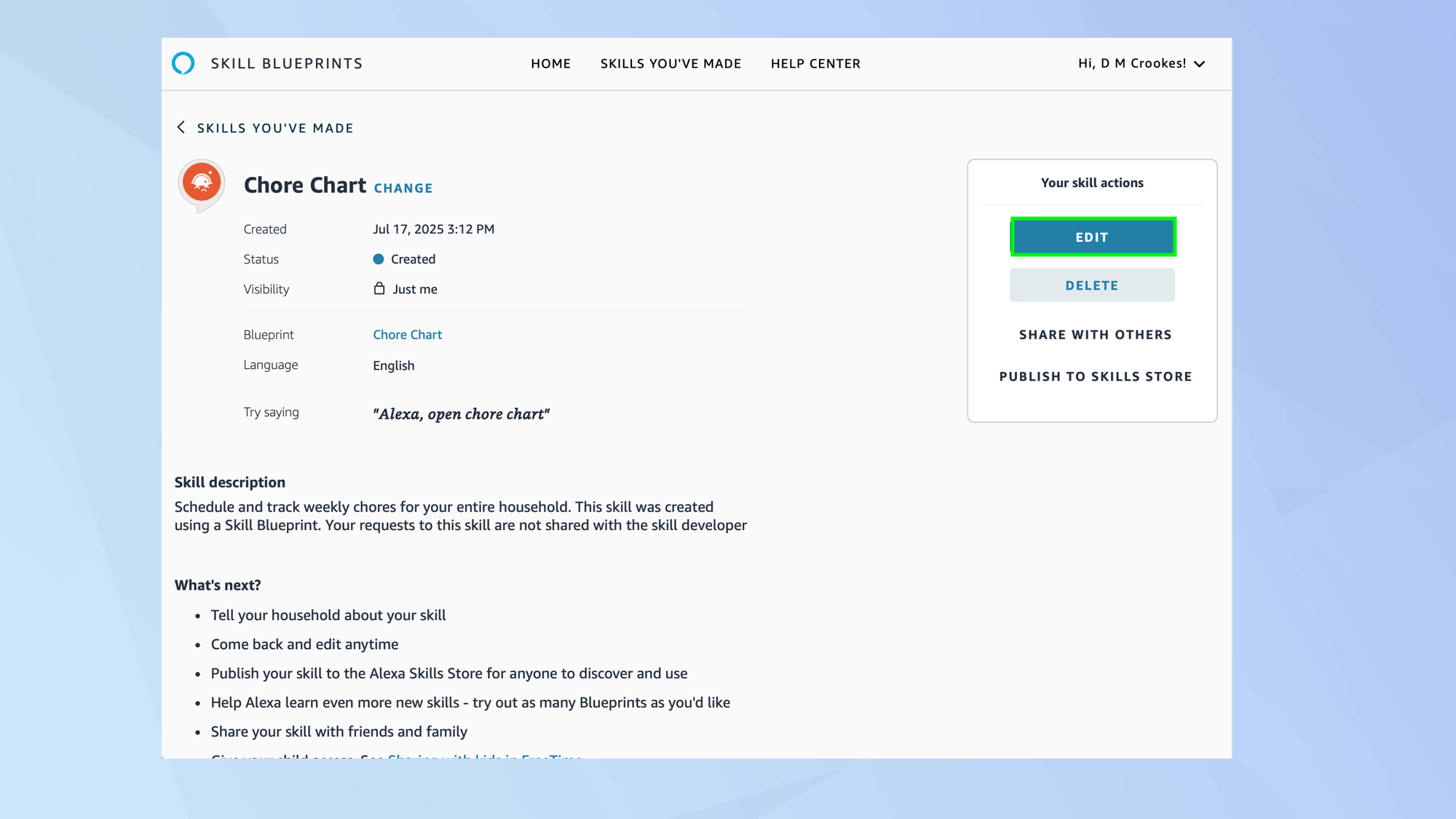
When you have finished developing a skill, select Create Skill. Wait a couple of minutes then say: “Alexa [skill name]” to try it out. You can select Skills You’ve Made if you wish to view and edit a skill.
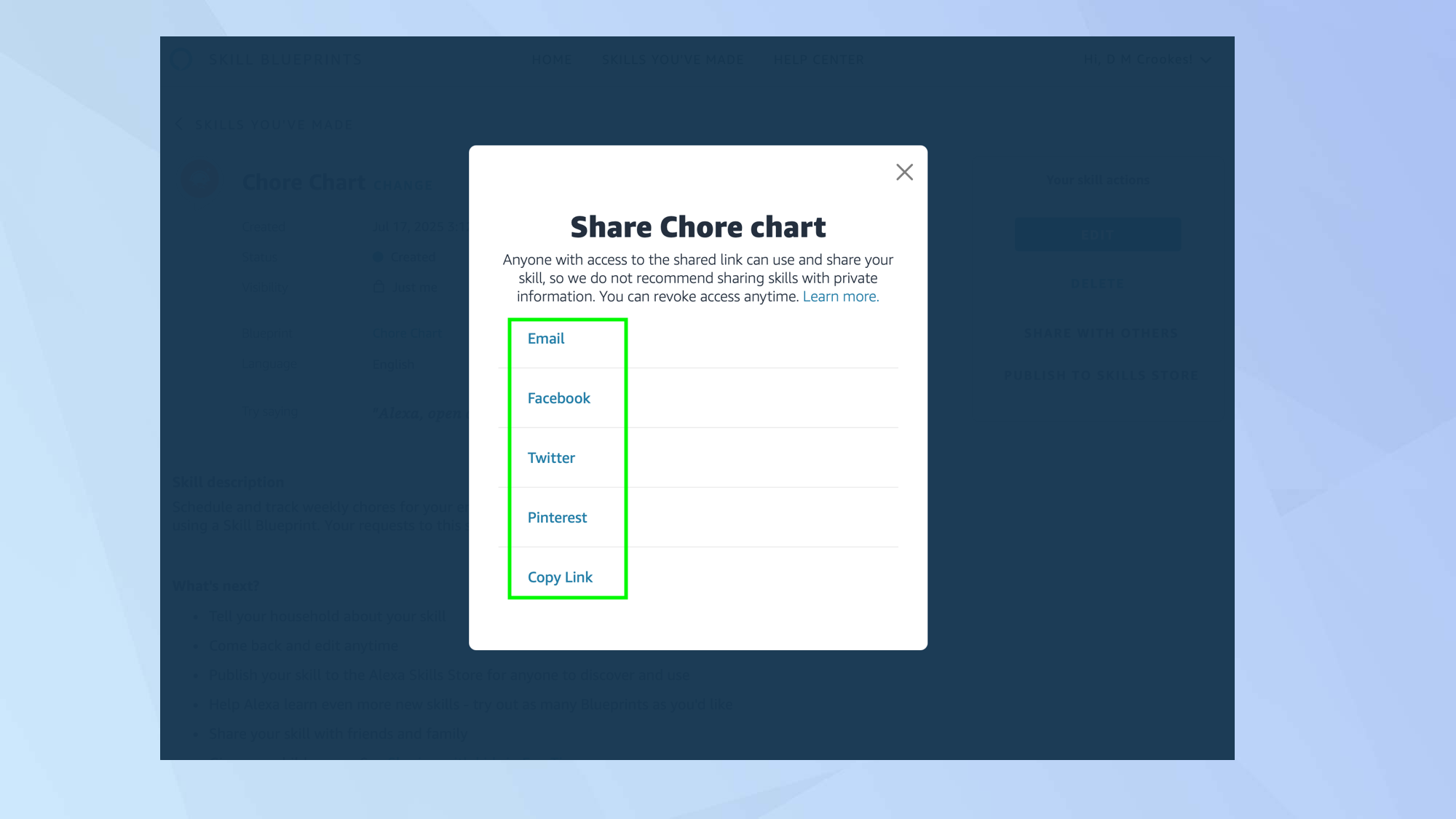
You can allow other people to use your skill. To send it to specific people, select Share With Others.
You may be asked if the skill is intended for use by kids under the age of 16 and then you can share via email, Facebook, X, Pinterest or by copying the link and using your own method.
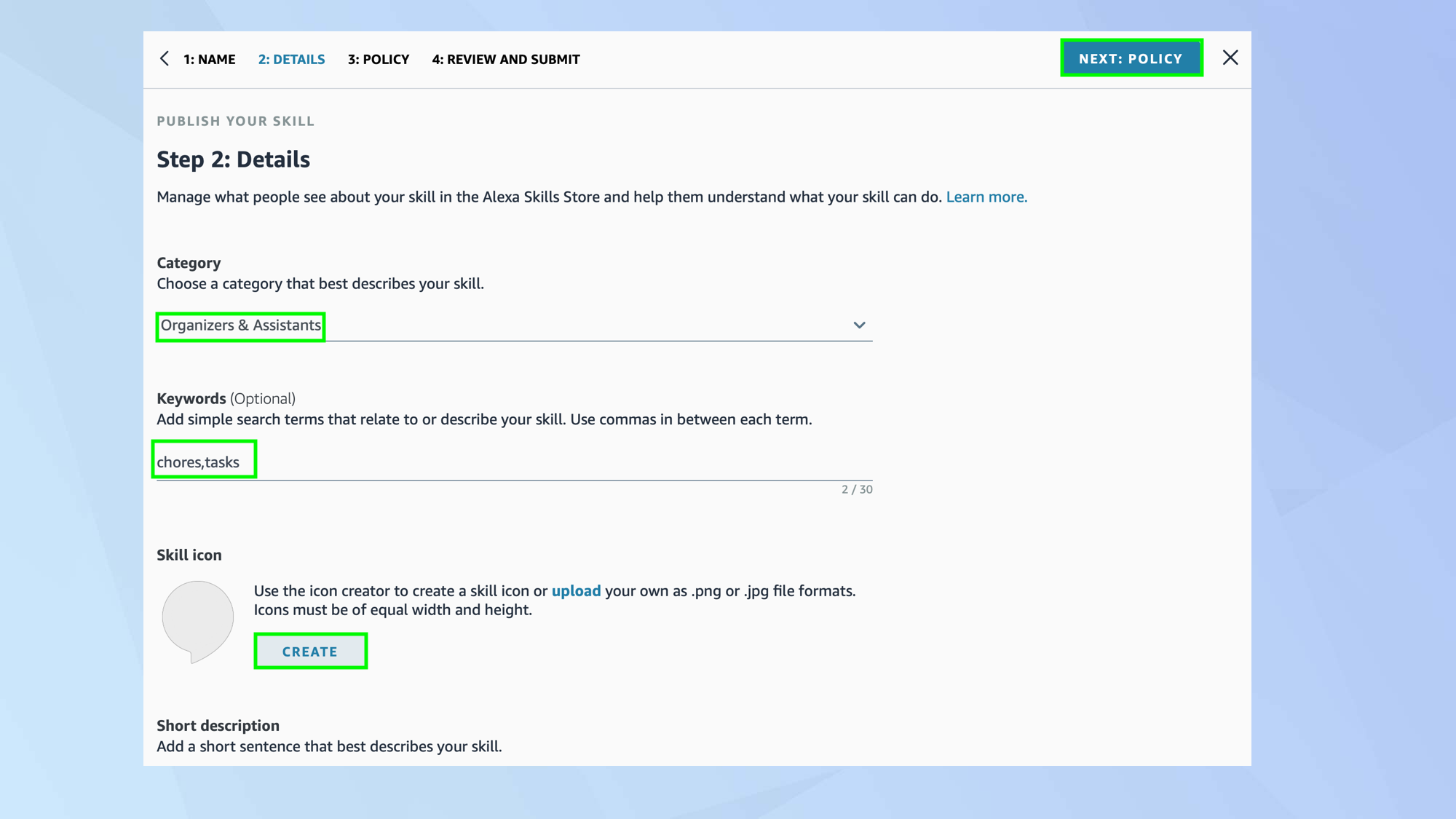
You can also select Publish to Skills Store if you want all Alexa users to access your skill. You will be asked to fill in a form assigning the skill a category, describing the skill and the keywords that will help users to find it. You will be asked to add a skill icon too.
Leave A Comment?