
Situatie
To set up Dynamic Lighting on Windows 11, connect the RGB accessories and follow these steps:
Solutie
1. Open Settings on Windows 11
2. Click on Personalization
3. Click the Dynamic Lighting page
4. Confirm the compatible RGB devices connected to your computer
Quick tip: You can click on the device to access the lighting controls for that specific device or change the settings for all the accessories from the main Dynamic Lighting page.
5. Turn on the “Use Dynamic Lighting on my devices” toggle switch to enable the RGB controls (if applicable).
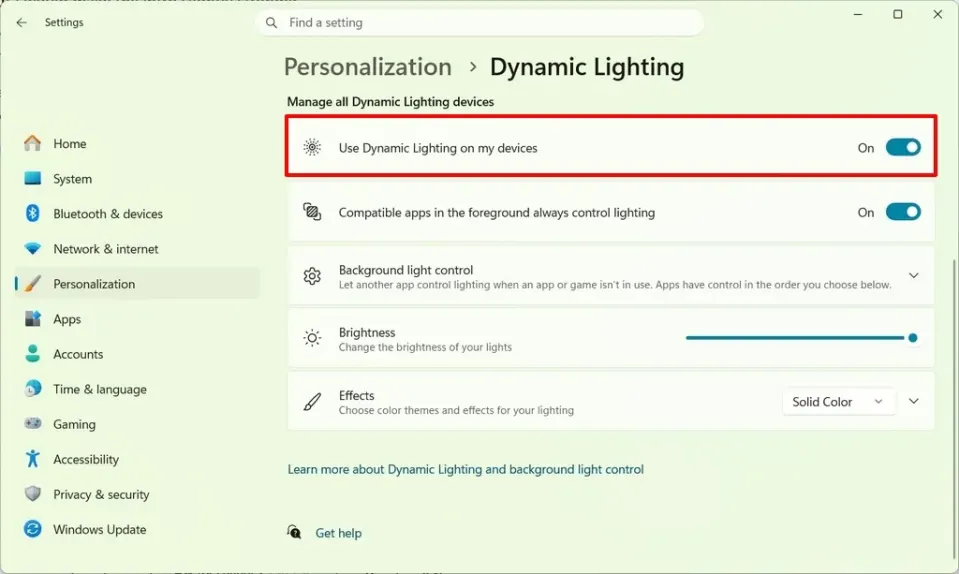
6. (Optional) Turn off the “Compatible apps in the foreground always control lighting” toggle switch to manage the lighting with the Windows 11 controls instead of third-party apps installed on the computer.
7. Set the lighting brightness level using the slider
8. Click the “Effects” setting
9. Select the lighting effect on your devices, for example, “Solid Color”
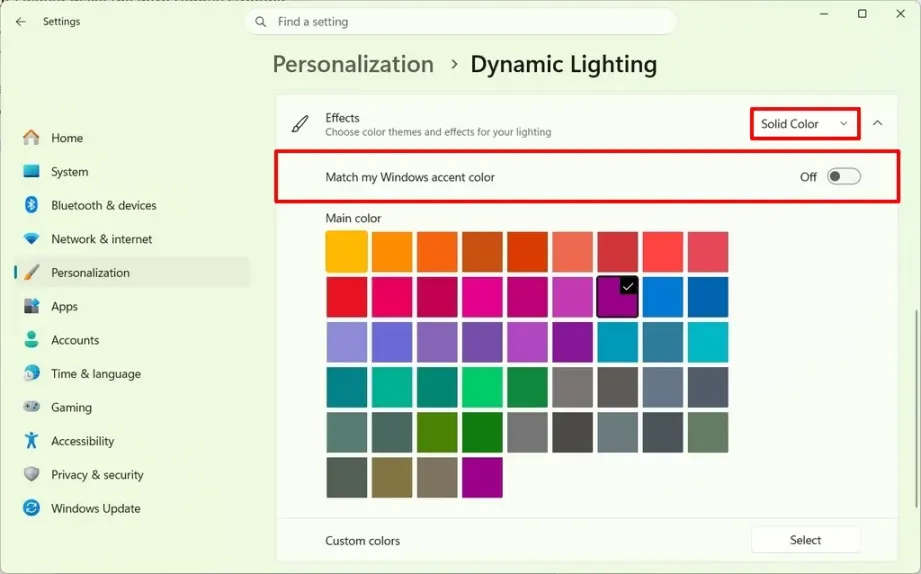
10. Turn on the “Match my Windows accent color” toggle switch to sync the system color accent with the RGB lighting on your peripherals.
Quick tip: You can also use the “Select” button to create a custom color.
11. (Optional) Choose from one of the additional five effects, including:
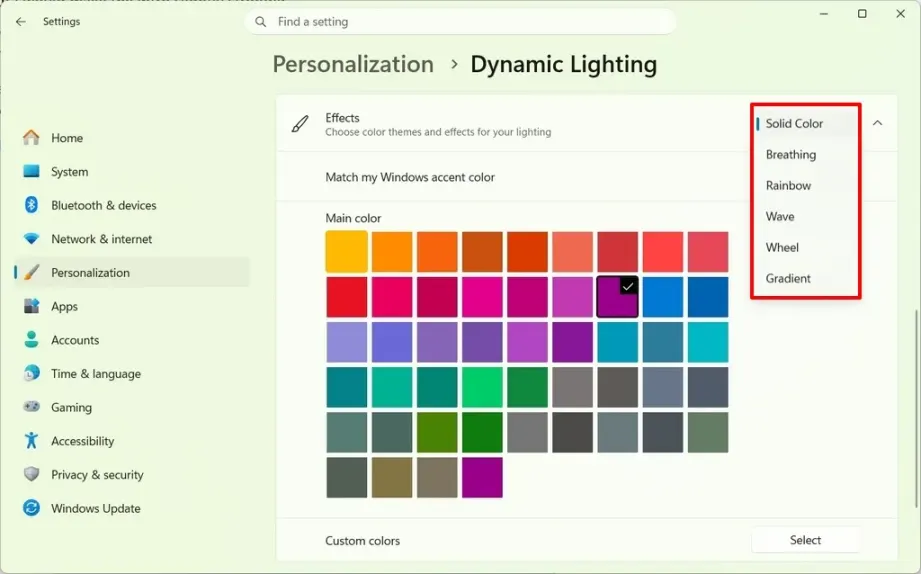
- Breathing – Slowly turns the lights down and up. It also includes a slider setting to control the effect speed.
- Rainbow – Cycles through different colors. The effects include an option to change the speed and direction (forward or reverse).
- Wave – Renders a wave-like effect with the RGB lighting on the device. You can also change the speed and direction (right, left, up, and down).
- Wheel – Allows you to choose two colors with a spiral effect. You can also control the speed and direction (clockwise or counterclockwise).
- Gradient – Renders a gradual blending from one color to another color. The effect lets you change the direction (horizontal, vertical, or outward).
Leave A Comment?