
Situatie
Solutie
Get a user interface for Winget
Escape the command line
I don’t use winget more simply because it doesn’t have a convenient graphical user interface (GUI) like most Windows utilities. Luckily for everyone, there is an open-source project called UniGetUI (formerly WinGetUI) that provides a convenient user interface. Plus, it matches the normal UI style in Windows 11 quite well—it doesn’t look out of place at all.
Installing UniGetUI
If you want to install UniGetUI, you have multiple options. They’re all equivalent, so which you use is down to personal preference.There are fake websites claiming to be the official UniGetUI (previously WinGetUI) website.
Install UniGetUI from the Microsoft Store
You can download UniGetUI from the Microsoft Store, and that is the method the developer recommends. To do so, open the Microsoft Store, search UniGetUI, then click the first result.
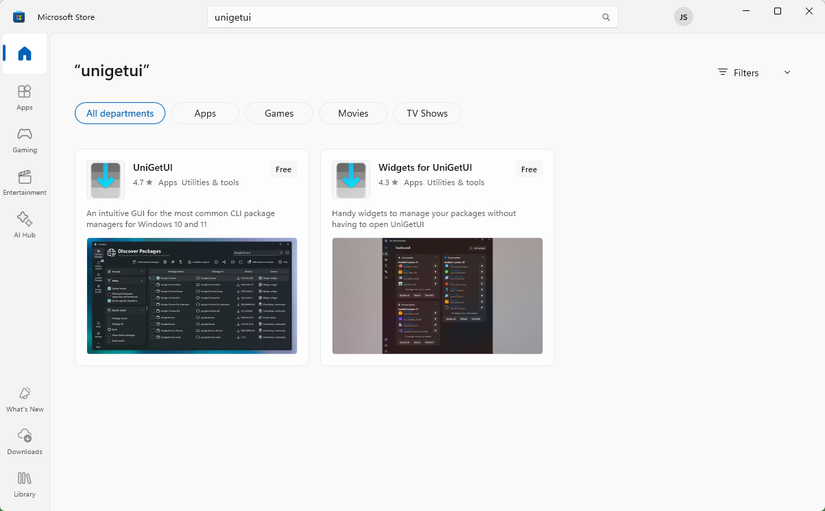
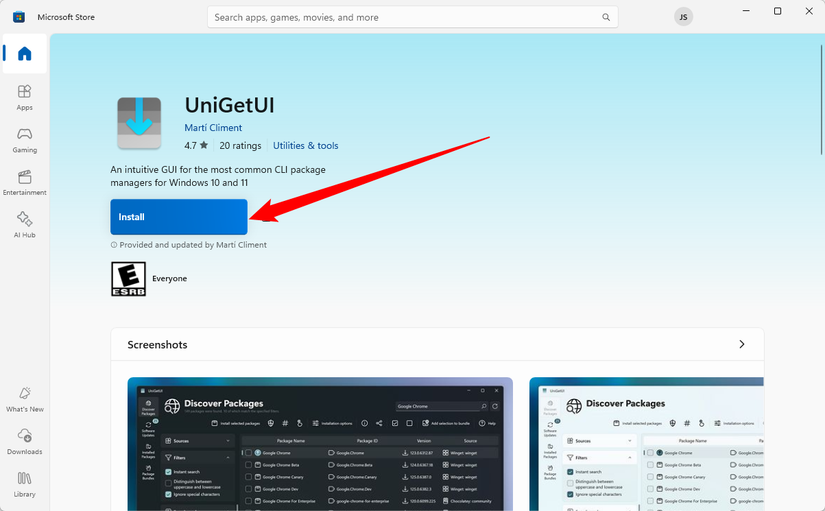
Click the “Install” button, then wait for it to download. You won’t be able to launch UniGetUI from the Microsoft Store. You’ll just see a button that says “Installed” if everything went correctly.
Install UniGetUI from GitHub
I typically avoid the Microsoft Store, so I downloaded UniGetUI from GitHub instead. Scroll down until you see Download UniGetUI installer, then click “Click here to download UniGetUI”.
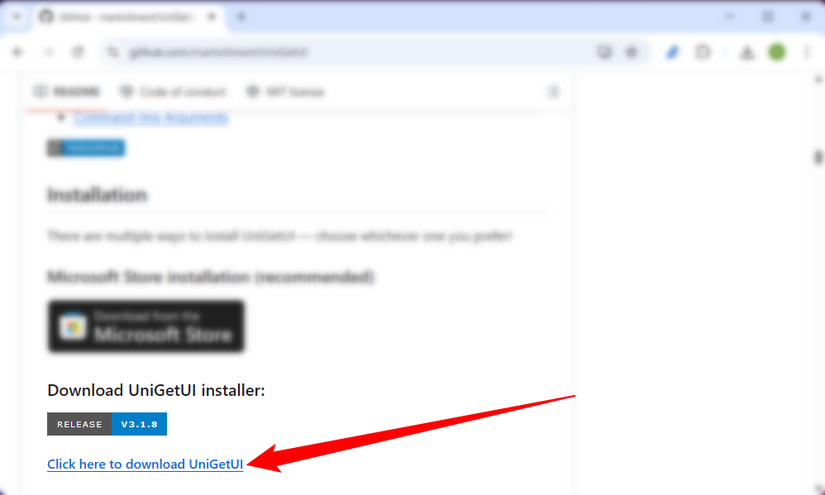
Once the executable has finished downloading, double-click it to install the program. If you are already a big fan of Winget, you can even use Winget to download UniGetUI!
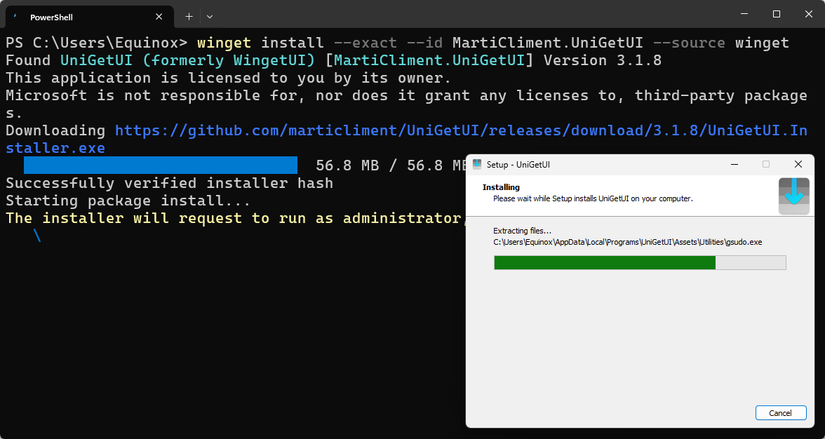
Open up a Terminal, then run the following command:
winget install --exact --id MartiCliment.UniGetUI --source winget
You’ll probably see a normal installation window appear at the same time.
Once UniGetUI is installed, you search for it and launch it like any other program.
The first screen you’ll see is the Discover Packages tab. Here you can search for applications and filter them according to their source. By default, UniGetUI includes additional sources besides Winget, like Chocolatey. I’d recommend sticking to the applications from Winget to start.
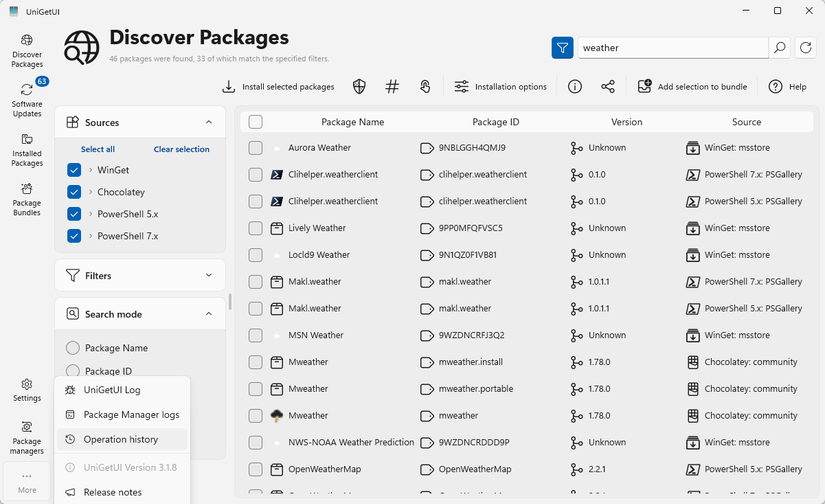
My favorite tab, however, is Software Updates. Updating all of your apps manually can be pretty tedious, especially since they aren’t always installed from the same source. Luckily, Winget (with UniGetUI) can handle updates for most programs you’ll install.
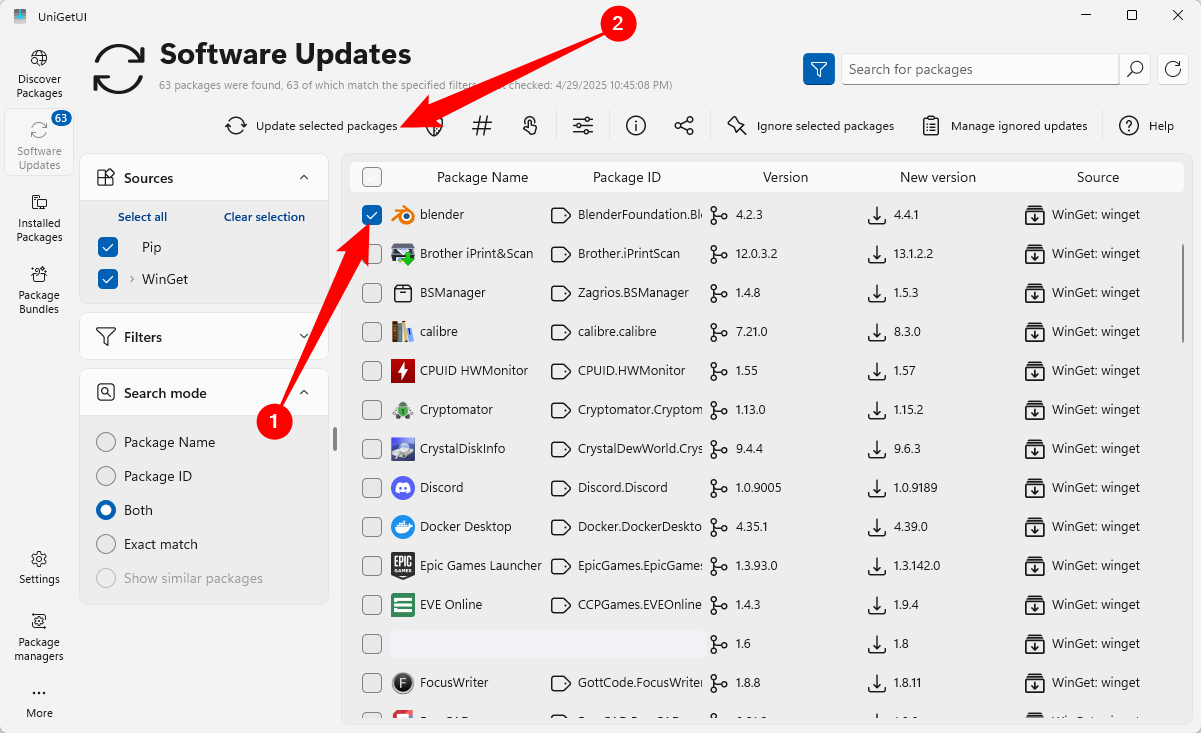
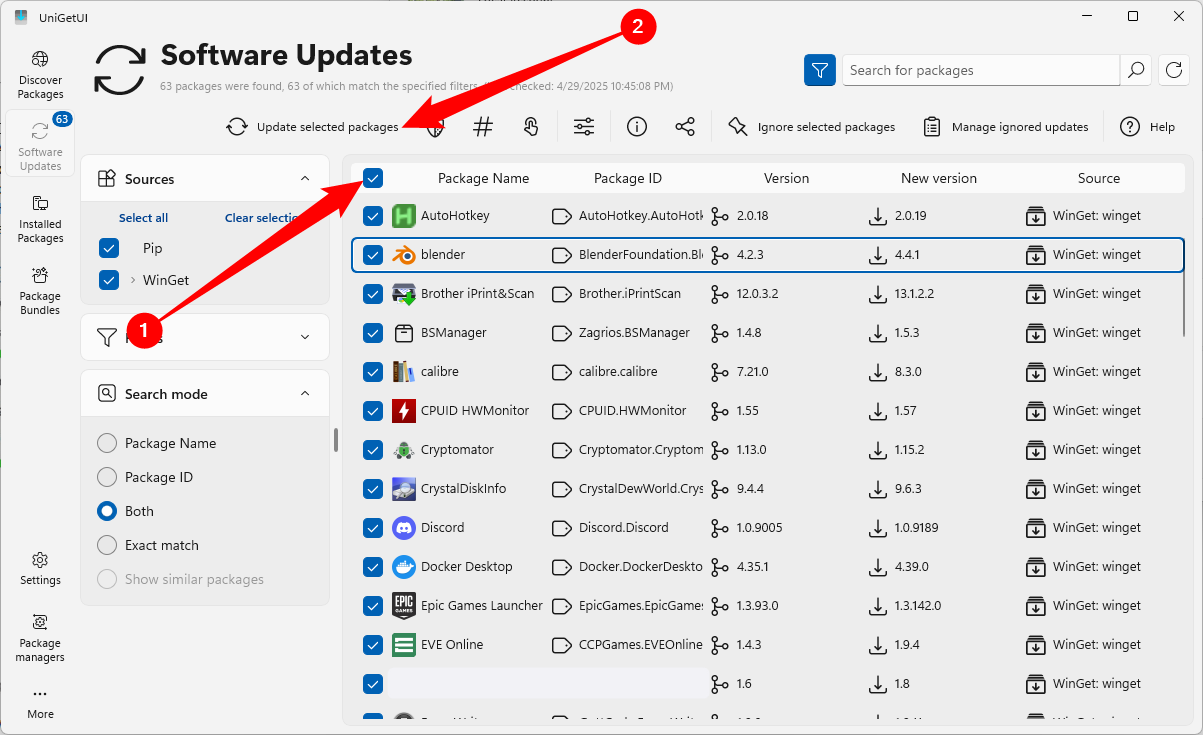
Tick the box next to the program and click “Update selected packages.” Alternatively, you could click the box in the top left corner to select and update all of your apps simultaneously.
Oftentimes, you’ll have a series of popups as winget runs updaters and prompts you to make choices (like what gets downloaded with an update). Additionally, you’ll occasionally need to grant something administrative permissions during the process, depending on what it is and where it is installed.
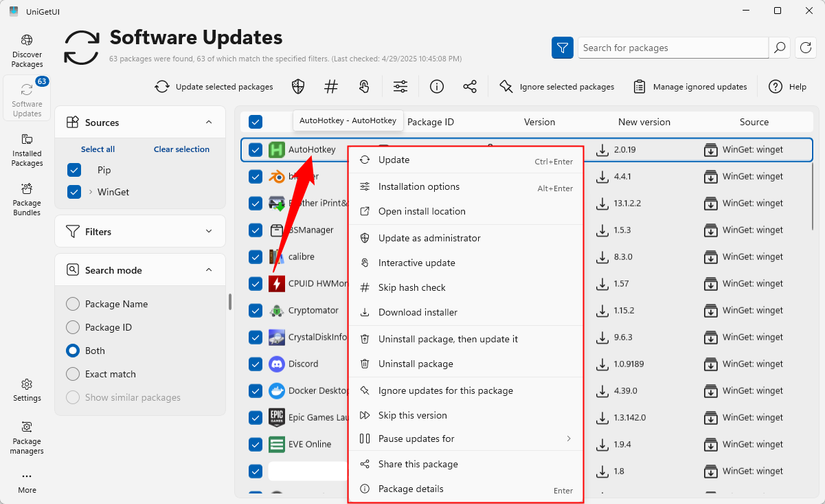
You can also right-click an app pretty much anywhere to do various things to it, like skip updates, uninstall it, and more.
By default, UniGetUI will display a small notification whenever any of your packages need an update, though you can disable this on an app-by-app basis, or completely, depending on your preferences.
UniGetUI also keeps a log of the actions you take, which can be helpful if you’re ever troubleshooting.
Leave A Comment?