
Situatie
Solutie
First, I checked how large Windows.db had become
Windows Terminal gave me the number without changing folder permissions
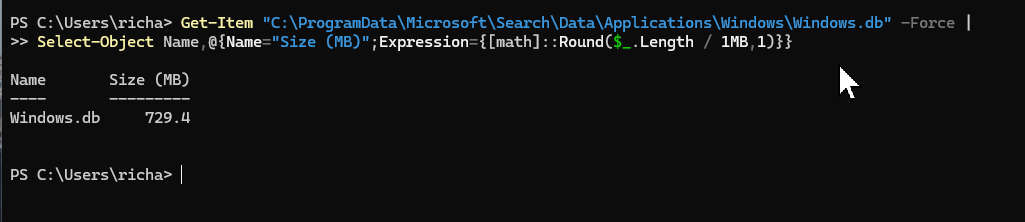
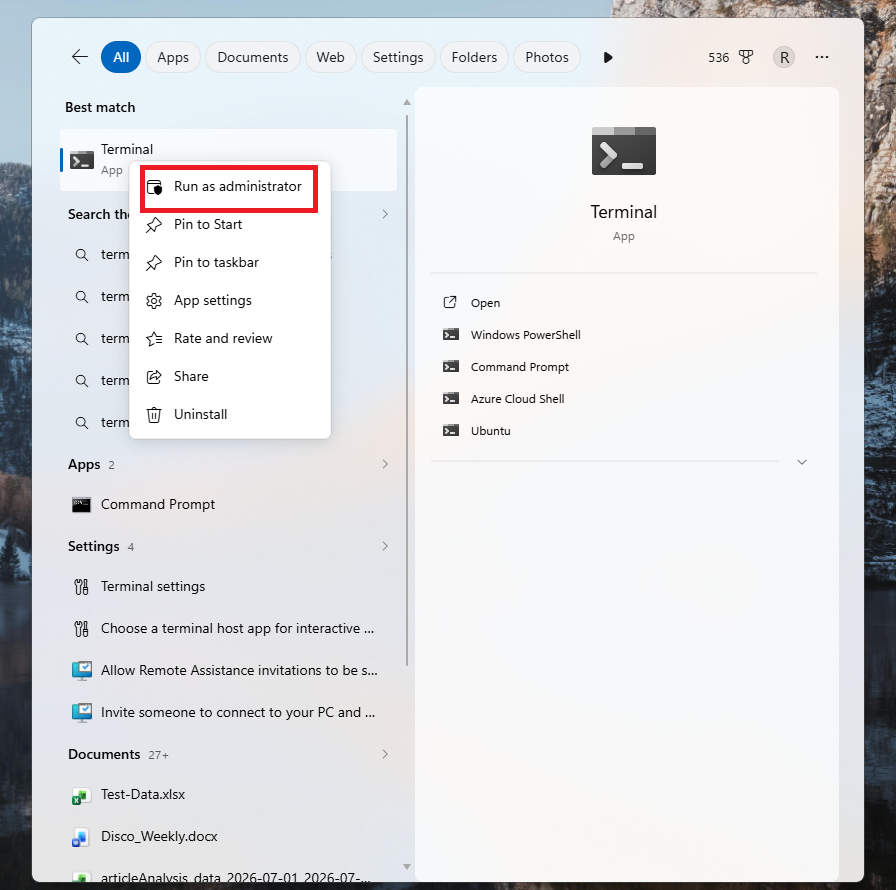
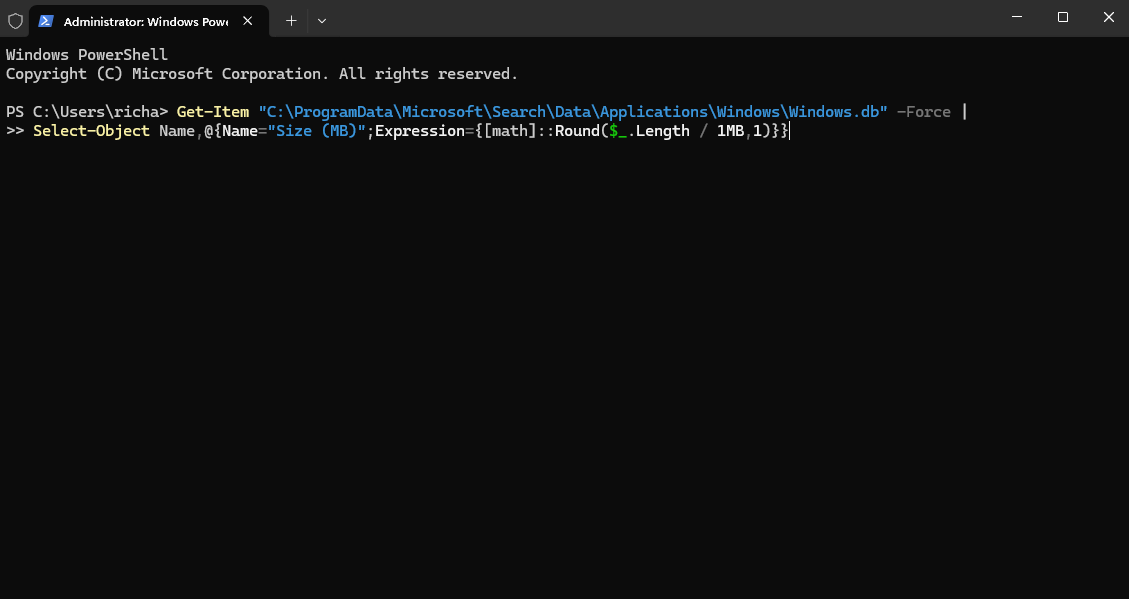
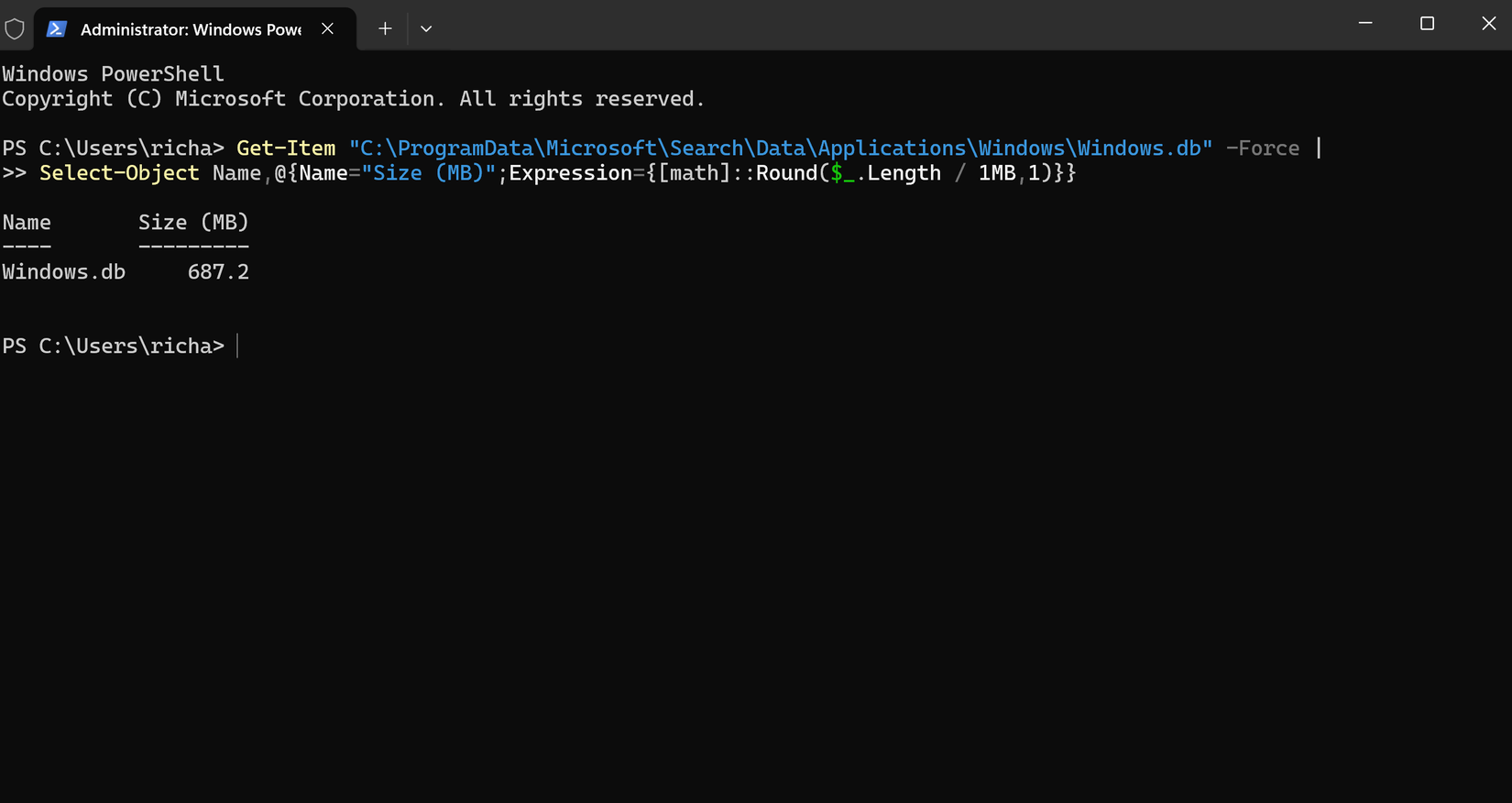
Windows doesn’t show the size of its search database anywhere in Settings, and the folder that contains Windows.db is protected. Rather than changing ownership of a system folder, I opened Windows Search, typed Terminal, right-clicked Terminal, selected Run as administrator, and clicked Yes when Windows asked for permission.
I then pasted the following command into the Terminal window and pressed Enter:
Get-Item "C:\ProgramData\Microsoft\Search\Data\Applications\Windows\Windows.db" -Force |
Select-Object Name,@{Name="Size (MB)";Expression={[math]::Round($_.Length / 1MB,1)}}
The command only reads the reported size of Windows.db. It doesn’t modify the file or change any permissions. The first time I checked Windows.db, it measured about 1.3 GB, which was larger than I expected for a search feature I rarely use. After moving from Enhanced to Classic search, it dropped to 729 MB.
With a starting point established, I could move on to reducing what Windows can index.
I reduced what Windows was allowed to index
Classic search covered what I needed without indexing everything
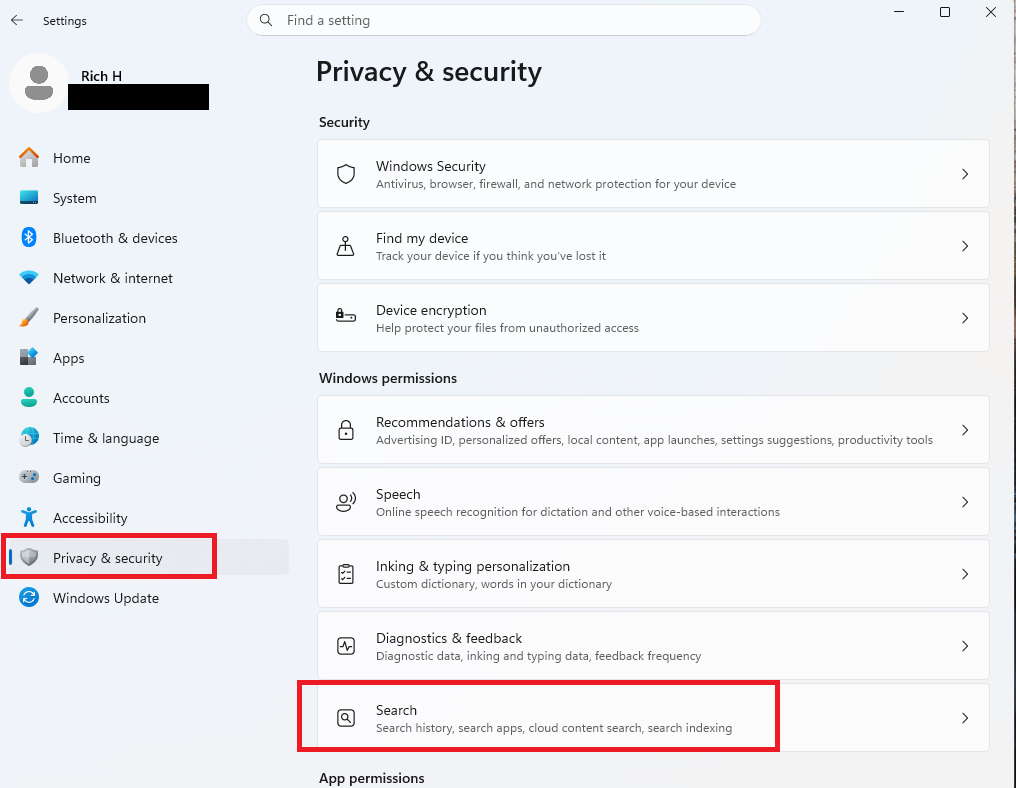
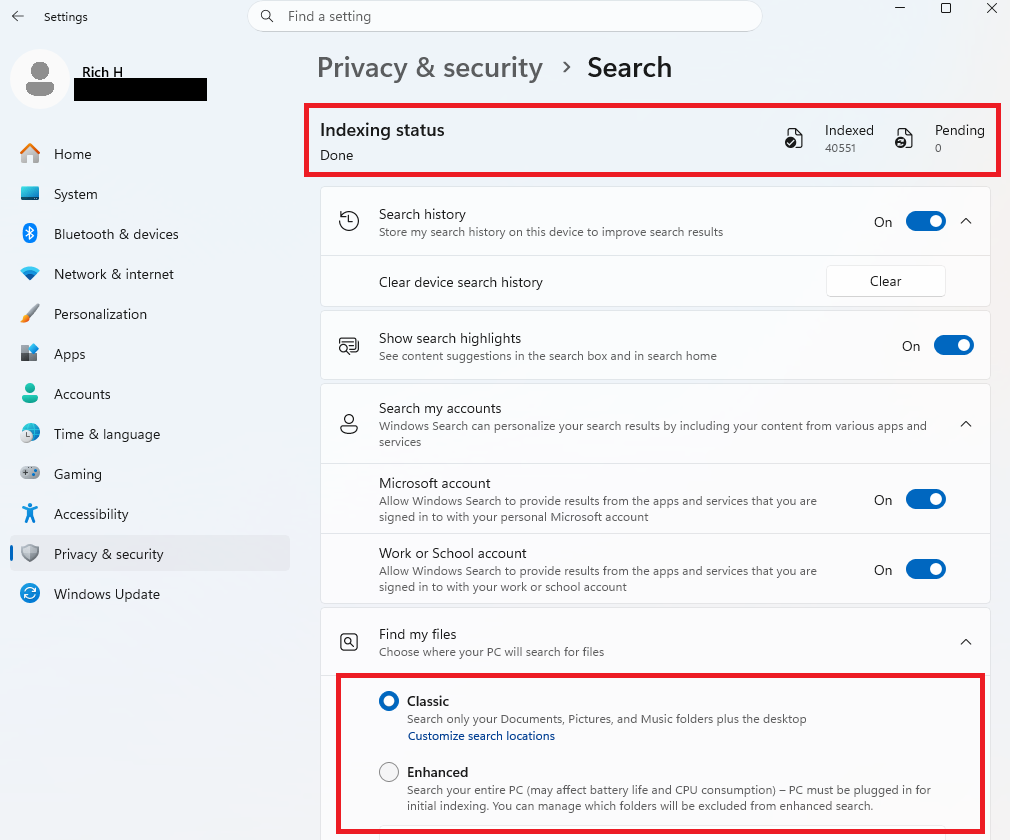
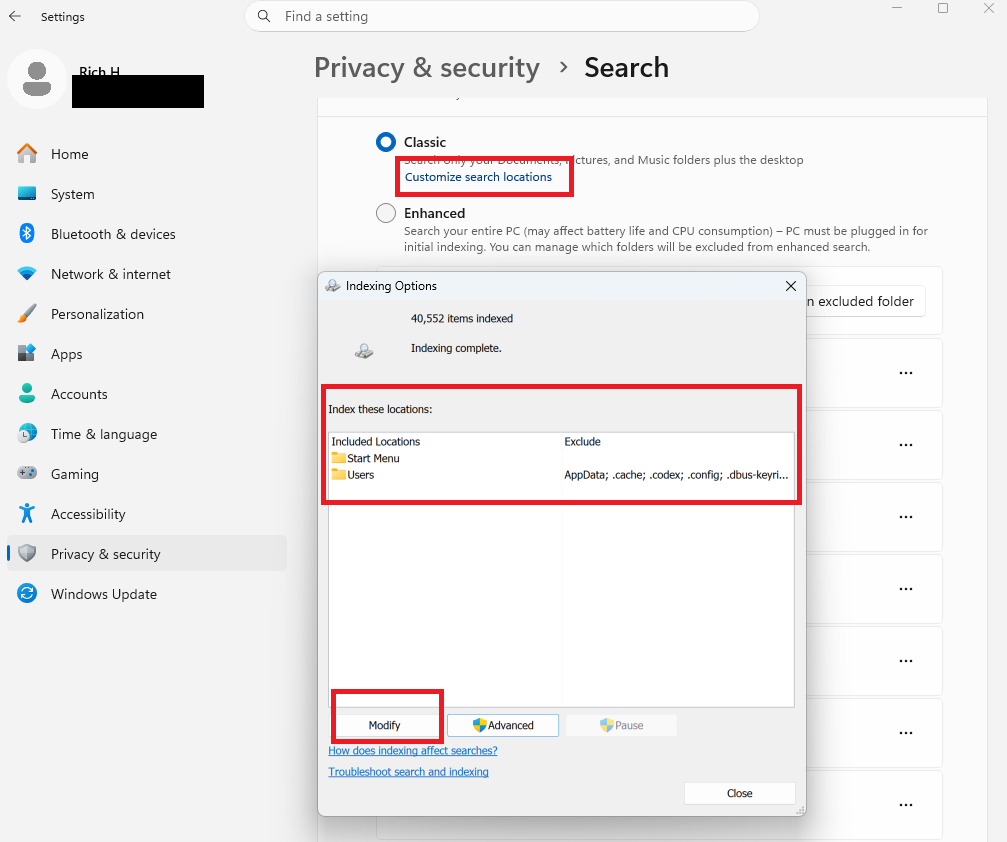
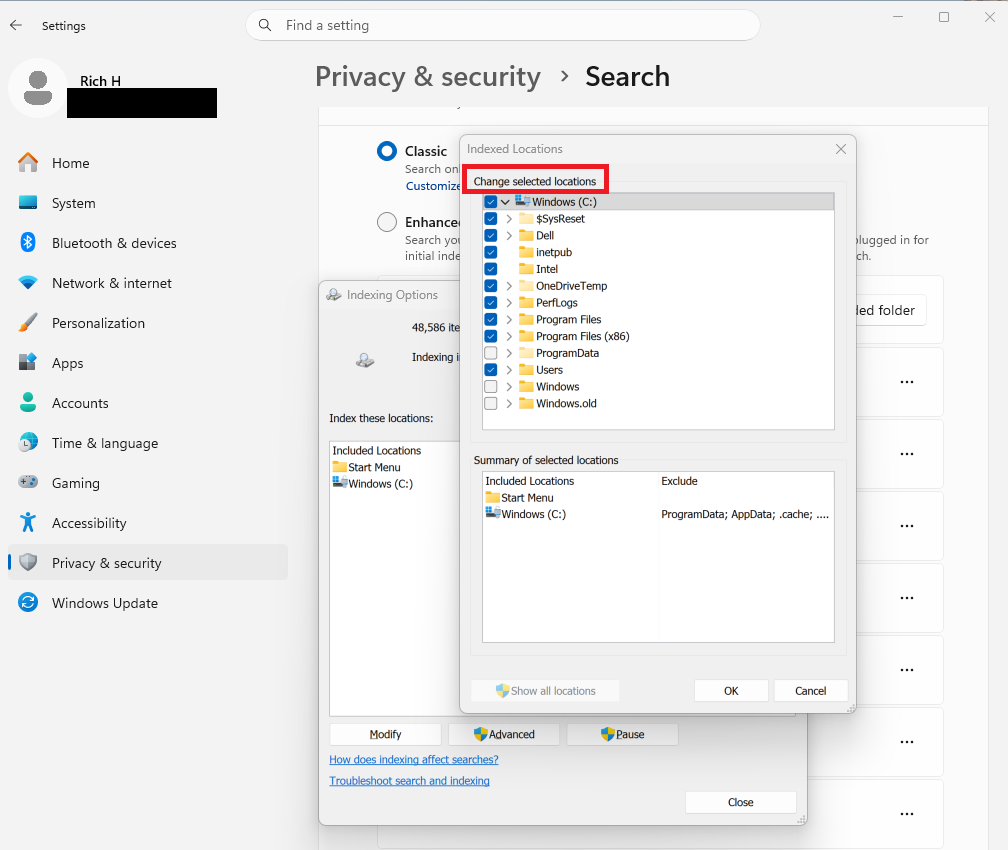
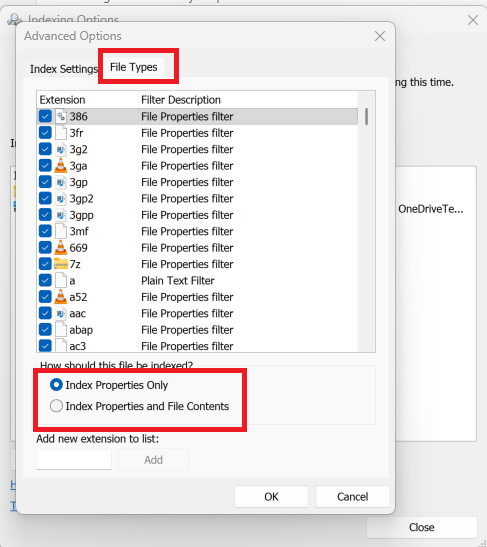
The difference between the two modes is fairly simple. Enhanced search indexes the entire PC, while Classic focuses on common locations such as the Start menu and user folders. Enhanced can be useful if you keep files scattered across several drives and rely heavily on Windows Search, but it was unnecessary for the way I use my computer. OneDrive was an easy exclusion because I don’t use it, and I had no reason to make my backups searchable. Downloads, video folders, game libraries, virtual machines, old project folders, and large archives are also worth reviewing because they can contain thousands of files that add to the index without making search meaningfully more useful.
Removing a folder from the index doesn’t delete anything or make it inaccessible. Files in that location may no longer appear in searches from the Start menu, while searches performed directly inside the folder through File Explorer may take longer. That tradeoff made sense for my backups and OneDrive folders, but readers who rely heavily on Windows Search may want to keep more locations included.
I rebuilt the Windows Search index
Windows created a new database using the smaller set of locations
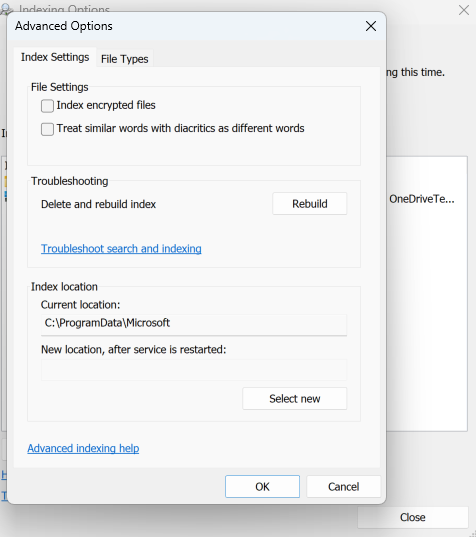
Once Indexing Options reported that indexing was complete, I ran the same Terminal command again. The reported size of Windows.db had dropped from the starting size of 1.3 GB to 687 MB, a reduction of roughly 613 MB without disabling Windows’ built-in search.
Rebuilding the index fixed the immediate problem, but the more important change was reducing what Windows was allowed to search. By enabling Classic search and excluding OneDrive, backups, and other folders I don’t use, Windows now has far fewer files to track.
Leave A Comment?