
Situatie
To create a Windows 11 26H2 bootable USB for unsupported hardware using an existing ISO file, connect a USB flash drive of at least 16GB and follow these steps:
Solutie
2. Click the link to download the latest version under the “Download” section.
3. Double-click the rufus.x.xx.exe file to launch the tool.
4. Select the USB flash drive from the drop-down menu under the “Device” section to create Windows 11 bootable media.
5. Click the Select button.
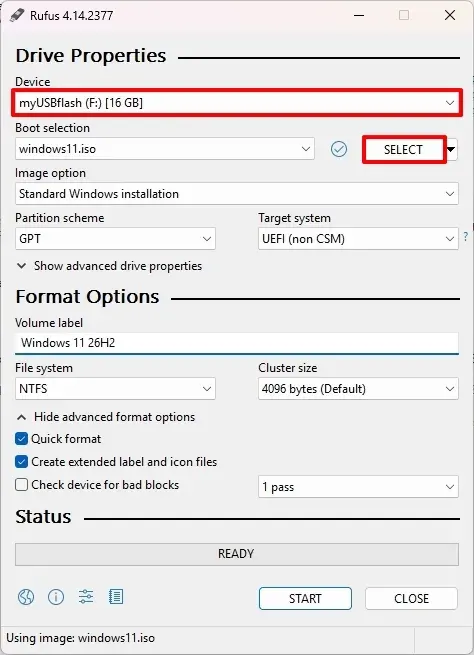
6. Select the Windows 11 26H2 ISO file.
7. Click the Open button.
8. Select the “Standard Windows 11 Installation” option under the “Image option” setting.
9. Select the GPT option under the “Partition scheme” section.
10. Choose the UEFI (non-CSM) option under the “Target system” section.
11. Specify a descriptive name for the bootable USB drive in the “Volume label” section—for example, “Windows 11 26H2 Setup”.
12. Use the default settings for the File system and Cluster size options.
13. Check the Quick format option.
14. Check the “Create extended label and icon files” option.
15. Click the Start button.
16. Check the “Remove requirement for 4GB+ RAM, Secure Boot and TPM 2.0” option to install version 26H2 on unsupported hardware.
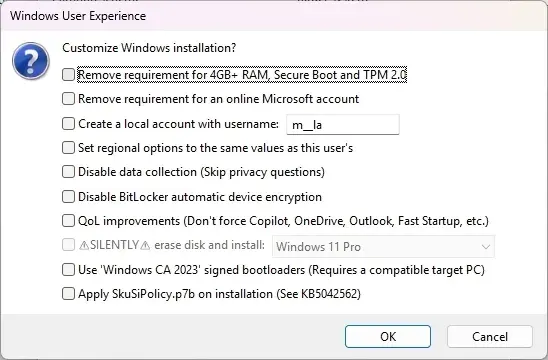
17. Check the “Remove requirement for an online Microsoft account” option to bypass the internet and Microsoft account requirements and create a local account.
18. (Optional) Check the “Create a local account with username” option and specify an account name to create a local account automatically.
19. Check the “Disable BitLocker automatic device encryption” option to prevent the setup from enabling BitLocker during the installation
20. Click the OK button..
Leave A Comment?