
Situatie
To create a Windows 11 26H2 bootable USB with Ventoy, connect a flash drive with enough space (8GB or more) and follow these steps:
Solutie
1. Open the Ventoy GitHub page.
2. Click the ventoy-x.x.xx-windows.zip file under the “Assets” section and download it to your computer.
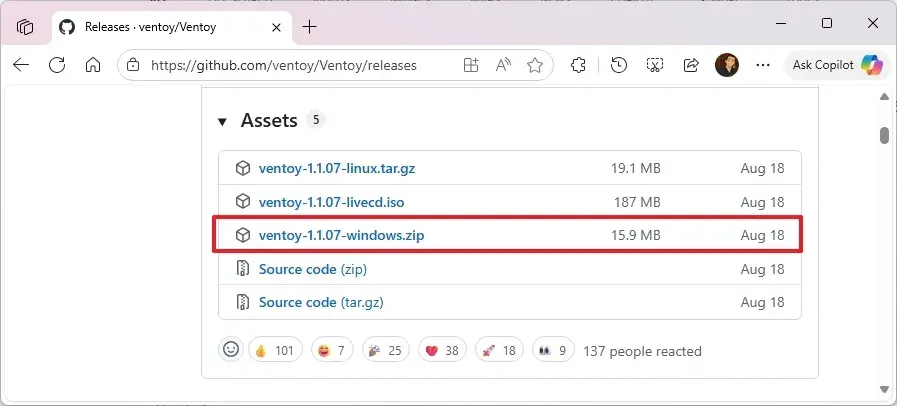
Quick note: You may need to force and keep the file, as the browser may detect it as malicious.
3. Open File Explorer.
4. Open the ZIP folder location.
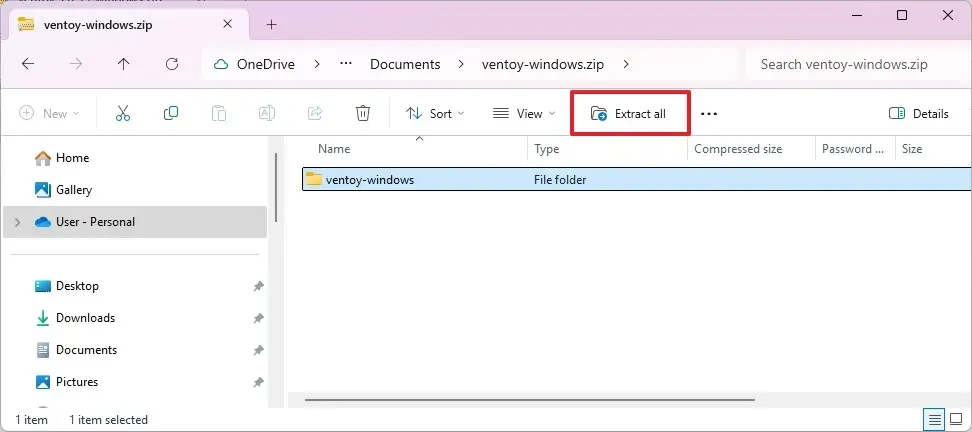
5. Double-click to open the ventoy-x.x.xx-windows.zip file.
6. Click the Extract all button from the command bar.
7. Click the Browse button.
8. Select a location to extract the files.
9. Click the Select Folder button.
10. Click the Extract button.
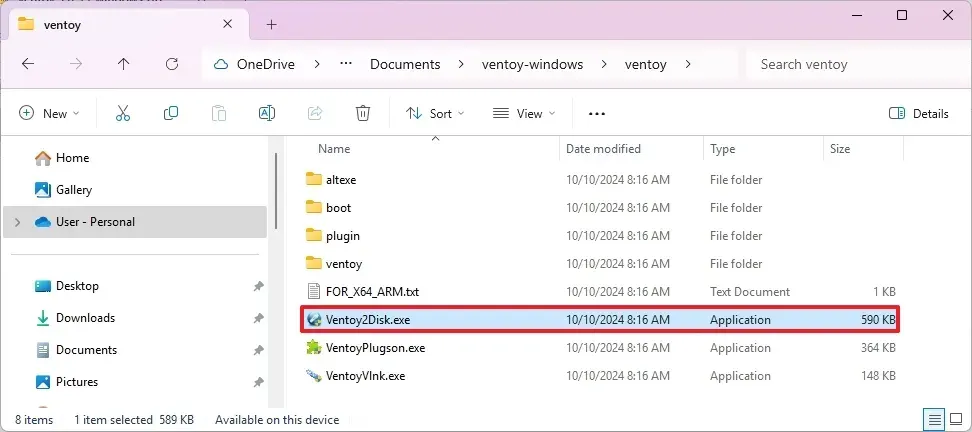
11. Open the ventoy-x.x.xx folder.
12. Double-click the Ventoy2Disk.exe file to launch the installer.
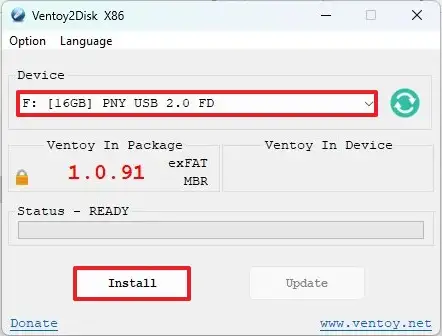
13. Choose the USB flash drive from the “Device” setting.
14. Click the Install button.
15. Click the OK button.
16. Click on This PC from the left pane of File Explorer.
17. Open the Ventoy drive.
18. Copy and paste the Windows 11 26H2 ISO files to make them bootable.
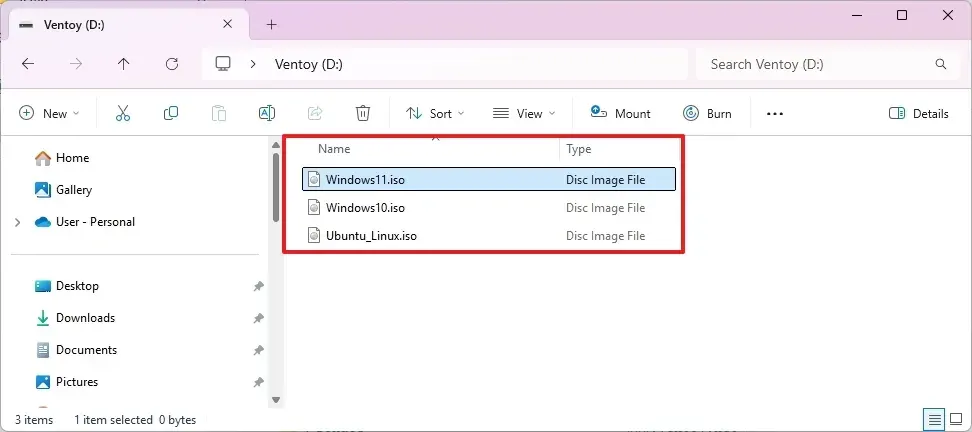
After completing the steps, you can use the USB flash drive to boot a device with the Ventoy tool and launch the Windows 11 26H2 installation on computers that don’t meet the hardware requirements and on compatible devices.
Since Ventoy can hold multiple ISO files, you can add images for other versions of Windows and other platforms, such as Linux.
Leave A Comment?