Soluții

Restore Classic Context Menu in Windows 11

The right-click context menu for Desktop and File Explorer has been redesigned in Windows 11 to have a modern look, but with limited functionality when compared to Windows 10’s menu. The new context menu has a minimalistic design but can be confusing for those accustomed to Windows 10. You can quickly bring back the classic right-click context menu on Windows 11 in just a few clicks:

[mai mult...]

How to use eCryptfs on Linux

eCryptfs is a powerful encryption tool for Linux that allows users to encrypt and decrypt files and directories on their system. It is a popular option for securing sensitive data on Linux systems.

Install eCryptfs

eCryptfs is already included in the official Ubuntu repositories, so we can install it using the apt command. Open the Terminal in your Ubuntu system by pressing Ctrl+Alt+T. Now in the Terminal, execute this command to install eCryptfs:

$ sudo apt install ecryptfs-utils –y

Encrypt Directories using eCryptfs

For instance, I want to encrypt the “Myfiles” directory under my Home directory. In this case, the command would be:

$ sudo mount -t ecryptfs ~/Documents/Myfiles/ ~/Documents/Myfiles/

When you run the above command, you will be asked to provide some details along with passphrase. The passphrase is actually the encryption key that will be used to later to decrypt the encrypted directory.Also, note that the details you provide will be later used when remounting the directory.

Now the directory is encrypted and mounted. You can verify it by running the following command:

$ mount | grep ecryptfs
Verifying Encryption

Let’s create a document in the mounted directory using the Nano editor.

$ sudo nano ~/Documents/Myfiles/sample.txt

Now add some text in the file and press Ctrl+O and Ctrl+X to save and exit the file respectively. Now try to view this document using the cat command:

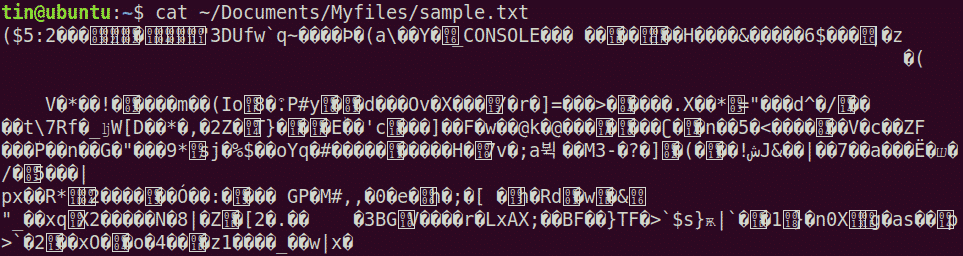
$ cat ~/Documents/Myfiles/sample.txt

You will see that the document is unencrypted and you can view the content. It is due to the reason that the directory is mounted at this time. Remember that as long as the directory is mounted, you will be able to see the content unless you unmount it.

Now let’s try unmounting the directory. Use the following syntax to do so:

$ umount [mounted_directory]

In this case, it would be:

$ umount ~/Documents/Myfiles/

As the directory is unmounted, so now let’s view the document using the cat command. This time, you will not be able to view the original content. Instead, you will see the encrypted text.

To access your files again, you will need to re-mount them and enter the same passphrase and details you have set earlier while mounting for the first time.
[mai mult...]

How to turn off the Linux login banner

When you log into Linux, either via SSH or the console, you are greeted with a banner containing important information. If you do everything you can to protect your Linux server, the information this banner reveals can be a gold mine for strangers and potential attackers. Information such as kernel version, distribution type, available updates, and much more can be exposed.

How to disable the login banner on Linux or Unix with .hushlogin
  • First, create a new empty individual file in your login directory ($ HOME) called ~ / .hushlogin. At the Linux or Unix shell prompt, type the following touch command: touch ~/.hushlogin
  • That is all. Now try to login with ssh command: ssh vivek@192.168.2.17
Disable the login banner on Linux or Unix using the .hushlogin file
  • touch ~/.hushlogin
  • #OR#
  • touch $HOME/.hushlogin
  • #BASH#
  • >$HOME/.hushlogin

In summary, the .hushlogin file suppresses login messages in Linux or Unix, and using ssh command you can log in without revealing sensitive information about the system.

[mai mult...]