Soluții

Troubleshoot Conectare Wireless

Ne aflam in situatia in care, avem un device pe care dorim sa-l conectam Wireless la o retea locala/persoanala si intampinam diverse probleme de conexiune si/sau de semnal.

In teorie, procedeul este unul simplu: pe baza unui Nume si a unei Parole, incercam sa conectam Device-ul la retea, pentru a avea acces la pachetul de date/internet; Dar, ce facem cand conexiunea este slaba/inutilizabila doar pe acest device?

[mai mult...]
Create a Recovery HD Volume on OS X El Capitan and Later

Creating a Recovery HD volume on an internal drive in OS X El Capitan and macOS Sierra and later is a bit more cumbersome. That’s because, with the advent of OS X El Capitan, Apple removed the hidden Disk Utility Debug menu. Since Disk Utility can no longer access the hidden Recovery HD partition, we have to use a different method, specifically, Terminal and the command line version of Disk Utility, diskutil.

[mai mult...]

Create a Recovery HD Volume on OS X Lion Through OS X Yosemite

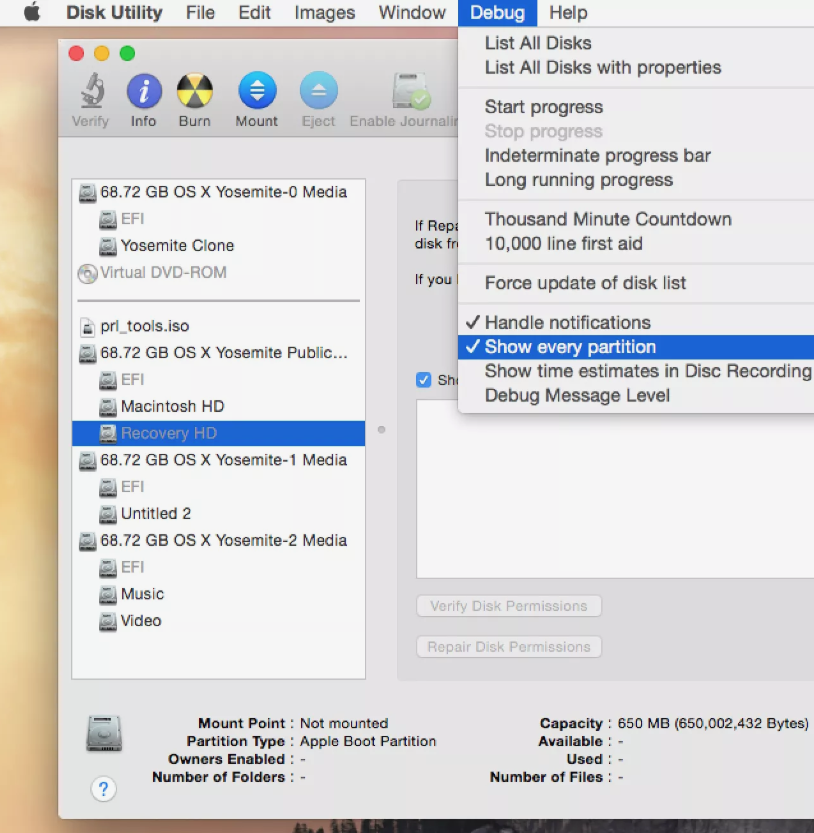
The Recovery HD volume is hidden; it won’t show up on the desktop, or in Disk Utility or other cloning applications. In order to clone the Recovery HD, we must first make it visible, so that our cloning application can work with the volume.

With OS X Lion through OS X Yosemite, we can use a hidden feature of Disk Utility. Disk Utility includes a hidden Debug menu that you can use to force hidden partitions to be visible in Disk Utility. This is exactly what we need, so the first step in the cloning process is to turn on the Debug menu. You can find instructions here:

  • Enable Disk Utility’s Debug Menu

Remember, you’ll only find the Disk Utility Debug menu available in OS X Lion through OS X Yosemite. If you’re using a later version of the Mac OS, jump ahead to the next section. Otherwise, follow the guide to make the Debug menu visible, and then come on back and we’ll continue the cloning process.

[mai mult...]

Repair Your Mac’s Drives With Disk Utility’s First Aid

Disk First Aid and the Startup Drive

You can use Disk Utility’s First Aid on your Mac’s startup drive. However, in order for First Aid to perform any repairs, the selected volume must first be unmounted. Your Mac’s startup drive can’t be unmounted since it’s in use, which means you will have to start up your Mac from another bootable device. This can be any drive that has a bootable copy of OS X installed; alternatively, you can use the Recovery HD volume that OS X created when it was installed on your Mac.

We’ll give you instructions for using Disk Utility’s First Aid on a non-startup volume, and then for using First Aid when you need to repair your Mac’s startup volume. The two methods are similar; the main difference is the need to boot from another volume instead of your normal startup drive. In our example, we’ll use the Recovery HD volume that was created when you installed OS X.

[mai mult...]

Use OS X Combo Updates to Correct Installation Problems

Apple routinely releases updates to OS X that are available through the Software Update process or the Mac App Store, depending on the version of OS X you are using. These software updates, available from the Apple menu, usually provide the simplest method for ensuring your Mac’s operating system is kept up to date. They can also cause problems, particularly if your Mac should freeze, lose power, or otherwise prevent the update from completing. When this occurs, you end up with a corrupt system update, which may manifest itself as simple instability: occasional freezes or the system or applications locking up. In the worst-case scenario, you may have problems booting, forcing you to consider reinstalling the OS.

Another problem is related to OS X’s incremental approach to updates. Since Software Update only downloads and installs system files that need to be updated, you can end up with some files being out of date with respect to other system files. This can result in infrequent system or application freezes, or the inability of an application to launch.

Although the Software Update problem is infrequent, and most Mac users will never see it, if you’re having some unexplained issues with your Mac, the Software Update problem could be the culprit. Eliminating it as a possibility is very easy to do.

[mai mult...]

Parcurgerea diagonalei secundare

Conform definitiei, o matrice este reprezentata de un tablou (vector) cu m linii si n coloane, ale carui elemente pot fi reprezentate de numere complexe.
Un vector poate avea mai mult de o dimensiune. De exemplu, declararea unui vector int[,] m = new int[m,n] inseamna crearea unui vector cu m linii si n coloane.
O matrice se numeste patratica daca numarul de linii este egal cu numarul de coloane ale matricei. O matrice patratica are doua diagonale: diagonala principala (care uneste primul element al matricei, m[0][0], cu ultimul element, m[n-1][n-1]) si diagonala secundara (care uneste ultimul element de pe prima linie, m[0][n-1], cu primul element de pe ultima linie, m[0][n-1]).
Elementele de pe diagonala secundara sunt:m[0][n-1]m[1][n-2]m[2][n-3], …, m[n-1][0]. Observam ca pe diagonala secundara cand indicele liniei creste cu 1, indicele coloanei scade cu 1.

[mai mult...]