Cum să activați root user pe Mac sau cum să schimbați parola de la root
Cum sa schimbi parola de la root user urmand sa poti schimba si parola de la conturi de administrator.
[mai mult...]

Soluții pentru problemele tale IT

Cum sa schimbi parola de la root user urmand sa poti schimba si parola de la conturi de administrator.
[mai mult...]
The following tutorial demonstrates how you can edit file timestamps — create, last access and last write — using Windows PowerShell.
PowerShell is part of any modern version of Microsoft’s Windows operating system. Microsoft shifted to PowerShell away from the Command Prompt on Windows 10, but did not remove the command prompt doing so.
Windows 10 users and administrators have access to both, but the development focus lies clearly on PowerShell.
Each file on Windows, and other operating systems as well, has several timestamps associated with it. The file system keeps track of the files creation time, last access time, and last write time.
[mai mult...]Microsoft improved the screenshot taking functionality of Windows in Windows 10 significantly. The operating system comes with plenty of options to take screenshots, and one of the easiest options is to use the keys Windows+Print for that.
A new screenshot is saved to the default Screenshots directory on the system whenever you use the keyboard shortcut. You can open File Explorer manually and select Pictures in the sidebar to open it, or load %userprofile%\Pictures\Screenshots directly instead anywhere provided that an address bar is available.
Windows assigns file names to screenshots automatically. Each file name begins with Screenshot but since file names need to be unique, a counter is added to the file name. Windows increases the counter by 1 each time you take a new screenshot on the system. The index is incremented by 1 automatically so that you end up with names like Screenshot (1).png, Screenshot (2).png and so on.
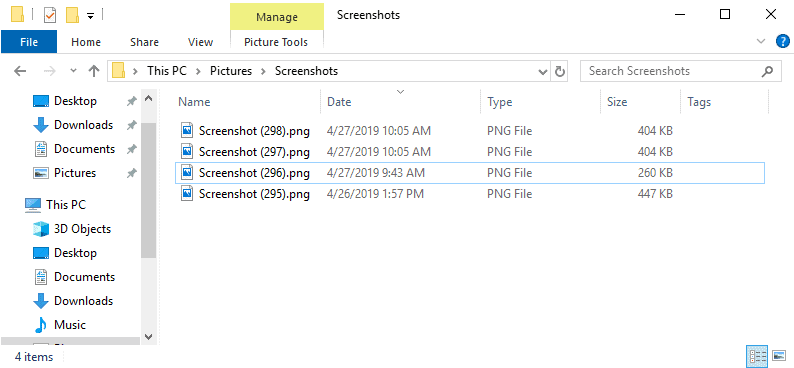
The counter is not reset, even if you delete files in the Screenshot directory or move all files to another location. Windows remembers the last used number and will increment it by 1 automatically.
[mai mult...]Cum să inserați sau să modificați o semnătură de e-mail Outlook 2019/365?
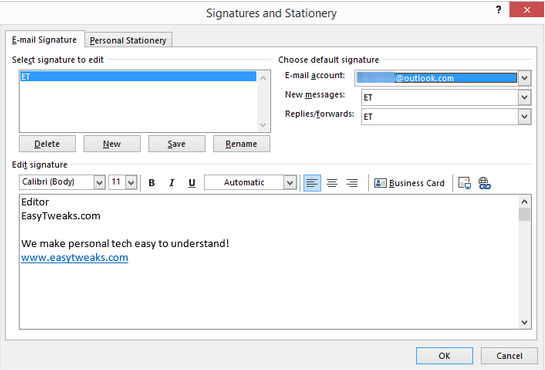
6. Apsati pe New.
7. Utilizați caseta Edit signature pentru a vă personaliza textul după cum este necesar.
8. Rețineți că puteți adăuga cu ușurință linkuri (la site-ul dvs. web și / sau adresa de e-mail), imagini și o carte de vizită la semnătura dvs. Ați putea chiar să faceți o semnătură scrisă de mână frumos și să o atașați la e-mailul de ieșire.
9. Utilizați E-mail account pentru a asocia o semnătură implicită la diferite conturi de e-mail (Gmail / Yahoo / Exchange / Outlook), după cum este necesar.
10. Specificați dacă setările dvs. trebuie utilizate pentru un e-mail nou / atunci când răspundeți sau în ambele cazuri.
11. Rețineți că puteți crea cât mai multe înregistrări de semnătură. Acest lucru vă permite să configurați semnătura diferită pentru utilizări profesionale, de afaceri și personale. Trebuie doar să vă asigurați că intrarea respectiva este asociată cu contul de e-mail potrivit
12. Odată terminat, OK.
[mai mult...]On rare occasions, you may find that the Drive letter is missing from File Explorer following the installation of an Update . If you have experienced this issue, here’s a way to get past the problem.
A drive letter represents a single alphabetic character (typically through A-Z) that can be assigned to the following-
Generally, drive letter C: is assigned to the first disk partition where the running Windows is installed. So, if this fixed drive letter/s is missing from either Windows File Explorer or Disk Management, it can cause inconveniences or even makes the partition inaccessible. To fix this issue, you can:
The above steps can help you to get the missing drive letter back.
Dacă aparatul dvs. este pe un domeniu Windows AD și doriți să-l mutați în grupul de lucru local, puteți urma acest tutorial.
[mai mult...]