

Soluții
Drop CSTM80 -review
The CSTM80 is — as you might expect from the name — a mechanical keyboard that’s designed to be customized. Just about everything, from the top plate to the case weight, can be swapped out, and Drop sells additional case plates, switch plates, keycaps, and case weights on its site. The keyboard comes with Gateron Brown Pro 3.0 or Milky Yellow KS3 switches and a polycarbonate top plate, as well as ABS keycaps with shine-through side legends. It’s not designed to be a gaming keyboard, necessarily, but it does boast a 1,000 Hz polling rate and N-key rollover. And its TKL layout is the perfect size for most gamers.
The CSTM80 is a wired mechanical gasket-mount keyboard with a tenkeyless (TKL) layout, which means it has a full function row, arrow keys, and a 3 by 2 navigation cluster. It also has an extra F13 function key, but no rotary knob.
The CSTM80 has a polycarbonate case with a decorative magnetic top case. The base keyboard comes with a black ABS top case and matching black ABS keycaps with shine-through side legends. Drop sells additional top cases in various colors, patterns, and materials, which you can find on their CSTM80 collection page.
The black case that the keyboard comes with is nicely made, if a bit boring, with a half-inch bezel that surrounds the keyboard and a chamfered edge. The keyboard measures 14.7 inches (374mm) wide by 5.8 inches (148mm) deep, and is 1.3 inches (34mm) thick at its thickest point. It weighs about 2.8 pounds (1,272g) with the included ABS top case and keycaps installed, but you can change the weight by adding a heavier top case or replacing the keyboard’s standard aluminum case weight with one of Drop’s custom options (replacing the case weight is slightly trickier than replacing the top case, as you’ll need to unscrew it from inside).
The keyboard measures about 0.74 inches (18.7mm) at the front, so it’s high enough that some people might want a wrist rest, though I didn’t feel the need to use one. The board has a typing angle of 6 degrees.
The back of the keyboard has four anti-slip rubber feet and a standard silver brushed aluminum keyboard weight, which is replaceable. In the box, the CSTM80 comes with a braided USB-C to USB-A cable, a keycap puller, a switch puller, optional Mac keycaps, and extra gaskets.
[mai mult...]SteelSeries Aerox 9 Wireless -review
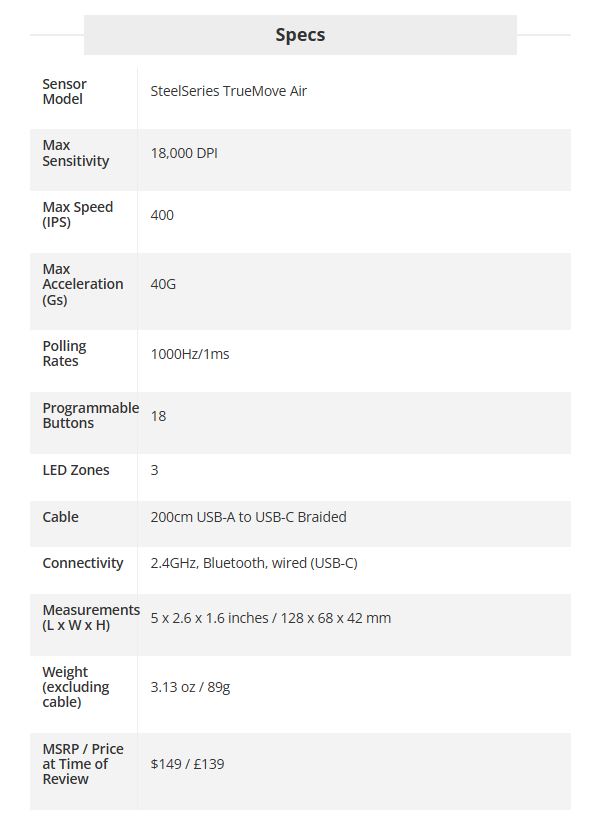
The Aerox 9 is a medium-large mouse measuring 5 inches (128mm) long, 2.6 (68mm) inches wide, and 1.6 inches (42mm) high. It weighs just 3.13 ounces (89g), which is fairly light for a mouse with so many buttons. It’s a good mouse for gamers with larger hands, but if your hands are on the smaller size it could be uncomfortable. The mouse wheel is sunk into the chassis and has a low profile, which improves access for scrolling but makes using the tilt function difficult.
Now for the most important part: the Aerox 9 has 18 programmable buttons, most of which are on the elongated 12-button side panel. The other buttons are the left/right primary buttons, the tilt wheel (left, right, middle click), and the DPI switch button behind the mouse wheel.
On the bottom of the mouse, you’ll find two large 100% PTFE mouse feet, plus a small PTFE circle around the sensor. This allows the mouse to freely glide around your mouse mat with minimal drag. The mouse is also touted as having an “Aqua Barrier” with an IP54 rating to protect its inner workings from dust, debris, and accidental drink spills (which we know all too well have dispatched a few peripherals to the bin).
In the box, you get the Aerox 9 mouse, a 6.5-foot (2m) braided USB-C to USB-A cable, a USB-C to USB-C wireless extension adapter, and the 2.4GHz wireless USB-C dongle.
How to use YouTube Premium as a productivity App
How to optimize Windows 11 for older PCs
Windows 11 offers various visual effects to enhance user experience. However, these effects use up quite a lot of PC resources, often causing older PCs to run slower. To fix that, turn off all or select effects on your system.
- To do that, launch Windows Search (press Windows+S), type View Advanced System Settings, and select the item with that name.
- On the window that opens, in the Performance section, click “Settings”
- On the Performance Options window, enable the “Adjust for Best Performance” option. This ensures you get the most performance out of your current hardware.
- If you want to choose the visual effects to disable, select the “Custom” option.
- Then, select the effects you would like to enable or disable. This gives you more control as to what remains turned on and off on your system.
- After making either change, click “Apply” followed by “OK” at the bottom.
Prevent Apps from automatically Launching on your PC’s Startup
Windows 11 automatically launches various apps when you turn on your computer. Either these apps or a user has configured these apps to automatically open on your PC’s boot. These apps can slow down your system’s performance even if you don’t use them. It’s a good idea to disable these apps.
- To do that, right-click the Windows taskbar and choose “Task Manager”
- In Task Manager, from the left sidebar, select “Startup Apps”
- In the right pane, each app whose Status column says Enabled automatically opens on your PC’s boot.
- To disable such apps, right-click an app and choose “Disable”
- Do this for all the apps you don’t want automatically launching.
Many Windows 11 updates bring bug fixes and performance improvements, allowing the operating system to run smoother on your computer. Therefore, it’s important to keep Windows up to date.
- To update your Windows 11 system, launch Settings by pressing Windows+i. From the left sidebar, choose “Windows Update.” On the right pane, click “Check for Updates”
- Allow Windows 11 to download the available updates. Then, install those updates and reboot your computer.
Update Device Drivers
Older device drivers often have bugs and performance issues, which newer versions fix. Keeping your device drivers up to date ensures Windows 11 runs smoothly on your computer.
You have multiple ways to update device drivers on your Windows 11 PC. One way is to update Windows, which automatically downloads and installs the latest drivers. Another way is to visit the device manufacturer’s site and manually download and install the drivers.
- Expand the section for your specific device, right-click the device, and choose “Update Driver”
- On the window that opens, click “Search Automatically for Drivers” to let Windows automatically find and install the available drivers.
- If you want to manually choose the folder where the drivers are located, select “Browse My Computer for Drivers.” Click “Browse” and choose your driver folder, then click “Next”
Use High-Performance Power Plan
Windows 11 offers multiple power plans and you can use the ones that suit your needs. For better system performance, switch to a high-performance plan, which is designed to help you get the most performance from your hardware.
- To make that change, open Run by pressing Windows+R. Type the following in the open box and select “OK” or press Enter:
powercfg.cpl
- On the open window, enable the “High Performance” plan.
If you don’t see that plan, in the left sidebar, click “Create a Power Plan.” On the following page, select “High Performance.” Click the “Plan Name” field and type a name for the plan. Then, choose “Next” and activate the newly created plan.
Windows 11’s widgets let you take a quick peek at various pieces of information, but these widgets are always running in the background, consuming your PC resources. If you don’t use this feature, it’s a good idea to turn it off.
- To do that, right-click the Windows taskbar and choose “Taskbar Settings”
- On the following page, in the Taskbar Items section, turn off “Widgets”
- Later, you can re-enable widgets by turning on the “Widgets” toggle.
Creating a folder with specific permissions in Active Directory
Pentru a putea crea un folder cu drepturi de scriere sau citire, este necesar ca întâi de toate să se creeze un grup in Active Directory.
[mai mult...]