
Situatie
There was a time when you could get by with a few minor tweaks to the default settings, or even some lightweight de-bloating script when setting up a fresh Windows system. That time was before Windows 11. The vanilla version of Windows 11 is practically unusable for me, and it takes a whole rigmarole to make it usable.
Solutie
Use a local account
Microsoft really, really wants you to use an online account Modern versions of Windows now force users to sign in with an online Microsoft account in order to install and use the OS. It started with a simple prompt request which you could skip. Then Microsoft took away the button, so you needed to disconnect from the internet to create a local account. Then Microsoft took away the option entirely, and the installer would not let you proceed unless you were connected to the internet and signed in with a Microsoft account.
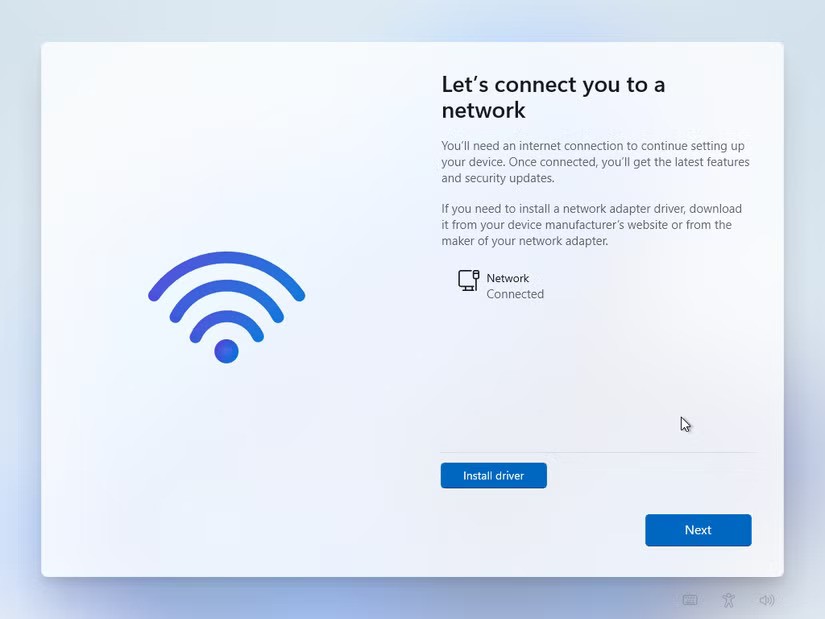
People still find workarounds to install local accounts, but Microsoft has patched quite a few of them already. At the time of this writing, you can still bypass this restriction by opening a command prompt window (CMD) and running this command.
reg add HKLM\SOFTWARE\Microsoft\Windows\CurrentVersion\OOBE /v BypassNRO /t REG_DWORD /d 1 /f
When you reboot into the installer, it will restore the “I don’t have internet” button, which Microsoft removed. Make sure you’ve disconnected from the internet before rebooting though.

Microsoft will probably patch this workaround at some point, which is why it’s better to modify the installer image (the .iso file) directly.
Customize the installer
Instead of trying to wrestle with the OS after the fact, you can get ahead of it by modifying the OS installer itself. Rufus is a neat little open source tool for creating bootable drives. However, Rufus can also customize the installer itself. You can check a few boxes to get an installer that gives you a local account, bypasses any hardware checks, and even minimize some telemetry.

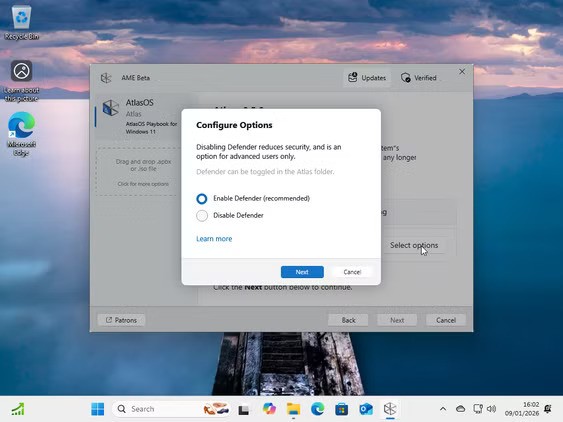
Then there are heavy-duty tools that can modify the .iso file used to make a bootable Windows disk. Tools like Tiny11 or NTLite can strip away the bloatware, stop telemetry, and give you local user accounts by default. If you want to go a step further, you could try something even leaner, like AtlasOS. It uses these “playbooks” which you’re supposed to run on a fresh installation of Windows and it completely de-bloats it. It starts up faster and runs buttery smooth, even on lower-end hardware. It can even surgically remove specific Windows features like virtualization or Windows Defender.


Run a debloating script and stop feature updates
A leaner Windows machine without reinstalling the OS If you’re trying to wrangle an existing installation of Windows, your best bet is to use a debloating script. This script from Chris Titus Tech is my go-to, and it has been for the past few years. It has been bullet-proof in my experience, and I’ve never had any issues with it. The source code is available on the official GitHub repo for this utility, so you can see for yourself exactly what changes it’s making. To use it, open Powershell and run this command.
irm https://christitus.com/win | iex
This command will load a window for Chris Titus’ Windows Utility. Switch to the “Tweaks” tab and apply the default essential tweaks. This should get rid of most of the preinstalled junk. It also removes ads from the Start menu and search. Also, the utility minimizes Microsoft’s telemetry and tracking across the OS.

I’d also recommend disabling feature updates for Windows here. Feature updates have been consistently breaking Windows for almost a year now, which is why I only allow essential security updates. Under the “Updates” tab, select the “Security (Recommended)” option. This option gives you the periodic security updates to keep your computer safe, but it halts any feature updates for a year.
Get the old context menu back
We’ve all used the Windows right-click context menu so much that it has become muscle memory for us. We didn’t have to look for the right option or even think about it. With Windows 11, Microsoft has rearranged the context menu for seemingly no reason. This is more of a pet peeve.

There’s a tweak in Chris Titus’ Windows Utility for restoring the classic context menu. But if you want something simpler, you can modify the registry with this command to get the old menu back.
reg add “HKCU\Software\Classes\CLSID\{86ca1aa0-34aa-4e8b-a509-50c905bae2a2}\InprocServer32” /f /ve
You’ll need to restart Windows Explorer to see the changes.
Leave A Comment?