
Situatie
Solutie
On a mesh network, it can feel even worse, because the adapter is already juggling roaming and signal quality. If Windows keeps nudging the adapter into low-power states, you end up with random hiccups that look like bad Wi-Fi when it’s really just aggressive power management.
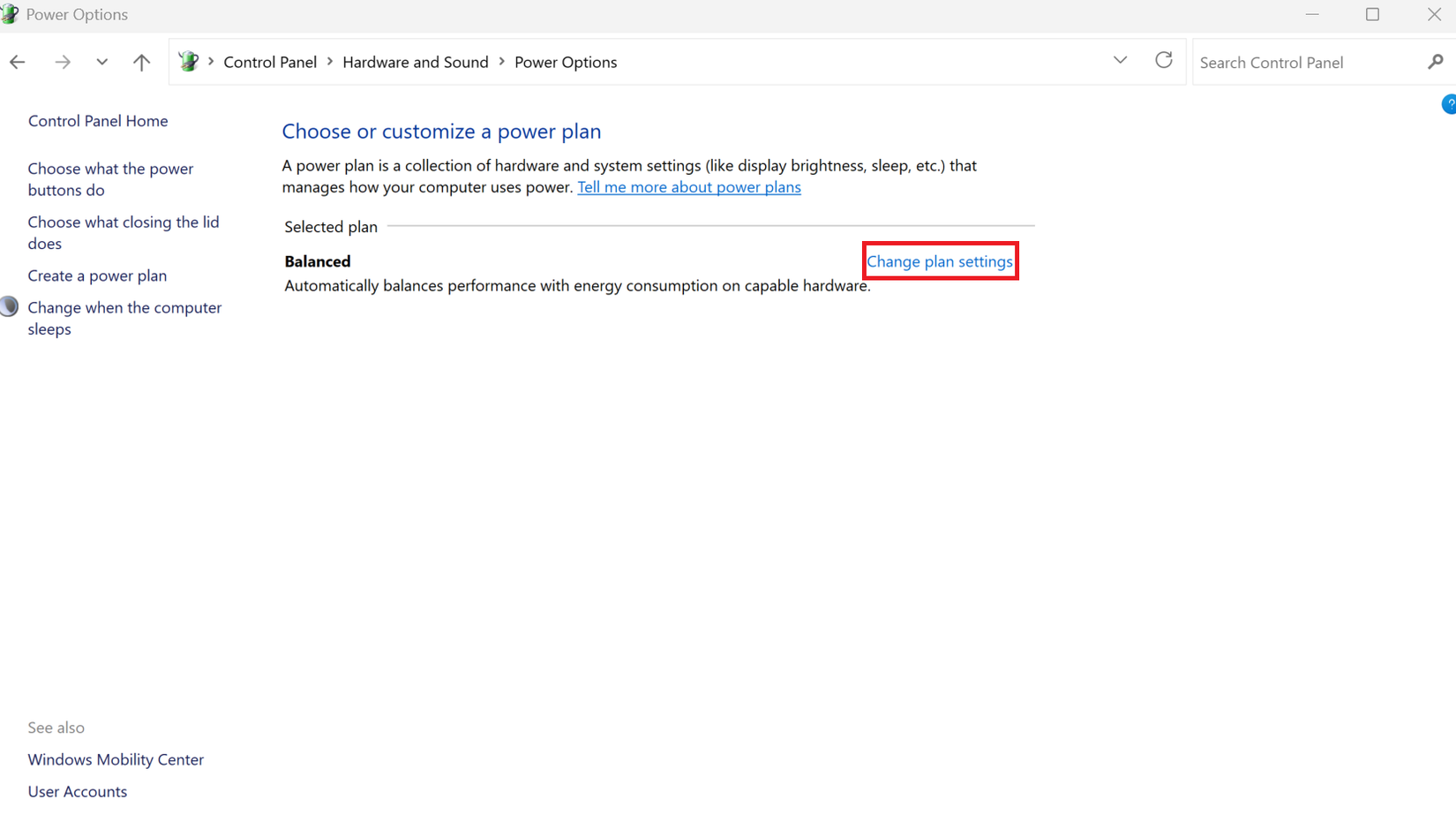
To disable it, head to Control Panel and open Power Options. Click Change plan settings next to your active power plan
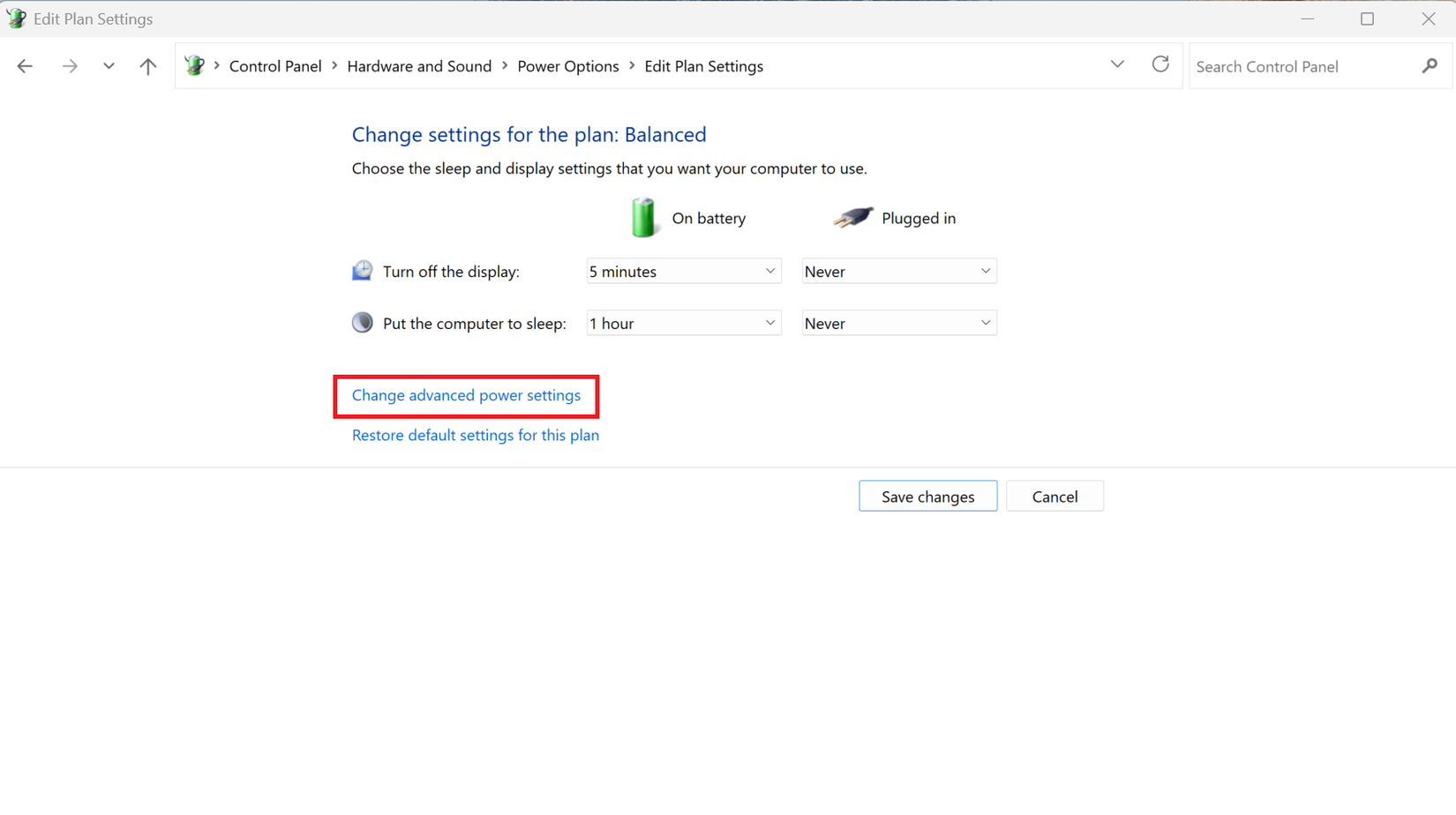
Now choose Change advanced power settings.
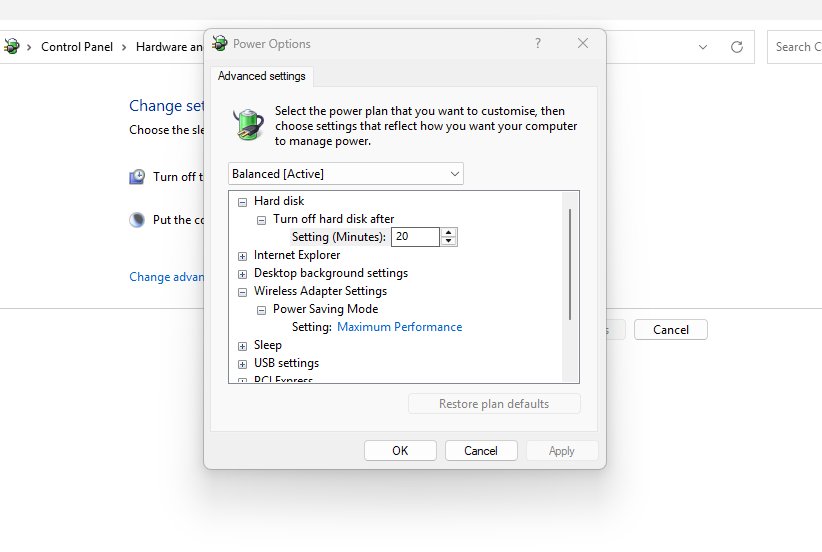
On newer Intel and Killer Wi-Fi 6 adapters, Windows may hide both the Power Management tab and Wireless Adapter power settings, leaving most Wi-Fi power behavior in the hands of the driver.
Why your laptop won’t switch to the nearest access point
To adjust it, open Device Manager, expand Network adapters, and double-click your Wi-Fi adapter. Switch to the Advanced tab and look for Roaming Aggressiveness or Roaming Sensitivity. The exact name may vary by driver, but the setting usually defaults to Medium-Low or Medium. For mesh networks, bumping it to Medium-High or High gives Windows permission to roam sooner and more decisively.
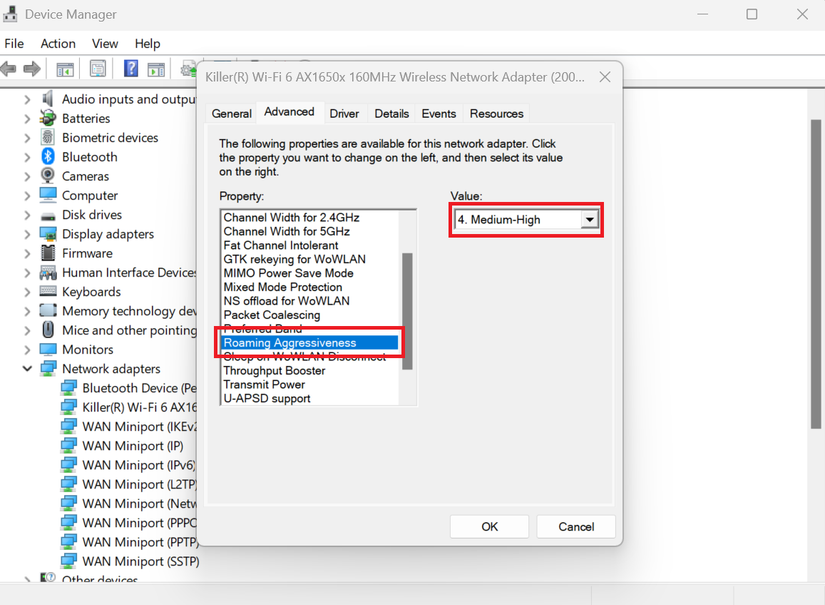
Apply the change and reconnect to your Wi-Fi. You don’t want the most aggressive option unless you’re constantly moving, but nudging this setting up a notch is often enough to eliminate sticky connections and improve your roaming.
Some older adapters may not have this option available.
Random hardware addresses are a privacy feature meant for public Wi-Fi, and most modern Wi-Fi networks handle it well. Instead of using the same hardware ID every time you connect, Windows rotates it to make you tracking harder. That’s useful at airports and coffee shops. On a trusted home network, it might work against you.
Routers and mesh system expect devices to be consistent. When your laptop keeps appearing as a new device, you can see slow reconnects, brief drops after sleep, or performance that feels unstable for no reason. This is especially worth trying if you use DHCP reservations, MAC filtering, or have an older router.
To turn it off for your home network, open Settings and go to Network&internet> Wi-Fi. Select your connected network, then toggle Random hardware addresses to Off. If you don’t see it there, open Wi-Fi > Hardware properties and disable it from that screen instead.
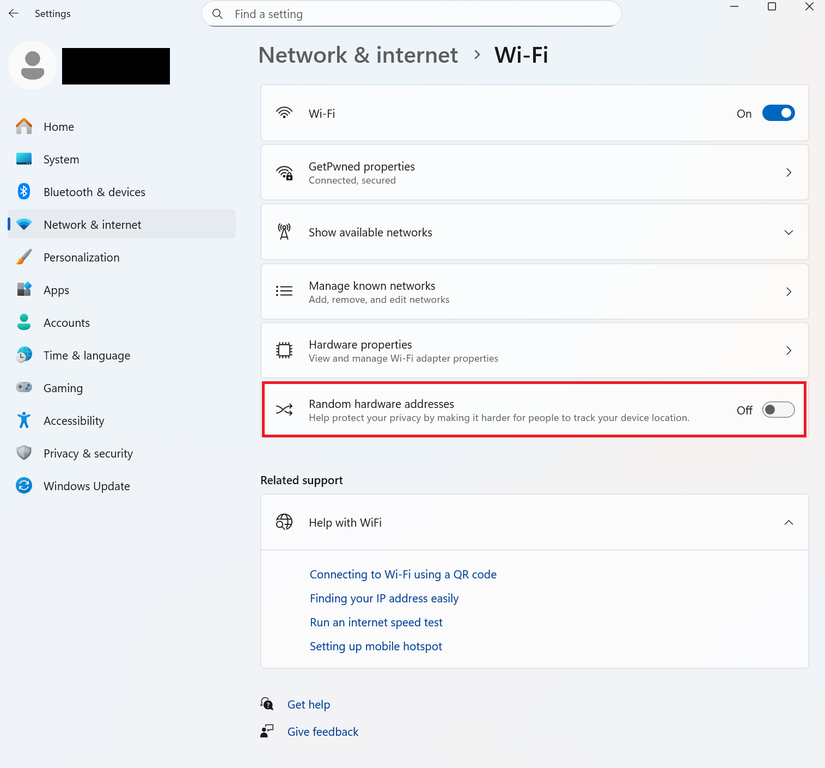
This setting is per network, so you can keep it enabled for public Wi-Fi. Reconnect, and Windows will now use a consistent hardware address going forward.
Outdated Wi-Fi drivers are an easy thing to overlook , and yet they can be significant when it comes to network reliability. These drivers control everything from roaming behavior to power management and how your adapter negotiates speeds with the router. When they’re behind, you may feel slow throughput, inconsistent speeds, and odd compatibility issues that show up after a router or mesh firmware update. On modern networks, especially Wi-Fi 6 and mesh systems, driver updates often include real performance fixes, not just bug patches, and staying current can be the difference between a connection that feels flaky and one that keeps the movies streaming and the internet flowing.
To update them, start with Device Manager, expand Network adapters, right-click your Wi-Fi adapter, and choose Update driver.

Let Windows check automatically first, but don’t stop there if you’re chasing a stubborn issue. Laptop manufacturers often lag behind, so it’s worth checking the chipset vendor directly, such as Intel or Realtek, for newer drivers that better match current routers. After installing an update, reboot, reconnect to Wi-Fi, and give the connection a bit of time to settle. It’s a simple step, but one that quietly fixes more “bad Wi-Fi” problems than most people expect.
Leave A Comment?