
Situatie
Over time, hidden junk files and old drivers clog up Windows systems, slowing them down, and even introducing security vulnerabilities. That’s why it’s a good idea to ‘spring-clean’ your computer every once in a while. Clearing away old junk files will speed up your computer and free up disk space at the same time. I’ll show you two ways you can do this.
Solutie
Windows has built-in tools for this job, so if you don’t want to install a third-party app (more on that in a few), start here. Older versions of Windows have a tool called Disk Cleanup, available in virtually all versions of Windows. In the Windows search bar, look for ‘disk cleanup’ and launch the Disk Cleanup tool. You’ll have to select a disk drive to scan first. The tool will automatically scan that drive and present you with any old driver files or temporary junk files you can remove to clear space. You can repeat these steps for other drives as well.
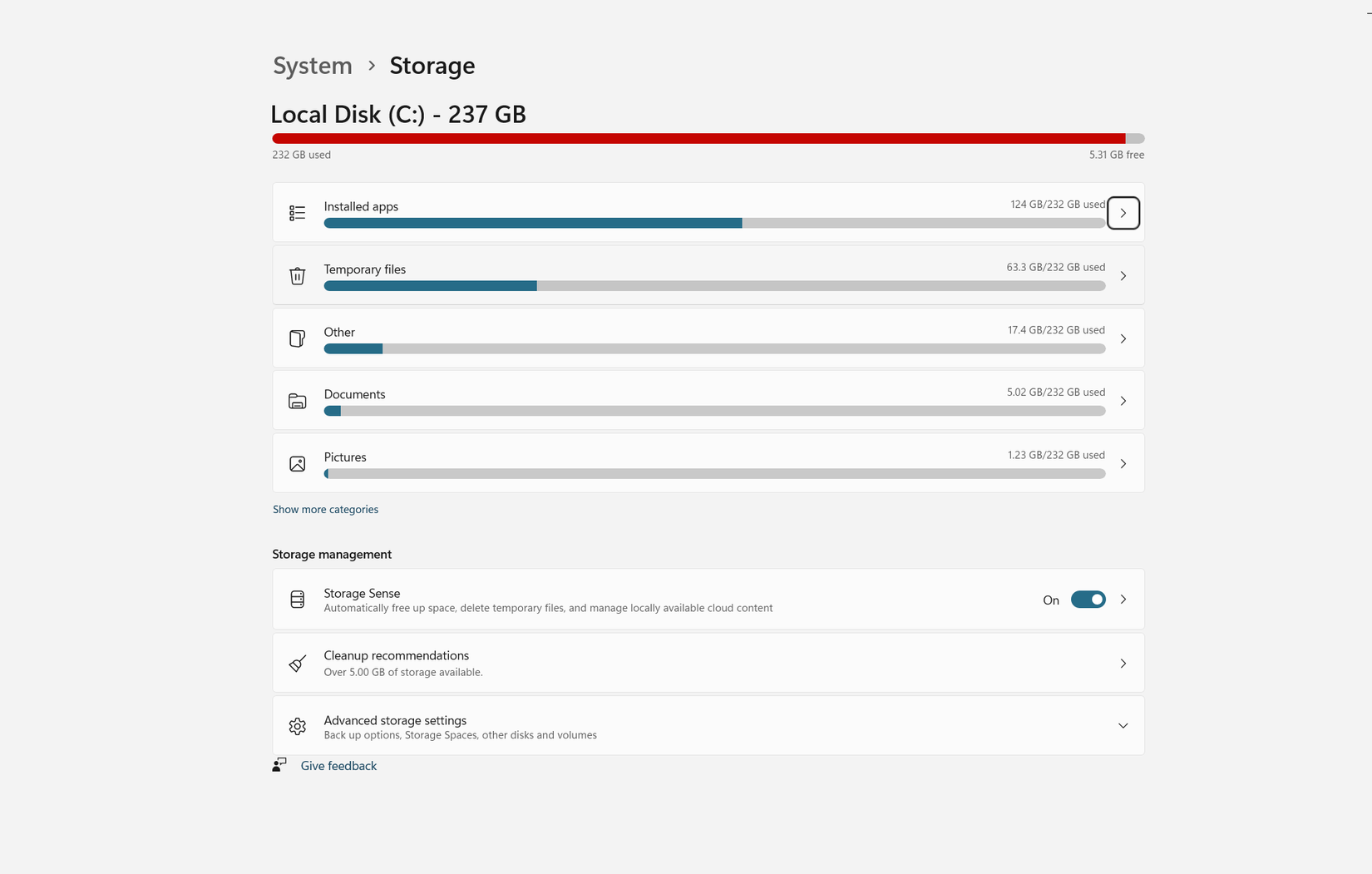
Windows 10 and Windows 11 have an additional feature for cleaning up storage. It’s called Storage Sense, and it can automatically clean up junk files and hidden temporary files on a schedule. You can schedule Storage Sense to run every day, every week, or every month. You can also set Windows to automatically remove files from the Downloads folder if they haven’t been opened in a certain amount of time. Storage Sense can automatically clean the Recycle Bin on a schedule too.
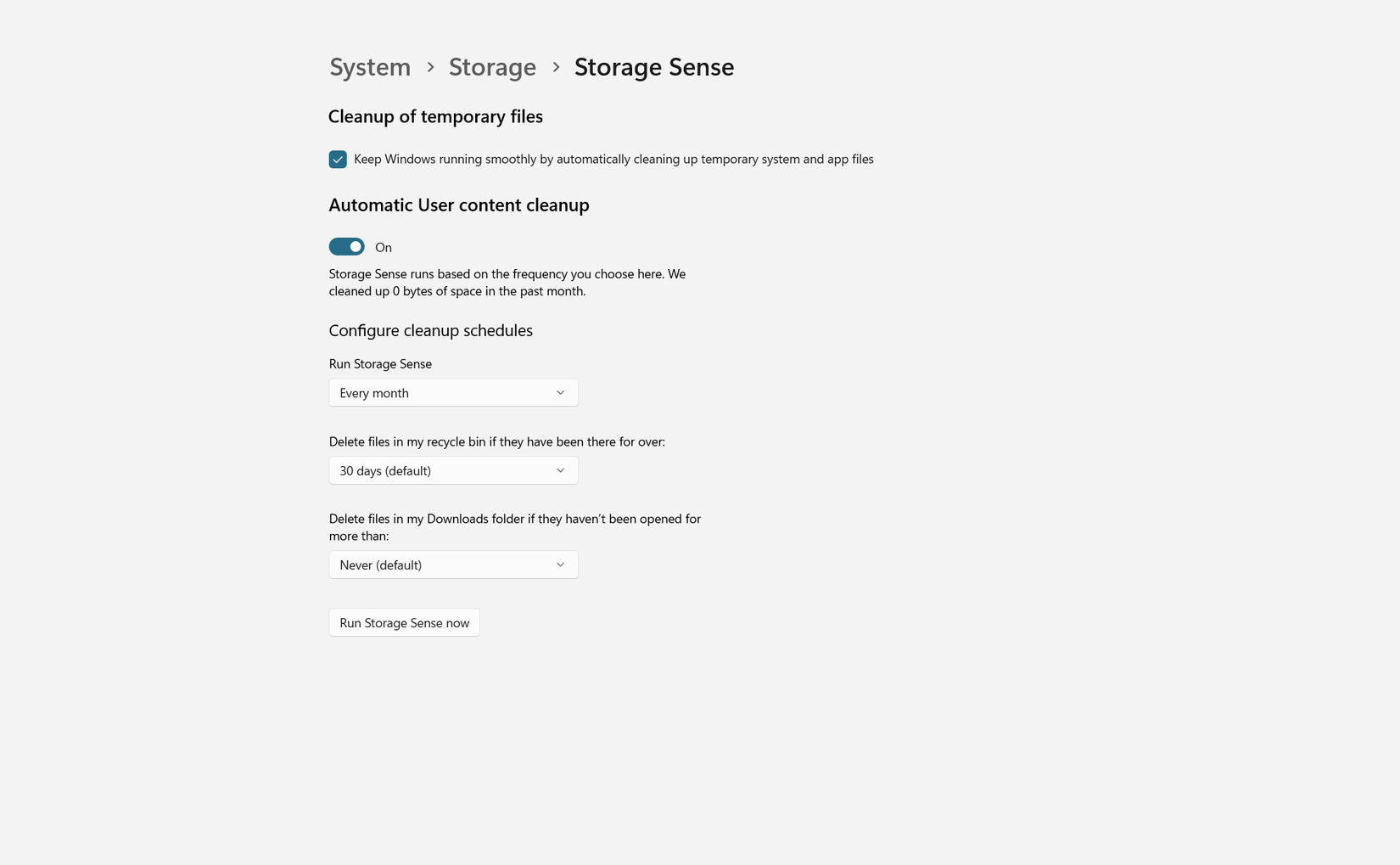
Storage settings on modern Windows have some other handy features too. For example, you can see how much storage temporary files or downloads are taking up. You can also get cleanup recommendations from the system to clear old unused files or unusually large files. It’s handy when you’re trying to clean up a disk and aren’t sure where the heavy files are.
There’s also BleachBit, an open source app that’s purpose-built for cleaning junk files. It can run a deeper scan on folders that Windows tools ignore, and it provides you with better control over what gets deleted. If you want to remove ghost files leftover from previously uninstalled apps, BleachBit is a good fit.
Start by downloading and installing the Bleachbit app on your computer. Launch it once the setup is finished, and click the BleachBit icon in the corner to open the Preferences. We’ll add all the drives we want to scan in the Drives tab.
Sometimes deleted files are still available on the disk, and can be recovered with the right techniques. If you want to make sure that the empty spaces on your drive are actually empty, you can use the ‘shredding’ feature available in Bleachbit.
How to clean up old drivers
Old drivers that are no longer in use take up storage, so it’s a good idea to remove them. Plus, sometimes deleting drivers, especially graphic drivers, leaves behind ghost files which can mess with fresh installations or updates for the drivers. If you’re having trouble with graphic drivers, it’s always a good idea to clean up the previous installation and then reinstall the drivers. I also recommend cleaning up old drivers if you’re installing a new GPU.
Don’t remove every device driver because your system might need some of them. Proceed with caution.
Both NVIDIA and AMD have dedicated tools for a fresh installation. They’re both simple utilities and work with a single click (no installation setup required). For the AMD Utility, you might have to boot into Safe Mode first. If the official tools don’t work, there is a third-party tool for removing old GPU drivers from any manufacturer called ‘Display Driver Uninstaller’ or DDU. It can remove driver packages from AMD, NVIDIA, and Intel.
Leave A Comment?