
Situatie
Solutie
1. Load the image in NTLite
- Open NTLite
- Go to Add > Image directory
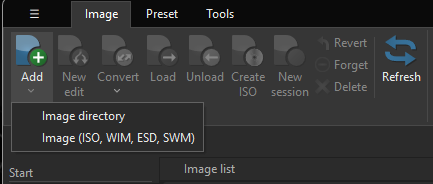
- Select the initial Windows 11 ISO
- Select the edition you want, for example: Windows 11 Pro
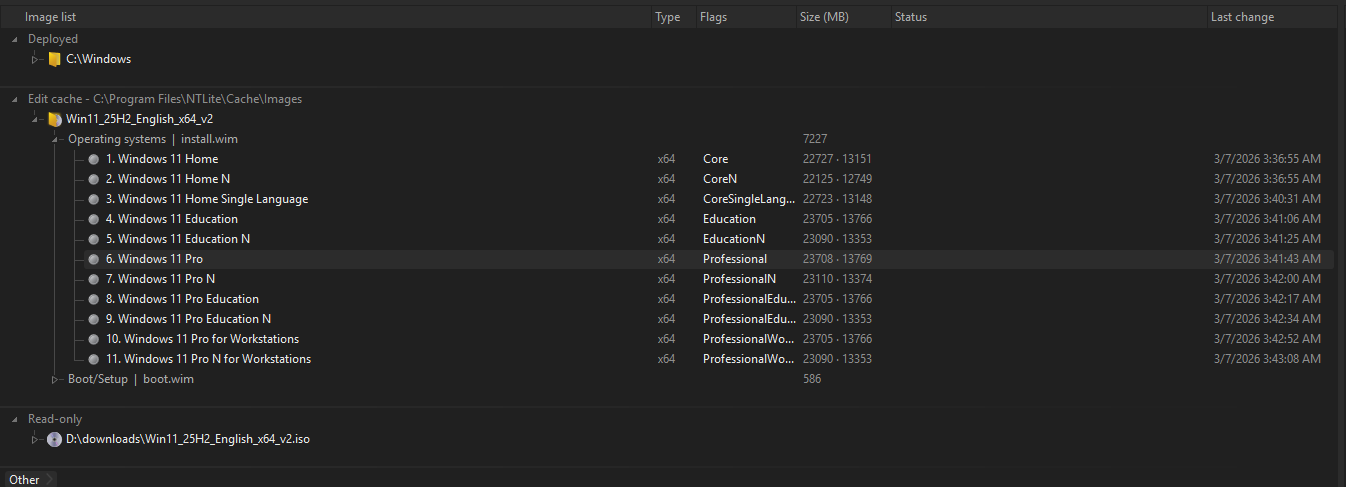
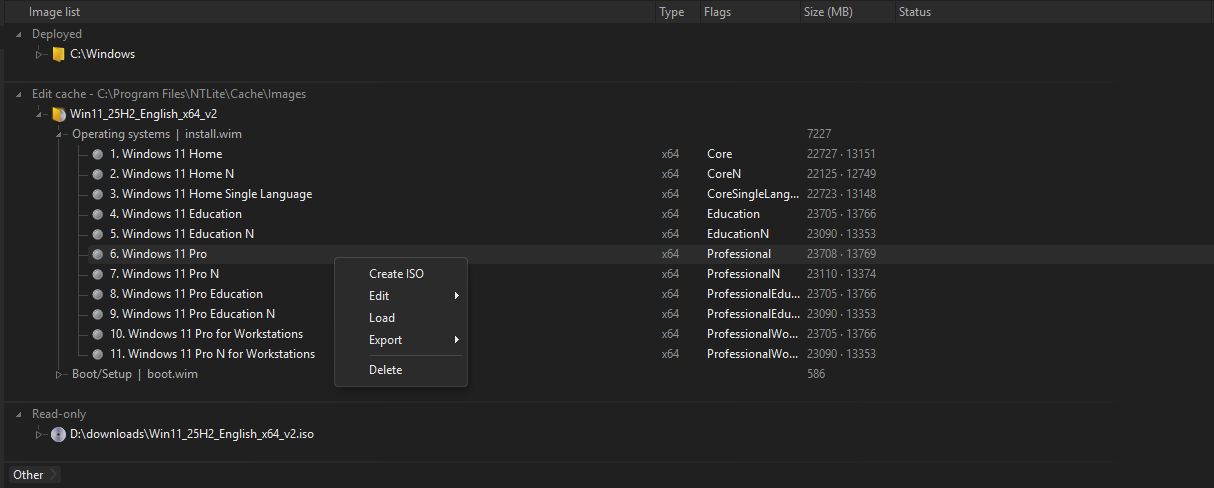
- Right-click and choose Load
2. Remove component apps
- In the left menu select components
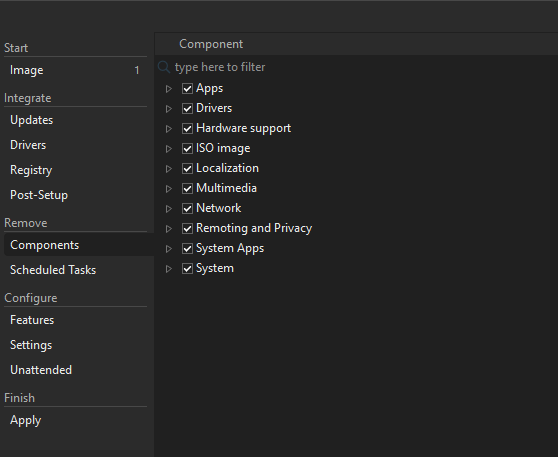
- Click on Apps and uncheck all components you don’t need
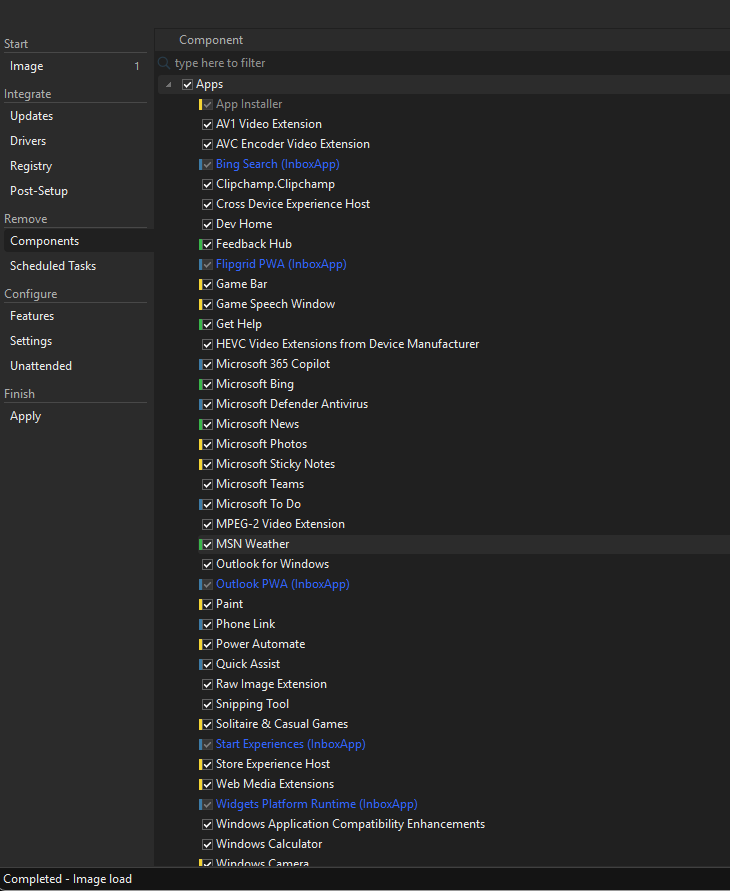
3. Apply changes
- In the left menu select Apply
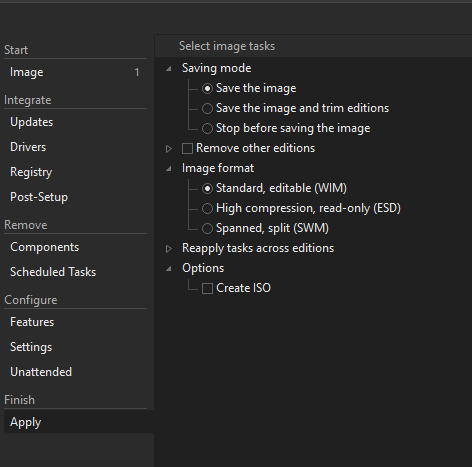
- In the select image task menu, check the create ISO box and select a destination folder
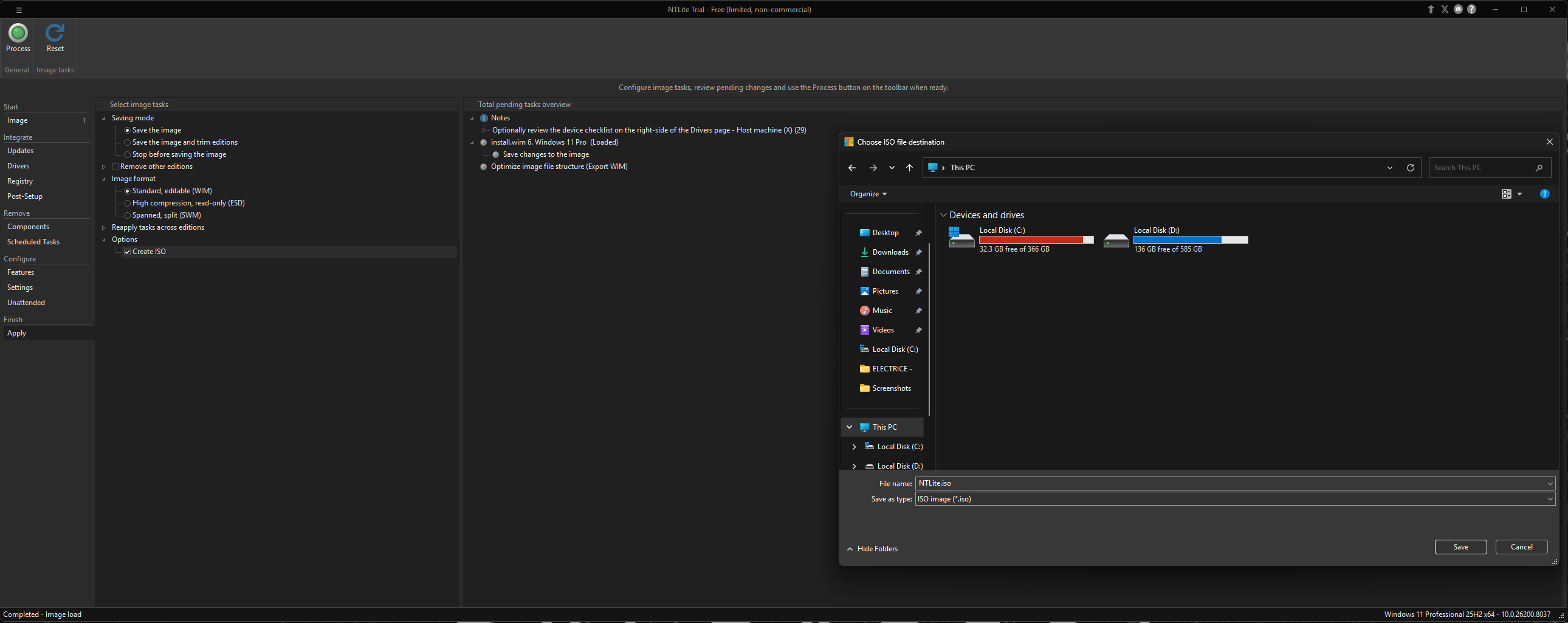
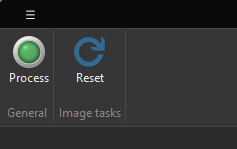
- In the top left, click the Process button to start creating the new modified ISO
- Your new ISO will be created in the specified location
Important warning!
Do not remove random system components just to make the ISO smaller. Removing core components can break Windows Setup, OOBE, Start Menu, File Explorer, Windows Update, Store apps, or future upgrades.
Leave A Comment?