
Situatie
Backup
We’ll explore how to run Ollama on a local setup & in Docker. This process includes installing the software, configuring it to your environment.
1. Running Ollama Locally
To start using Ollama, you first need to install it on your system. You can download it from https://ollama.com/ . Since I have macOS I will use homebrew which is convenient command line utility for mac users.
brew install ollama
brew services start ollama
Ollama listens on port 11434 for incoming connections. To check if it’s working, open your web browser and go to http://localhost:11434/. Next, choose the large language model (LLM) you want to use locally. For example, if you want to run models like llama2, llama3, mistral and others you would use the following command.
ollama pull mistral
   #    or
ollama pull llama3
   # or
ollama pull llama2
Ollama has a REST API for running and managing models.
Generate a response
curl http://localhost:11434/api/generate -d '{
  "model": "llama3",
  "prompt":" Why is the colour of sea blue ?"
}'
2. Running Ollama on Docker with Ollama UI
Prerequisites:
Install Docker Desktop on your machine. https://www.docker.com/products/docker-desktop/ . This is essential for managing and running applications within containers.
I. Ollama in a Docker container (CPU only)
Open your terminal mac, window or linux and use the following command to fetch and run the official Ollama image from Docker Hub.
docker run -d --name ollama -p 11434:11434 -v ollama_storage:/root/.ollama \
  ollama/ollama:latest
Press enter or click to view image in full size
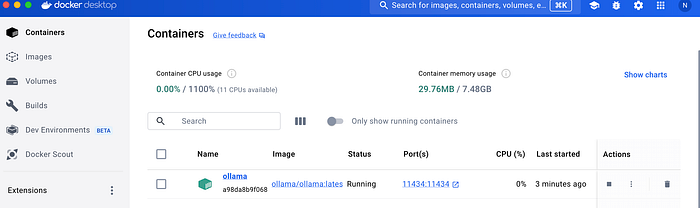
-v ollama_storage:/root/.ollama: This option attaches a volume called “ollama_storage” to /root/.ollama within the container. It serves as persistent storage, preserving data generated by the application even after the container is restarted or recreated.
II . Running Ollama & WebUI with docker compose
Clone the official repository of Ollama WebUI and run the following command to start the ollma on docker compose . Ensure that you stop the Ollama Docker container before you run the following command:
git clone https://github.com/ollama-webui/ollama-webui
cd ollama-webui
docker compose up -d
III. How to access the Ollama WebUI
Open Docker Dashboard then Containers then Click on WebUI port. The next step is to signup and created your account which will help interact with ollama locally with WebUI.
Press enter or click to view image in full size
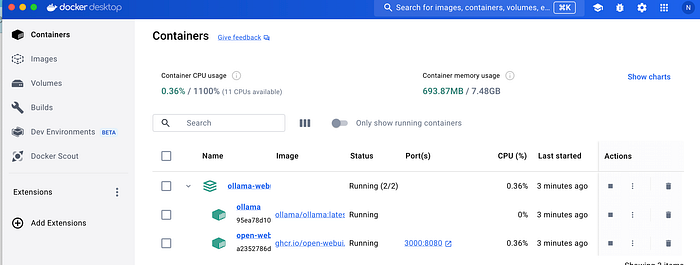
You’ve successfully accessed Ollama with Ollama WebUI with docker
Press enter or click to view image in full size
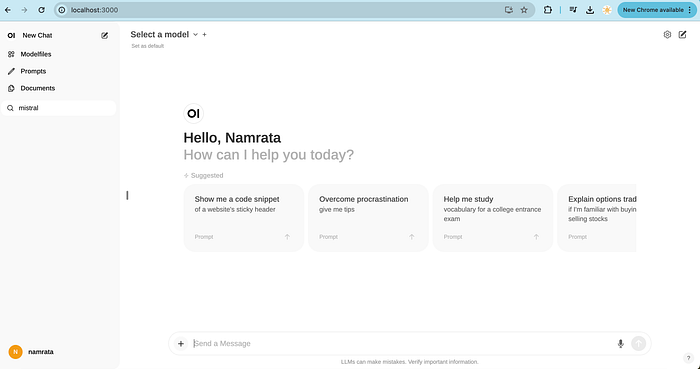
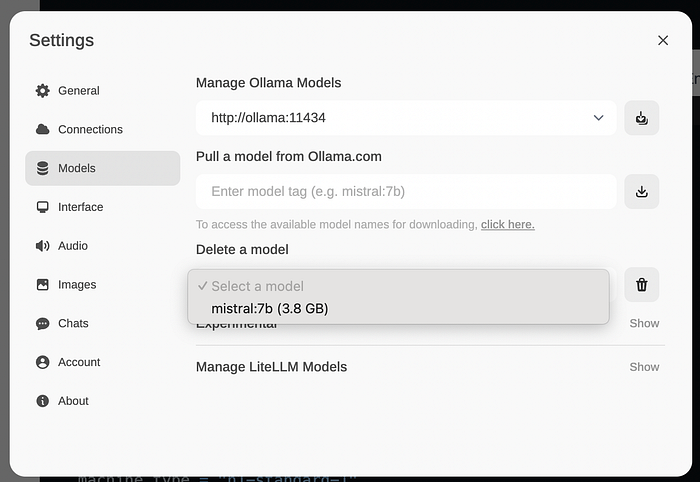
Finally pull the model you need and begin interacting with it eg mistral:7b . First, navigate to the settings by clicking on your name tab, which is located at the lower left side of the interface. Then, proceed to pull the file of your choice.
Press enter or click to view image in full size
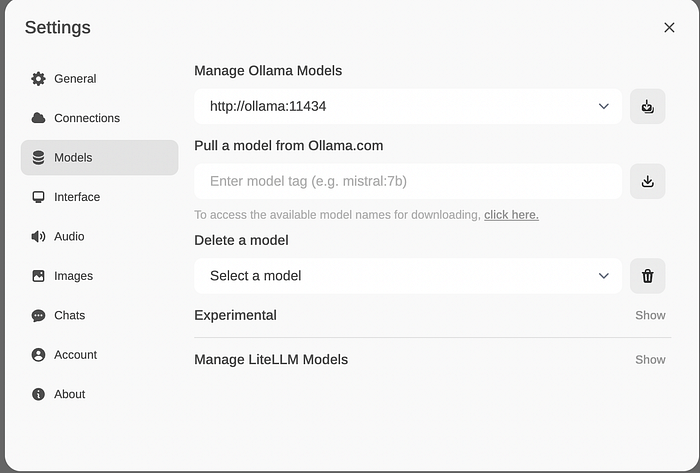
When starting the application, the models are not automatically loaded into the UI. Therefore, you need to manually pull the desired models.
Press enter or click to view image in full size.
Leave A Comment?