
Situatie
CLoud services are an important part of our day-to-day lives, but a careless mistake can result in you accidentally sharing sensitive files or documents with the wrong person, or accidentally exposing a file to the entire internet.
Solutie
With the exception of email, which still has a comically low maximum attachment size for 2025, most services you’ll use today support sending relatively large files. So why go to the trouble of using a service like OneDrive in the first place?
Control and security
OneDrive, Google Drive, Proton Drive—pretty much every major cloud provider—let you share your files with others using a download link.
With that link comes predetermined permissions that make them superior to a simple file transfer. For example, you can restrict the link so that only users with permission can download the content, be it a file or folder. You can add a password so that only people you trust can access it. If you want, you can even set the link to expire automatically.
Access Convenience
It isn’t particularly inconvenient to send a file to a handful of people that need it, but it becomes tedious fast when you have to send the same files to more than a dozen or so people. It gets even worse when you have to make sure a ton of people have access to files that are regularly updated.
OneDrive allows you to share one link to a file instead of needing to constantly send out updated versions of the files manually.
Size limits and bandwidth
Even though home internet speeds have improved great deal since the days of dial-up, even the fastest home connections—and most office connections—can’t touch the bandwidth available to large cloud providers like OneDrive. If you need to move big files, or a file to many people, the extra bandwidth is invaluable.
There are two main interfaces for OneDrive: the web interface, which you can access in any browser, and the app, which is available for most major operating systems.
The user interface varies somewhat between the web and Windows app, but the fundamental options are more or less the same. To share a file or folder from the OneDrive website, head to onedrive.live.com and log in. If you’re using the app on a Windows PC, make sure the file you want to share is located in the One drive folder.
Once you’re there, find the file you want to share, select it, then click the “Share” button along the ribbon that appears at the top. Alternatively, you could also right-click a file and click “Share” there instead, if you prefer.
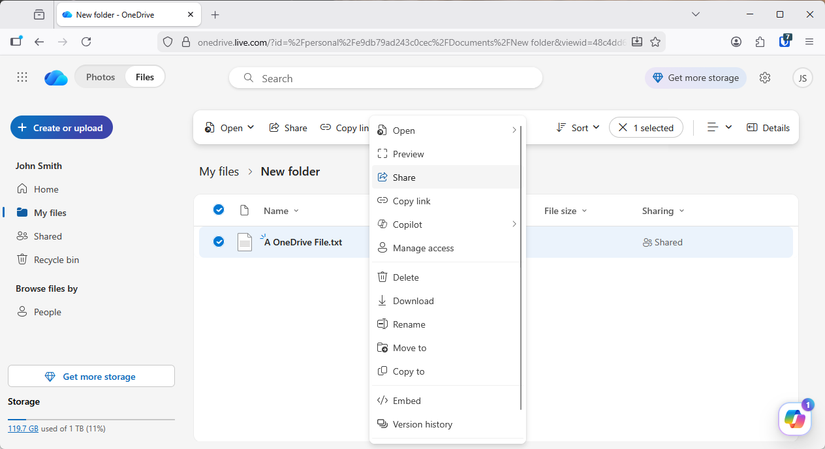
Once you hit share, you can make some choices about just how secure you want this file to be. If you opt to use the bar at the top you can specify which individuals can view or edit the file.
If you want to take extra precautions, you could require a password to access the file. If I were sharing anything even remotely confidential, I’d definitely make use of that option. If you expand the share options, you’ll see it at the very bottom.
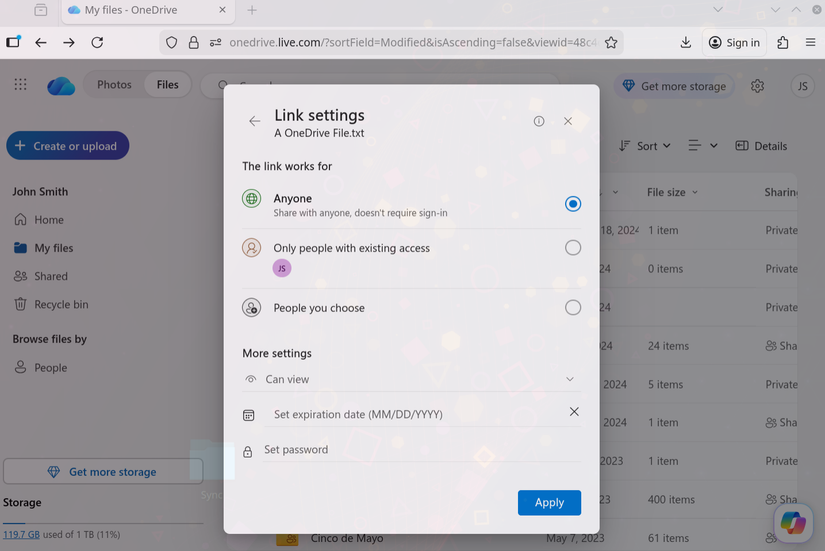
If you already shared a file or folder, and you want to stop it from being shared further, you have a few options.
The “nuclear” option is to remove the share link entirely. No one will be able to use it after that. Since most of the files I share aren’t relevant after a pretty short period of time, anyway, this tends to be the option I use the most. Right-click the file, then select “Manage Access”.
Alternatively, if you’d just shared the link selectively with specific contacts via email, then you can just delete them individually from the share list.
Microsoft has entire teams of cybersecurity specialists dedicated to ensuring the OneDrive is secure. While you may be able to be make your own option relatively secure, it is probably one of those things best left to a large cloud provider instead.
Leave A Comment?