
Situatie
To update the WSL kernel from Command Prompt on Windows 11, follow these steps:
Solutie
1. Open Start
2. Search for Command Prompt (or PowerShell), right-click the top result, and select the Run as administrator option
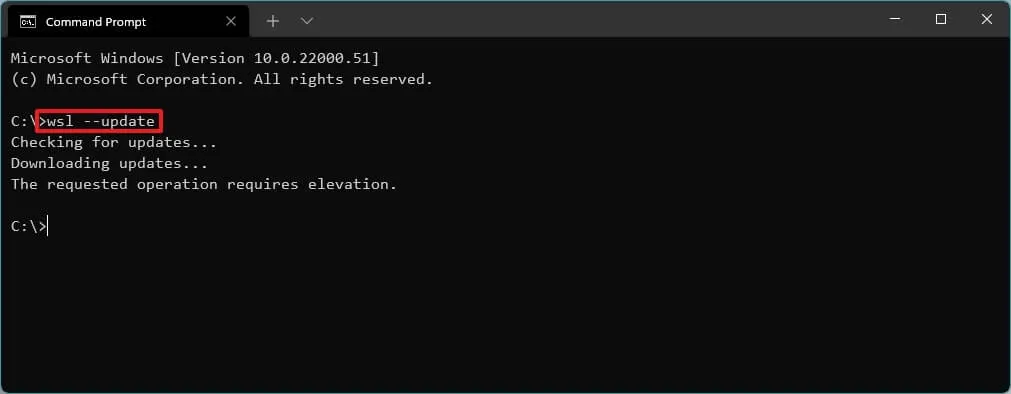
3. Type the following command to update the WSL kernel and press Enter:
wsl –update
4. Type the following command to confirm the WSL version and press Enter:
wsl –version
5. Type the following command to troubleshoot and confirm the default distribution and WSL version, and press Enter:
wsl –status
Leave A Comment?