
Situatie
AI promises to make tedious work easier, but I wanted to know whether it could deliver in real Excel projects. Rather than asking Claude for formulas or snippets of code, I tested whether it could handle three types of automation: creating a workbook from scratch, building a reusable reporting system, and developing a tool that analyzes existing spreadsheets. The goal was to see how much of the work Claude could handle and where I would still need to step in.
Solutie
For my first test, I wanted to see whether Claude could automate the process of building a complete Excel workbook rather than just help with individual pieces of VBA. I asked it to create an employee onboarding workbook with the underlying tables, automation features, and dashboard.
The result was more detailed than I expected
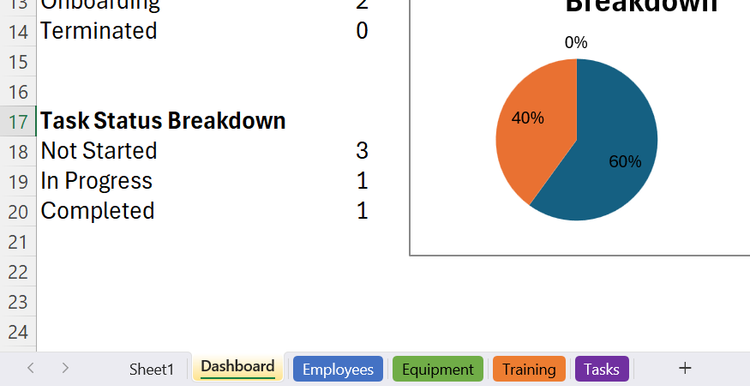
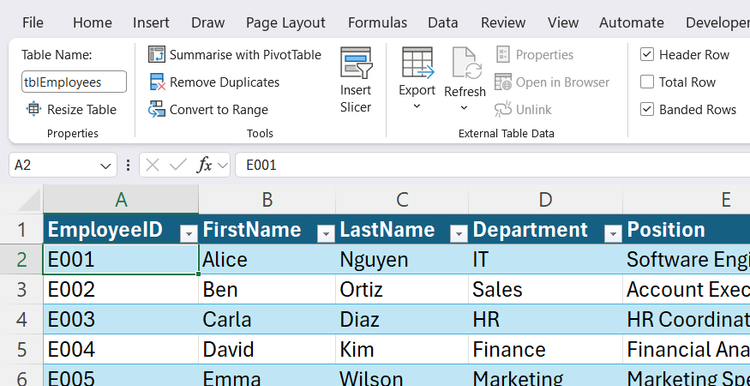
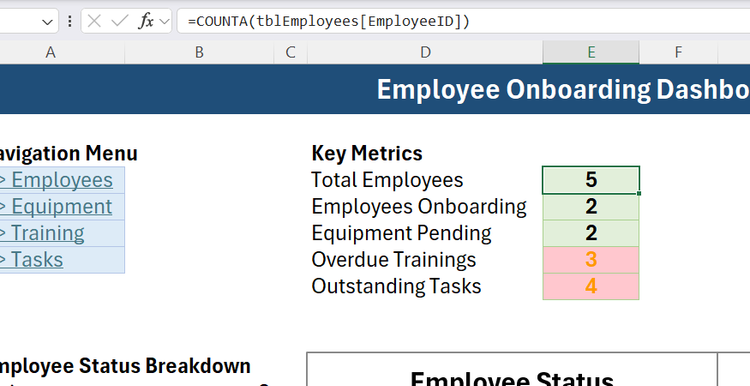
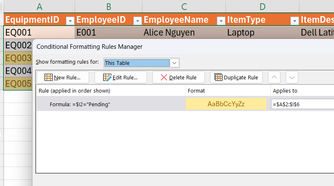
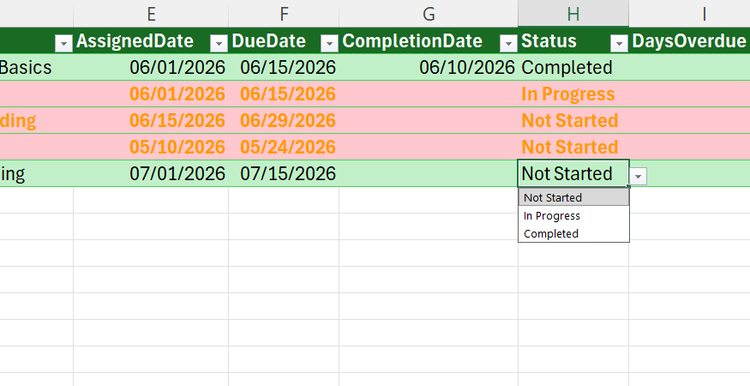
The result was impressively complete. After importing Claude’s BAS file into a blank macro-enabled workbook and running the macro, Excel created every worksheet, converted the datasets into Excel tables, added formulas, applied data validation and conditional formatting, built a dashboard, and linked everything together with navigation buttons.
Some smaller details stood out too. Claude formatted columns correctly, removed dashboard gridlines, wrapped complex INDEX/MATCH formulas in IFERROR, and added color-coded sheet tabs for easier navigation.
The VBA needed a few fixes
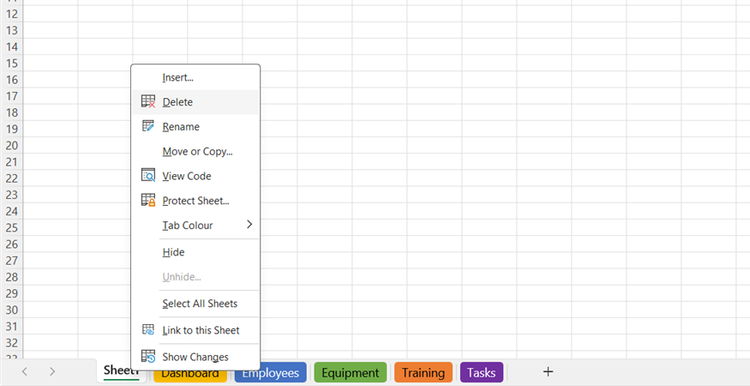
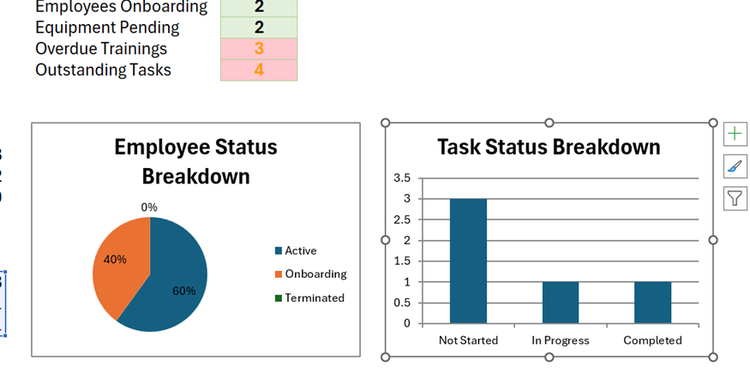
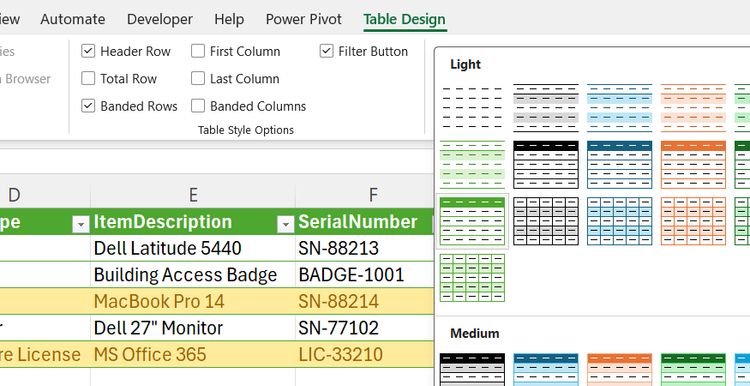
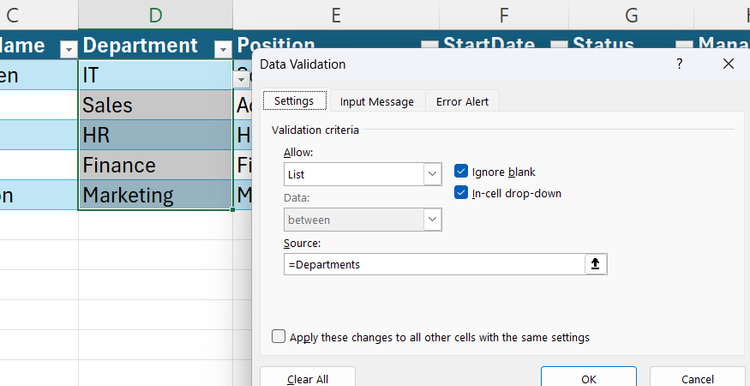
Most of the remaining changes were cosmetic. I deleted the default blank worksheet, resized a few rows and columns, repositioned the overlapping dashboard charts, reformatted the dashboard metrics into card-style summaries, refined the conditional formatting colors, and updated the table colors to match their worksheet tabs. I also replaced the hard-coded data validation lists with range-based lists.
Looking back, most of those refinements reflected gaps in my prompt rather than shortcomings in Claude’s coding. I hadn’t specified the dashboard layout, how data validation should be managed, or how task statuses should be color-coded. If I were to run the prompt again, I’d include these details for a more complete result.
Automating a complete reporting workflow
A reusable PDF reporting system
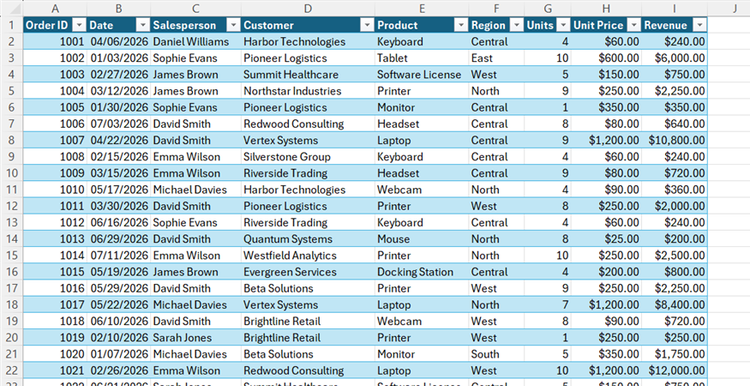
After seeing Claude build an entire Excel workbook for my first automation, I wanted to test whether it could take an existing dataset and automate a repetitive reporting workflow. After creating a sales table containing 500 rows of sample data, a report template, and a log sheet, I asked Claude to create a macro that identified each salesperson, generated a PDF report, saved it, and recorded the output.
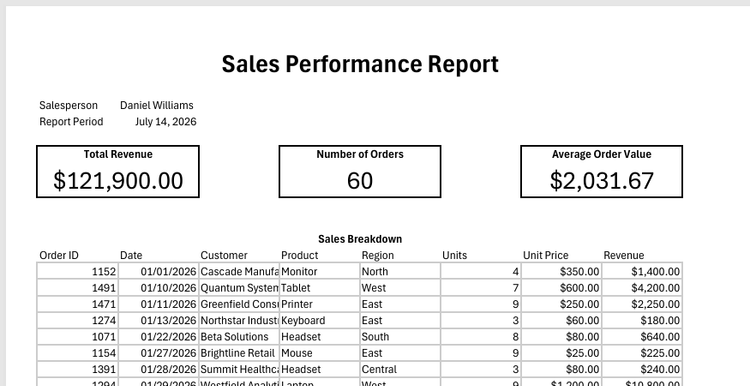
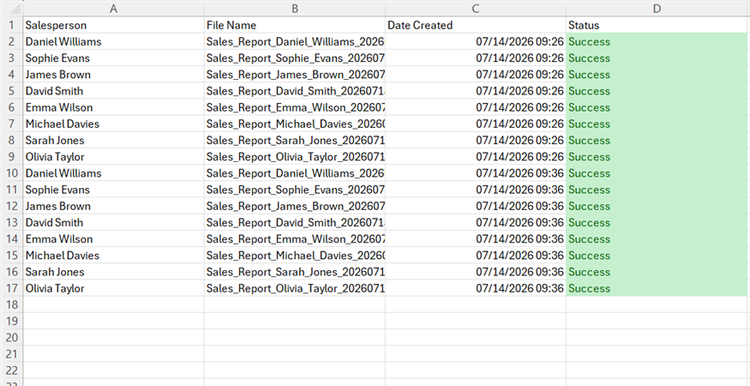
Once the VBA was working, the results were impressive. The generated PDF reports followed my template exactly, and the filenames were clear and consistent. The macro correctly pulled each salesperson’s data, calculated their totals, created individual reports, and recorded each output in the report log.
The biggest surprise was that this wasn’t just a one-time shortcut. After the initial run, I added a new row to the sales data and ran the macro again. It detected the updated data, generated the additional report, saved it alongside the existing PDFs, and added the new entry to the report log. That completely changed the value of the automation. Instead of running once, I now had a reusable reporting system.
Claude helped me fix problems
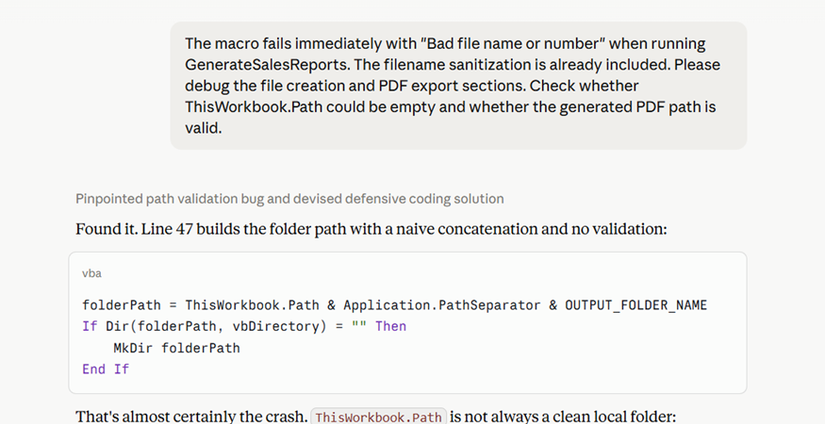
The first version didn’t work perfectly straight away. When I ran the macro, it stopped with a “Bad file name or number” error before creating any reports. However, after feeding the error message back to Claude, it rewrote the file-handling section to check the workbook location more carefully and create the output folder safely. I then imported the updated VBA module, and the macro ran successfully.
I also noticed that the generated reports displayed currency using my local UK settings rather than US dollars. Claude adjusted the VBA to apply an explicit US currency format, ensuring the PDFs displayed dollar values regardless of the computer’s regional settings.
These fixes were relatively minor compared with what the macro achieved. Claude handled the complicated parts—analyzing the workbook structure, generating reports, creating PDFs, and maintaining a log—but the testing process still mattered.
Leave A Comment?