
Situatie
If you’ve ever found yourself rewriting the same Excel logic in different places, or building long formulas just to reuse parts of them, you’re not alone. As spreadsheets grow, formulas tend to get more complex and harder to manage.
Solutie
If you use Excel regularly, you’ll notice a pattern: the same logic tends to show up in multiple places. Sometimes it’s copied across sheets, and sometimes it’s rebuilt slightly differently to fit a new context.
At first, everything works. But over time, small differences creep in. One version of a formula references a slightly different range, and another gets updated while a duplicate elsewhere doesn’t. Nothing looks obviously wrong, but the outputs stop matching—and now you’re tracing logic across multiple tabs to figure out what changed.
Here’s how LAMBDA fixes these problems.
LAMBDA transforms standard formulas into custom functions
LAMBDA turns Excel formulas into reusable functions. Instead of copying logic around your workbook, you define it once and reuse it wherever you need it.
A LAMBDA has two parts: parameters (inputs) and a calculation (logic performed on those inputs):
=LAMBDA(parameter1, parameter2, ..., calculation)
At its simplest, a LAMBDA with one parameter might look like this:
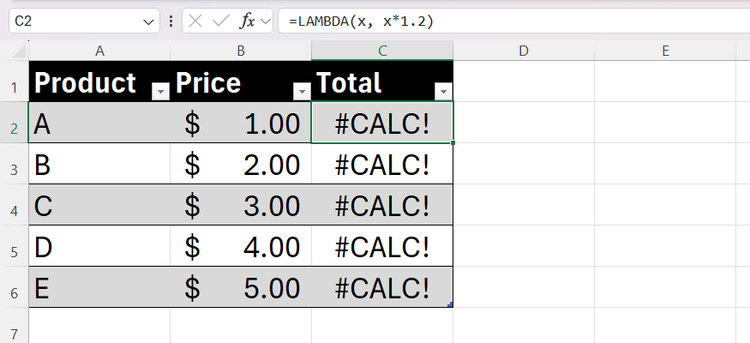
=LAMBDA(x, x*1.2)
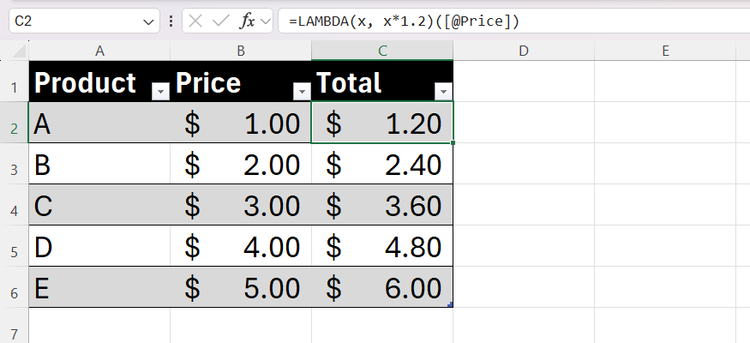
where x is a placeholder for whatever cell or value you eventually feed into the function. On its own, this formula will actually throw a #CALC! error, since it has logic, but nothing to calculate it. To test it in a cell, you have to “call” it immediately by adding the input in parentheses:
=LAMBDA(x, x*1.2)([@Price])
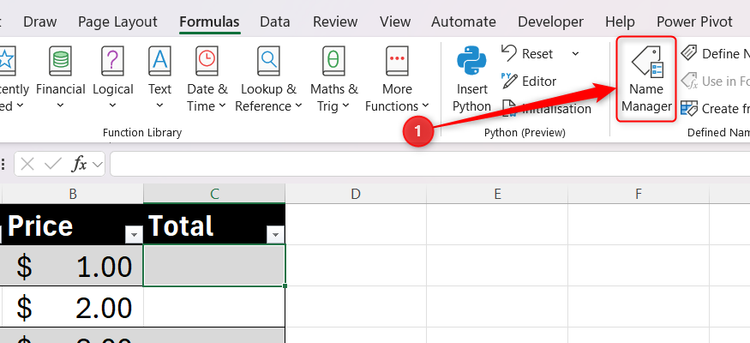
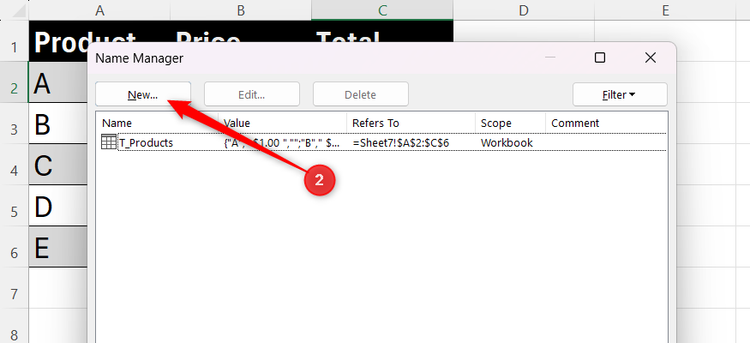
The real value appears when you name it. Using Excel’s Name Manager (via the Formulas tab or Ctrl+F3), you can assign that logic a name, then call it like any built-in function:
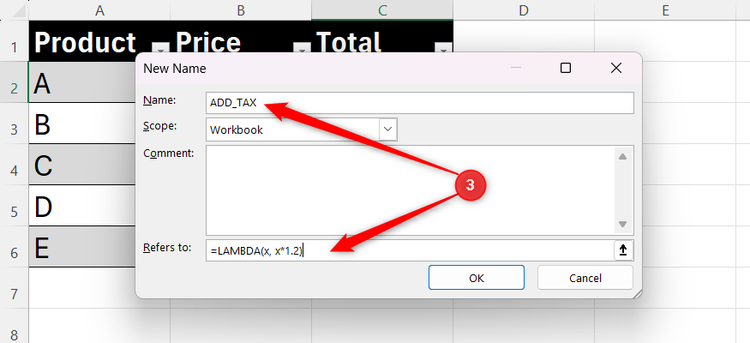
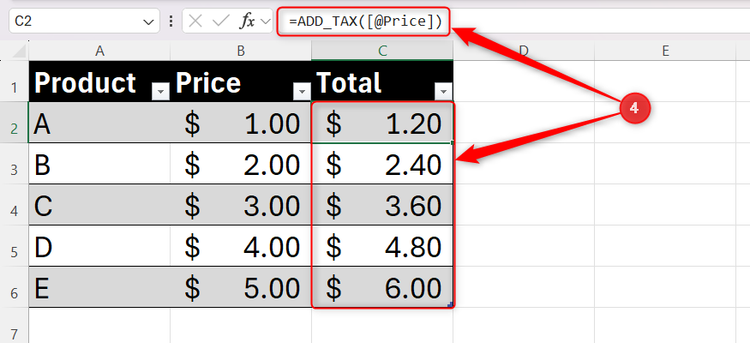
It now behaves like a native Excel tool—you define it once and reuse it anywhere. That matters most if you need to adjust a tax rate or rule: you only do it in one place, and every instance updates automatically.
LAMBDA solves common, everyday spreadsheet problems
LAMBDA isn’t just for advanced users or complex models. Most of its value shows up in everyday spreadsheet work, where you notice the same logic appearing more than once.
Example 1: Streamlining calculations
Standard multipliers are easy, but multi-step calculations—like adding a margin then a fixed handling fee—become messy when copied across tables. By combining LAMBDA with predefined variables, you can manage the whole calculation from a single place.
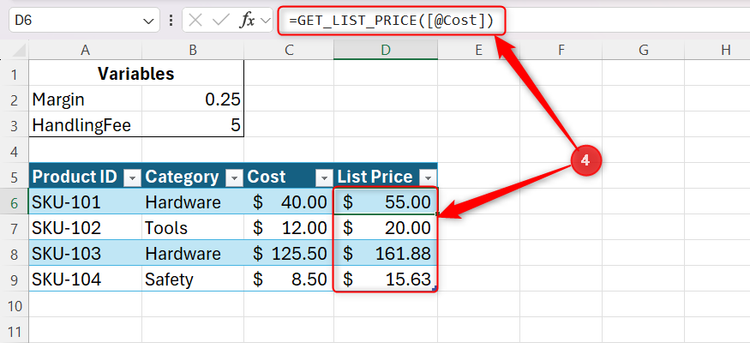
The scenario: You need to calculate a list price based on a cost. Your rule is to apply a 25% markup, then add a flat $5.00 handling fee. You have defined variables: cell B2 is named Margin, and cell B3 is named HandlingFee.
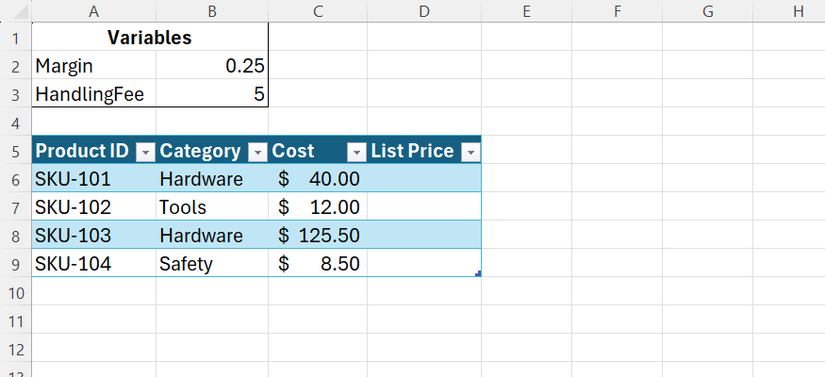
Here are the steps you need to take:
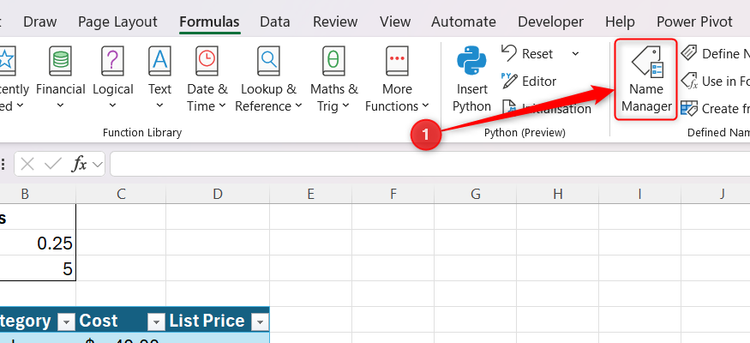
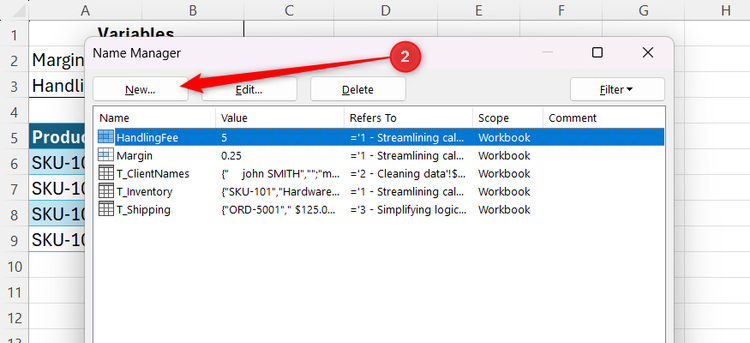
- Open the Name Manager in the Formulas tab.
- Click New.
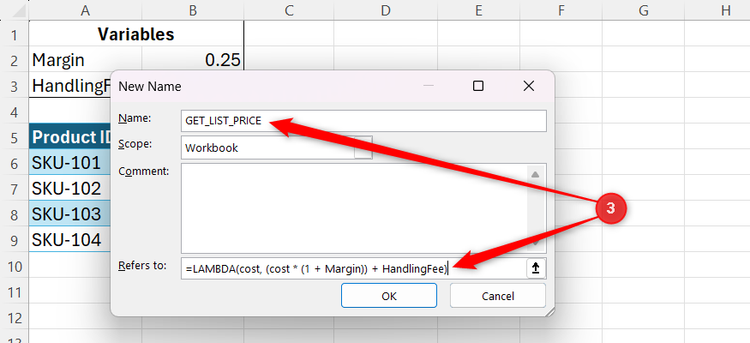
- In the Name field, type GET_LIST_PRICE, and in the Refers to field, enter =LAMBDA(cost, (cost * (1 + Margin)) + HandlingFee).
- After clicking OK and Close to confirm, type =GET_LIST_PRICE([@Cost]) into the first cell of the List Price column and press Enter. This calculates the list price for each row using the logic you defined, without needing to rebuild or copy the formula elsewhere.
If you later decide the margin should be 30% or the handling fee should be $7.00, you update a single cell, and the change applies everywhere the function is used.
Example 2: Standardizing data cleanup and formatting
Data rarely arrives in a “ready-to-use” state, so you often combine multiple text functions to fix issues like extra spaces or inconsistent casing. LAMBDA lets you bundle these cleanup steps into a single reusable function.
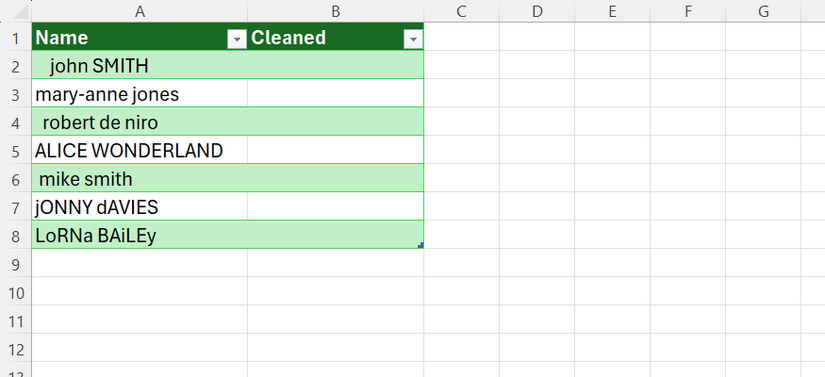
The scenario: You regularly import contact lists where names are messy, containing leading and trailing spaces and a mix of uppercase and lowercase letters. You want to standardize these names in a new column.
This is the one-off workflow you need:
- In the Name Manager (Formulas tab), create a new name called CLEAN_NAME.
- Use the logic: =LAMBDA(text, PROPER(TRIM(text))).
- Apply the function in your data table: =CLEAN_NAME([@Name]).
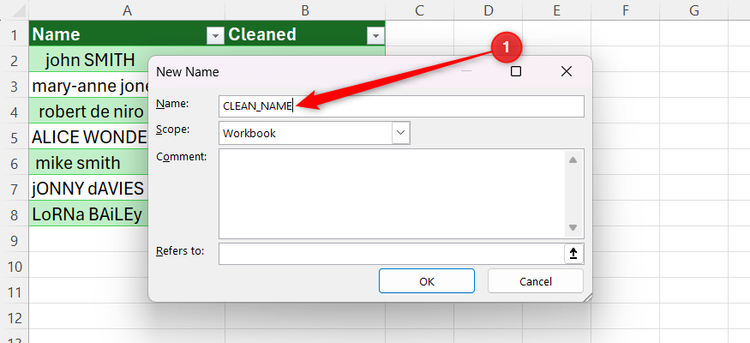
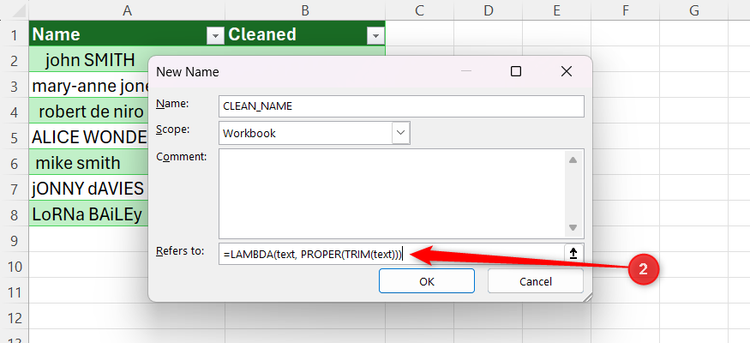
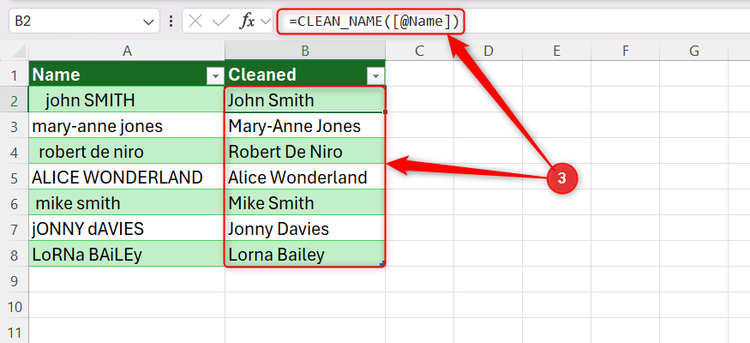
Now, you have a single “source of truth” for how data is handled. If the requirements change (such as switching to all caps), you can simply swap PROPER for UPPER in the Name Manager, and every name in your entire workbook will correct itself instantly.
Example 3: Simplifying multi-step logic
Complex logic checks usually require deeply nested IF statements or several helper columns. LAMBDA lets you wrap that complexity into a single, descriptive name.
The scenario: You need to determine a shipping status based on the number of days late and the order value. If it’s more than three days late and the value is over $100, it’s “Priority.” Otherwise, it’s “Standard.”
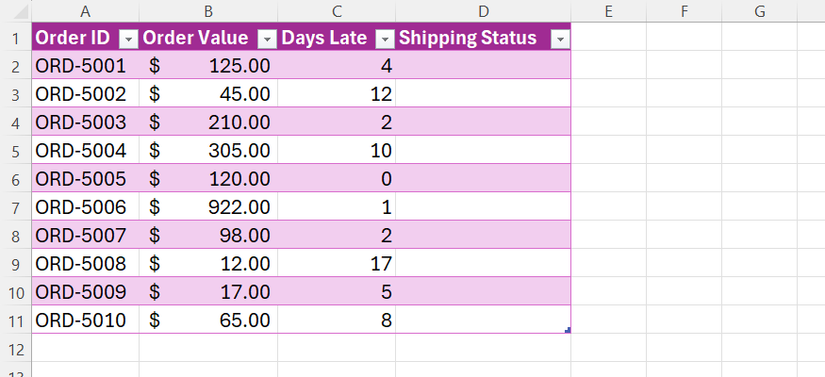
This looks complex, but it’s quick to set up:
- Go to Formulas > Name Manager, then create a new function named CHECK_STATUS.
- Define the parameters and the logic: =LAMBDA(days, value, IF(AND(days > 3, value > 100), “Priority”, “Standard”)).
- Enter your new custom formula in your tracking table: =CHECK_STATUS([@[Days Late]], [@[Order Value]]).
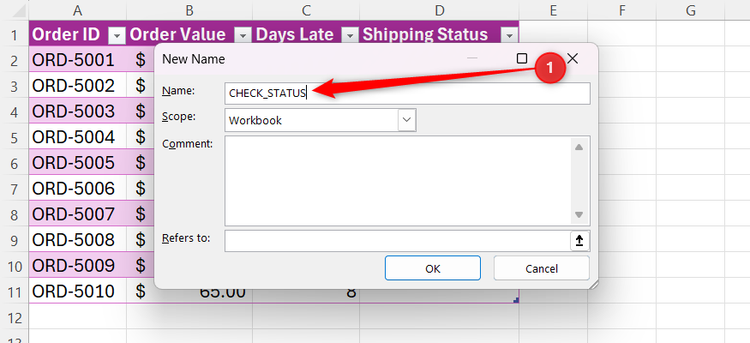
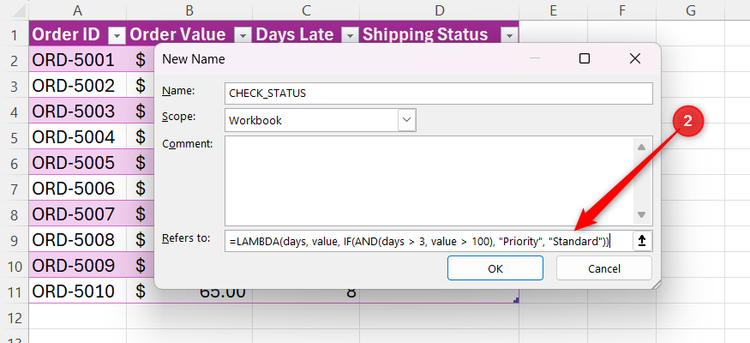
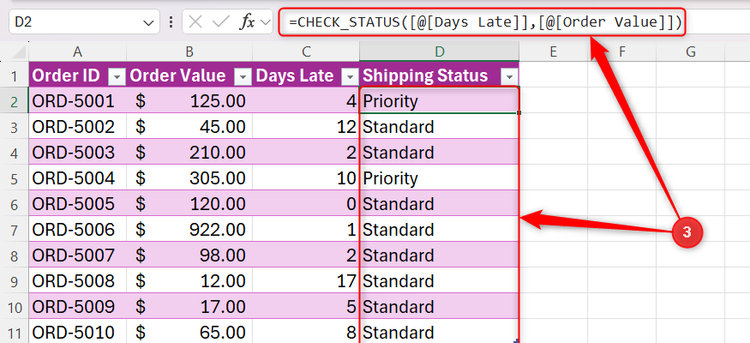
This ensures the formula bar stays clean, and you can be confident that the rule is applied exactly the same way on every row. If you need to update the thresholds, simply edit the numbers in the Name Manager.
Leave A Comment?