
Situatie
Our smartphones have more storage than ever, but running out of space is still a common problem while using the powerful cameras for photos and video, large modern apps, and everything else.
Solutie
What to know about Galaxy “pre-edit” backups
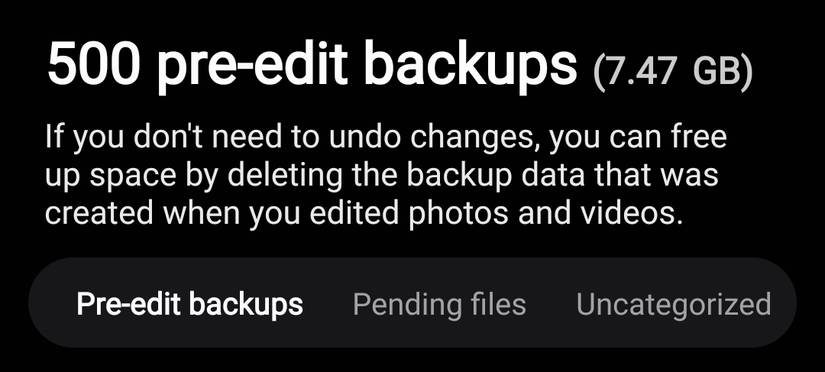
Every time you take a photo or video and edit or resize it in any way in the Gallery app, your phone creates a duplicate of the original file. This way, you can always “revert to original” if you don’t like the results. If you’re anything like me, you slightly touch up, crop, or adjust all your photos and videos. And now, you’re using double the storage and even slowing your phone down.
Samsung Galaxy phones create a hidden copy of each edited image or video and then save it to your device. So if you’ve edited 500 photos, there are actually 1000 large photo files taking up precious space.
Samsung retains the original files in the background, but thankfully, there’s a secret way to delete all those originals while keeping the beautifully edited final results.
How to delete invisible pre-edit backups on your Galaxy
Or you can find it in Settings > Device Care > Storage > Show More > Other Files. This is what you’re looking for: you can delete every single backup at once or manually choose which files to delete.
Once you find the pre-edit backups option, tap on “Select files” to get started. Your phone will now show you a massive list of every invisible backup media file on your phone. Initially, mine was wasting over 19GB of space on my Galaxy S25 Plus.
As a reminder, this setting will not delete your final edited photos and videos. It only deletes the duplicate original copy hiding behind the scenes. Scroll through the list and checkmark the files you want to delete, or just do what I eventually did and tap the All button at the top, then select Delete near the bottom of the screen. It’s that easy, and now you’ve freed up tons of space on your phone.
With one secret setting, you can restore 5, 10, 20GB or more back to your phone. Now you have additional space for more photos, videos, or apps. Honestly, I’m amazed I hadn’t noticed this option in settings before, and there’s a good chance you haven’t either.
If this isn’t enough, and you’re still running low on space, just like I am, it might be time to upgrade to a new phone with more storage, like the Galaxy S26 Ultra with 512GB or more. Or, make sure everything is synced to Google Photos, and clear out your phone or start fresh.
As we all know, organization is key to maintaining storage space on our phones. Most people are bad enough at snapping dozens of photos until they get the perfect one, and never delete the others. To make matters worse, these duplicate images are hidden, making them an invisible waste of storage space.
Leave A Comment?