
Situatie
Even when a Linux desktop appears frozen, most of the time, the operating system is running just fine. The graphical interface is just another program that runs on top of the Linux system, so even if it crashes, you can restore your desktop session.
Solutie
You only need to jump into the TTY console if the entire desktop is unresponsive. If it’s just one program window that’s frozen, you can kill it with the xkill command. Open the terminal app and enter the following command.
xkillYour cursor will turn into a cross and whichever window you click will be instantly terminated.
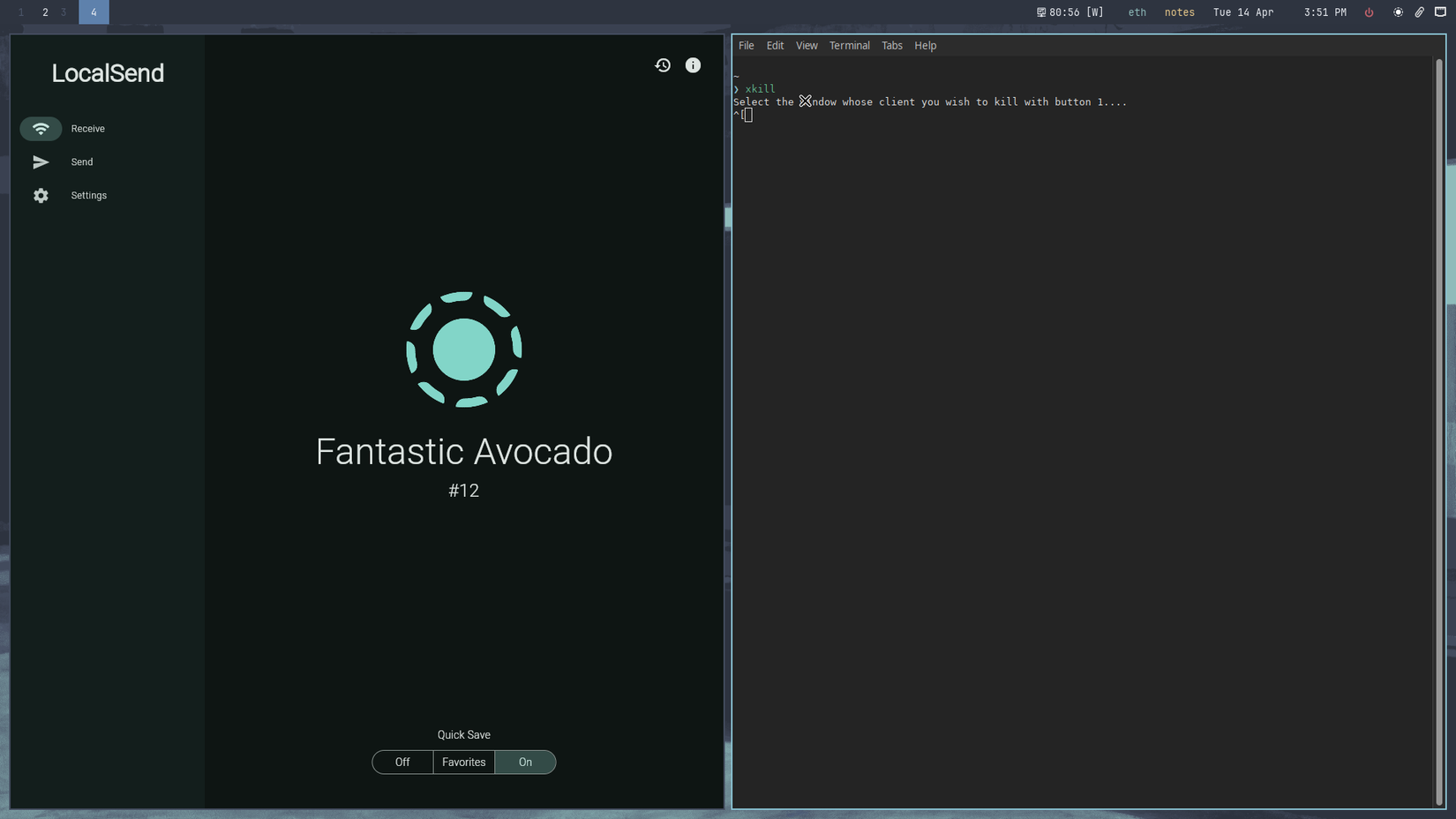
In any case, launching a terminal should be your first step. If you can access a terminal, you can use it to look up active processes with a tool like htop or btop. With htop or btop, you can directly kill problematic processes.
Jumping into a TTY session
Use the keyboard shortcut Ctrl+Alt+F2 and login with your usual credentials
Let’s say your computer is completely frozen, and you cannot even open a terminal window. The first step is to press Ctrl+Alt+F2. This shortcut will drop you into a new TTY session. You’ll need to log into your Linux system with a username and password (it’s the same username and password you used to log into your current desktop session.)
Once you’re dropped into the TTY session, run htop or btop to view the processes consuming the most RAM and CPU Look for apps that are consuming too many resources.
If you don’t have any important work to save, you can just kill all the offending processes. On htop, you can select the offending process using arrow keys and hit F9. Select SIGKILL from the list to instantly terminate the process.
You can also use the killall command, if you already know the target process.
killall firefox
Saving your work just to be safe
You can back up autosave files and monitor active jobs
Even if you’re not ready to kill an active process because you’re worried about losing unsaved work, you can use the shell to save the work before jumping back in. Some apps autosave your work, but just to make sure, you can save that autosave data somewhere safe. For instance, LibreOffice keeps autosave files in this directory ~/.config/libreoffice/4/user/backup/. You’ll find VS Code autosave data in this location ~/.config/Code/User/workspaceStorage/ If you have a command running in the terminal, you can check if it’s still alive with this command. Substitute name with the name of your target process.
ps aux | grep name
If it’s running, you’ll see at least two lines in the output.
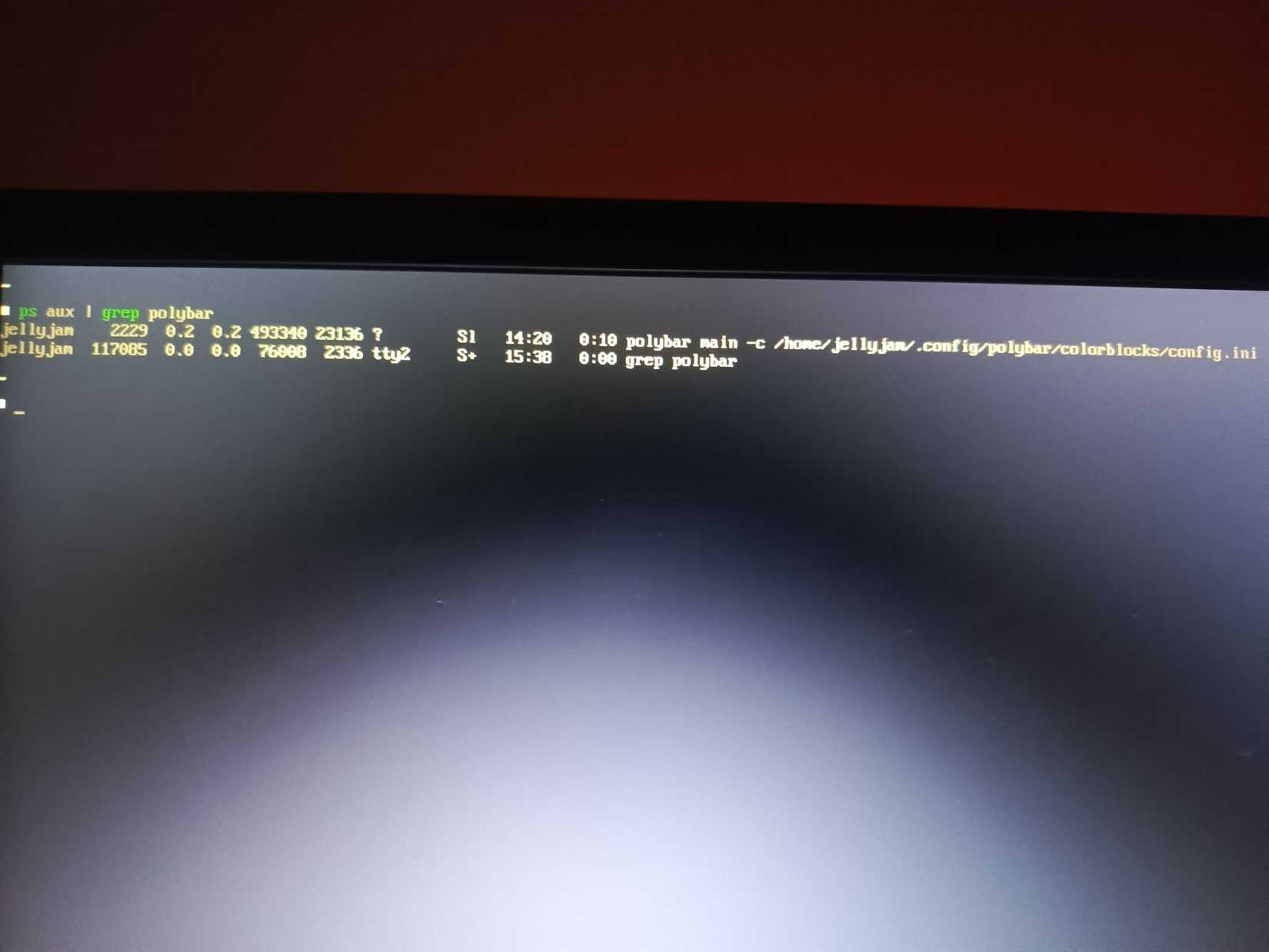
For example, if you’re trying to render a video with Kden live or DaVinci Resolve, you can use ps aux | grep kdenlive to see if it’s still running. If KdenLive is still active, you could monitor the output (the output is rendered incrementally, so the file size keeps growing.) With this command, you can monitor the file for changes. If its size keeps growing, that means the render is still running just fine.
watch -n 2 ls -lh /path/to/output.mp4
Jumping back into the desktop session
Once you’ve identified and killed the bad processes, your desktop session should be restored. You can check its current status by jumping back into the current desktop session.
Most Ubuntu and Fedora based systems will take you back to the graphical desktop session if you press Ctrl+Alt+F2 again. Some systems (like MX Linux, which I’m using) use Ctrl+Alt+F7 to return to the current desktop session.
If neither of those shortcuts take you back to the active desktop session, consider cycling through the entire function row, from F1 to F9.
Leave A Comment?