
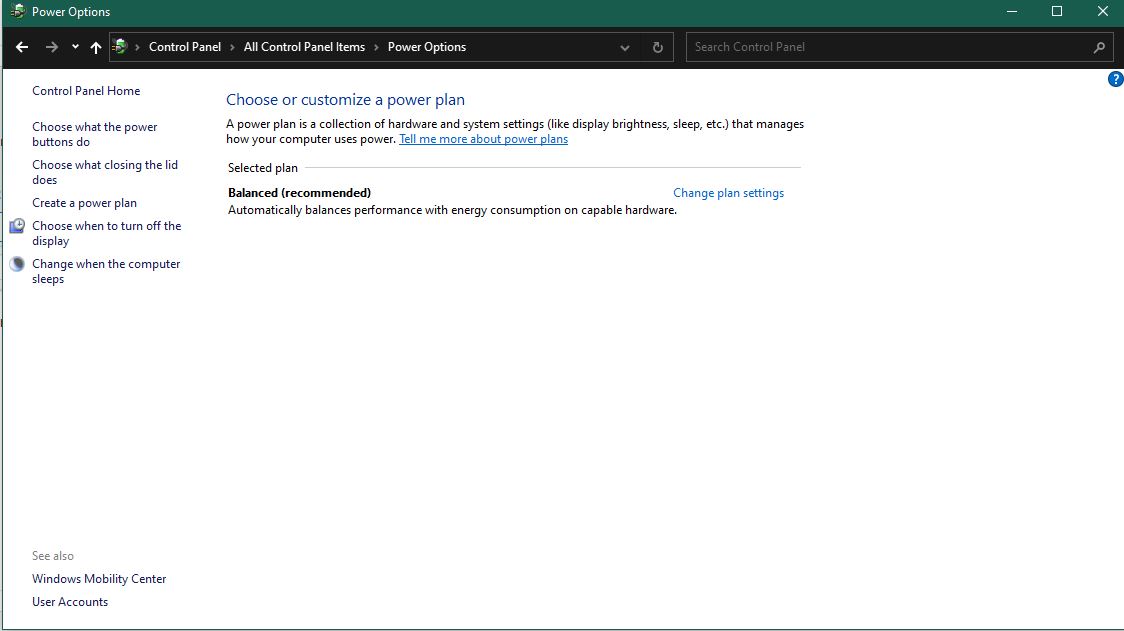
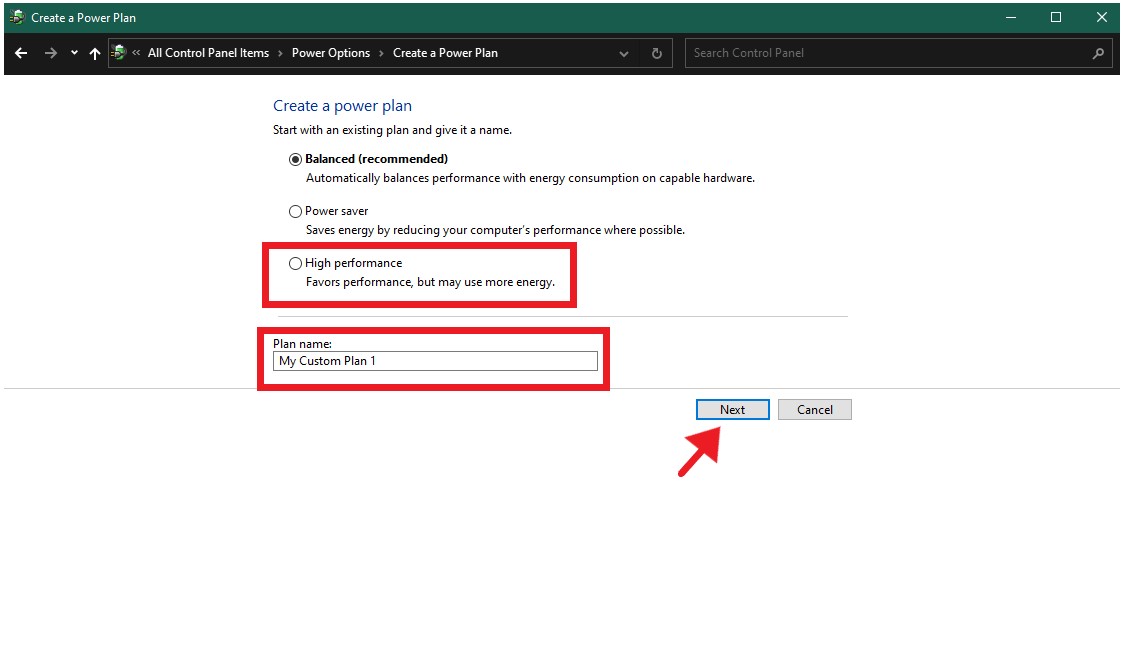
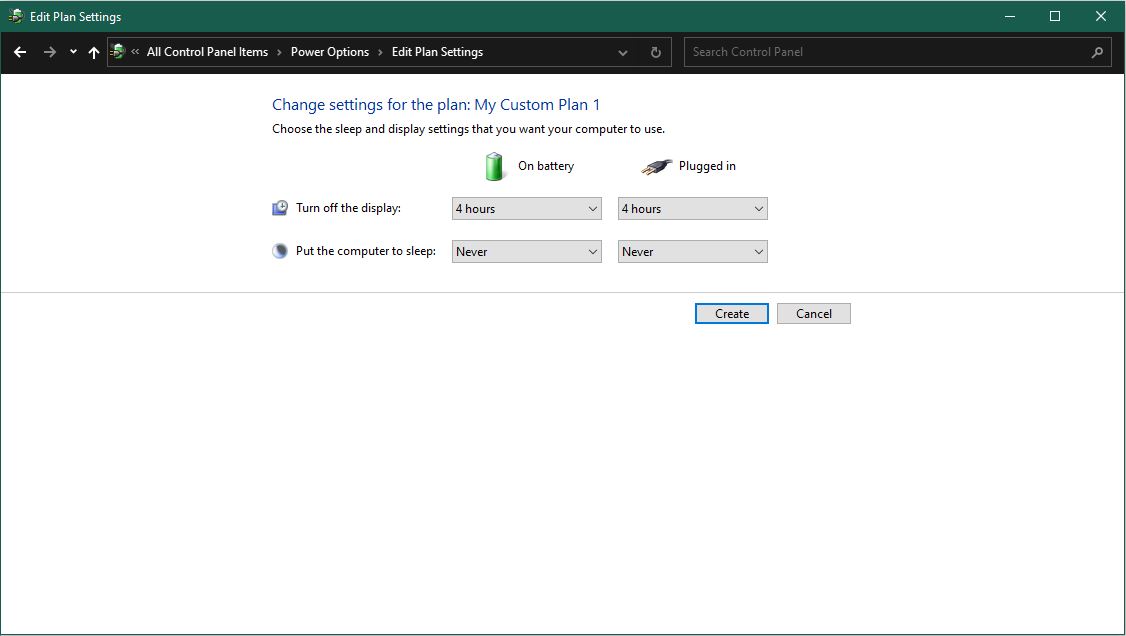
How to Enable High and Ultimate Performance Power Plan in Windows 11 Via Control Panel Data 04/03/2023 Autor duse dorin Categorie OS - Windows, Soluții, Configurare program 2 383 Configurare noua (How To) SituatieDifferent methods exist to enable High and Ultimate Performance Power Plan in Windows 11. Solutie Pasi de urmat Open Control Panel from the Start Menu and go to Hardware and Sound > Power Options. Then click on Create a Power Plan from the left menu bar. You should now see the High Performance Mode, select it. Then give it a name and click Next. Now tweak the Display and Sleep settings as per your requirements and click Create. The High Performance Power Plan will now be created and subsequently enabled on your Windows 11 PC. Tip solutiePermanent Voteaza Up Down (19 din 35 persoane apreciaza acest articol) ShareTweetShare Despre Autor duse dorin Solutii Asemanatoare How to resolve a Windows Update Install Error – 0x80070002 4 Bring your Windows Desktop to life with Wallpaper Engine 3 How to move Taskbar to top or side on Windows 11 0 Reparare eroare:”Trust Relationship Failed” fără scoatere din domeniu și fără restart (PowerShell) 3 You’ve been deleting files the wrong way in Windows 3 Arduino Soil Moisture Sensor 1 Leave A Comment? × Cancel Reply Save my name, email, and website in this browser for the next time I comment. seven − = 3
Leave A Comment?