

Mobile
iPhone 276 Solutii
Securitate si criptare dispozitive 14 Solutii
Sincronizare si migrare de date 13 Solutii
Instalare si configurare aplicatii specifice 79 Solutii
Configurare cont email 10 Solutii
Optimizare si curatare OS 11 Solutii
Windows Phone 24 Solutii
Android 474 Solutii
BlackBerry 16 Solutii
Subscribe to Apple TV channels in the Apple TV app
With the Apple TV app, you can subscribe to just the channels you want without downloading any apps. Then you can watch content included with your subscription right inside the Apple TV app — on demand and across all of your devices.
[mai mult...]Add a schedule or automation on your iPhone
You can schedule a Focus to activate at certain times, when you’re at a particular location, or when you open specific apps.
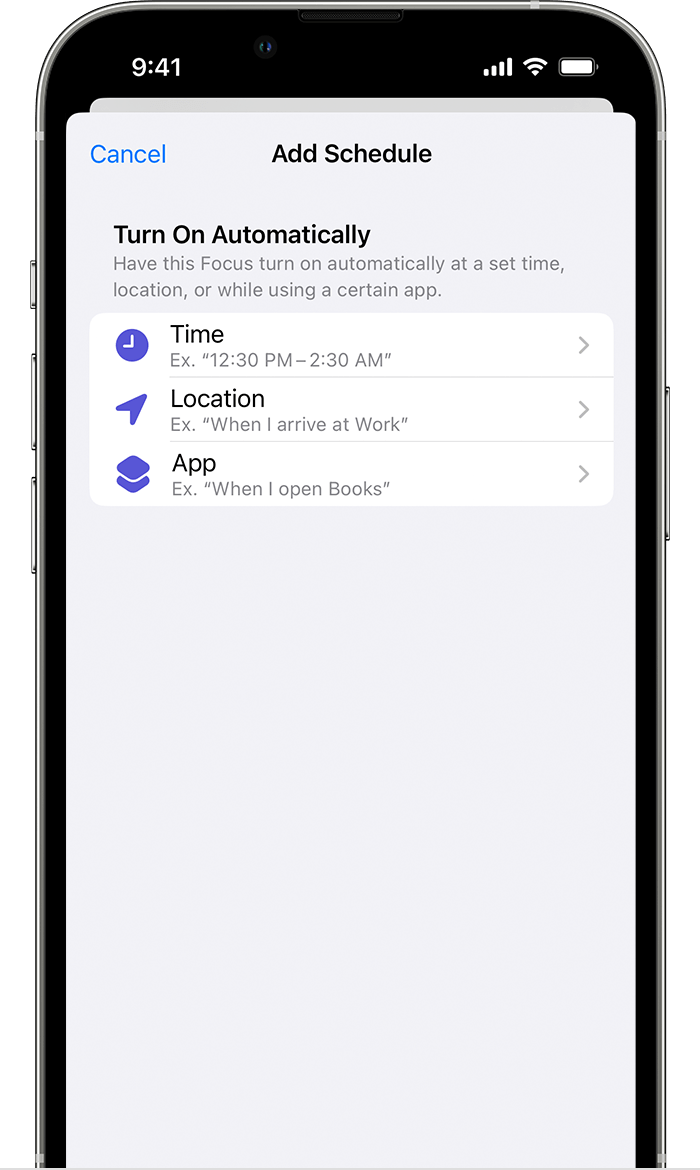
To set a schedule based on certain times, locations, or apps:
- Go to Settings > Focus, then tap the Focus that you want to schedule
- Under Turn on Automatically, tap Add Schedule
- Choose when you want the automation to happen, then follow the onscreen steps.
To use Smart Activation, which will automatically apply your Focus at relevant times throughout the day:
- Go to Settings > Focus, then tap the Focus that you want to activate automatically
- Tap Smart Activation
- Turn on Smart Activation
When you turn on Smart Activation, it automatically turns on the Focus at relevant times throughout the day based on location, time, or app usage.
Allow Time Sensitive notifications on your iPhone
[mai mult...]How to add subtitles to a Video on Android
Automatically Add Subtitles to a Video on Android
If you don’t want to spend too much time and effort finding and downloading the subtitles—you can add them automatically. All you need is an internet connection and a subtitle app that can search and download subtitles for your videos.
Adding subtitles automatically will smooth the process, and you don’t have to rely on a manual search to download the subtitles. It also automatically synchronizes the subtitles with the video sound. The media player apps adjust the timing and speed of the subtitles according to the video playback. You can try VLC and MX media player—that will do the most work for you.
Add Subtitle to a Video Using VLC Media Player
The VLC ranks among the top media players for Android devices. You can play almost any local and network video using VLC. It supports multiple video formats such as MKV, MP4, AVI, and MOV.
You can use VLC to directly download and add subtitles to your favorite TV show or movie. You can also customize the subtitle text appearance and position from VLC settings. This will help you to adjust the subtitle synchronization with the video.
Open the video in VLC Player to add subtitles to it. Tap anywhere on the screen, and you’ll see some on-screen buttons. Find the subtitle icon, usually located in the bottom left corner. Tap on that subtitle icon to bring up the subtitle options.
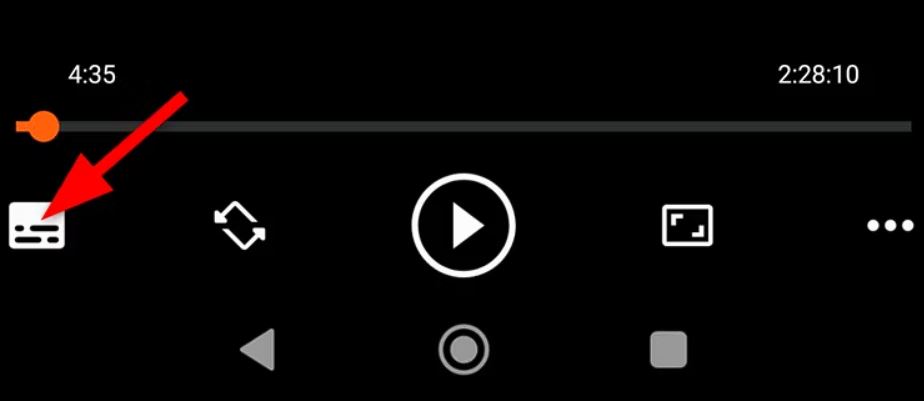
Click the little down arrow to expand the “Subtitles” menu. Here you will see different options for subtitle selection. To proceed with adding subtitles, select “Download Subtitles.”
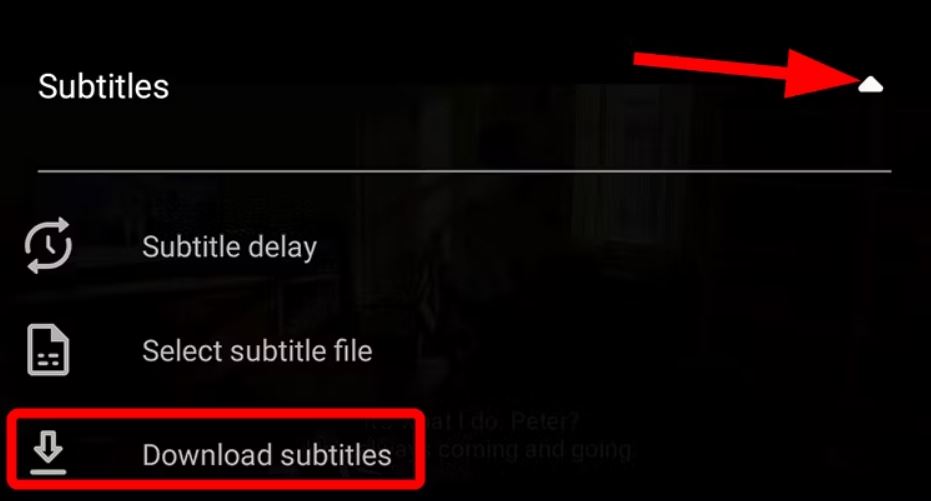
VLC Player will start searching for available subtitles. It typically searches for subtitles using the video’s title, filename, or other relevant metadata to find the best match.

You will get a list of all available subtitles to download. Select the suitable subtitle according to your video. To add the selected subtitle, simply hit the download icon next to it.
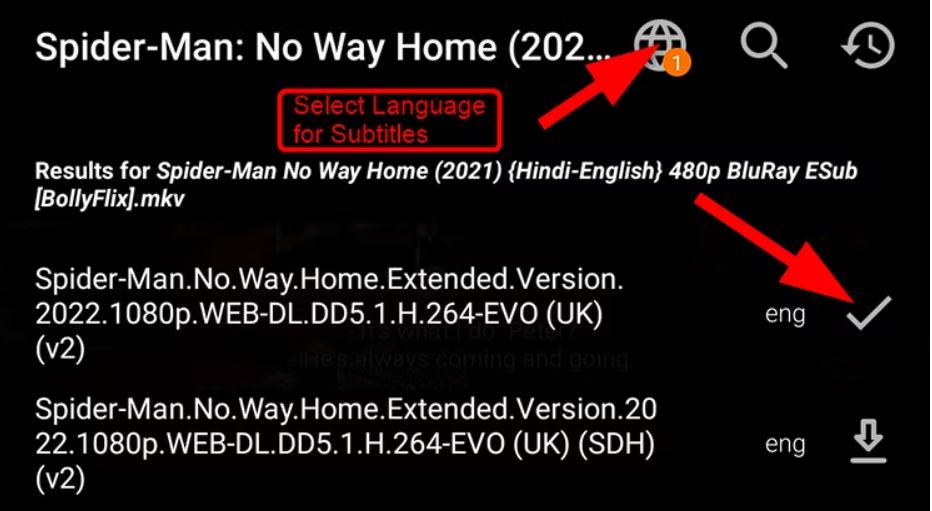
You can also choose a different language to search for the subtitles.

After downloading the subtitles, select the downloaded subtitle track from the subtitle settings.
