Instalare DigiSginer One
DigiSigner One este un soft de tip PKI, folosit in semnarea si/sau criptarea de documente, pentru a fi transmise in siguranta, in domeniul digital.
Nota:
- acest soft necesita o licenta.

Soluții pentru problemele tale IT
DigiSigner One este un soft de tip PKI, folosit in semnarea si/sau criptarea de documente, pentru a fi transmise in siguranta, in domeniul digital.
Nota:
Cumparaturile online nu reprezinta nimic iesit din comun pentru noi in ziua de astazi. Mereu exista acel moment in care ajungi pe un nou site de cumparaturi si trebuie sa completezi mereu informatiile tale bancare ca sa finalizezi comanda.Acum acest lucru se poate face cu doua click-uri , fara sa mai fim nevoiti sa introducem nimic.
[mai mult...]Wondershare Filmora Video Editor este un program de editare video versatil, creat in special pentru incepatorii din domeniu. Interfata este intuitiva si functiile pot fi usor de invatat. In acelasi timp exista o serie intreaga de efecte, filtre si chiar animatii ce pot fi aplicate doar prin cateva click-uri. Intr-o serie de articole vom prezenta modul in care pot fi folosite functiile primare ale acestui program. Mai jos puteti afla cum puteti aplica efectele de tranzitie intre secventele unui film.
[mai mult...]Nu este la fel de usor sa adaugati watermark in PowerPoint la fel ca si in Word. Cu toate acestea aveti posibilitatea sa adaugati watermark-ul pe fundalul slider-urilor pe care doriti sau pe toate, folosind functia Master Slide.
[mai mult...]
Nagle Algorithm: It is mean to develop the efficiency of TCP/ IP networks by reducing the number of packets that required sending over the network. This is designed by an engineer named John Nagle so; it is named as Nagle Algorithm. It works by combining very little data packets together but frequently at the expense of real-time responsiveness as the algorithm delays in sending small outgoing messages until they together reach the desired amount of bytes to make them “worth” sending. Nagle Algorithm is enabled by default in Windows 7 and the succeeding versions. This algorithm was designed to avoid problems like small packets known as tinygrams, on slow networks. The algorithm says that TCP/IP connection can have only one outstanding small segment that has not yet been acknowledged. The definition of “small” differs but generally it is defined as “less than the segment size”, which on ethernet is about 1500 bytes. Nagle’s algorithm facilitates in controlling blocking when small packets are sent constantly by TCP. And when it is enabled, this helps to prevent a flood of these packets.
But the users are not very satisfied with this algorithm. Some of the networked video games multiplayer suffer from the Nagle’s algorithm, as these programs believe that gaming actions are sent without any delay coupled packets. So, it is found that disabling the algorithm helps in removing the stuttering time delays in gaming known as latency.
Disabling the Nagle Algorithm is important to get a free-flow of data protocol through the network, thus for promoting the internet speed operations. Disabling Nagle algorithm helps to optimize the Internet speed or slow network application, and avoid the lower gaming latency/ping. But before moving further, it is important to recognize the suitable NIC interface.
Network Interface Controller (NIC is known as network interface card, network adapter, LAN adapter or physical network interface). This is a computer hardware component that connects a PC to a PC network. A system might have multiple internet connections and for each connection, Windows Registry builds an individual NIC interface or NIC-ID. This ID is presented in the form of the cryptic combination of letters and numbers, enclosed in braces. For recognizing the suitable NIC-ID it is required to obtain the IP address of current or active internet connection.
Follow the steps to recognize the suitable NIC Interface
• In the search box type ‘CMD’ and press Enter to open Command Prompt
• Then on the black screen, type ‘IPCONFIG’ and hit Enter to view info on your active connection
• Find and write down IP address, displayed next to IPv4 Address, under Wireless LAN adapter Wireless Network Connection
• And Exit Command Prompt
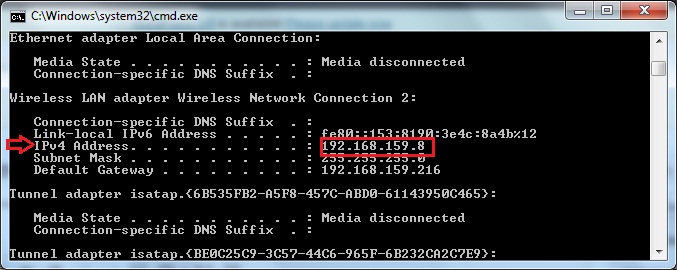
Simply by modifying the registry, the Nagle algorithm can be disabled. But before moving further it is recommended to remember the IP address, by following the above steps. And after follow the steps given below.
• In the search box type ‘REGEDIT’ and press Enter for opening the Windows Registry Editor
• Then, in the left pane, expand through HKEY_LOCAL_MACHINE to achieve the following key
• SYSTEMCurrentControlSetservicesTcpipParametersInterfaces
The key might contain several NICs, this depends upon the number of internet connections have been used. So to disable the Nagle-Algorithm of the correct internet profile it is required to access the correct NIC-ID. And to do this click any interface key and locate and then match the IP address with the one noted in the earlier section, in the right pane of Registry Editor. It is possible to exist within a string Value, named ‘IPAddress’ or ‘DhcpIPAddress’.
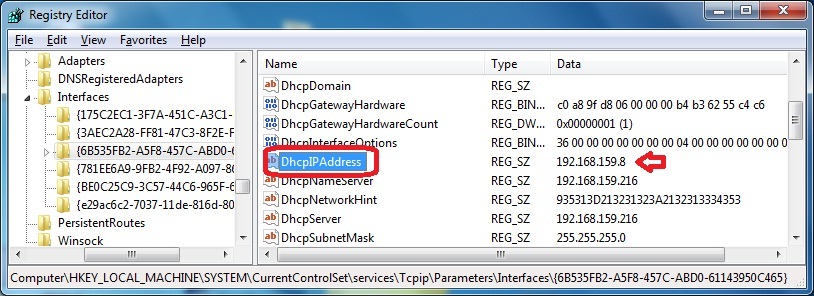
And as it is found, continue in the same key > in the left pane of registry editor
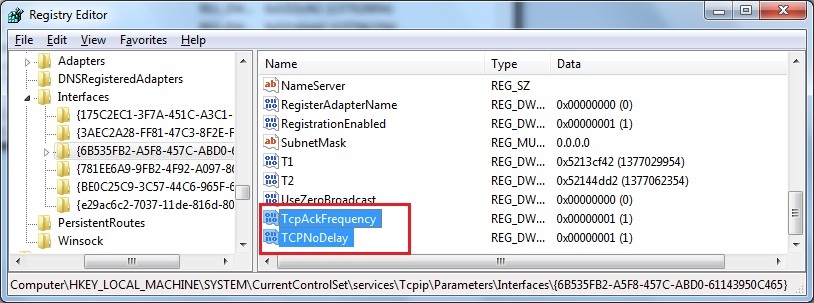
Well, by following the process you can easily disable Nagle Algorithm in Windows 10. However, it is also essential to inform you this is an essential Windows tool and needed to be reactivated for a proficient portion of work. You can disable the algorithm temporary as disabling it permanently might have a visible influence on the regular bandwidth. So, as you are done with your work, just reverse the settings by changing the data of two newly created values to 0.
[mai mult...]
Daca dorim sa schimbam tema in opera, pentru a fi mai atractiva sau daca cea default ne deranjeaza vizual.
[mai mult...]