
Situatie
Solutie
Automate repetitive tasks with Quick Steps
A lot of time in Outlook is wasted on repetitive tasks—clicking through menus to move, flag, or categorize emails. You can reduce this effort with Outlook’s Quick Steps feature, which lets you complete frequently used actions with a single click or combine multiple actions into a single command. Using Quick Steps alone can significantly reduce inbox fatigue.
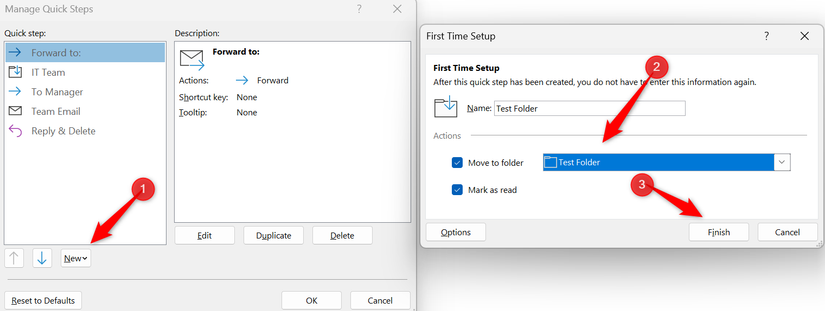
To set it up, go to the “Home” tab and click the small downward arrow in the bottom-right corner of the Quick Steps group. Select “New,” choose the actions you want to automate, and use “Custom” if you’re going to create your own workflow. Once configured, click “Finish” and start using Quick Steps to streamline everyday email tasks.
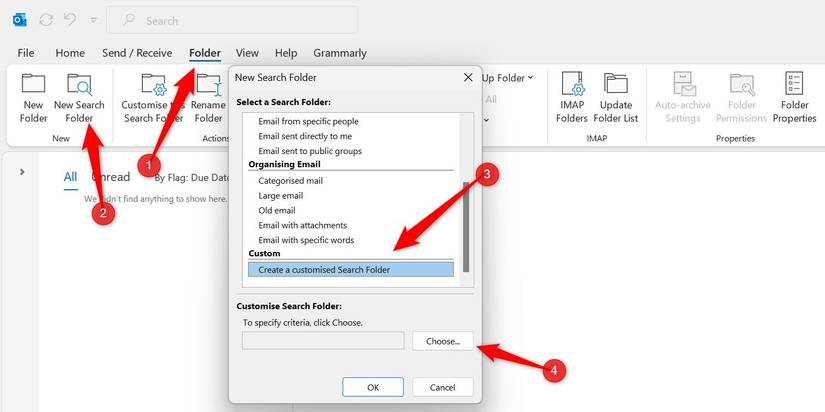
There are situations where you need to find or view emails that match a specific criterion without changing your folder structure. For instance, if unread emails are scattered across multiple folders, and you want to review them all at once, manually searching for them can be exhausting. That’s where Search Folders come in—they let you automate this process.
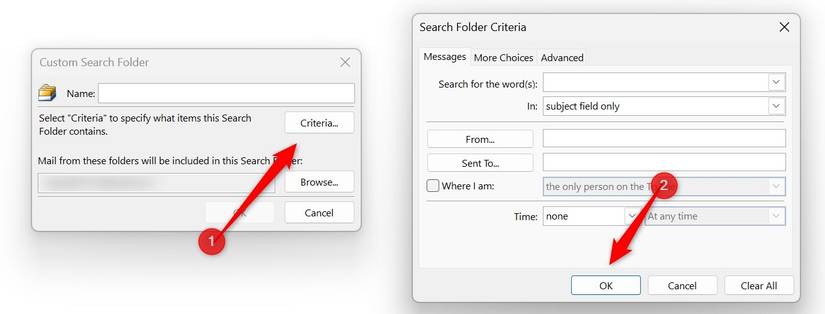
You can create a Search Folder that displays all unread emails while leaving them in their original folders. Since Search Folders update in real time, the moment you open an email, it disappears from the Search Folder and is marked as read in its original location. To use this feature, first use the search bar to define and verify the criteria you want.
Track emails efficiently with color-coding
Not all emails in your inbox carry the same importance. Some are high-priority, such as messages from your manager that need immediate attention, while others are low-priority, such as newsletters. When all these emails are mixed together, manually spotting urgent ones can be time-consuming. Color-coding helps you visually organize emails at a glance.
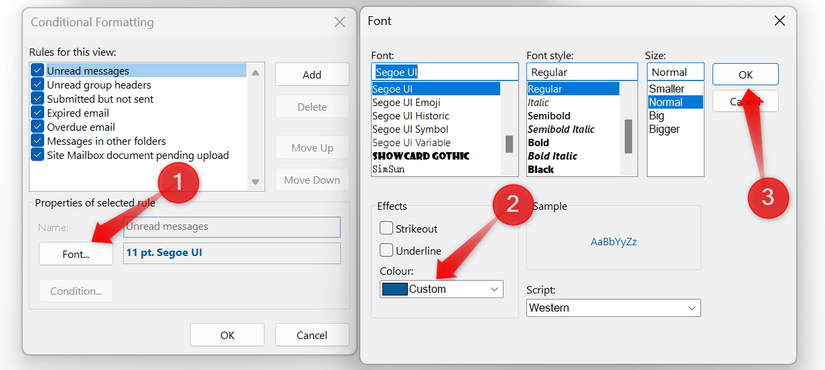
By marking urgent emails in red, you can locate them quickly. Once you set the conditions, all incoming emails are automatically color-coded based on your defined rules. For example, to color-code emails from a specific sender, go to the “View” tab, click on the “View Settings” gear icon, and select “Conditional Formatting” in the new window.
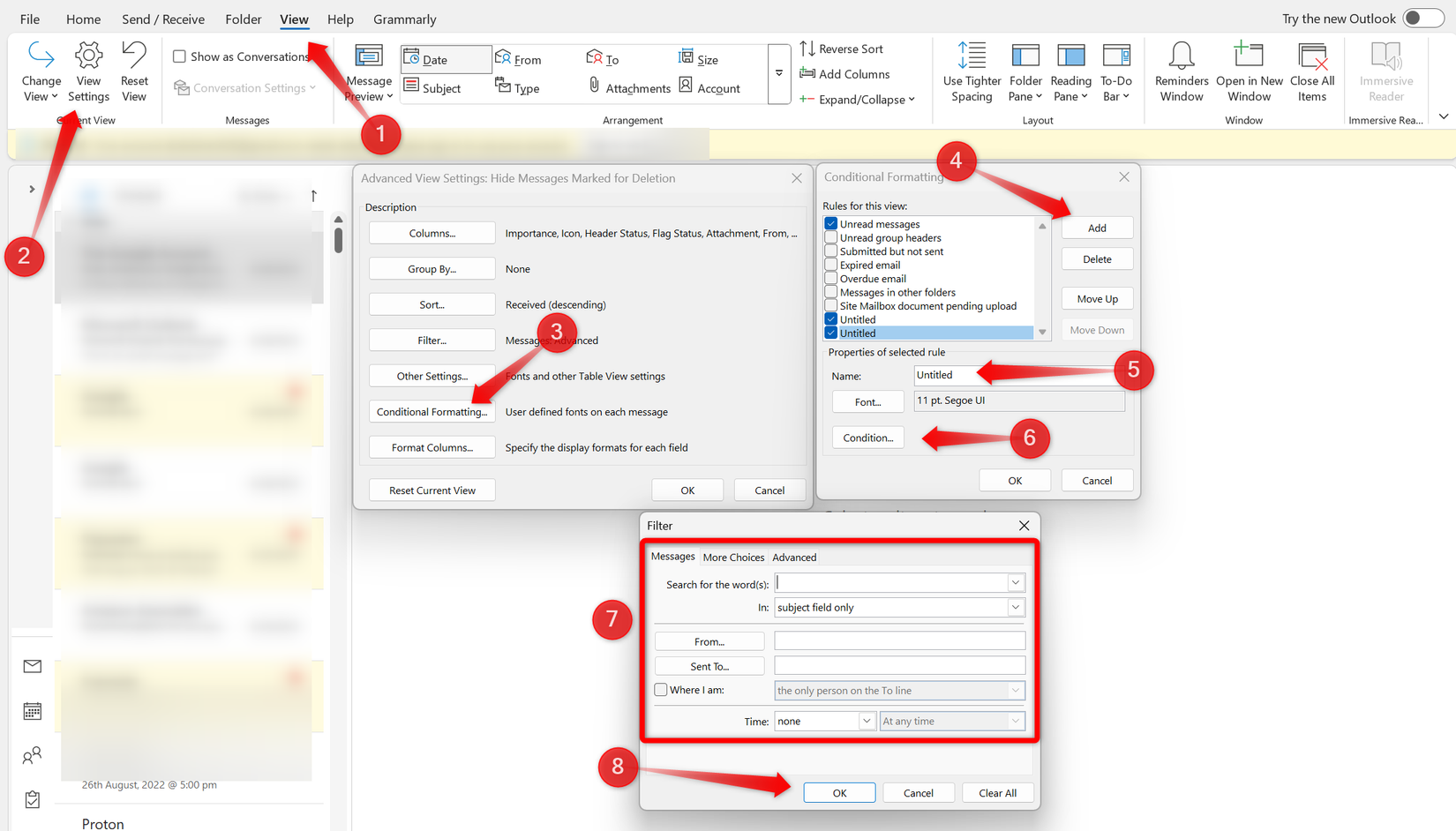
Next, click “Add” in the dialog box, type a name for the rule, and select “Condition.” Set the rule criteria and click “OK.” Then, click “Font” to choose how emails that match the rule will appear.
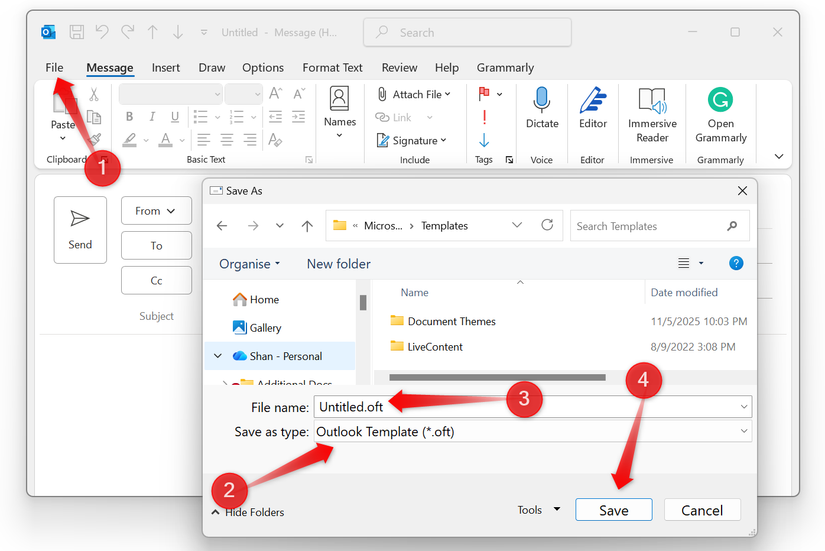
Responding to similar emails repeatedly with the exact text or format can be time-consuming. I recommend creating prewritten templates for common situations—like meeting confirmations, project updates, and follow-ups—so you can insert them when replying.
Similarly, if you delay replying to an email and later forget, you can use the Send later feature to schedule it. Compose your message, click the More Options arrow in the Tags group, check “Do Not Deliver Before,” select a custom date and time, and then click “Send”.
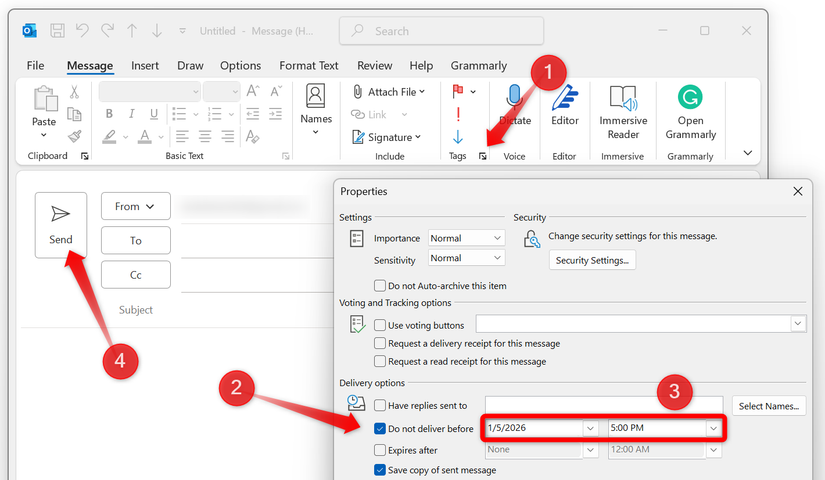
The email will remain in your Drafts folder until the scheduled time, after which it will be sent automatically.
If you spend most of your time navigating your inbox and constantly reaching for the mouse—even to jump to the search bar—you’re missing out. Outlook supports a wide range of keyboard shortcuts that can save significant time. From replying to messages to organizing emails, a few keystrokes can replace multiple clicks and menu hopping.
For example, press Ctrl+R to reply to an email, Ctrl+Shift+M to create a new message, Ctrl+Shift+K to flag an email for follow-up, and Ctrl+E to jump straight to the search bar. Learning these and other shortcuts lets you move through your inbox at lightning speed. Try them out, and you’ll notice fewer interruptions and a much faster workflow.
Use focused search queries
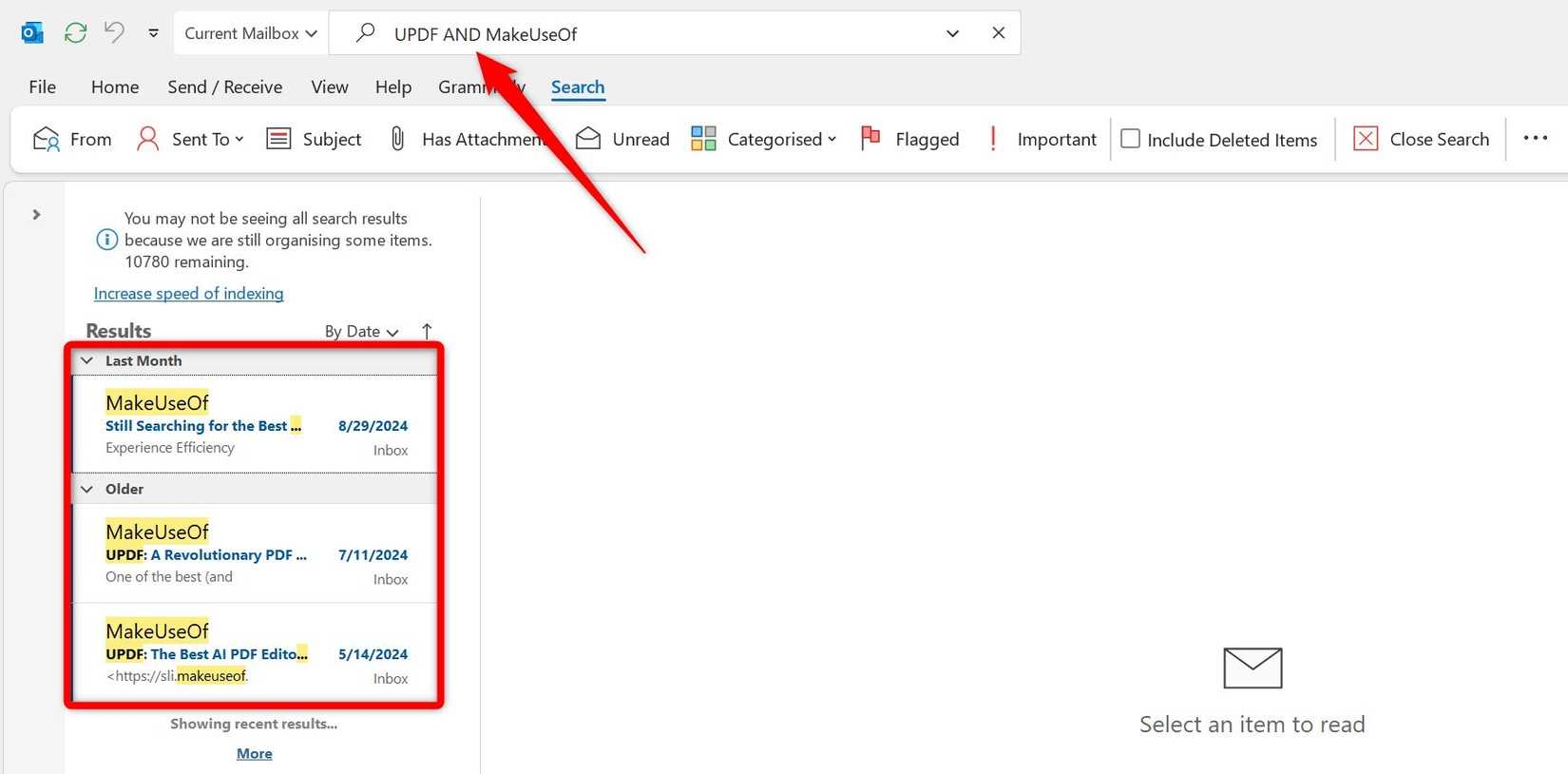
Even with a well-organized folder structure and rules in place, finding a specific email can still take far too long if you have to scroll endlessly. That’s where Outlook search comes in—but vague keywords often return too many results to be useful. To locate emails faster and more accurately, use targeted search queries.
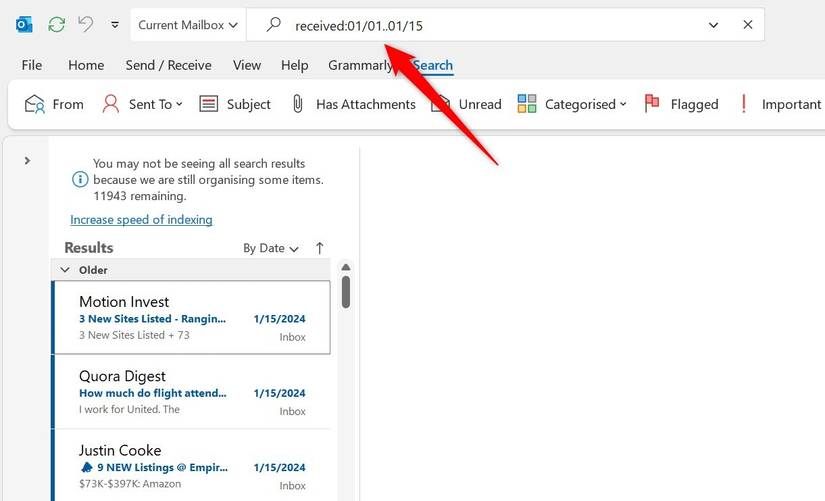
You can also combine multiple queries using logical operators such as “AND”. So, experiment with different search operators, and save the searches you use frequently to save time.
Leave A Comment?