
Situatie
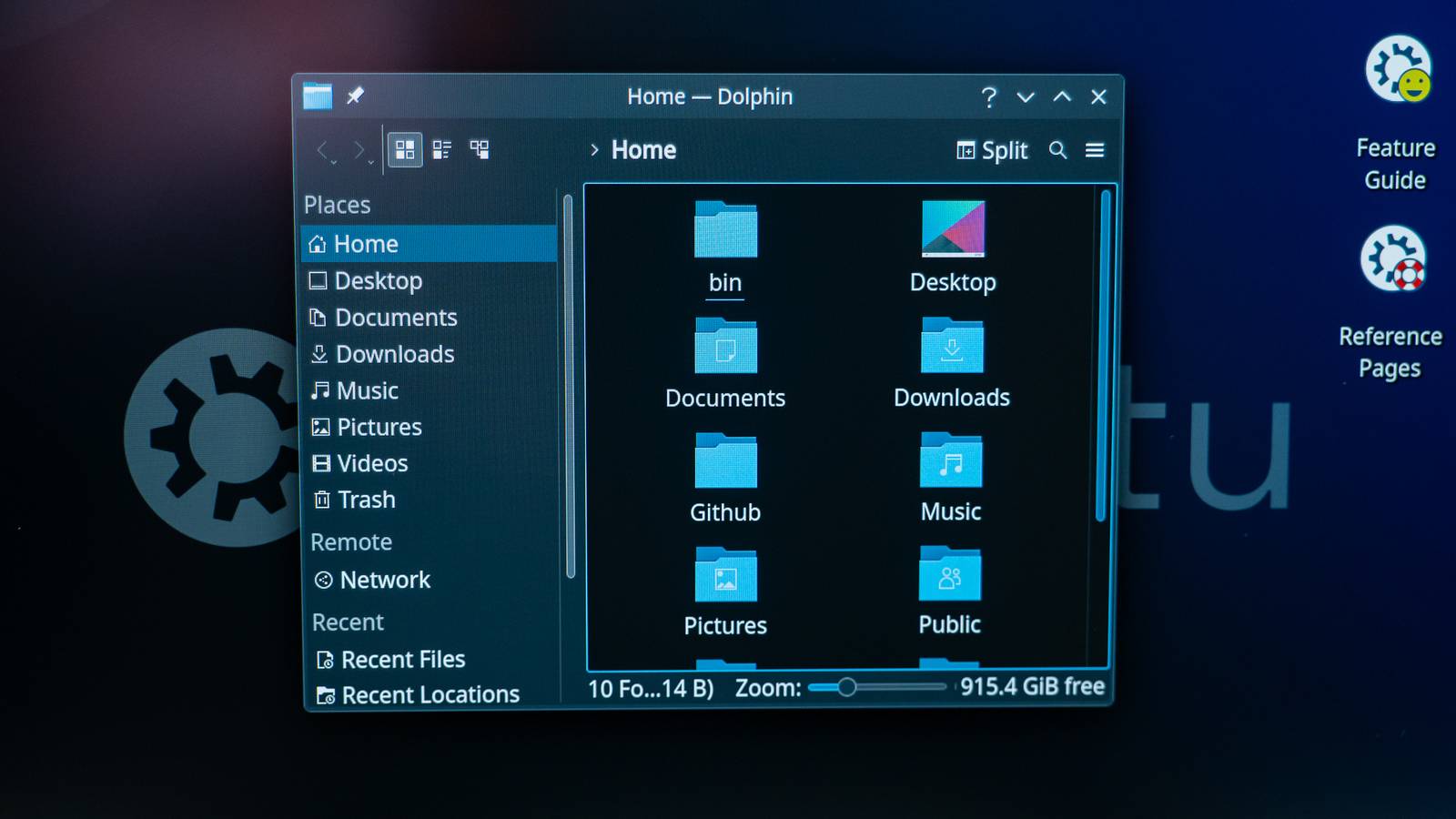
Linux allows you to create symbolic links, or symlinks, that point to another file or folder on your machine. The best way to do this is with the ln terminal command—though there are some graphical file managers that can create symbolic links too.
Solutie
Symbolic links are basically advanced shortcuts. A symbolic link you create will appear to be the same as the original file or folder it’s pointing at, even though it’s just a link.
For example, let’s say you have a program that needs its files stored at /home/user/.program. But you want to store those files on another partition, which is mounted at /mnt/partition. You can move the .program directory to /mnt/partition/.program, and then create a symbolic link at /home/user/.program pointing to /mnt/partition/.program. The program will try to access its folder at /home/user/.program, and the operating system will redirect it to /mnt/partition/.program.
This is entirely transparent to the operating system and the programs you use. If you browse to the /home/user/.program directory in a file manager, it will appear to contain the files inside /mnt/partition/.program.
You should generally use standard symbolic links, also known as “soft links”, if you’re not sure which to use.
To create a symbolic link with the ln command, you’ll first need to open a terminal window. Once you have, run the ln command in the following form:
ln -s /path/to/original /path/to/link
You can specify either a path to a directory or file in the command. It will “just work”, whatever you enter.
So, if you wanted to create a symbolic link of your Downloads folder located on your Desktop, you’d run the following command:
ln -s /home/name/Downloads /home/name/Desktop
The -s in the command creates a symbolic link. If you wanted to create a hard link instead—again, this is something you usually wouldn’t want to do unless you have a specific reason to do so—you’d exclude the -s from the command.

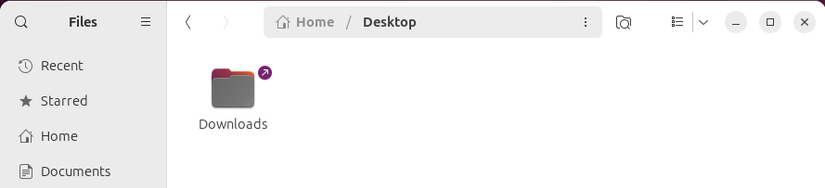
Using our example, if we look inside our Desktop folder, we find a “Downloads” folder that appears to contain all the same files as our main Downloads folder.
rm /path/to/link

Many Linux file managers offer the ability to create symbolic links graphically. If yours does, you can generally do this by right-clicking a folder or file and selecting “Copy”, and then right-clicking inside another folder and selecting “Make Link”, “Paste as Link”, or a similarly named option.
The Nautilus (also called Files) file manager included with Ubuntu’s default GNOME desktop doesn’t have this menu option anymore, but it does have a shortcut that’ll do the same thing. First, simply copy the file or folder as you normally would, with either the context menu or by selecting it and hitting Ctrl+C. Then go to the directory where you want the symlink to be and hit Ctrl+M. Nautilus will create a symbolic link to the original file or folder at the location rather than moving or duplicating the original file or folder.

Leave A Comment?