
Situatie
Solutie
There are plenty of Windows commands that everyone should be aware of, and WinGet tool commands are definitely among them. WinGet is Windows’ package manager that allows you to install or uninstall applications on Windows. It can also be used to discover new applications and find details about the ones that are already installed on your device.
You can think of WinGet as the non-GUI version of the Microsoft Store. Similar to the Microsoft Store, you just need to enter the name of the application you want to install along with the WinGet command, and within seconds, the application will be installed on your device. The best part about using the WinGet tool is that it eliminates the need to download the executable file of the app you want to install. Furthermore, it also ensures that you don’t have to go through the installation wizard clicking the “Next” button repeatedly.
In addition to all this, the WinGet tool installs only the application you intend to install on your computer, rather than adding any bundled apps that might come with it if you installed the same application from its official website or a third-party source. Given all these benefits, you may wonder why many Windows users don’t use it to manage applications on their devices. The answer is quite simple—commands.
The WinGet tool supports a long list of commands that you can use to manage all the applications installed on your computer. These are some of the most commonly used WinGet commands and when you should use them.
View all installed apps
Usually, when you want to check all the applications installed on your computer, you open the Settings app and navigate to Apps > Installed Apps. While there’s nothing wrong with this method, I think it requires a lot of clicks.
Instead of relying on the usual Settings approach, you can use the list command of the WinGet tool to instantly view all installed applications. To use this command, open Windows Terminal, type winget list, and press Enter.
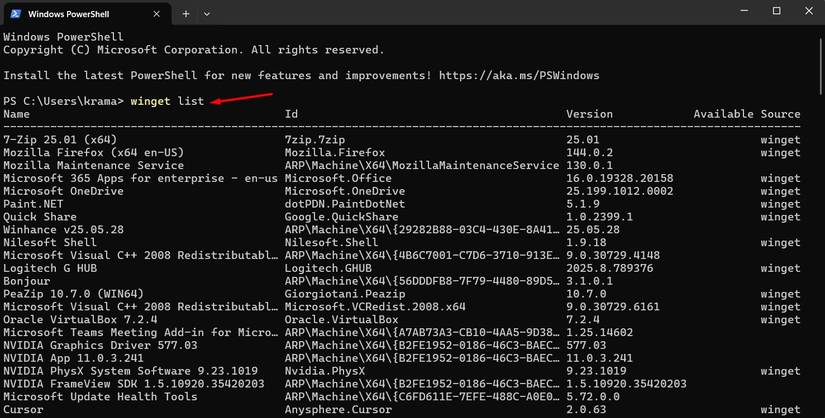
Another reason why I prefer the WinGet method is that it shows the current version of all installed apps, along with details about any available updates. If an update is available for any of the installed apps, you can download it using the next WinGet tool command.
Upgrade all apps at once
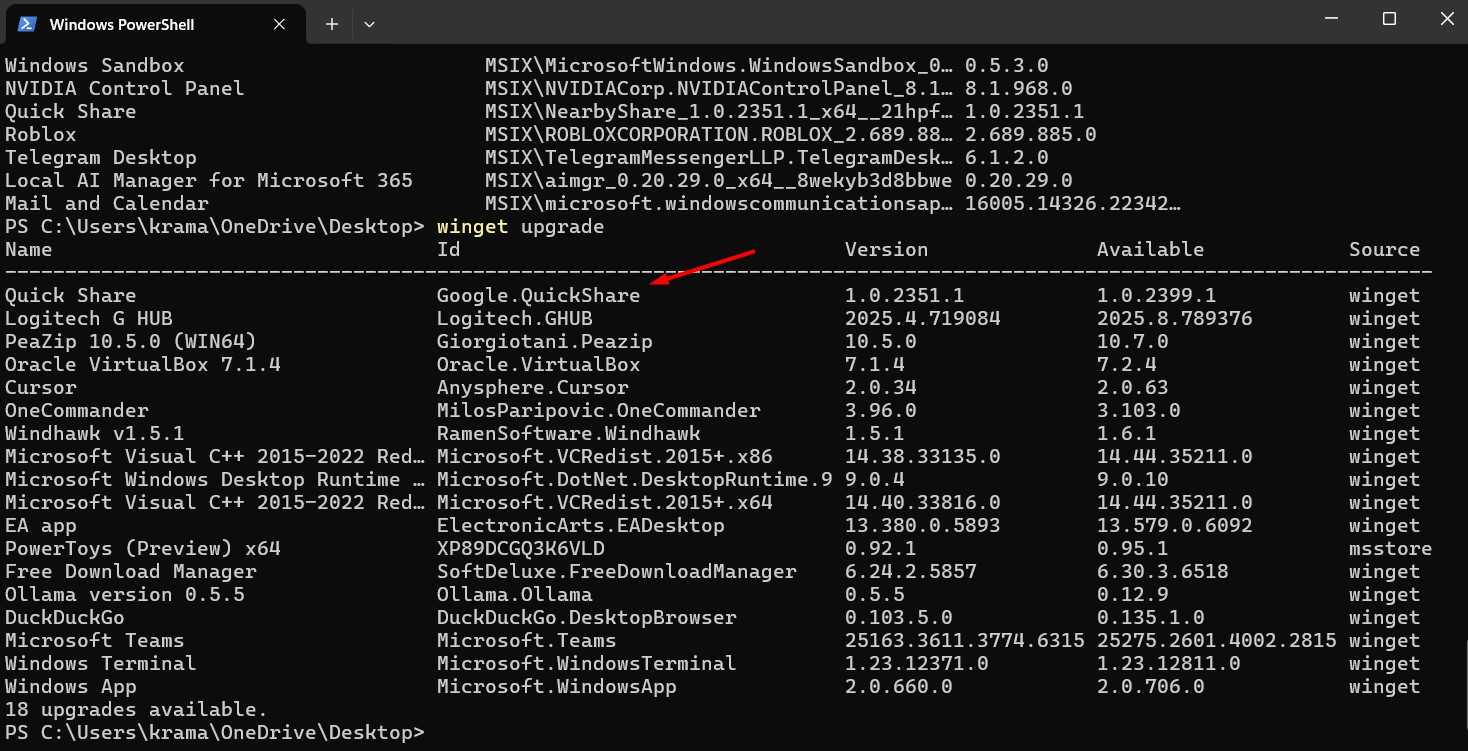
However, if you use the upgrade command in the WinGet tool, you’ll see all available updates for the installed apps in one place. The above-mentioned list command displays all installed applications along with the updates available for them.
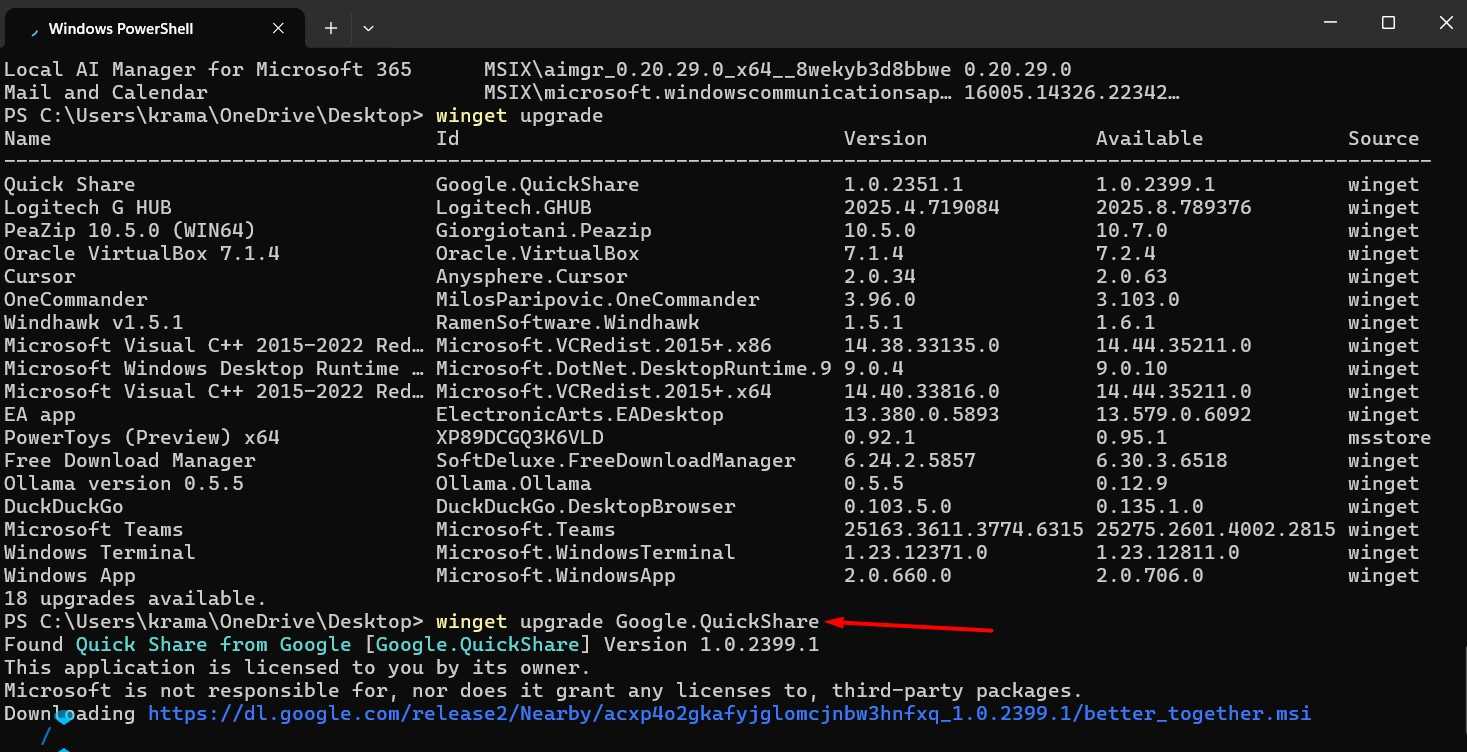
But if you only want to see a list of applications with updates available, execute the winget upgrade command in the Windows Terminal. You can then decide whether you want to upgrade a specific app or all the apps that have updates available. To update a particular app, type winget upgrade ID_number and press Enter. For example, if you want to upgrade the Quickshare app, type winget upgrade Google.Quickshare and press Enter.
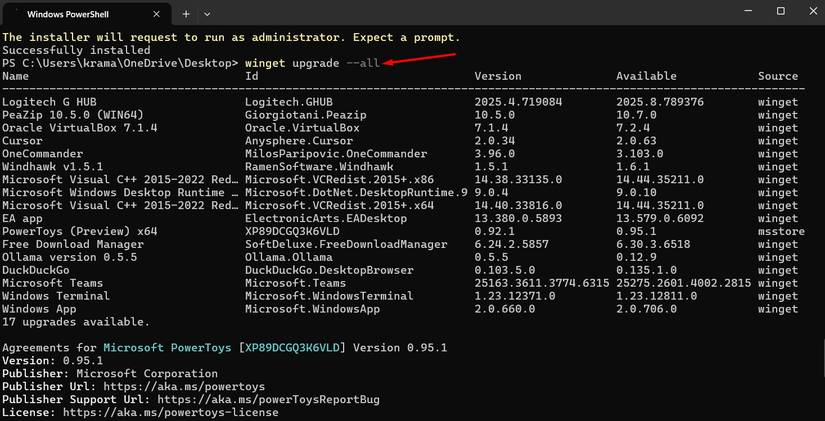
If you want to update all the apps at once, type winget upgrade –all and press Enter.
Quickly uninstall unwanted apps
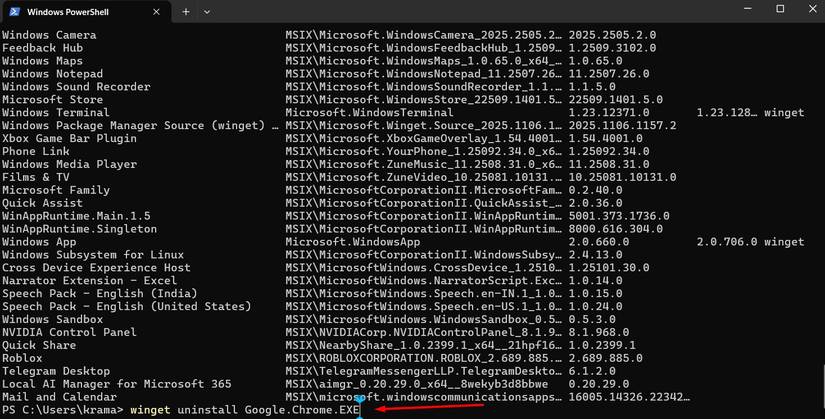
You can also use the WinGet tool to uninstall apps installed on your device. To uninstall an application, you need to run winget uninstall ID_number command in Windows Terminal.
Install a browser without using a browser
I recently used Tiny11 to install Windows 11 without any bloatware, such as Microsoft Edge. You might be wondering how I browse the internet since Microsoft only provides Edge as the default browser on a new Windows installation, and I’ve uninstalled it as bloatware. So, I used the WinGet command to install a new browser on my system.
To install a browser or any other application using the WinGet tool, you need to use two commands: search and install. For example, if you want to install the Brave browser with the WinGet command, type winget search Brave and press Enter.
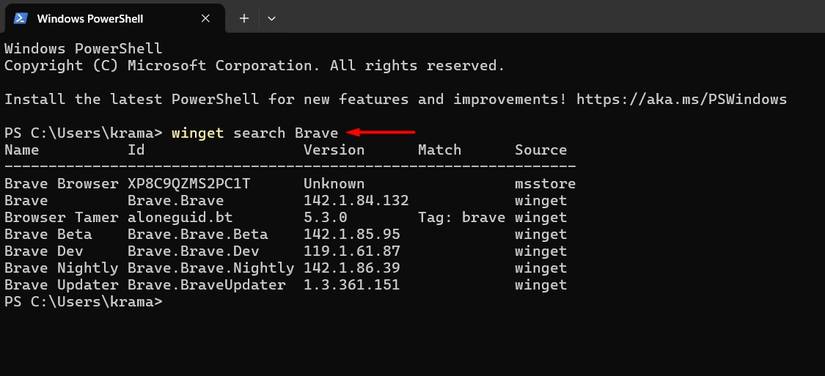
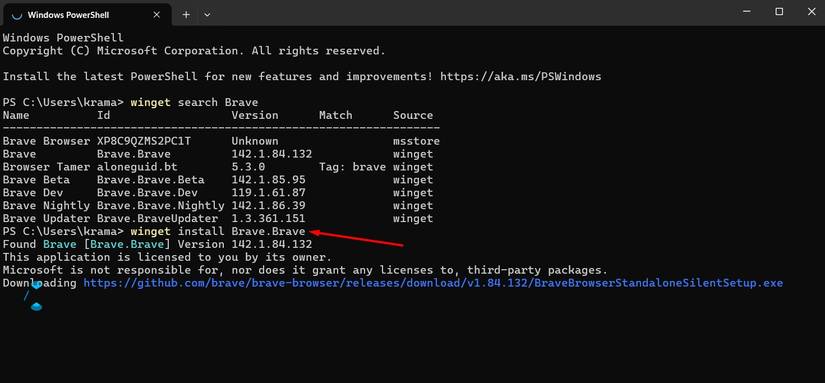
WinGet will display all the applications listed in its repository under the name Brave. Note down the ID of the application you want to install—which, in this case, is Brave.Brave—then type winget install Brave.Brave and press Enter.
Import installed applications
The biggest concern when moving to a new system is having to reinstall all the applications you used on your previous one. You would need to visit each application’s official website and download them individually. The entire process can take a lot of time and effort.
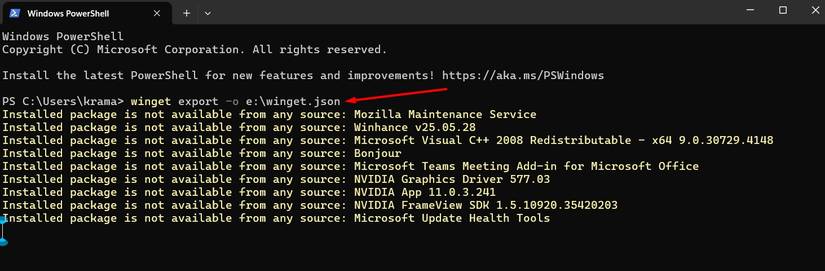
Fortunately, there are WinGet commands for this situation as well. The WinGet tool supports export and import commands, which you can use to create a JSON file listing all the apps installed on your device and then batch-install them on your new system.
First, to create a JSON file of the installed apps using the export command, type winget export -o drive_letter:\winget.json and press Enter. For example, if you want to export the JSON file to drive E, the command would look like this: winget export -o e:\winget.json
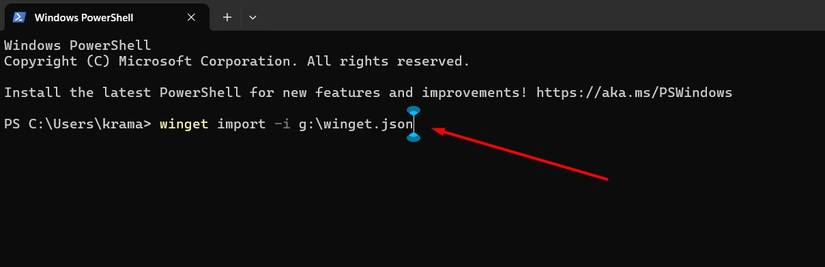
You now simply need to transfer this JSON file to your new system. Then, on that system, open the Terminal, type winget import -i file_location:\winget.json, and press Enter. For instance, if the JSON file is on a pen drive with the drive letter G, the command would look like winget import -i g:\winget.json. All the applications will then now be batch installed on your new system.
Leave A Comment?