
Situatie
Solutie
Smooth navigation can make or break a file manager. A few small adjustments can dramatically speed up how you move through folders. For instance, adding “Open in Terminal” and “Open as Administrator” to the right-click menu saves several steps when working with scripts, permissions, or system configurations.
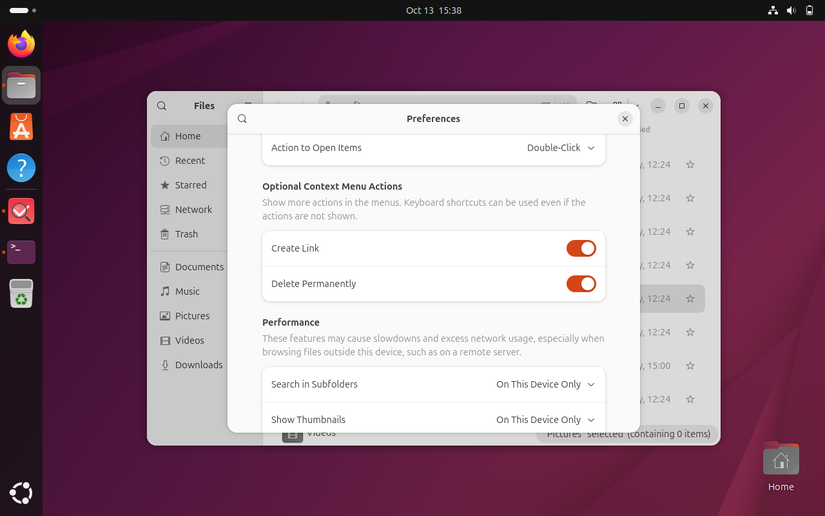
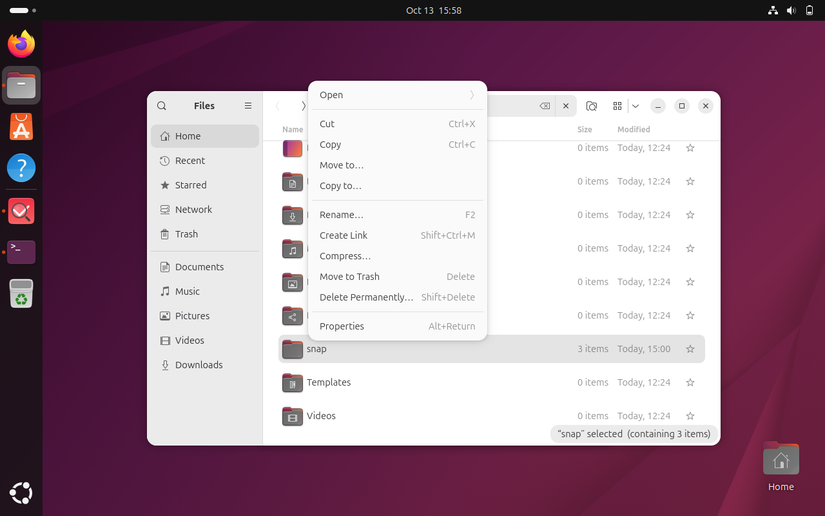
The “Create Link” option will allow you to create links to files or folders in new locations. You can then use the link just as if you were using the file or directory itself. Creating a link in your home directory to a log file buried in a complex directory tree, for example, will let you easily check that log file without memorizing and navigating to its actual location.
Bookmarks are another powerful but underused feature. Adding shortcuts to your most-used directories can turn multi-click navigation into a single action. It’s ideal for projects, shared folders, or cloud directories you visit often.
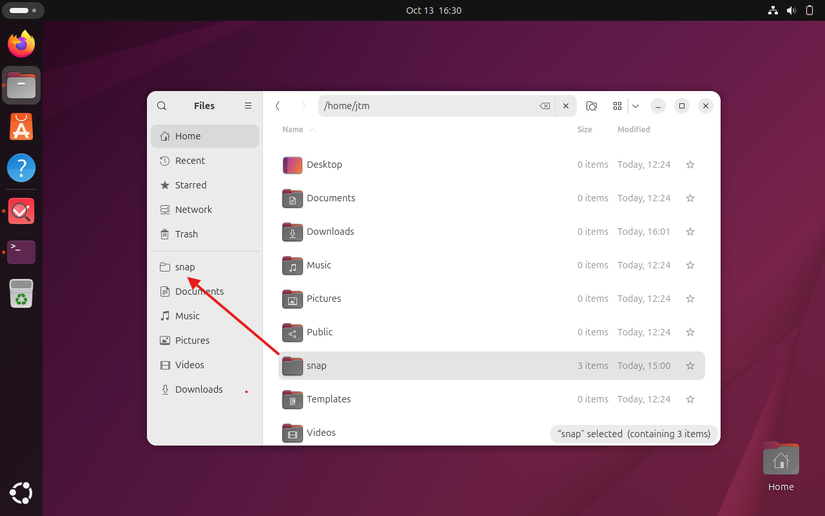
To create a new bookmark, simply drag any folder in the right pane of Nautilus over to the bookmarks list on the left. If you change your mind later, you can easily remove it by right-clicking on the bookmark.
Improve File Previews and Thumbnails
Visual previews are a big time-saver, especially when you’re dealing with images, videos, or documents. GNOME lets you tweak how and when these previews appear. You can increase thumbnail sizes to make browsing more visual, or limit them to local folders to save bandwidth when using network drives.

You can expand GNOME’s preview capabilities by installing thumbnailer plugins from your package manager. These small helpers let Files show thumbnails for many more file types, including videos, PDFs, and camera RAW images.There’s no extra setup required. They should work automatically once installed. If not, try logging out of GNOME and logging back in, or reboot your system.
Common packages include:
You should be able to install using your distro’s package manager at the command line or by searching in GNOME Software. If performance ever lags, clearing the thumbnail cache or restricting thumbnail generation (found in preferences) can help Files stay responsive without losing functionality.
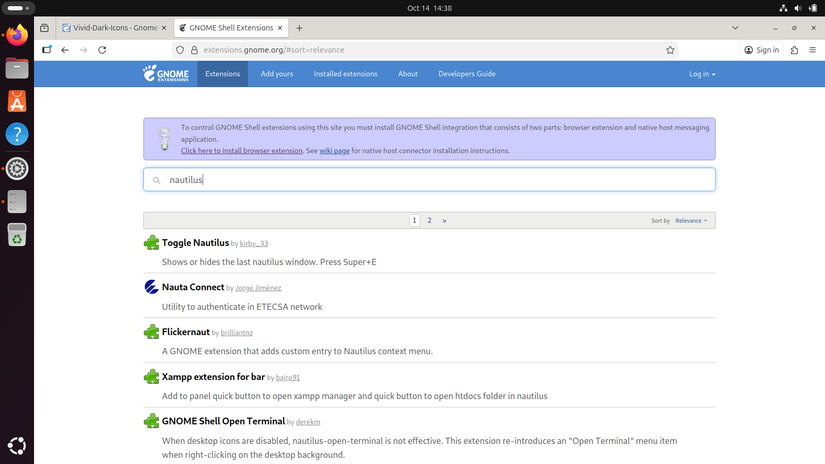
GNOME Extensions open the door to a wide range of improvements, and several directly enhance the file manager. You’ll find extensions that add features such as file tagging, color-coded folders, and clipboard managers that keep track of copied items.
Customize Appearance and Behavior
Looks matter more than many users realize. A clean, visually comfortable workspace reduces strain and helps you stay organized. GNOME makes it easy to customize your file manager’s look and feel.
Start by changing the icon theme or folder colors. Many themes include vivid color variations that help you identify work, media, or system folders at a glance. You can also adjust sorting behavior to display files by name, date, or type, and customize which columns appear in list view.
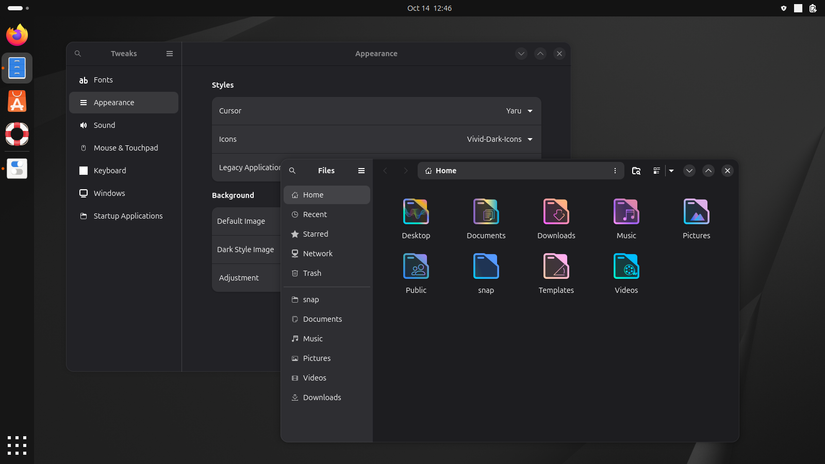
You’ll find loads of free themes along with installation instructions at Gnome-Look.org. Once installed, you can switch between themes and theme elements using the popular GNOME “Tweaks” app (which you can install through GNOME software if it’s not already available).
GNOME Files integrates nicely with online and network locations. You can connect Google Drive, Nextcloud, or SMB network shares right from the sidebar. Once added, these appear alongside your local folders, letting you move files between systems as if they were on your hard drive.
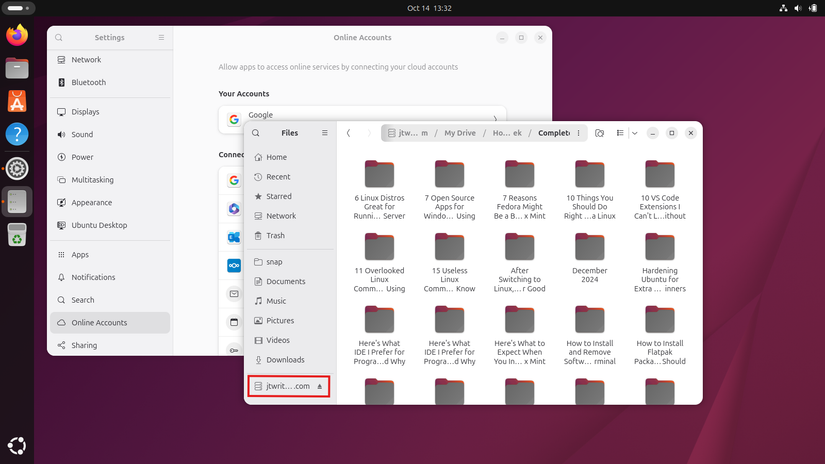
You’ll find the options to add accounts from many cloud providers in GNOME settings under “Online Accounts”. If you regularly use certain network drives, you can also configure them to mount automatically at startup. This ensures that shared workspaces and cloud directories are ready the moment you log in without any extra steps.
Some of Nautilus’s most useful capabilities aren’t visible in the regular settings menu. If you open dconf-editor (GNOME’s advanced configuration tool), you’ll find several options that can subtly but noticeably improve your experience.
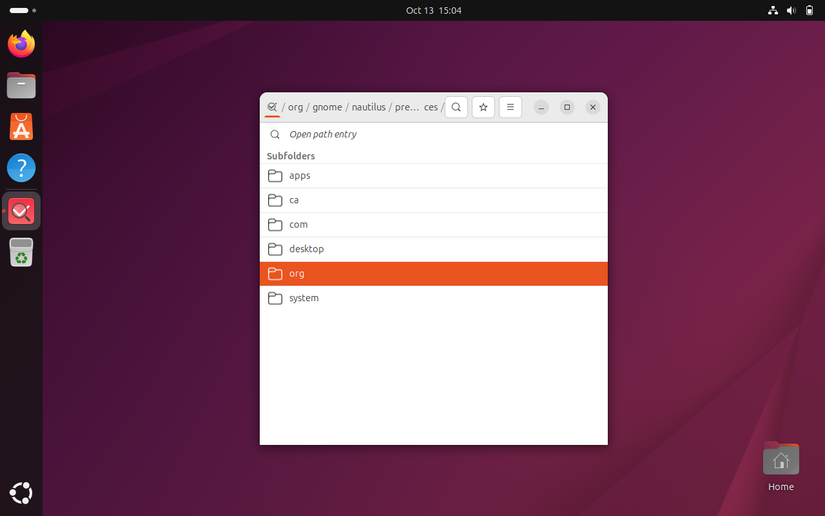
Depending on your distribution and installation choices, you may or may not see dconf-editor in your app launcher. If it’s not there, you can install it easily at the command line. Just open a terminal window and enter the following:
## Debian/Ubuntu
sudo apt install dconf-editor
## Red Hat/Fedora
sudo dnf install dconf-editor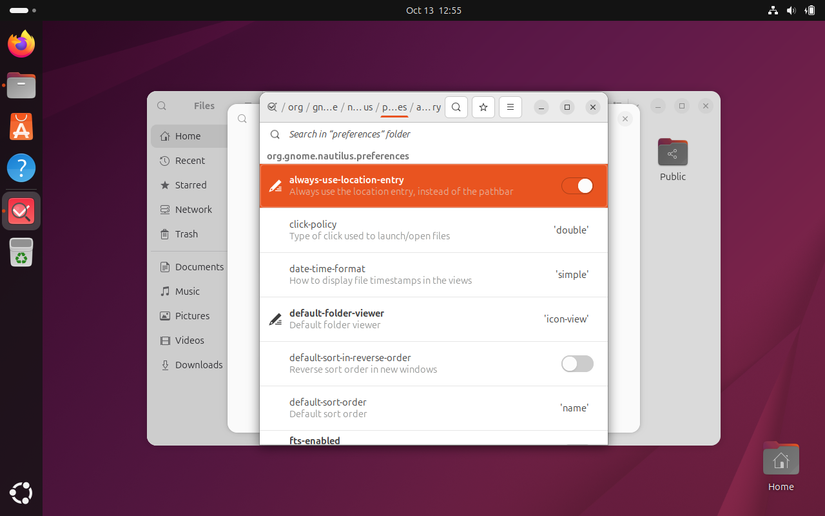
Also under Nautilus preferences, you can set the default view to be used whenever you open a new window. Most systems default to icon view. You can switch it to list view to get a more streamlined folder and file view that will make navigating large directories much faster and easier.
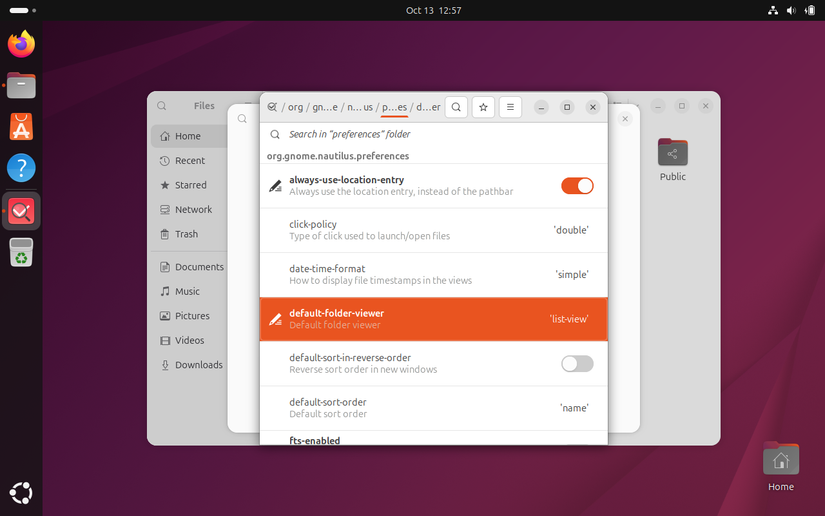
Another simple but useful option is to set the default compression scheme used when you right click on a file and select “compress”. If you work with a lot of file archives, this can be a big time saver.
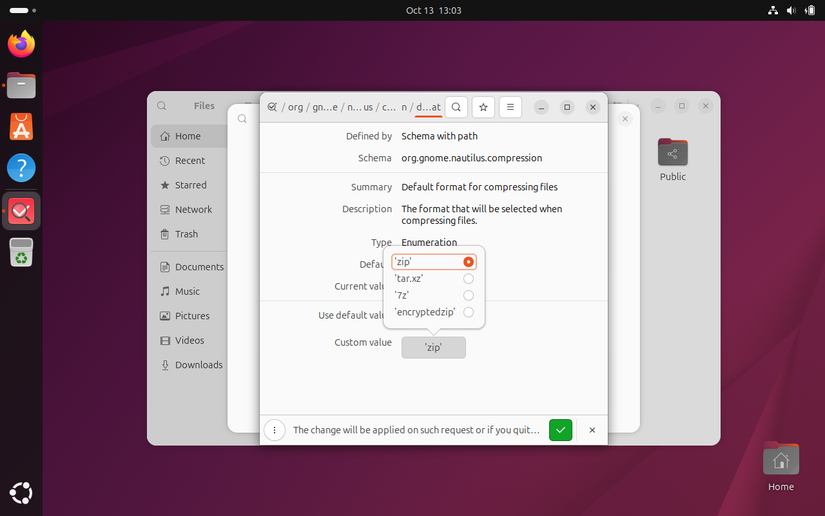
You can choose from:
- zip (default)
- tar.xz (tarball)
- 7z (7-Zip)
- encryptedzip (password protected zip file)
If you change your mind about anything you’ve modified, dconf-editor marks everything you’ve changed and gives you the option to switch anything back to its default settings.
Leave A Comment?