
Situatie
Solutie
Raycast is a productivity tool that serves as an app launcher cum command center. Initially, it was available only for macOS, but it’s soon going to be publicly released for Windows as well.The tool is currently available in its beta version for Windows. Unlike most applications, you can’t simply visit its website to download the beta build. You need a Raycast invite link to get the beta version on your Windows PC.
The latest macOS 26 upgrade has introduced major changes to Spotlight, including the ability to create an event, run a shortcut, and even send a message directly from the Spotlight search. Interestingly, Raycast for Windows also includes all these features, so you don’t have to feel FOMO due to not having a Mac. First, let’s check out the shortcut feature.
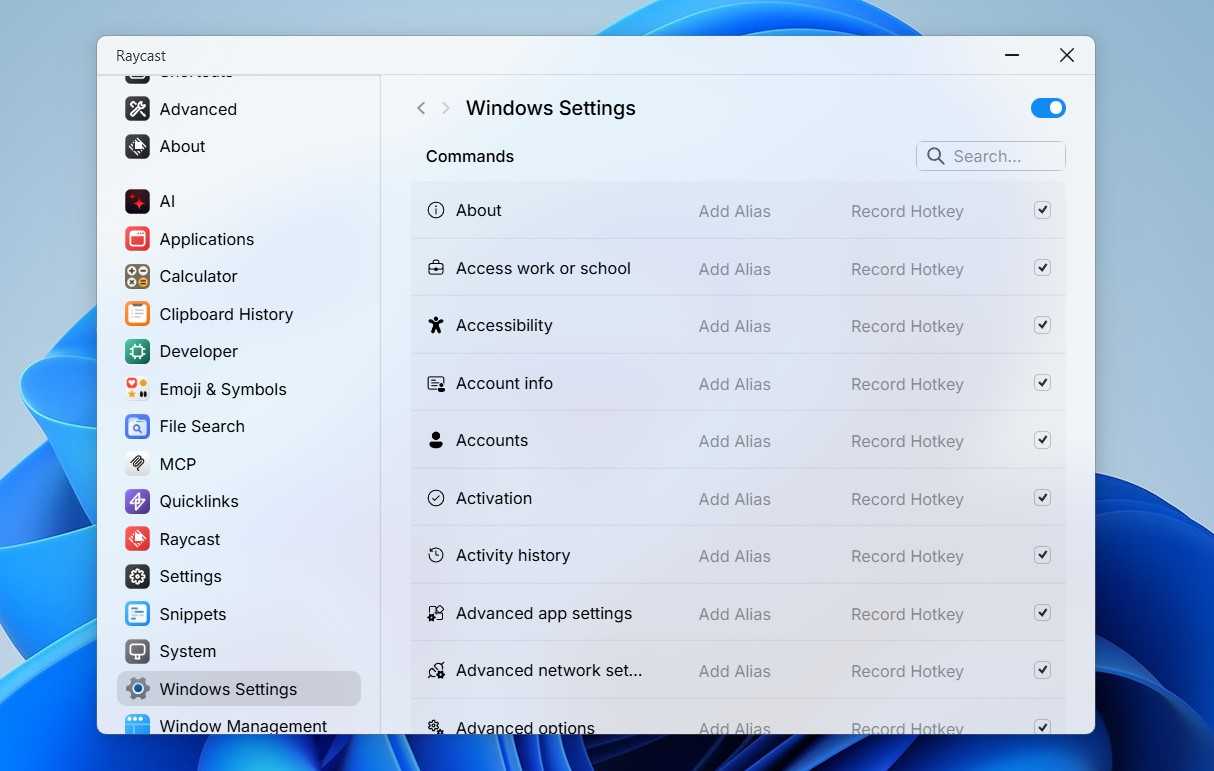
Raycast allows you to create shortcuts for almost anything on your Windows PC. Whether you want to create a shortcut to open a third-party application, perform a specific system action like shutting down Windows, or open a system setting, you can create shortcuts for everything in Raycast.
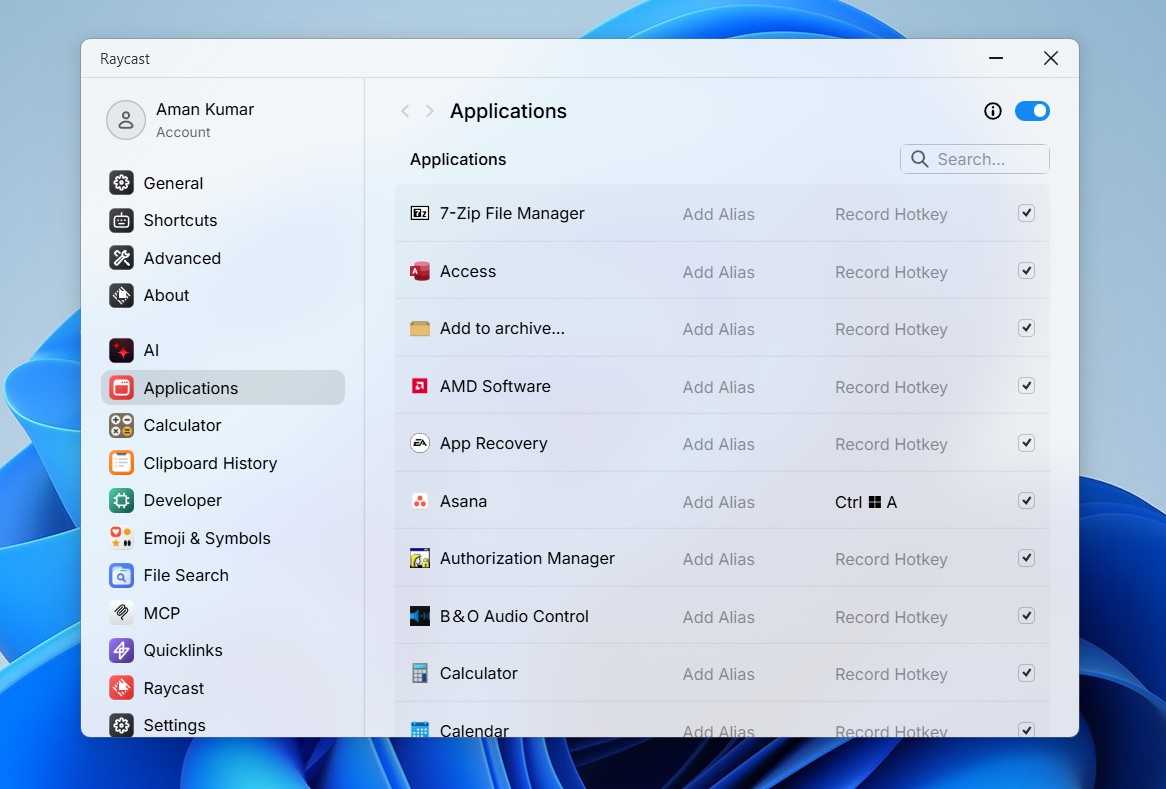
To do this, open Raycast using its default shortcut Alt+Space. Then click the three-dot icon in the bottom-left corner and select “Settings.”
- Choose “Applications” if you want to set a shortcut for a third-party application installed on your computer.
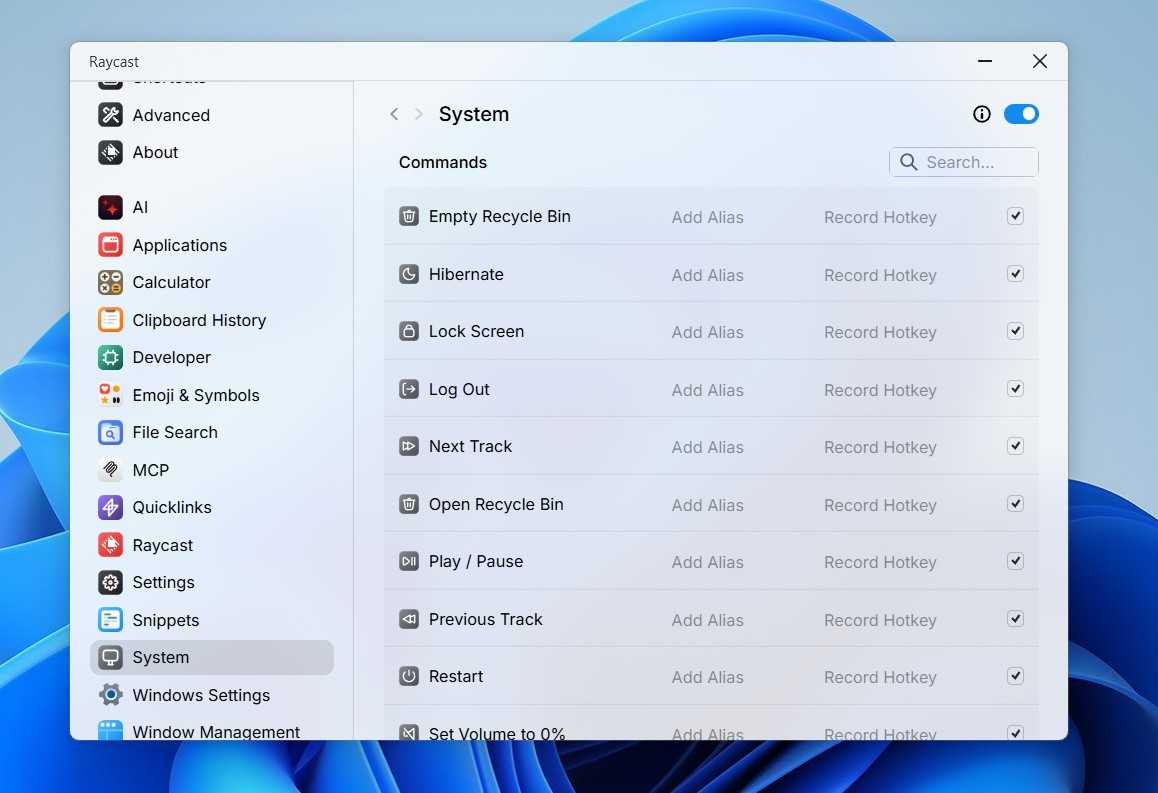
- Select “Windows Management” to assign a shortcut for various system operations and “System” to create a shortcut for different system commands.

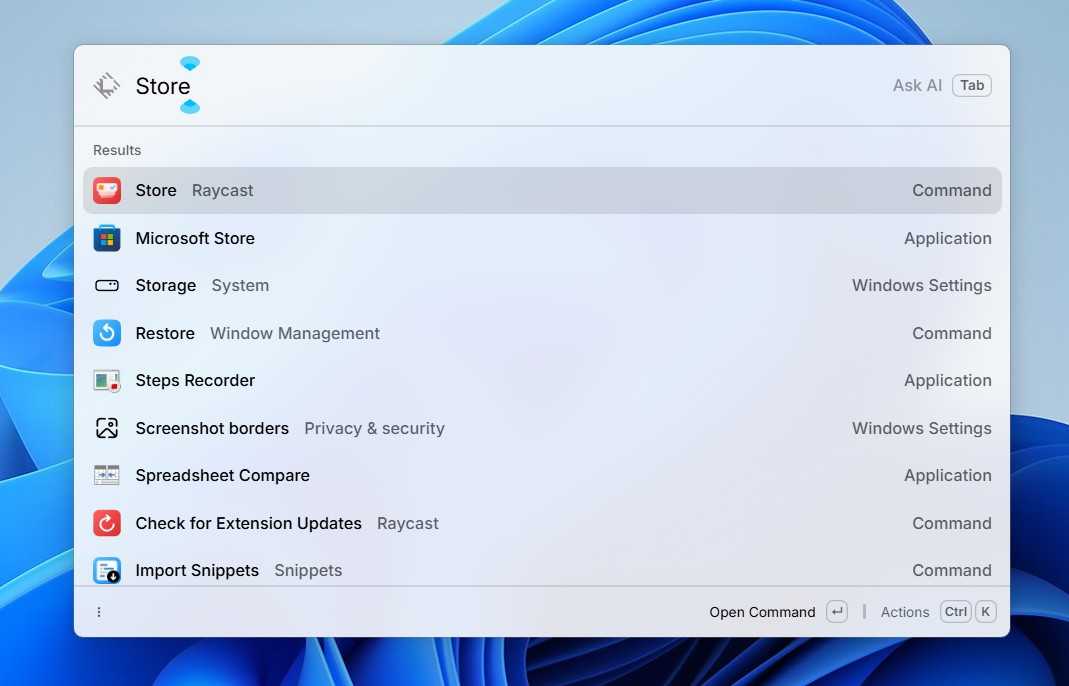
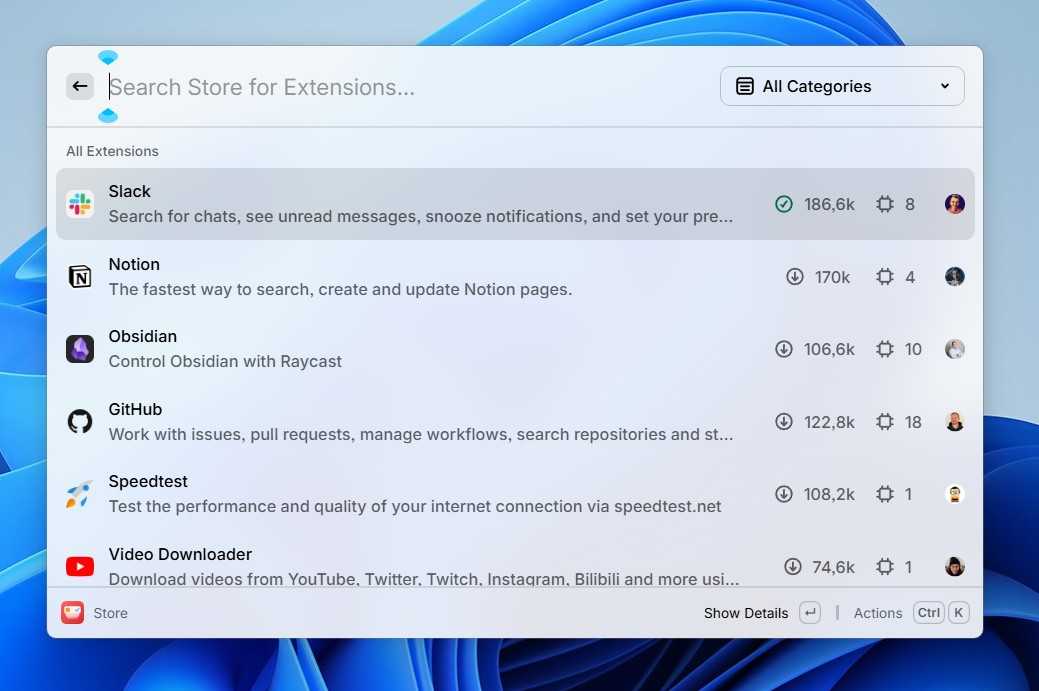
Raycast offers a built-in store that lets you install extensions for various services. These extensions allow you to perform actions supported by their respective platforms. For instance, if you install the Slack extension and connect it to your Slack account, you can send messages to anyone on Slack directly from the Raycast window.
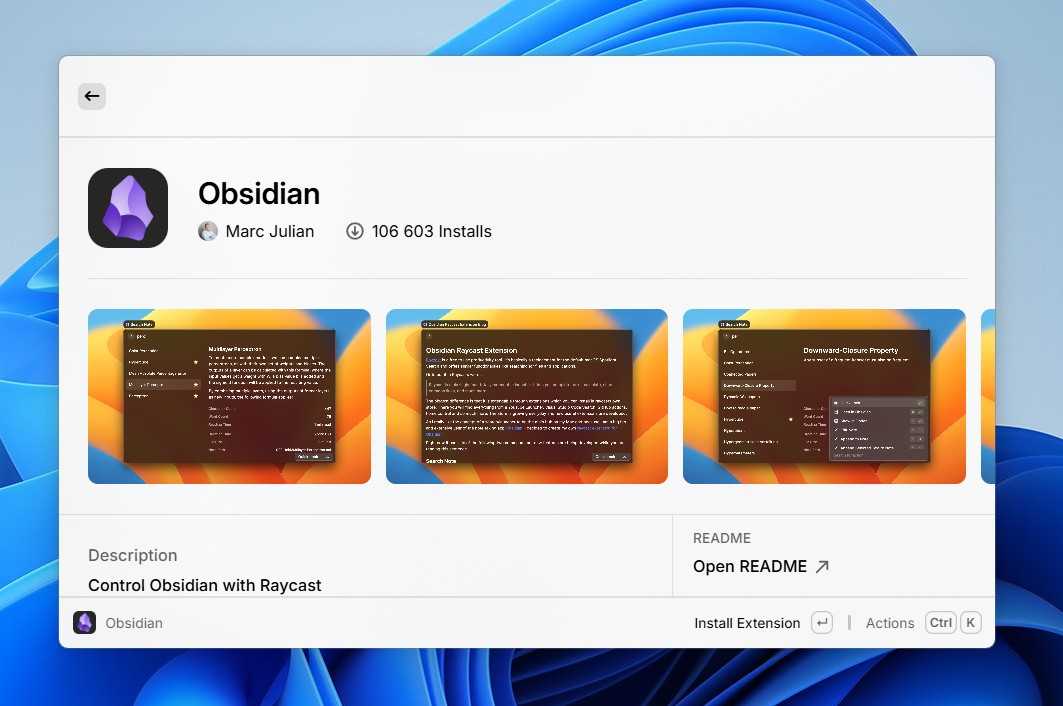
This feature is similar to what the new Spotlight in macOS Tahoe offers. Likewise, you can create an event using the Google Calendar extension, browse YouTube through the YouTube extension, or even control Obsidian using its extension.
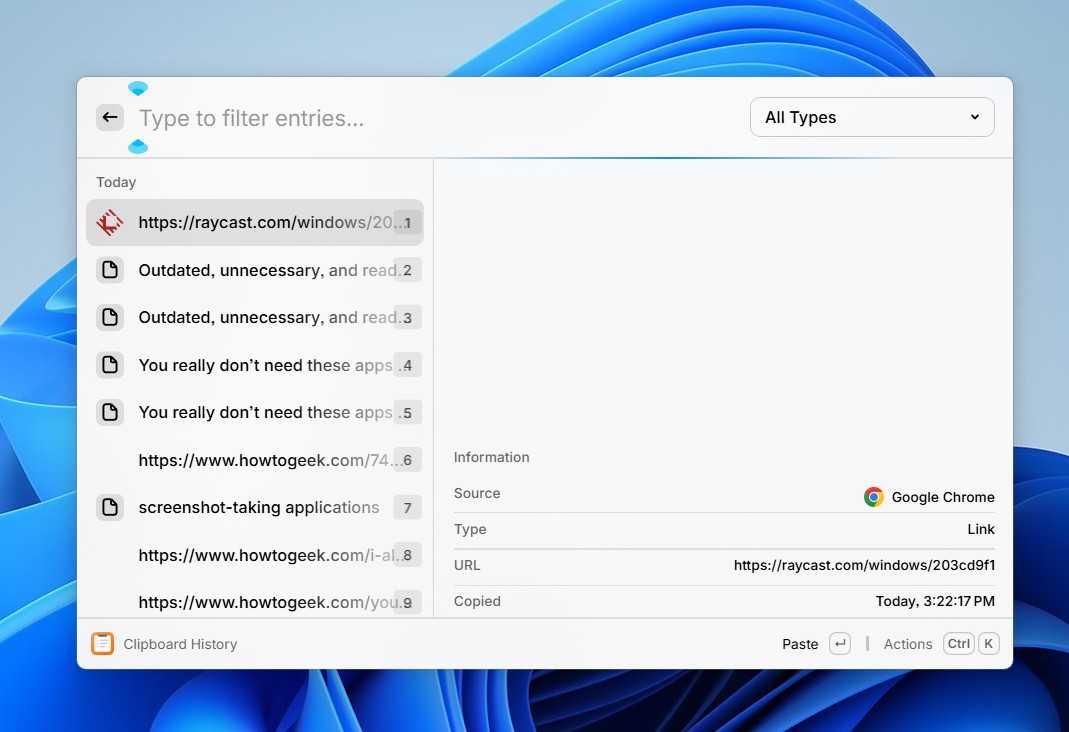
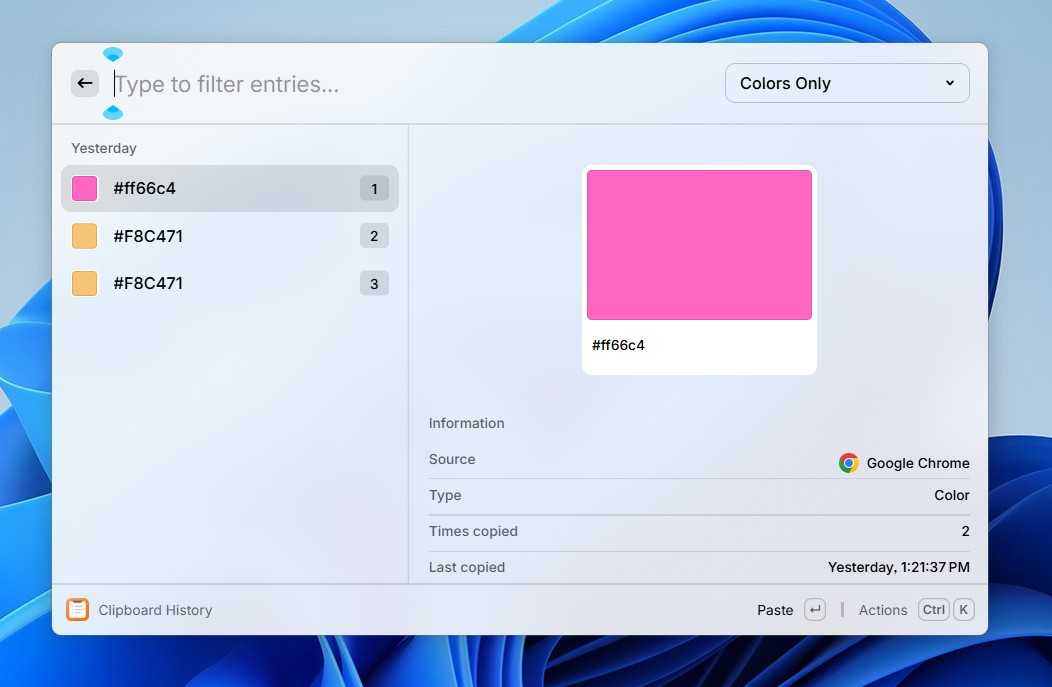
Raycast also offers a built-in clipboard manager—a feature that was recently added to the new Spotlight. You might argue that Windows already includes a clipboard manager, so how could Raycast’s clipboard manager be any better?
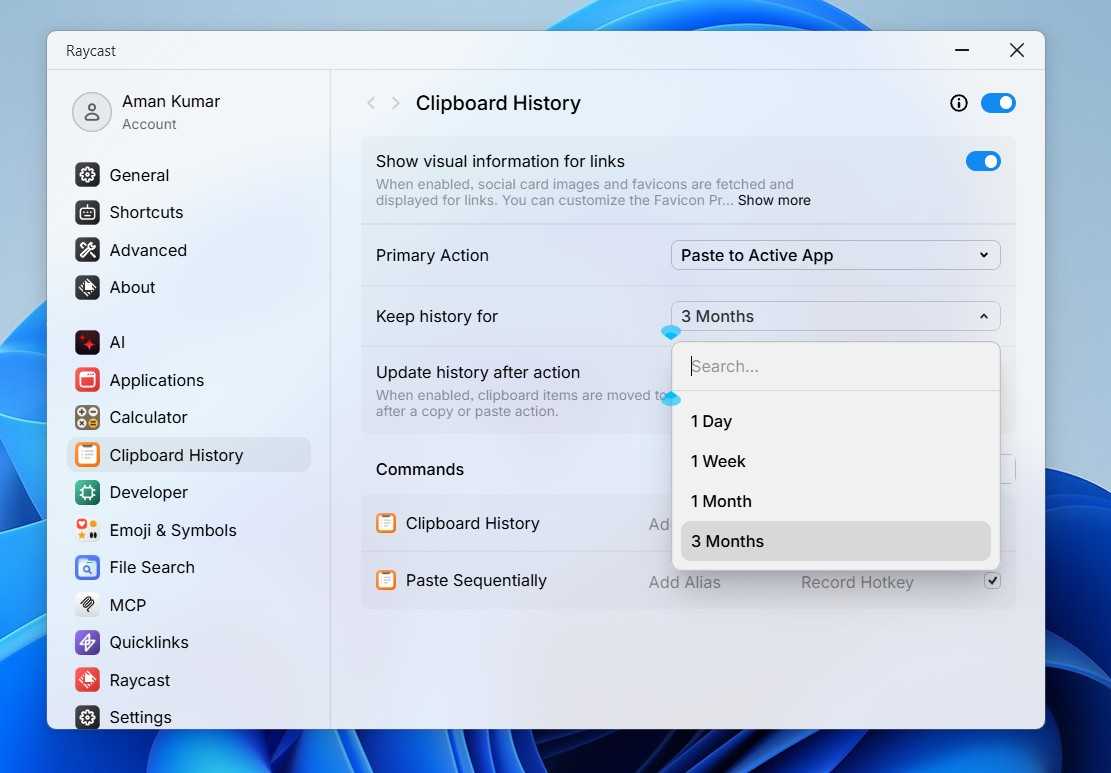
Well, the Windows clipboard manager only lets you keep up to 25 copied entries. Once that limit is reached, it automatically starts deleting the oldest copied items one by one. Furthermore, the moment you shut down or restart your computer, the Windows clipboard manager deletes all copied items from its list.
That’s why you also get the option to sort copied items by their type. Interestingly, you also have the option to sort them by color. So, if you’ve copied a color code, the clipboard manager will also show the exact color it represents.
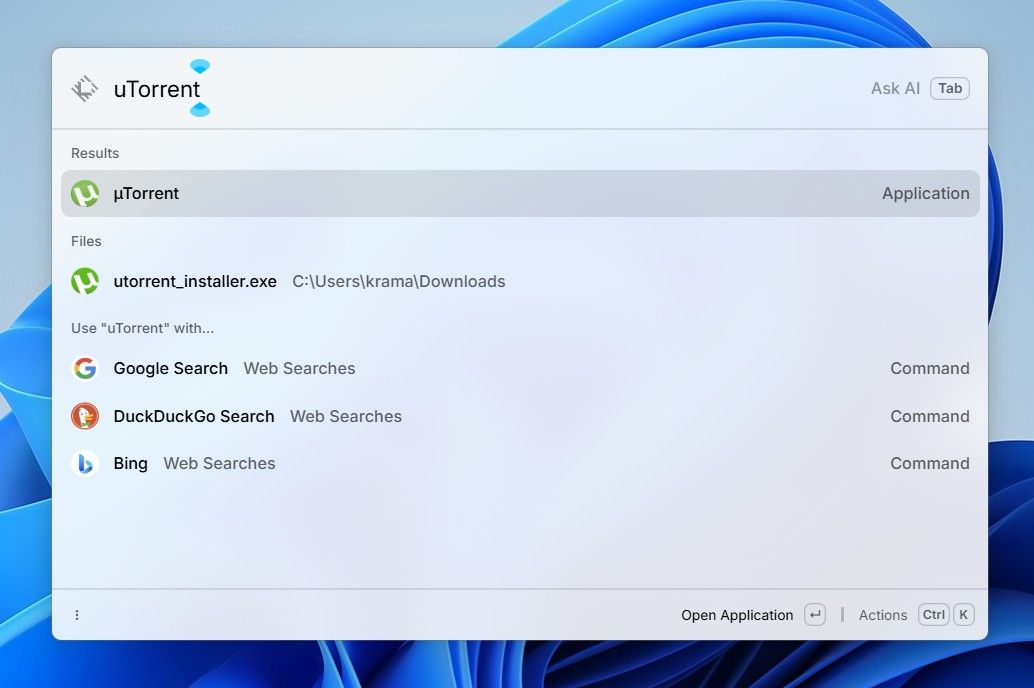
In addition to all the features mentioned above, Raycast also offers several other useful tools you should know about. The first is obviously its ability to search for any apps or files on your computer. Simply open Raycast, type the name of the file or app you’re looking for, and press Enter. The search and launch speed is so fast that I’ve completely replaced the Start menu with Raycast.
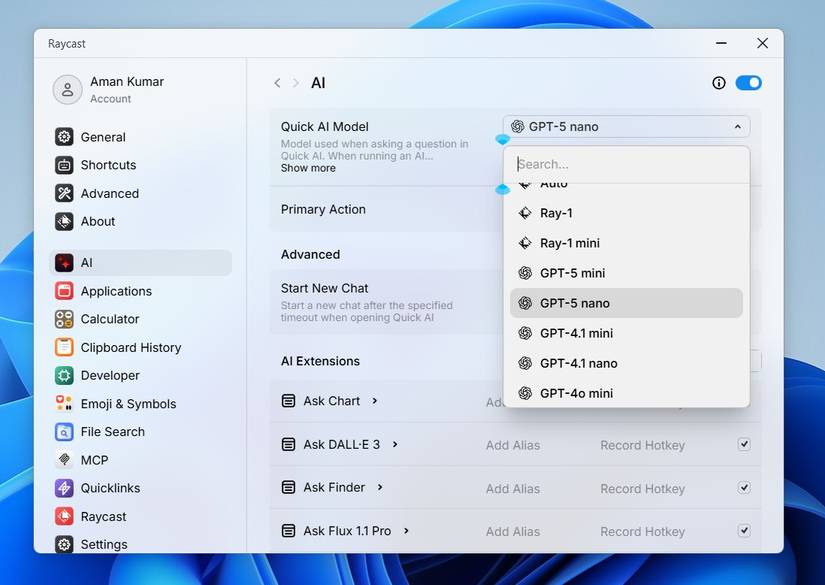
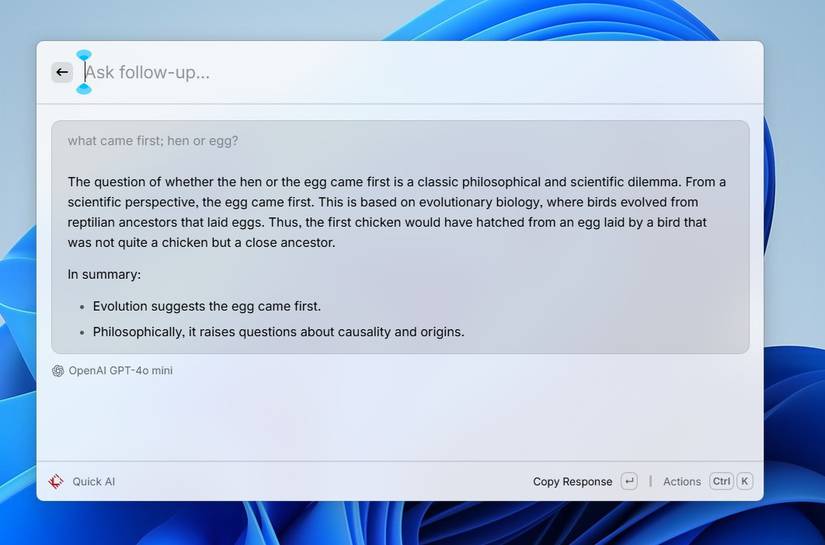
In the Raycast search window, click “AI” under the Commands section and press the Tab key. In the typing field, enter the question you want to ask, then press Enter. The selected AI model will take a few seconds to process and provide a response based on your question.
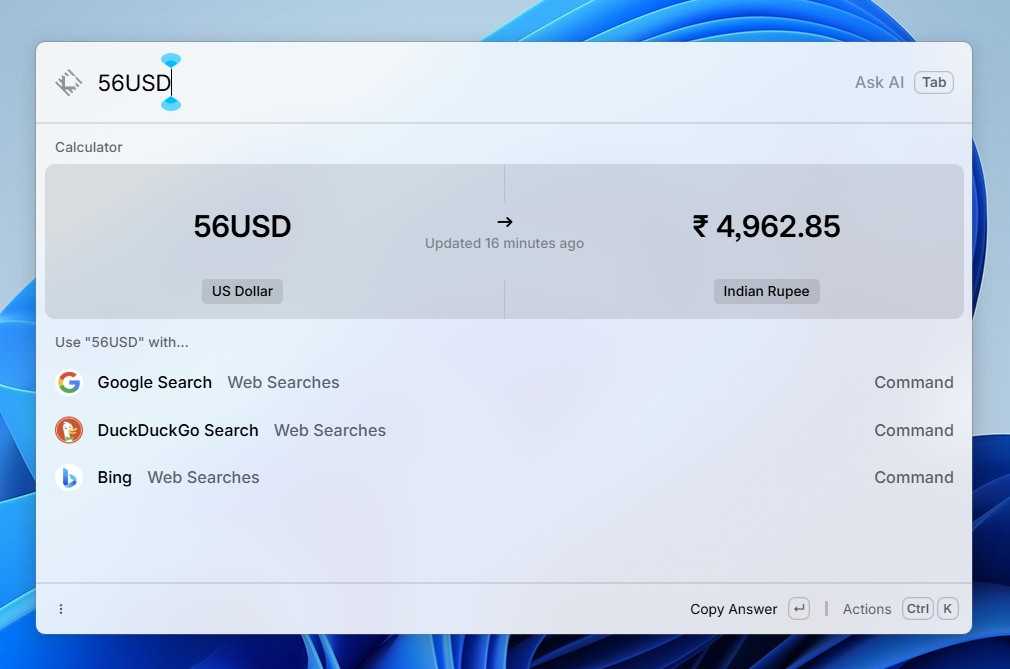
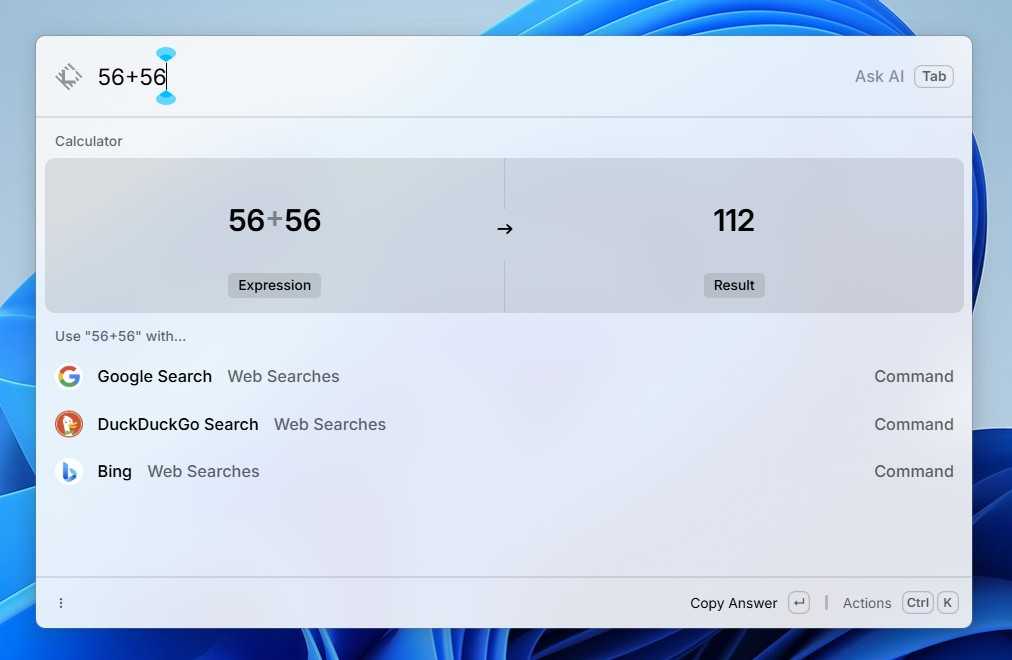
You can also perform basic mathematical operations in Raycast. For example, type 56 + 56 in the search field, and you’ll immediately see the result. Similarly, you can carry out simple tasks such as currency conversion. While all Raycast features are great, the one I like the most is its Quicklinks feature, which allows you to create instant links to websites you visit regularly.
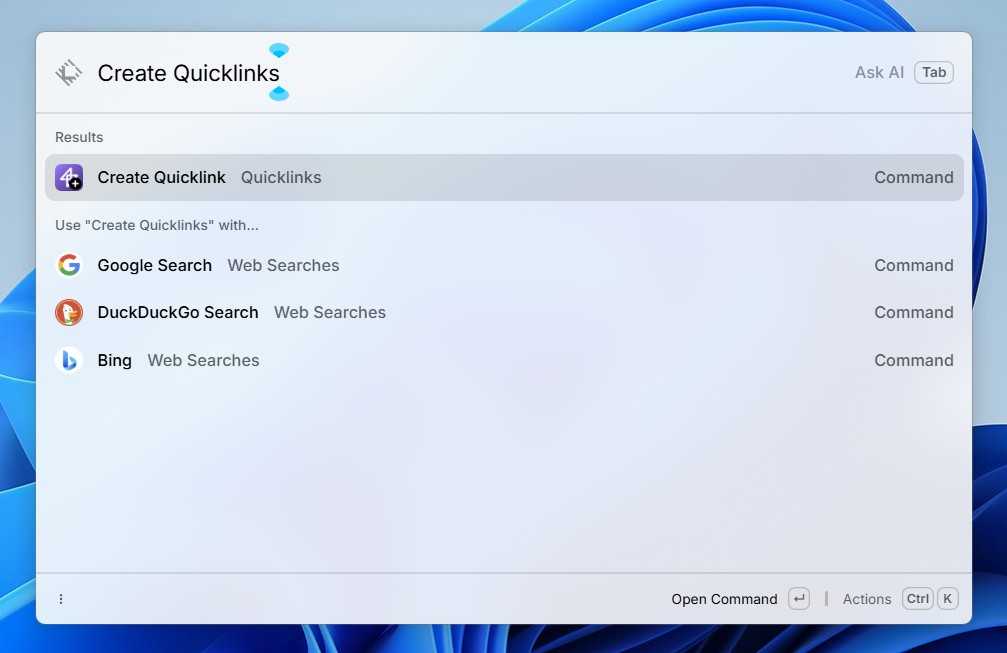
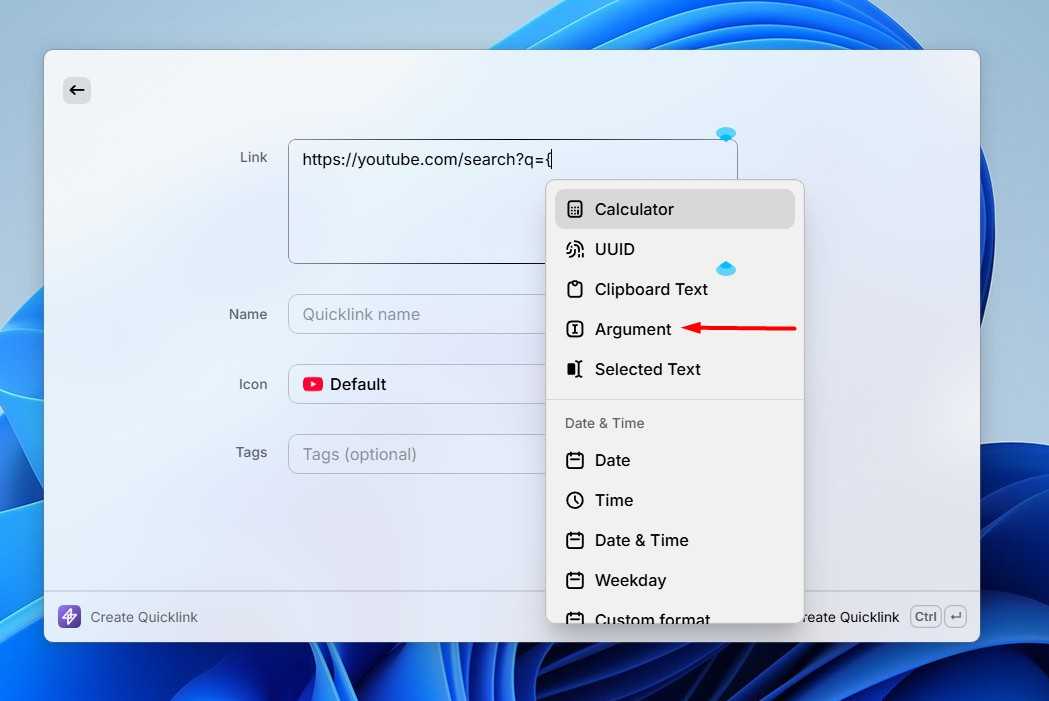
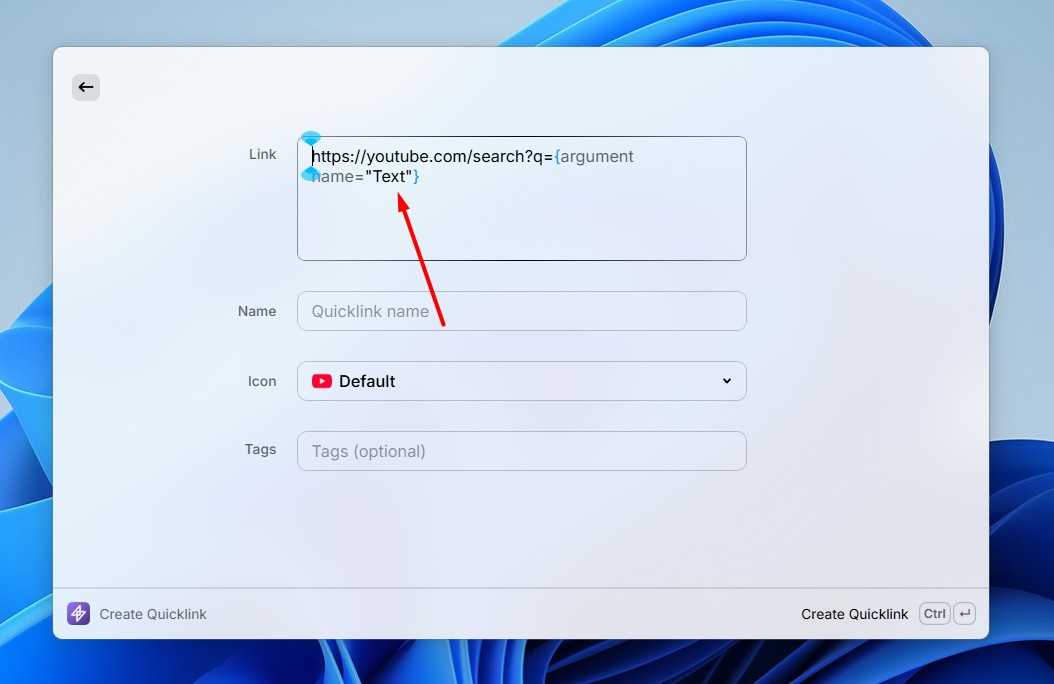
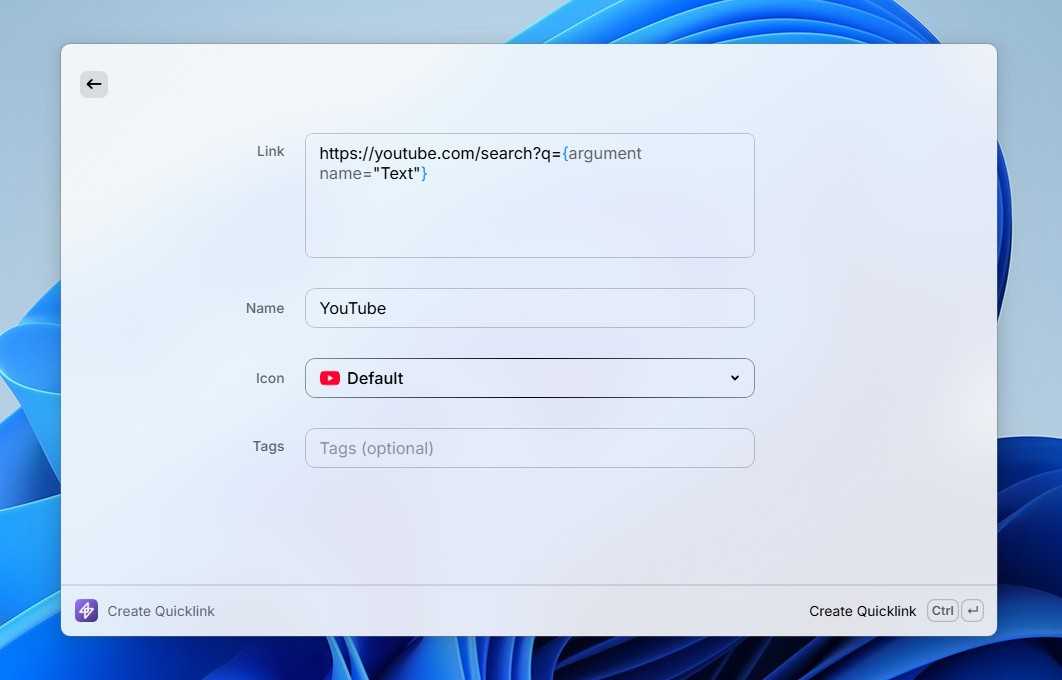
To use this feature, type Create Quicklink in the Raycast search field and select it from the results that appear. Paste the website URL in the Link field. For example, I would paste the YouTube search URL, then type { and choose “Argument” from the menu that appears.
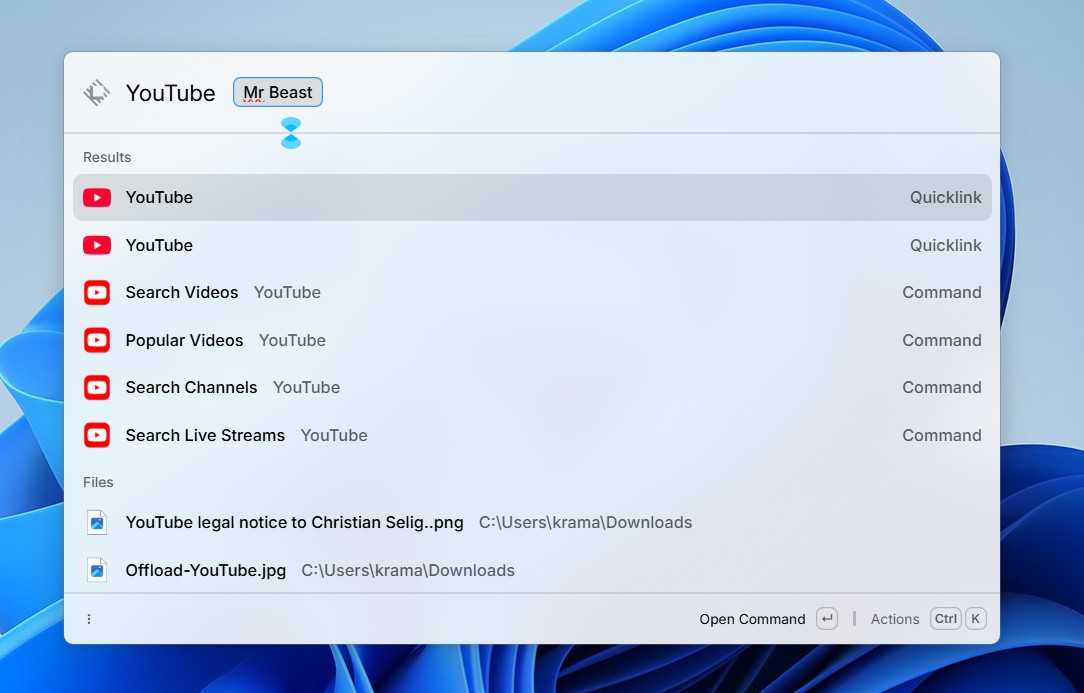
Make sure to replace Argument with Text. You can also give your quicklink a name, assign an icon and tag if you want. Then, press Ctrl+Enter to save it. Now, type the name you gave to the quicklink in the Raycast search field, and in the text field, enter the query you want to search for.
Along with all these features, Raycast includes a few other small but interesting ones, such as creating snippets, managing window sizes, and supporting emojis and symbols. The tool might feel a bit overwhelming when you first use it on your computer, but believe me, once you get used to it, it’s definitely going to make your tasks much easier to perform on Windows.
Leave A Comment?