

Mobile
iPhone 280 Solutii
Configurare cont email 10 Solutii
Instalare si configurare aplicatii specifice 80 Solutii
Sincronizare si migrare de date 13 Solutii
Securitate si criptare dispozitive 14 Solutii
Optimizare si curatare OS 11 Solutii
Windows Phone 24 Solutii
Android 481 Solutii
BlackBerry 16 Solutii
How to add subtitles to a Video on Android
Automatically Add Subtitles to a Video on Android
If you don’t want to spend too much time and effort finding and downloading the subtitles—you can add them automatically. All you need is an internet connection and a subtitle app that can search and download subtitles for your videos.
Adding subtitles automatically will smooth the process, and you don’t have to rely on a manual search to download the subtitles. It also automatically synchronizes the subtitles with the video sound. The media player apps adjust the timing and speed of the subtitles according to the video playback. You can try VLC and MX media player—that will do the most work for you.
Add Subtitle to a Video Using VLC Media Player
The VLC ranks among the top media players for Android devices. You can play almost any local and network video using VLC. It supports multiple video formats such as MKV, MP4, AVI, and MOV.
You can use VLC to directly download and add subtitles to your favorite TV show or movie. You can also customize the subtitle text appearance and position from VLC settings. This will help you to adjust the subtitle synchronization with the video.
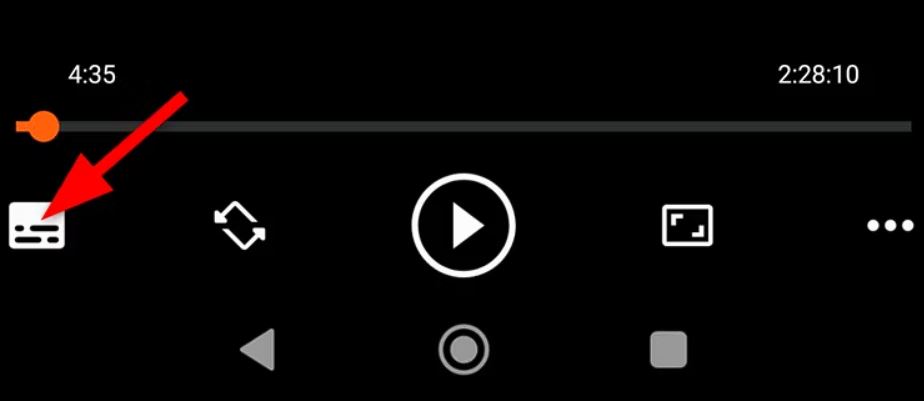
Open the video in VLC Player to add subtitles to it. Tap anywhere on the screen, and you’ll see some on-screen buttons. Find the subtitle icon, usually located in the bottom left corner. Tap on that subtitle icon to bring up the subtitle options.
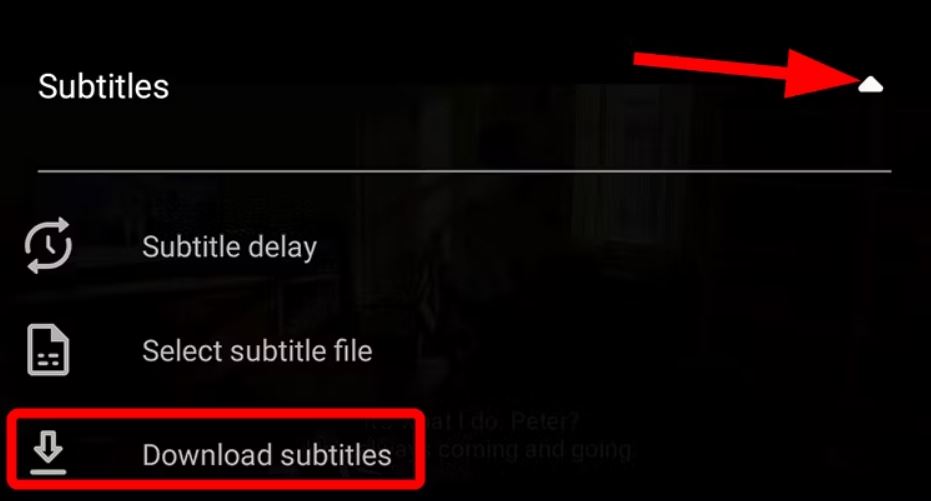
Click the little down arrow to expand the “Subtitles” menu. Here you will see different options for subtitle selection. To proceed with adding subtitles, select “Download Subtitles.”
VLC Player will start searching for available subtitles. It typically searches for subtitles using the video’s title, filename, or other relevant metadata to find the best match.

You will get a list of all available subtitles to download. Select the suitable subtitle according to your video. To add the selected subtitle, simply hit the download icon next to it.
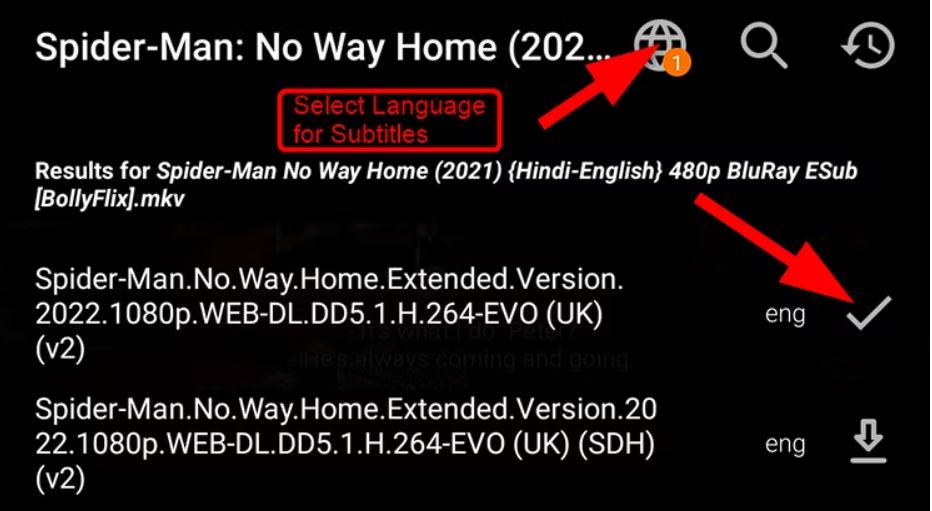
You can also choose a different language to search for the subtitles.

After downloading the subtitles, select the downloaded subtitle track from the subtitle settings.

How to Scan and Translate a Picture in Google Translate
With the Google Translate app, you can scan and translate pictures to and from any of Google’s supported languages. With a mobile device, you can scan something in real-time or pick an image from your gallery.
[mai mult...]How to Set an Emergency Contact on iPhone (and Why)
You can add one or more emergency contacts to your iPhone so that they can be easily contacted (or contact you) in urgent situations. It takes five minutes to set up but it could be one of the most important settings on your device.
[mai mult...]