
Situatie
Gmail is one of Google’s oldest apps, and it might be the most widely used. Tons of features have been added over the years. The good news is that many of these things can be turned off—if you can find them in the messy settings.
Solutie
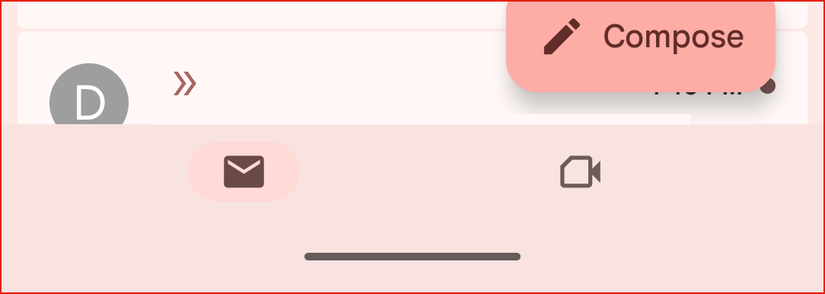
Perhaps the most annoying change Google has ever made to Gmail was adding big buttons for Google Meet and Chat at the bottom of the screen. This happened five years ago when everyone was doing video calls, but it has persisted as the default layout ever since. Free up some screen real estate and remove these buttons by going to Settings > [Your Account] > Uncheck “Chat” and “Show Meet tab for video calling.”
Privacy invading “Smart Features”
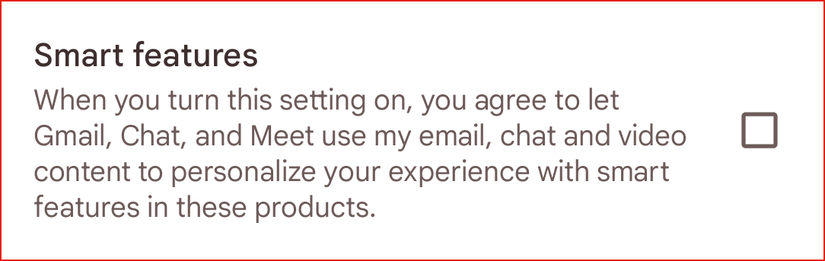
Last year, Google added a cryptic but ominous-sounding feature in Gmail simply called “Smart Features.” The description states that, when enabled, Gmail, Chat, and Meet can use your content (a.k.a. emails and other activity) in these apps to “personalize your experience.” If you’d rather not let Google sift through your info any more than it already is, go to Settings > [Your Account] > Uncheck “Smart features.”
Adding an extra layer of annoyance, Google has bundled Smart Features with a number of other features—some of which you may want to use. That includes the handy “Manage subscription” tab package tracking, and Smart Compose/Reply. Turning off Smart Features disables them as well.
Resurfacing old, unreplied emails
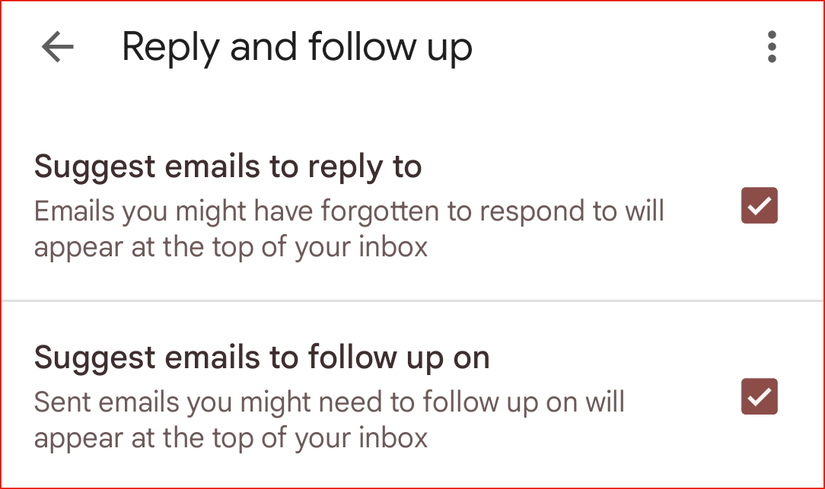
Similiar to Google messages, Gmail has a “Nudge” feature that brings old emails it thinks you forgot about back to the top of your inbox. If you’re able to handle emails on your own, it can feel like Google is babysitting you. Navigate to Settings > [Your Account] > Reply and follow-up. You’ll see two types of Nudge: emails to reply and emails to follow up on.
Smart Compose and Smart Reply
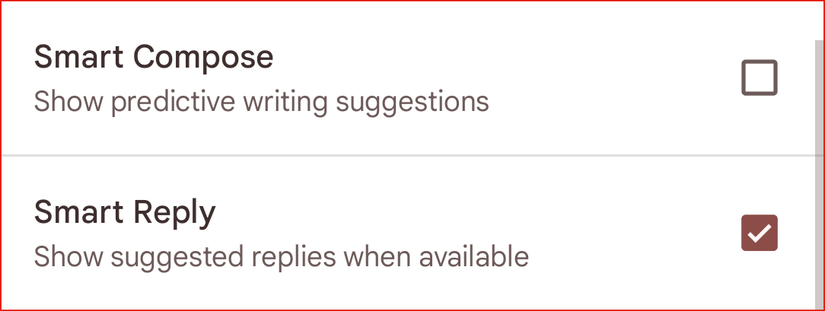
“Smart Compose” and “Smart Reply” are AI features that give suggestions for what it predicts you might want to say. They started out pretty mild, but Google is planning to drastically expand Gmail’s predictive suggestions this year. If you’d rather use words from your own brain, head over to Settings > [Your Account] > Uncheck “Smart Compose” and “Smart Reply”.
Threaded Conversation View
Leave A Comment?