
Situatie
In movies, you’ll sometimes see characters grapple with a “dead man switch.” If someone doesn’t push a button or enter a password every few hours (or days), it triggers a self-destruct sequence or sends out a secret message. I’ve always found that concept really cool, so I built one with an app on my Android phone.
Solutie
You’ll need an Android device and Tasker to make this work. Tasker is an incredibly powerful automation app, perfect for this job. It is a paid app, but if automation interests you, it’s worth having.
If you don’t want to buy Tasker, you can set up a similar automation on MacroDroid too. It’s free (at least for up to 5 automation flows.) The automation script will be roughly identical on both apps. I tried using Automate to create this flow, but I couldn’t make it work. You might have better luck.
The idea is this: If you don’t interact with your phone (or unlock it) for 24 hours, it triggers an action. The action could be anything. The phone could send out an emergency message, sound a loud alarm, initiate emergency calls, or share your GPS coordinates.
It could also reboot your phone, which kicks in the “Before First Unlock” or BFU state, which makes it impossible to access your phone or the data on it (it’s possible to recover data off your phone or even unlock it with the right tools if it’s not in BFU state.) In a similar vein, it could wipe target data off your device.
Start by installing Tasker from the Google Play Store. When you open Tasker, you’ll see four tabs: Profiles, Tasks, Scenes, and Vars. We mostly care about “Profiles” and “Tasks.” Profiles are the triggers or observers. They monitor the device for conditions you’ve specified. For example, a profile could monitor the phone for events like screen unlocks. Tasks are actions that are triggered based on profiles. For example, sending an SMS or sounding an alarm.
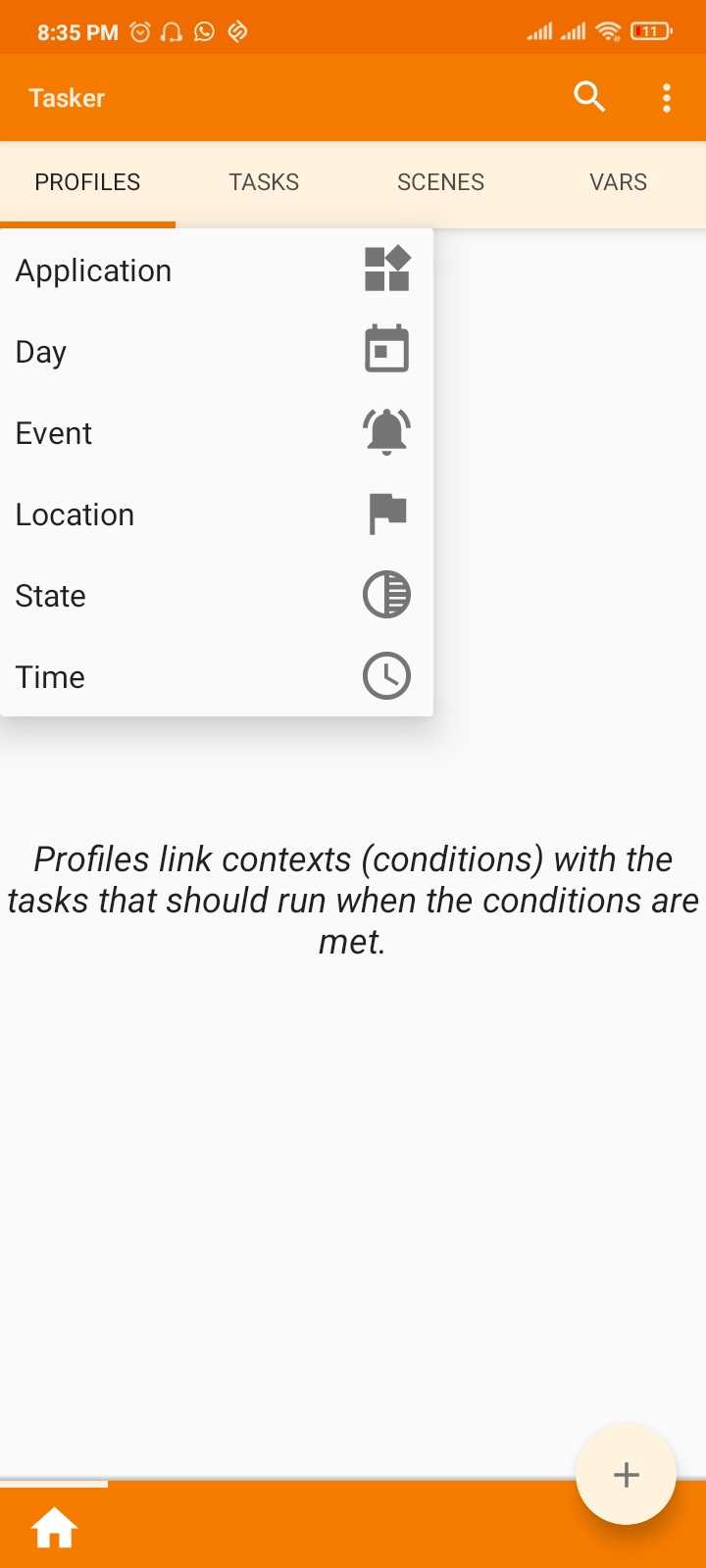
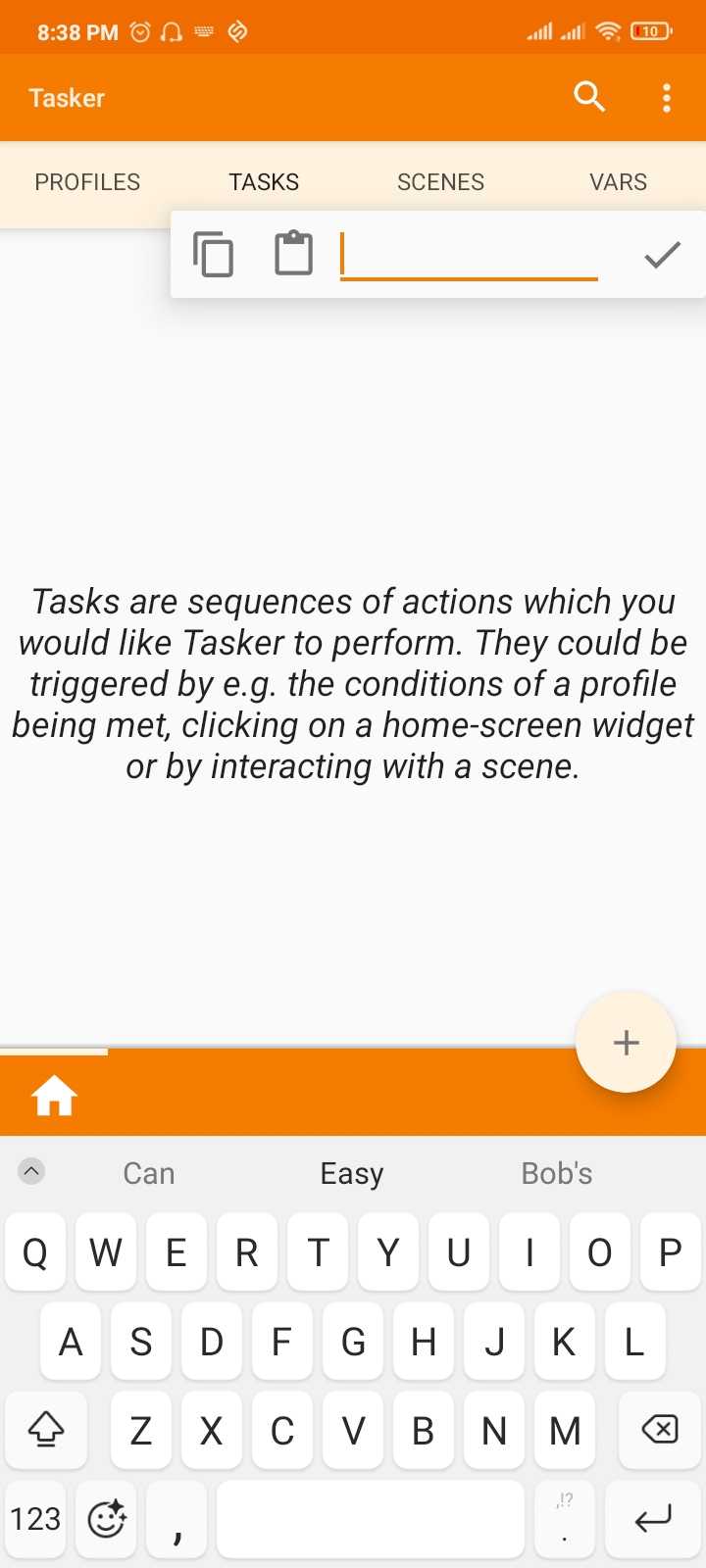
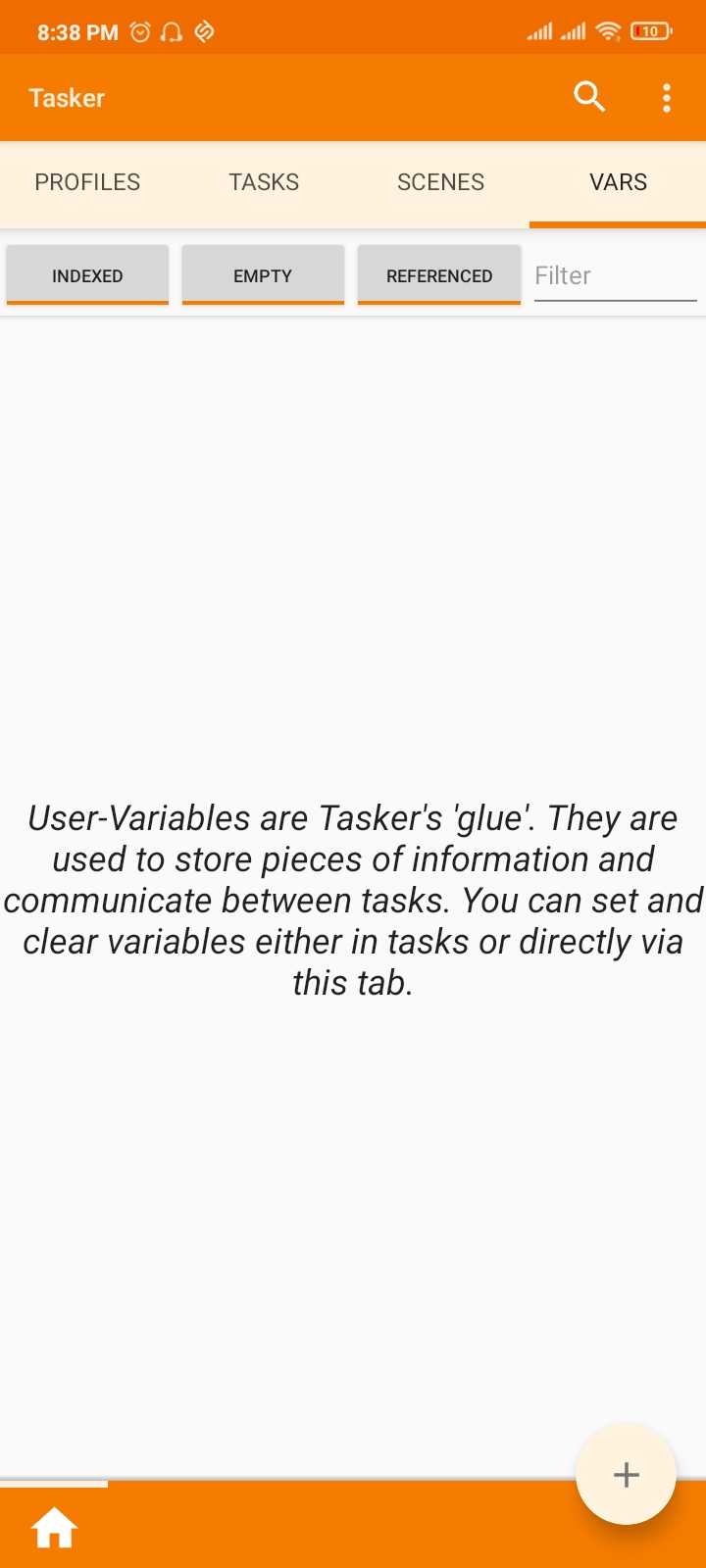
Sometimes, Tasker needs access to dynamic data that will be regularly updated. For example, if the app is supposed to count the seconds since the last time the phone was unlocked, it needs a way to store that changing point of data. That’s what “Vars” or variables are for. They are little memory containers that hold info that Tasker needs to write and retrieve regularly.
Make sure battery optimization is turned off for Tasker, and it has the necessary permissions to trigger the actions of your choice.
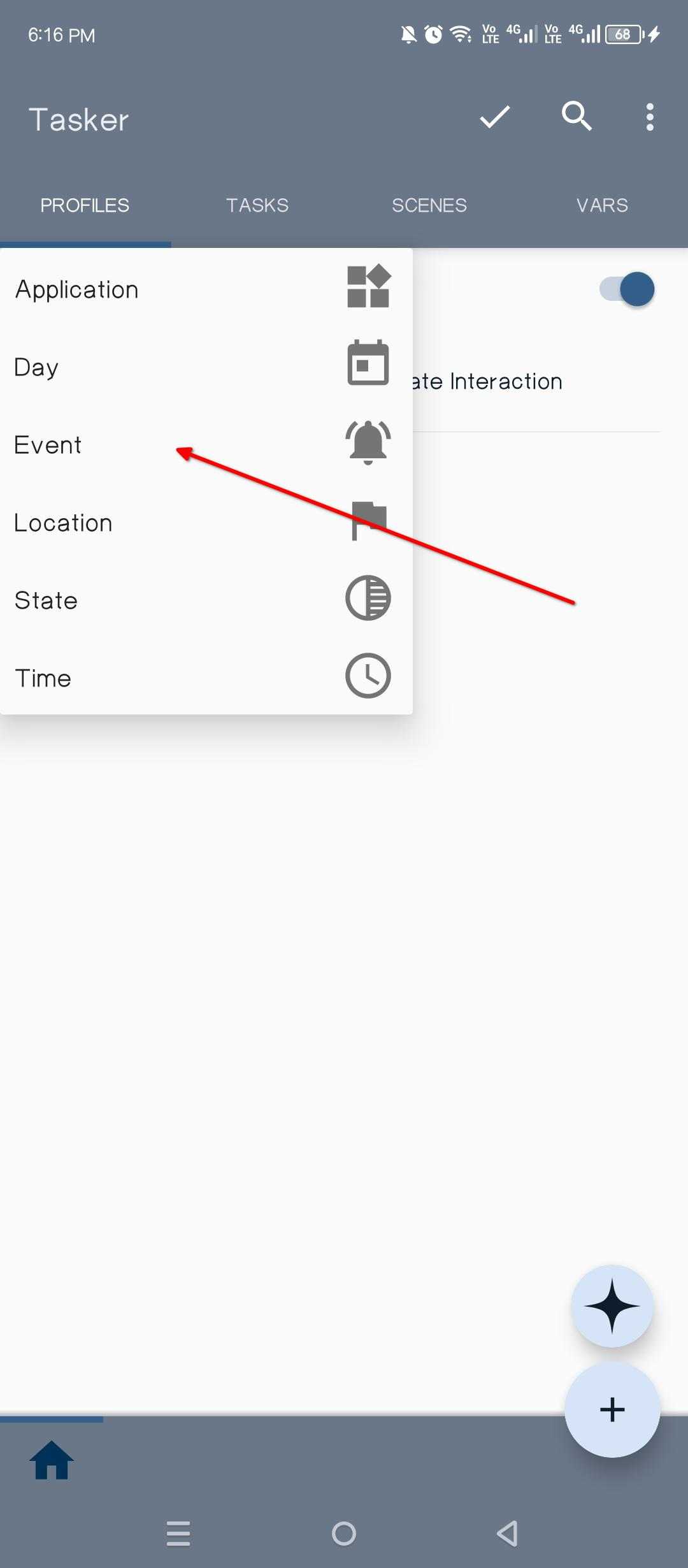
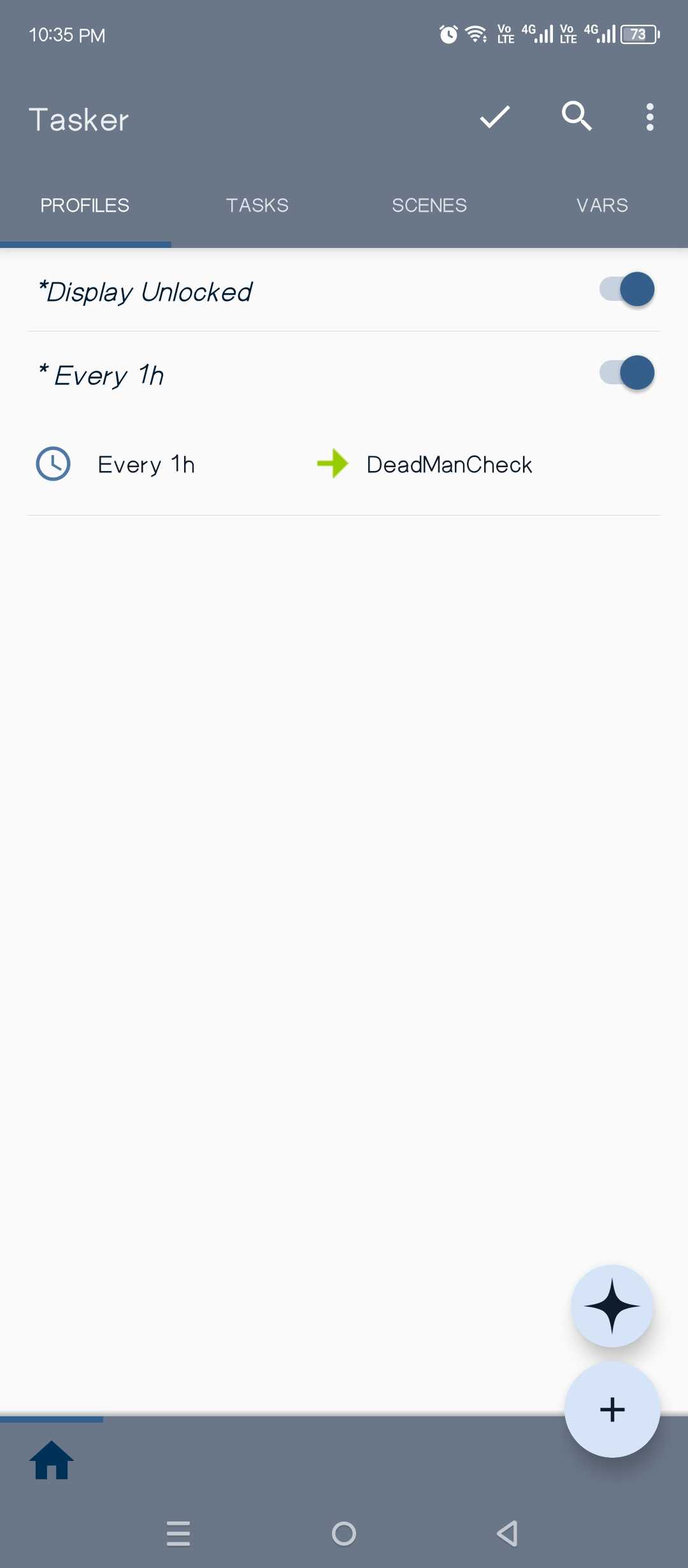
Under the “Profile” tab, tap the + icon and select “Event > Display > Display Unlocked” from the list.
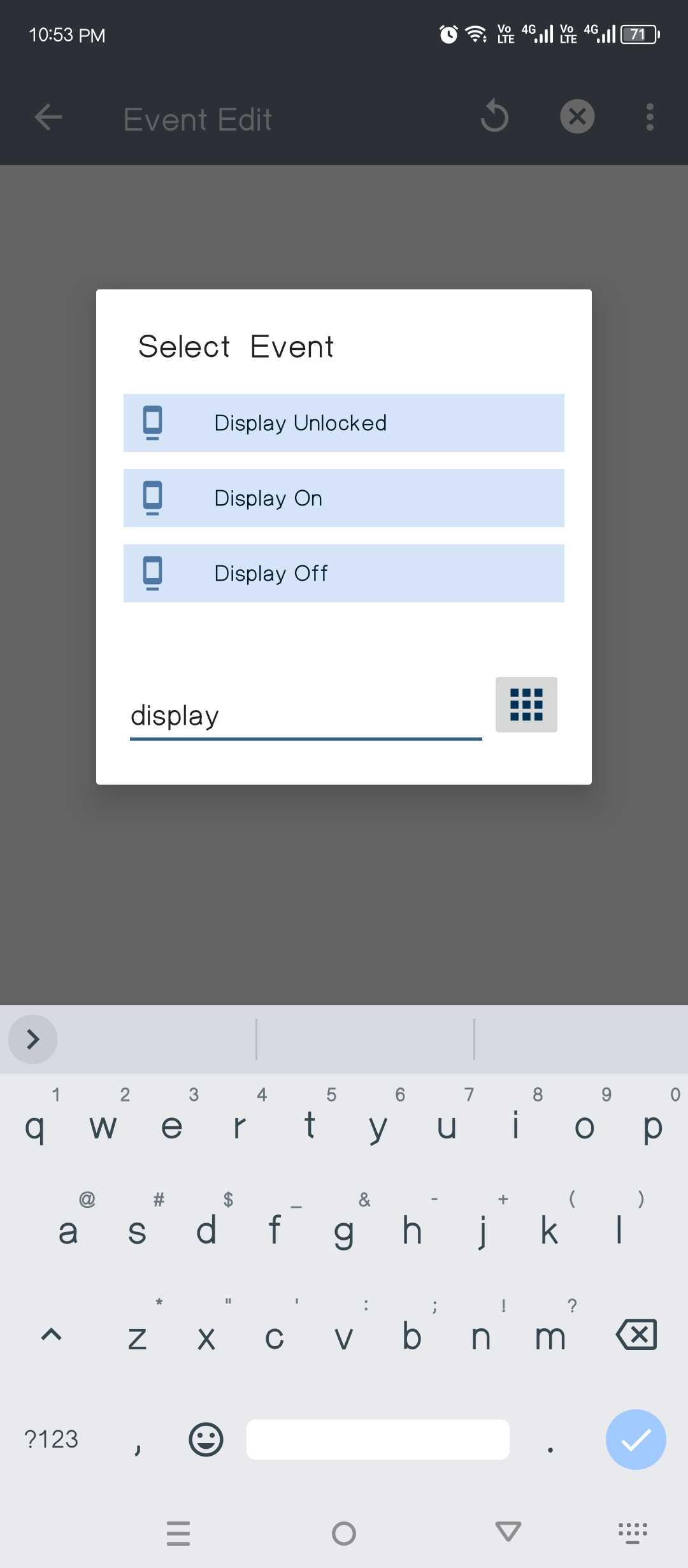
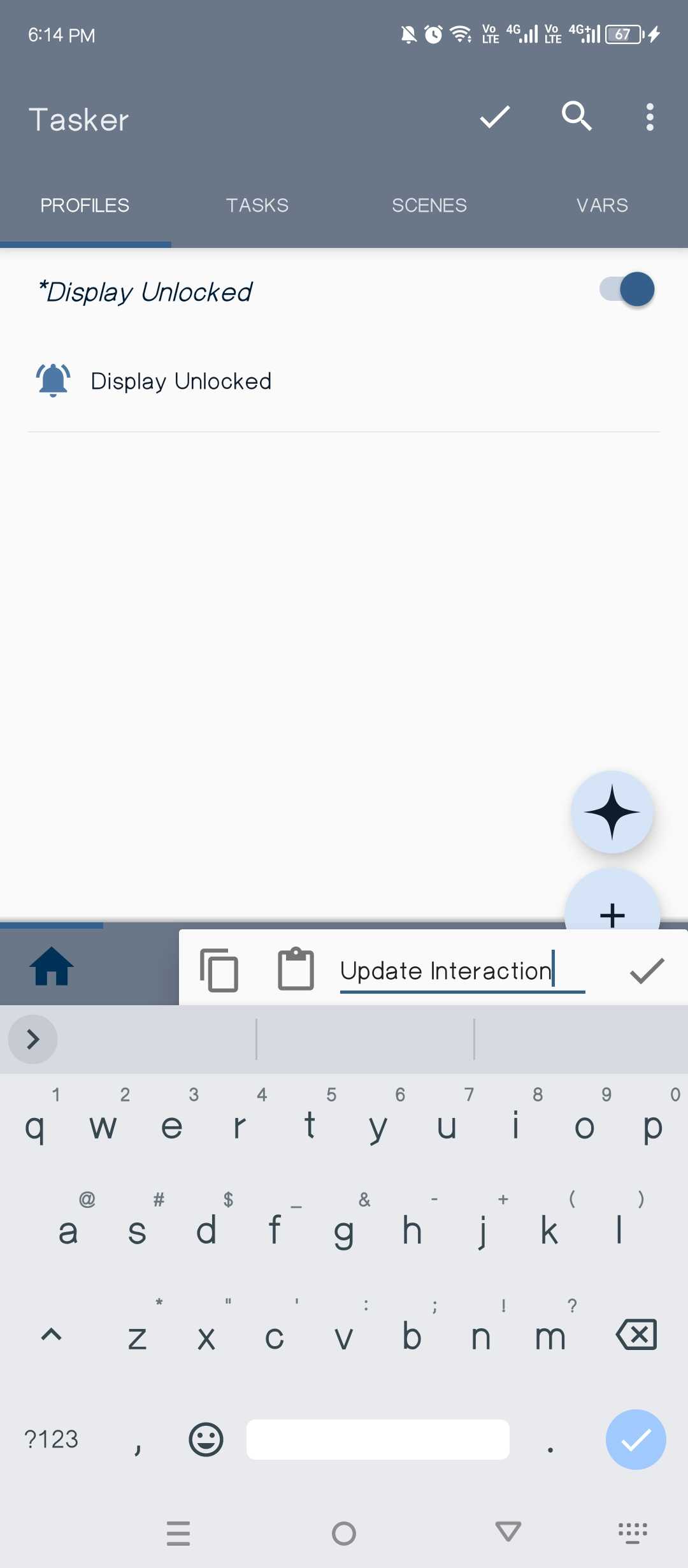
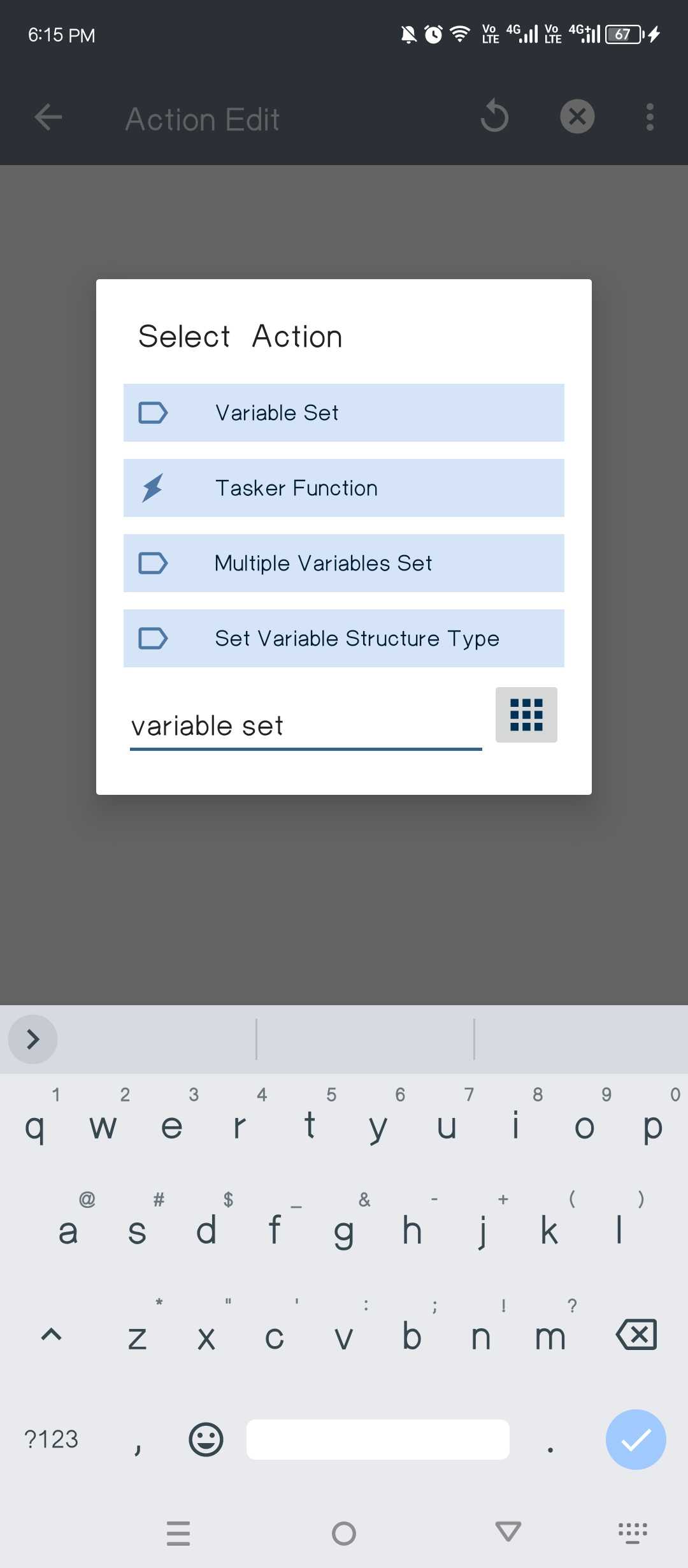
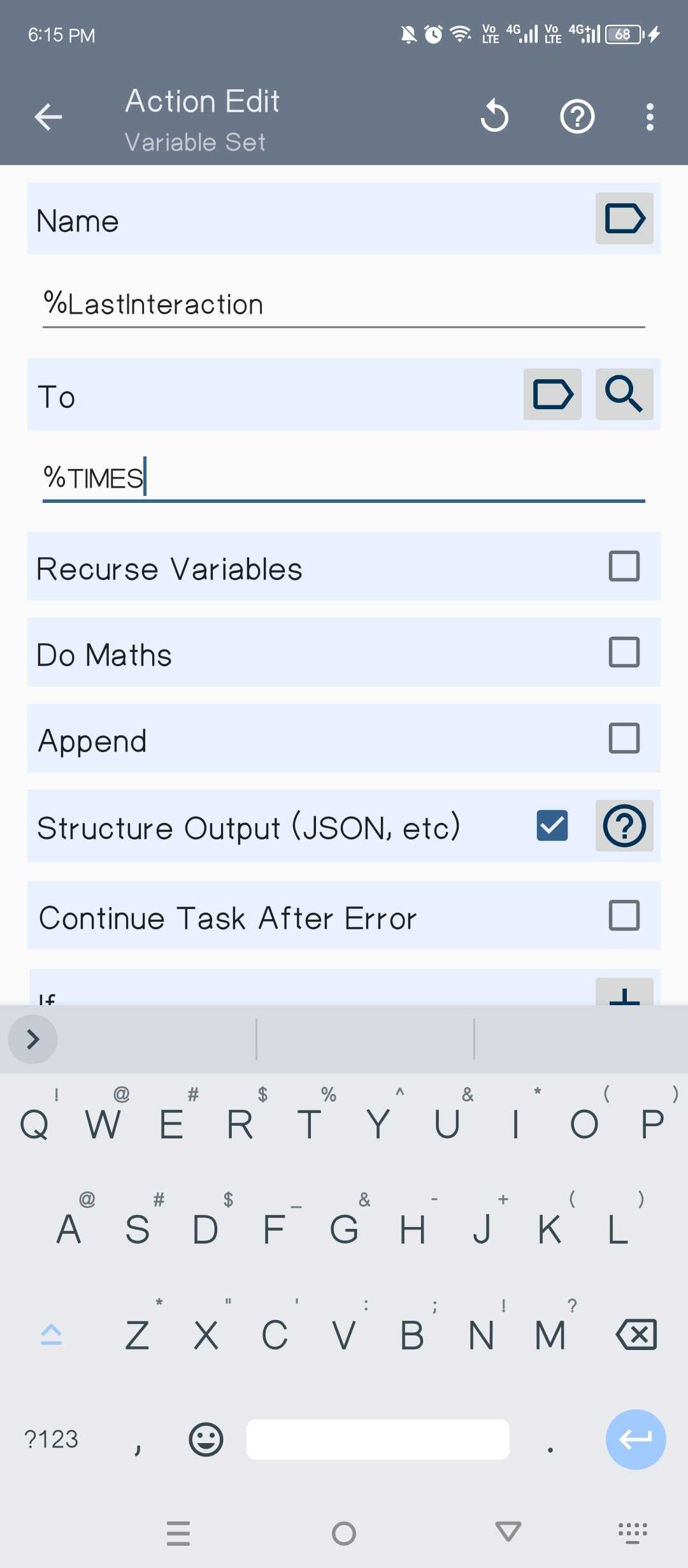
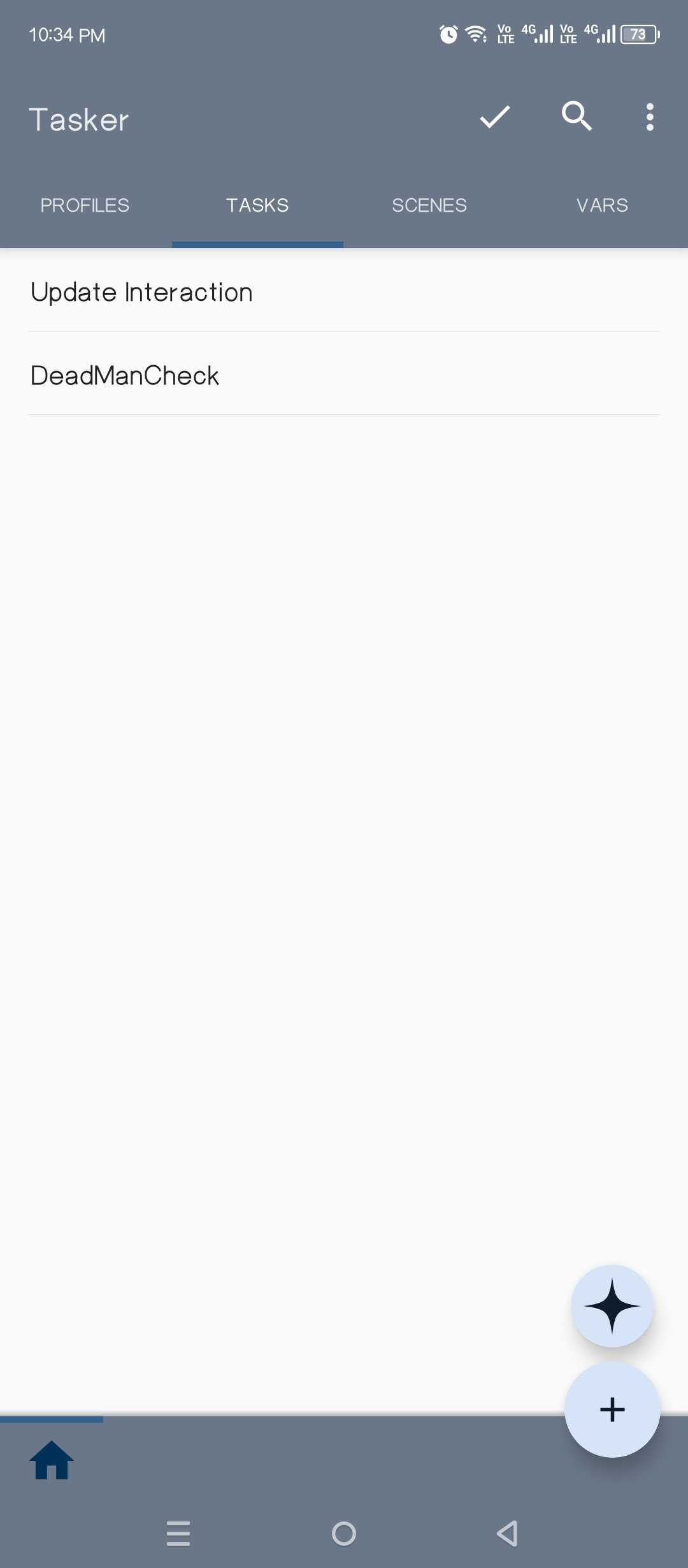
On the Task Edit screen, we’ll add a new action. Tap the + button and select “Variables > Variable Set” from the list that pops up. Under Name, type %LastInteraction and under To, type %TIMES.
Then tap the back button until you reach the Tasker home screen.
The %TIMES variable is a live clock (Unix time) that counts every second that has passed since January 1, 1970. Whenever you unlock your phone, Tasker saves the new current log of seconds as a “snapshot.” Now it knows exactly how long it has been since you last unlocked your device.
We’ll now set up an automatic check-in system, which frequently runs and checks how it has been since you last unlocked the device. You can set it to repeat as frequently as you like. Remember that more frequent check-ins will lead to faster battery drain.
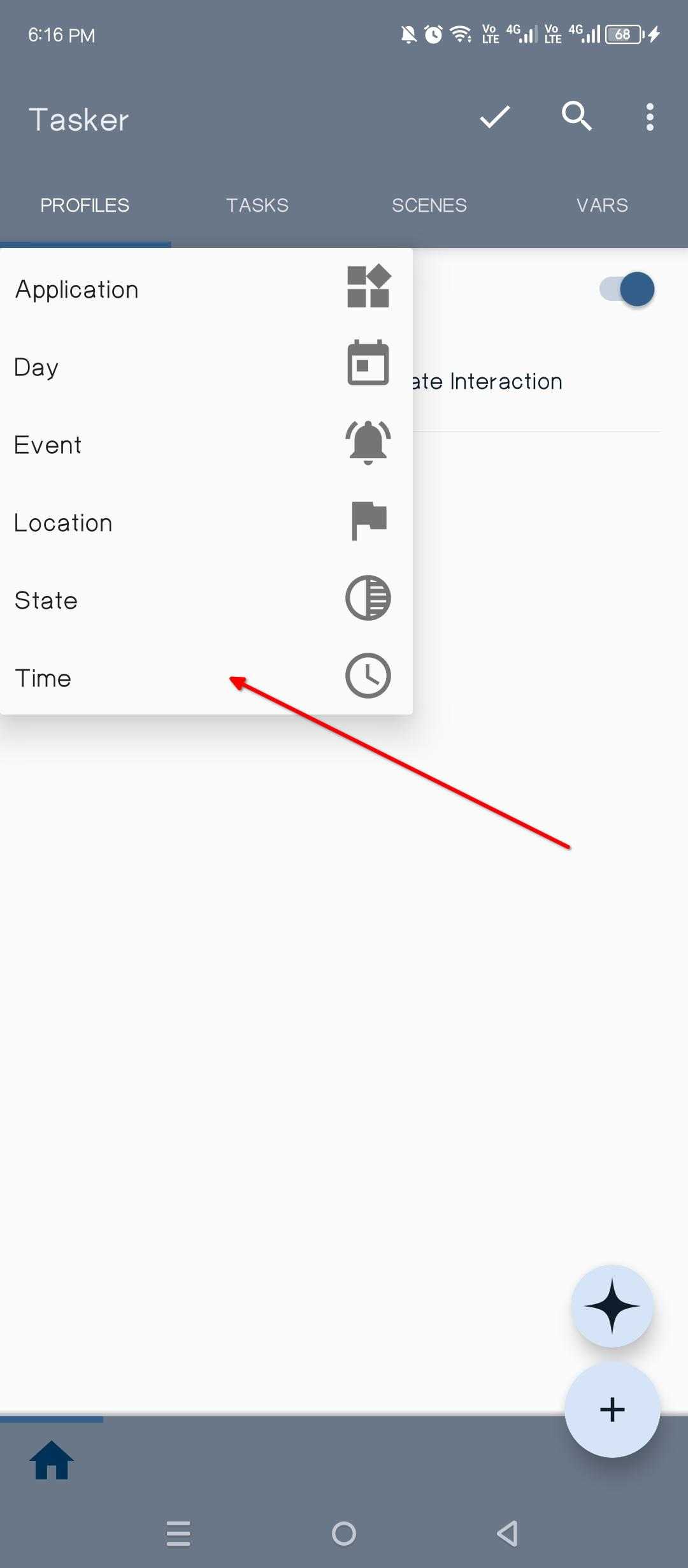
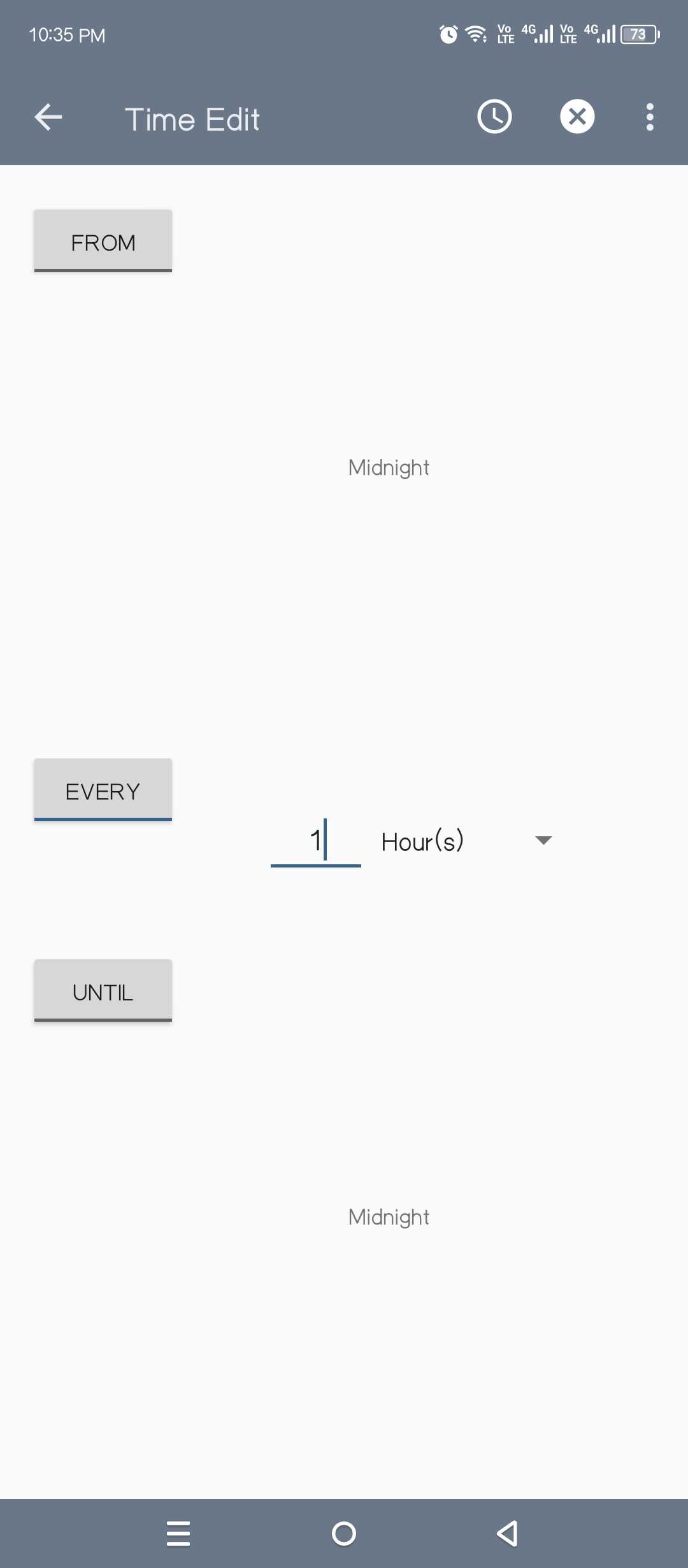
Then tap the back button until you reach the Tasker home screen. You’ll be prompted to select a new Task. Tap it to create a new Task and label it “DMS.”
A Task Edit screen should pop up. Tap the + button there and choose “Variables > Variable Set” from the pop-up list. Under Name, type %time_diff and under To, type %TIMES - %LastInteraction. Make sure the “Do Maths” box is checked.
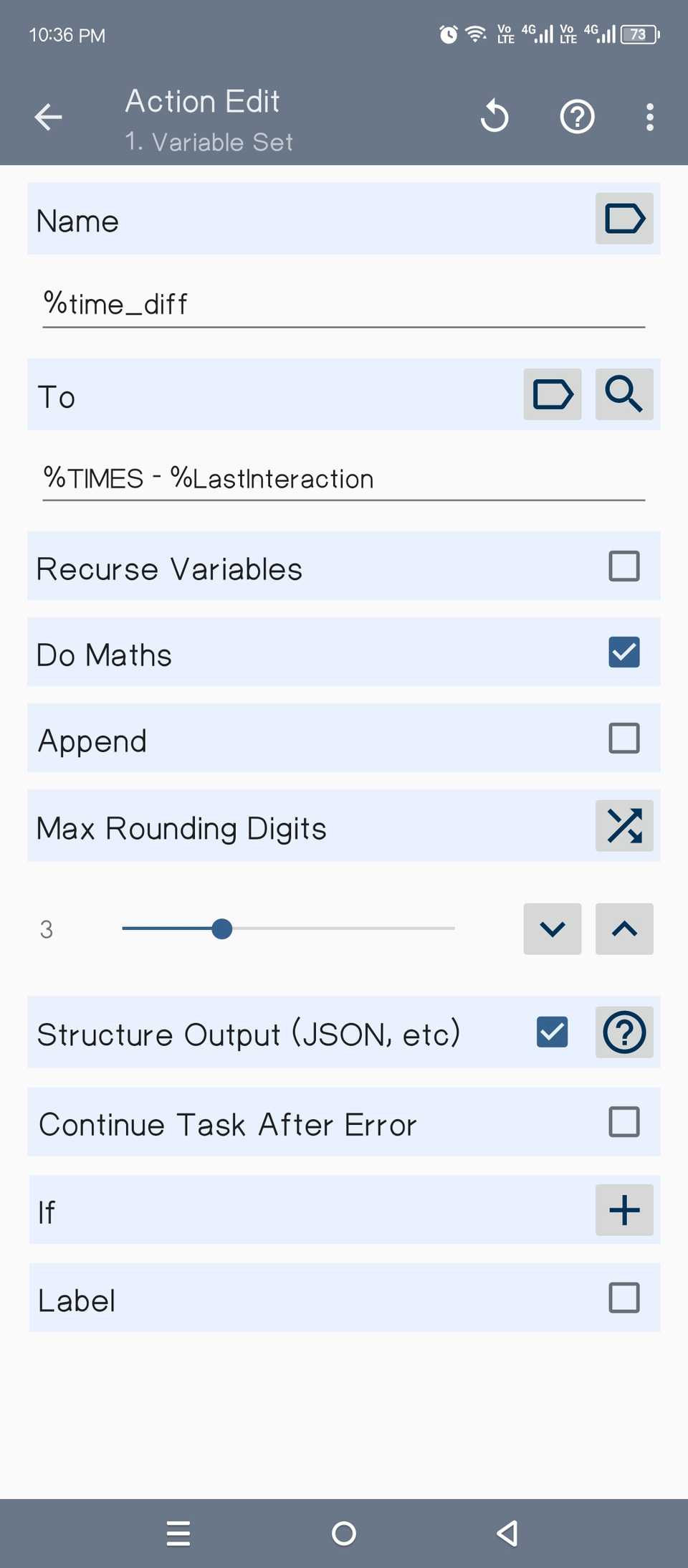
Tasker can now calculate how many seconds have passed since the last interaction. If the difference between all the seconds that have passed between January 1, 1970, and the last time you unlocked your device is longer than 24 hours, it will trigger a second action.
Tap + and scroll through the list to choose what action should be triggered. You can even trigger a code execution. I set a simple beep alarm. Whichever action you choose, make sure you configure the If section underneath it like this.
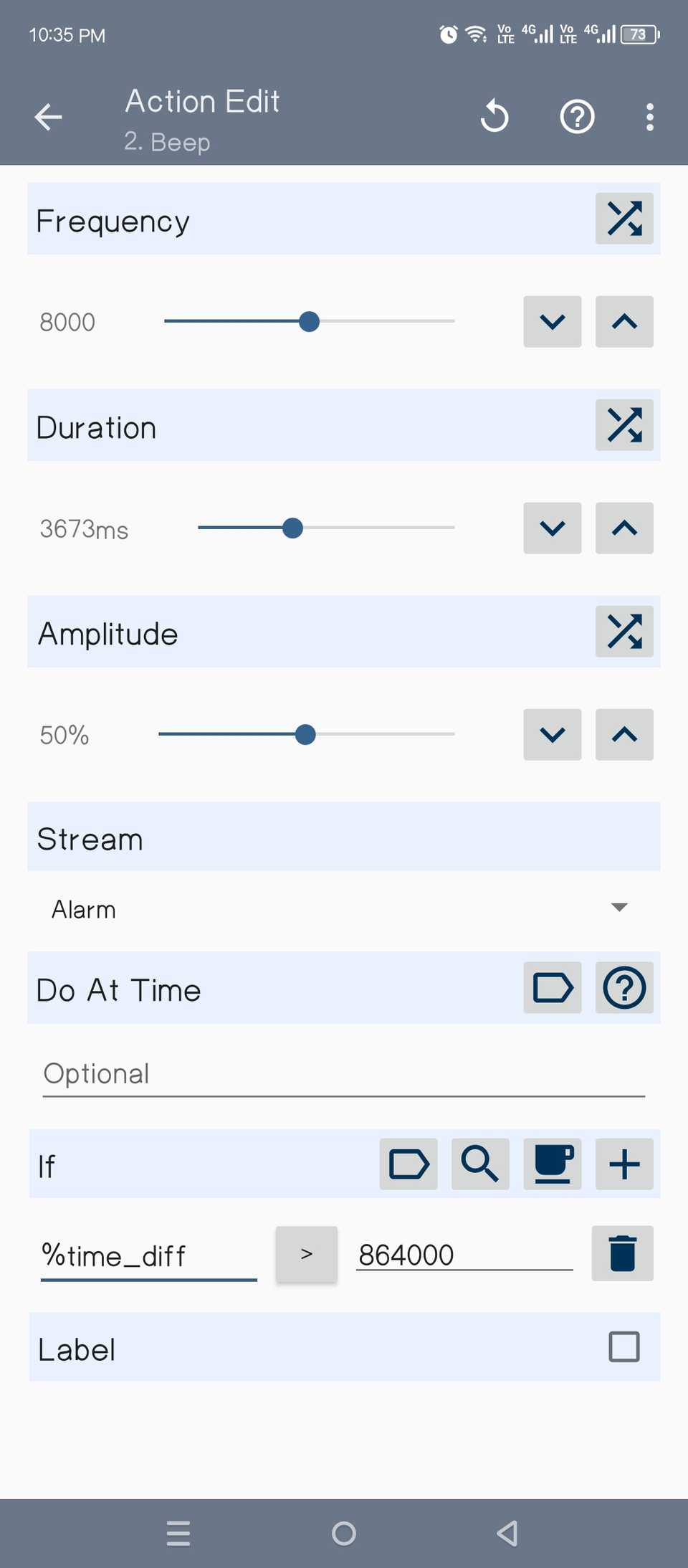
Type %time_diff under the first If field. Tap the button in the middle and select “Maths: Greater Than.” In the last field, type 86400. The number is 24 hours in seconds.
Then tap back until you reach the home screen.
You can test this setup by reducing the number of seconds under the If section and adjusting the check-in parameter to 2 minutes instead of one hour. For example, you could set the seconds to 10 and the “DMS” check to 2 minutes. Then turn off the phone screen and wait 2 minutes and 10 seconds. If the alarm goes off, everything is working as expected.
Leave A Comment?