
Situatie
Uptime Kuma is a self hosted monitoring solution that continously checks the availability of infrastructure services and provides alerts in case of outages or performance issues.
Solutie
STARTING
1.On your Ubuntu, open Terminal and install Curl:
sudo apt install curl -y
2. Install Docker:
curl -fsSL https://get.docker.com | sudo sh
3. Verify that Docker installed:
docker –version
- you should see the docker version
4. Add privileges to the user so you dont have to use sudo command:
sudo usermod -aG docker $USER
5. Log out and back in so that policy is applied
6. Install Portainer:
docker run -d \
–name portainer \
–restart=always \
-p 8000:8000 \
-p 9443:9443 \
-v /var/run/docker.sock:/var/run/docker.sock \
-v portainer_data:/data \
portainer/portainer-ce:latest
7. Verify if Portainer got installed:
docker ps
- You should see Portainer inside Docker
8. Access Portainer in browser at: https://deviceip:9443
- Replace deviceip with your own IP address
9. Create an admin account for Portainer
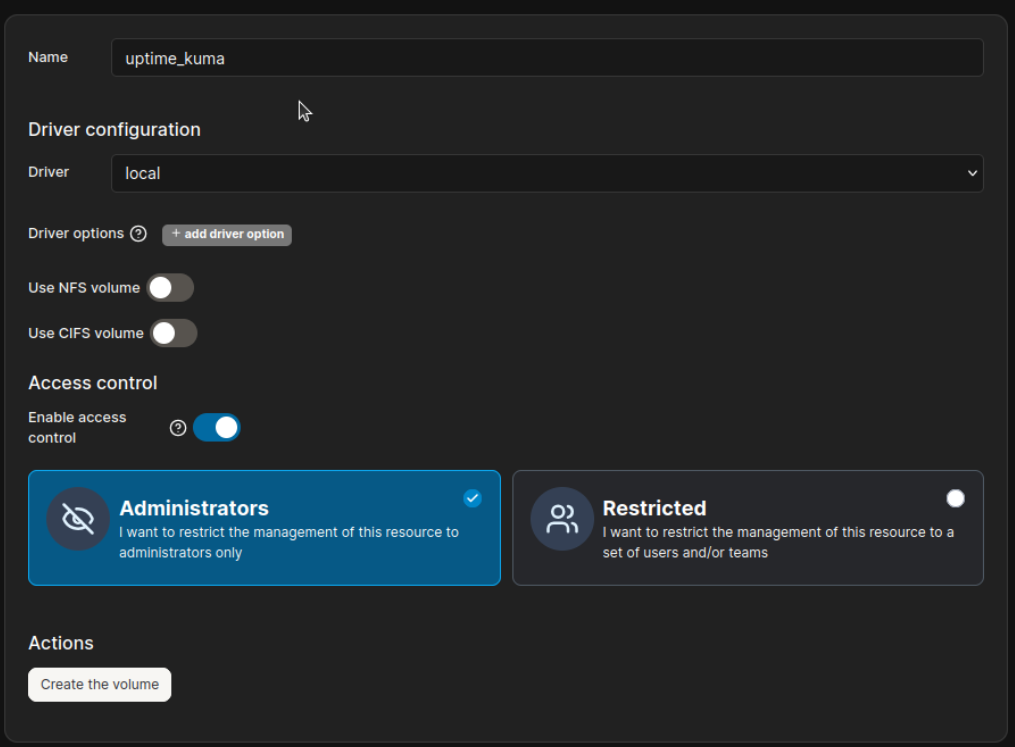
10. In Portainer, create a volume for Uptime Kuma:
- Go to Volumes/add volume
- Give it a name and press Create Volume
11. Install Uptime Kuma:
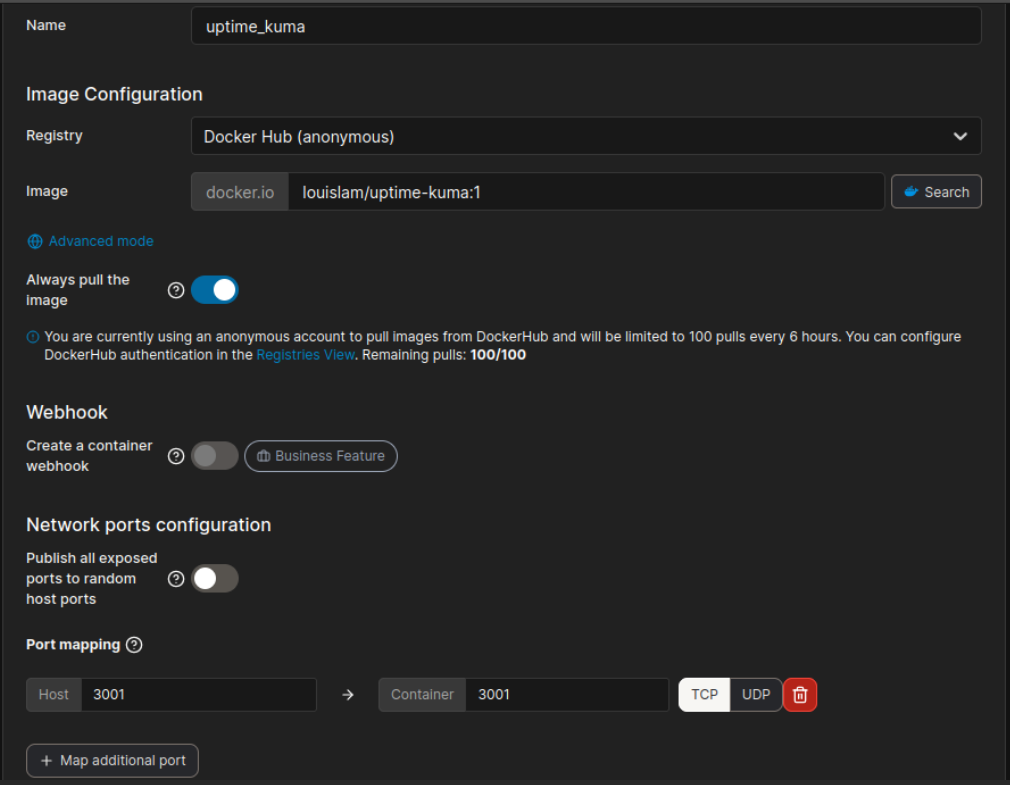
Go to home/local/containers/add container
- Complete the Name field
- Insert in the Image field: louislam/uptime-kuma:1
- Click on Map additional ports and insert: 3001 – 3001 tcp
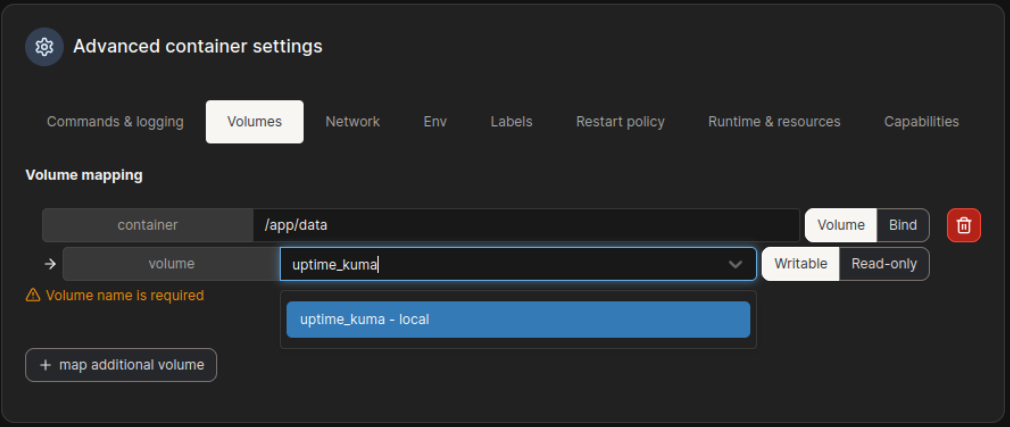
- Lower in the same page, go to Advanced Container Settings
- Select the Volumes tab and insert /app/data in the container field
- In the volume field you need to select the volume you created earlier
- Select the Restart policy tab and change to Always
- Last step is to click on Deploy Container
12. Check Uptime Kuma:
- After the container is deployed, in your browser go to: http://deviceip:3001
- Change deviceip with your IP address
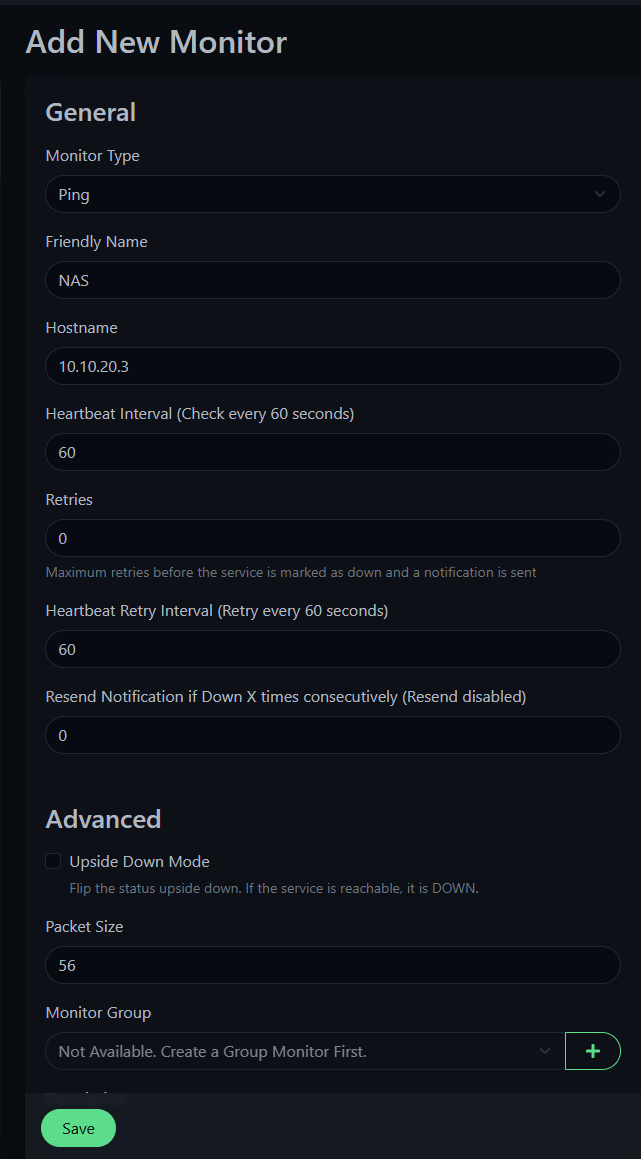
13. Add your own devices to Uptime Kuma:
- Click on Add New Monitor
- Change Monitor Type to Ping
- Add a Friendly Name of a device you want to monitor
- Put the device IP in the Hostname field
- Click Save and your first device is added
- At the end you will have a dashboard with devices being interrogated trough ping at a 60 seconds interval
- The software will show you if any device is DOWN or UP
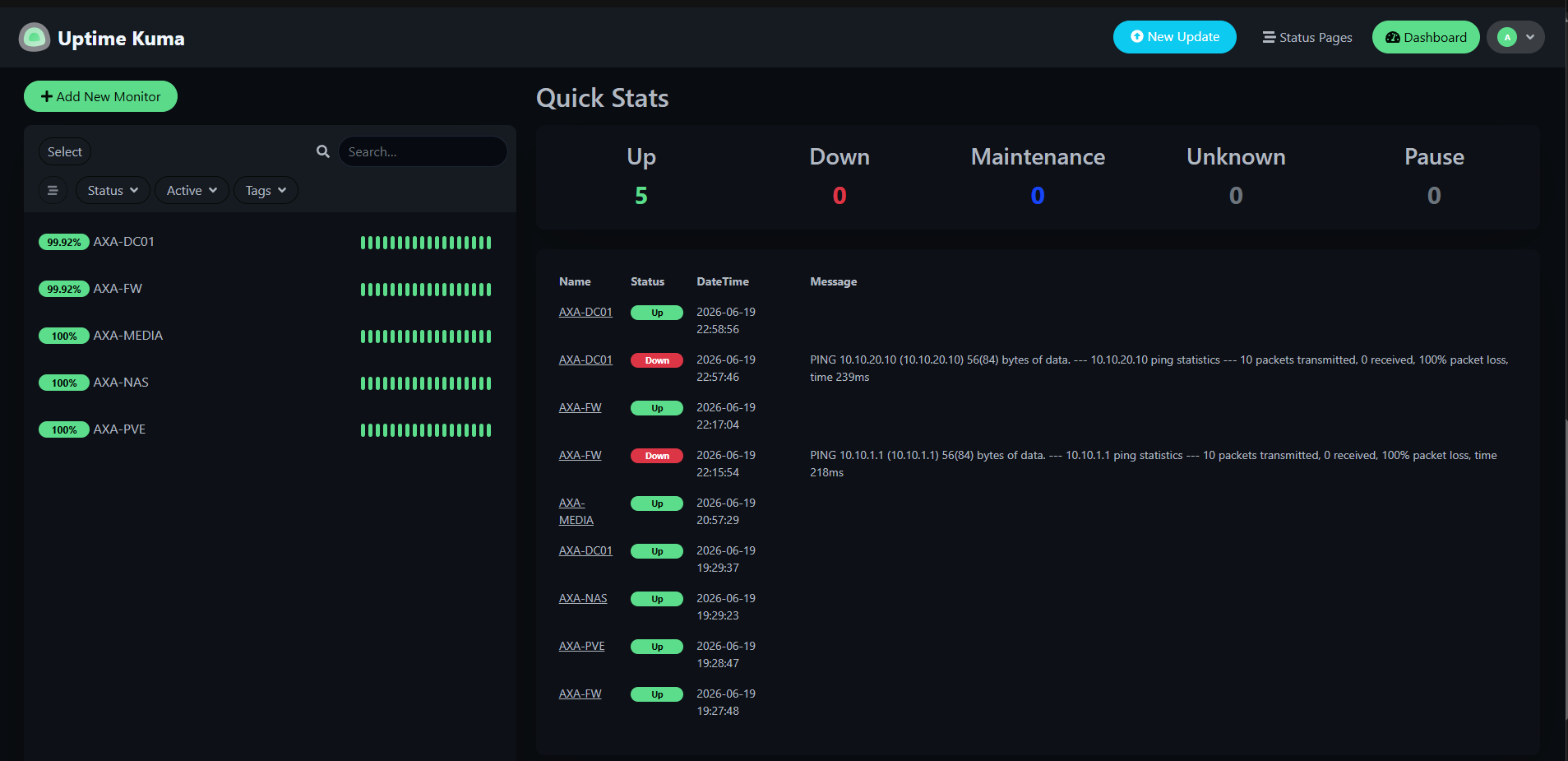
Upon completion of this procedure, Uptime Kuma is fully operational and integrated into the monitoring environment.
Leave A Comment?