
How to move your Android Auto taskbar to the side (or bottom)
Android Auto is quite literally the same Android that’s on your phone, but it doesn’t have the same level of customization. There are no alternate home screen launchers or icon packs. However, one thing you can do is move the taskbar—though the option is not easy to find.
The taskbar in Android Auto—the place where you see the clock, app shortcuts, assistant button, etc—can actually be in two locations. Depending on the size and aspect ratio of your vehicle’s display, you’ve either seen it at the bottom or side of the screen. It’s possible for you to choose the side, but it’s not clear in the settings.
“Quick Controls” have a sneaky second purpose
It determines more than it says
As I’ve alluded to, there’s not a simple setting labeled “Taskbar Location” that allows you to pick a side. Instead, where your taskbar sits actually depends on how Android Auto handles media playback controls.
In many vehicles, the Android Auto taskbar defaults to the bottom of the screen. That’s where it displays media controls—like play, pause, and skip—when you’re listening to music or a podcast. These media widgets are known in the settings as “Quick Controls,” and they’re only available in a horizontal layout.
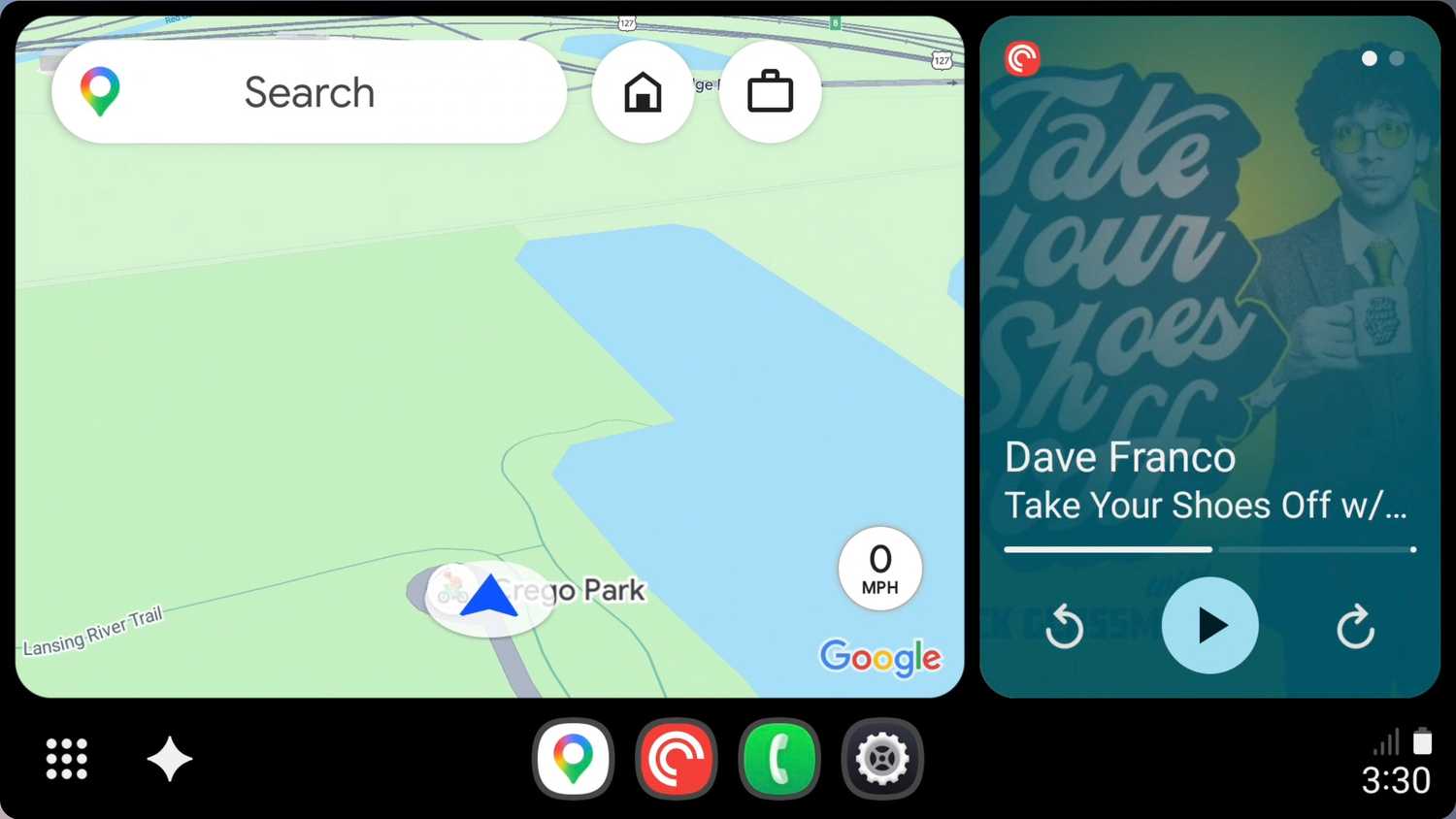
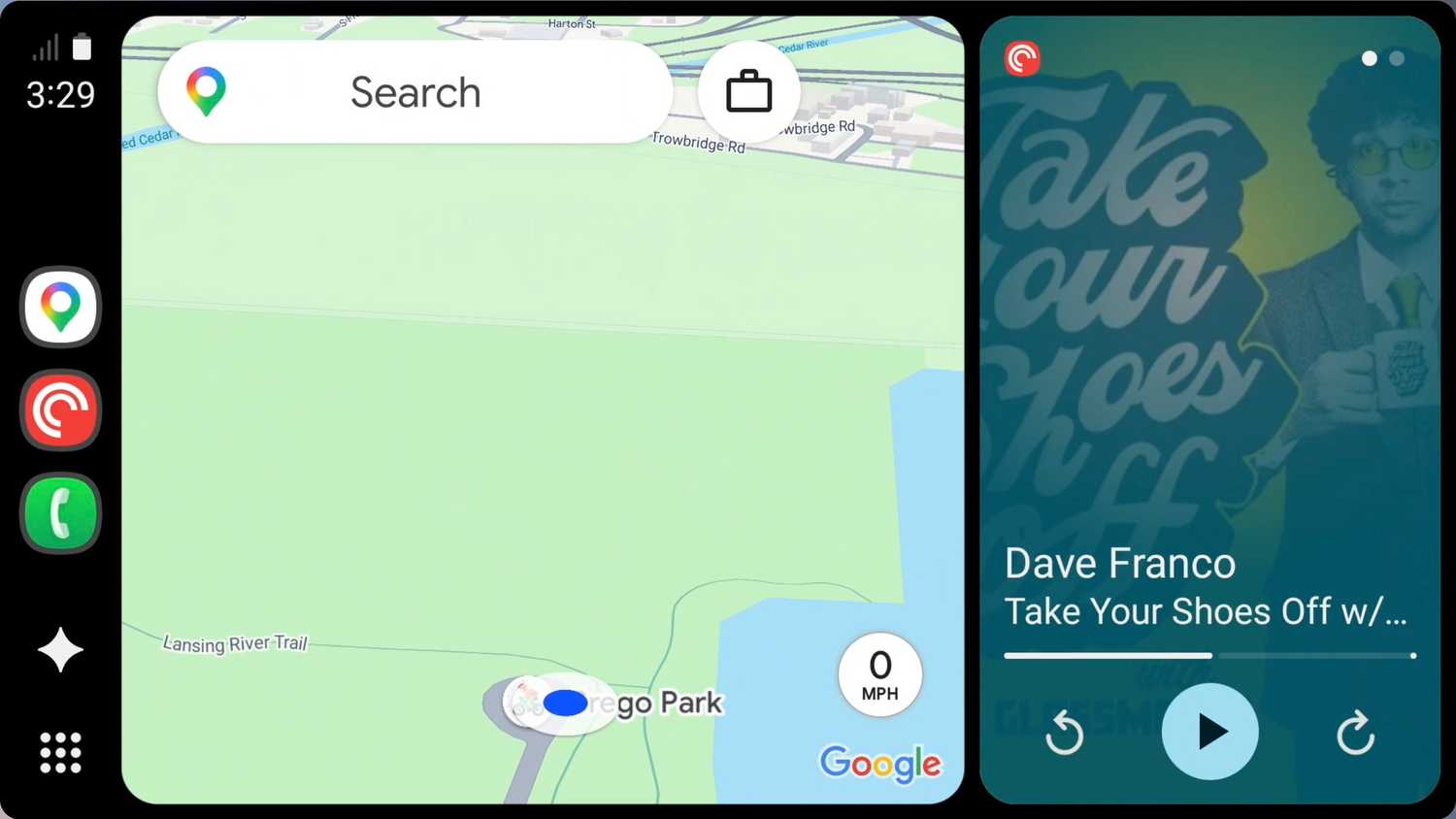
Because of that constraint, toggling Quick Controls also dictates where your taskbar can go. When Quick Controls are turned on, the taskbar must be at the bottom of the screen to fit the media widgets. When you disable Quick Controls, those buttons aren’t needed, and the taskbar moves over to the side of the display closest to the driver.
So, moving the taskbar ultimately comes with the choice of features or layout. Quick Controls are genuinely handy if you like keeping Google Maps expanded to full screen, but still want access to your music or podcasts. On the flip side, if you already run your display in split-screen mode or would like to maximize vertical screen space, the side taskbar is a better position.
How to move the Android Auto taskbar
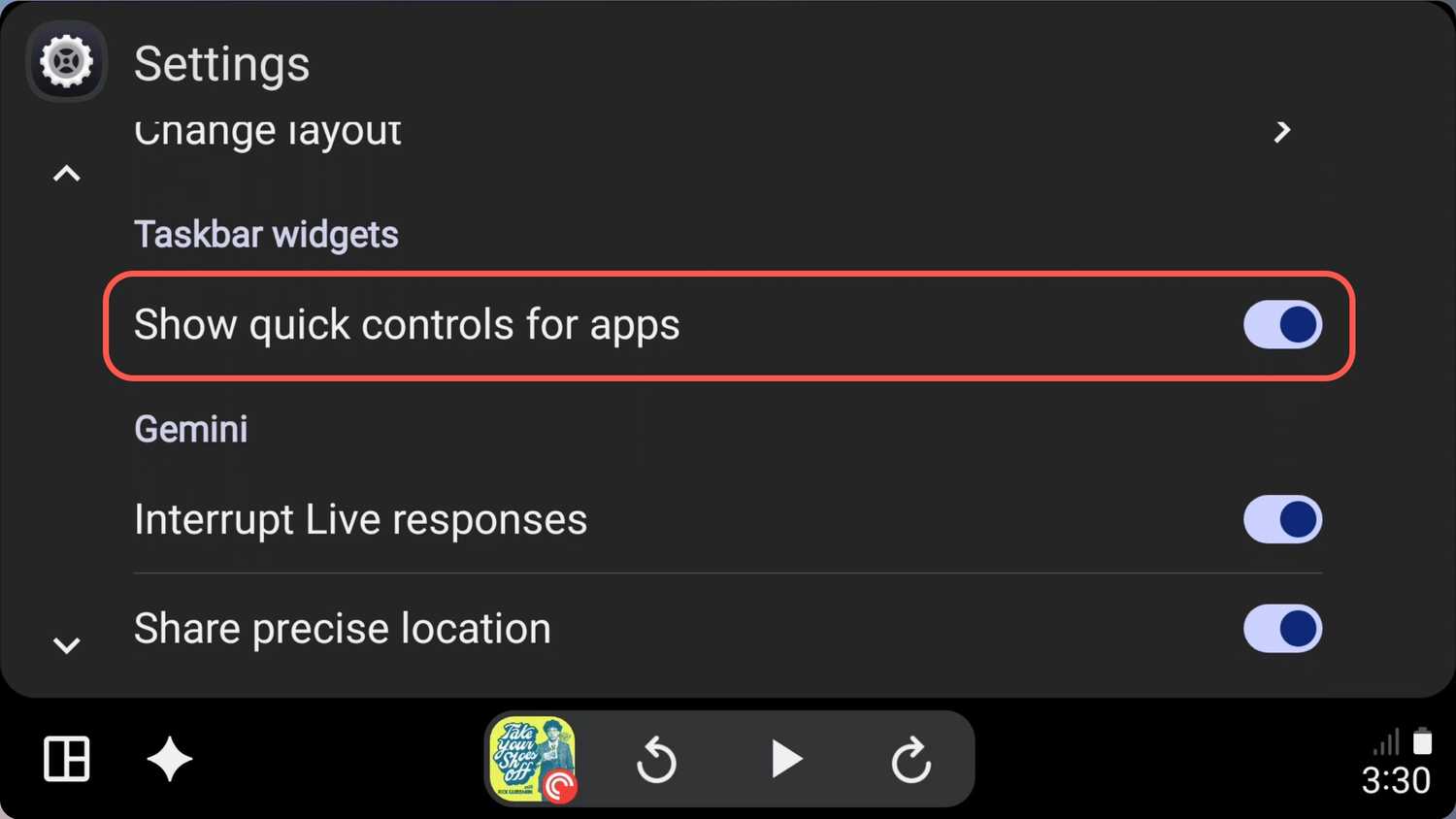
To shift the taskbar position, you’ll need to open the Settings app directly on your Android Auto display. This can’t be done from the settings on your phone. Scroll down until you see the toggle labeled “Show quick controls for apps.”
When switched on, it grounds your taskbar to the bottom of the screen with media controls attached. Switching the toggle off removes the extra widgets and slides the taskbar over to the side. It’s as simple as that.
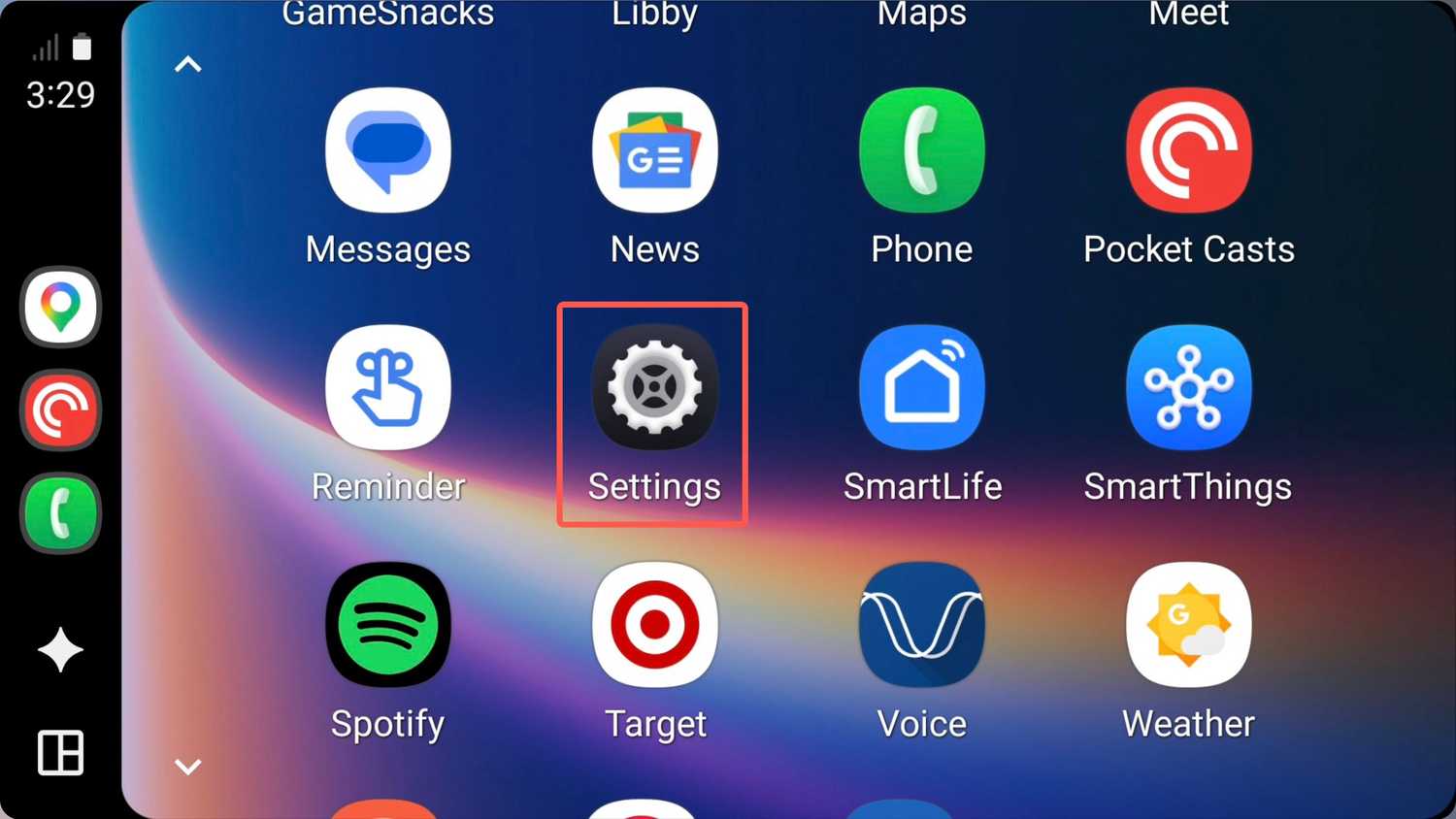
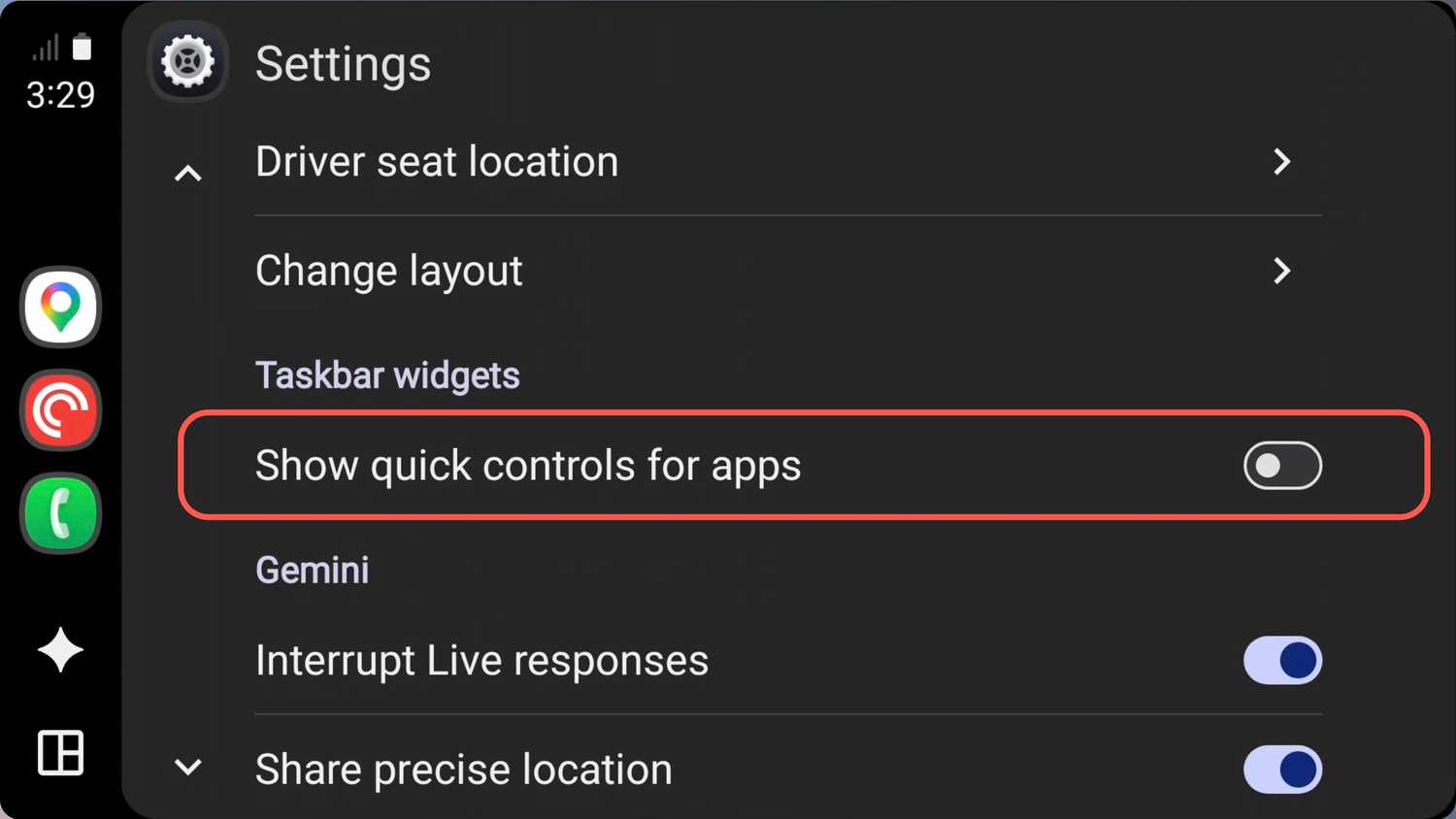
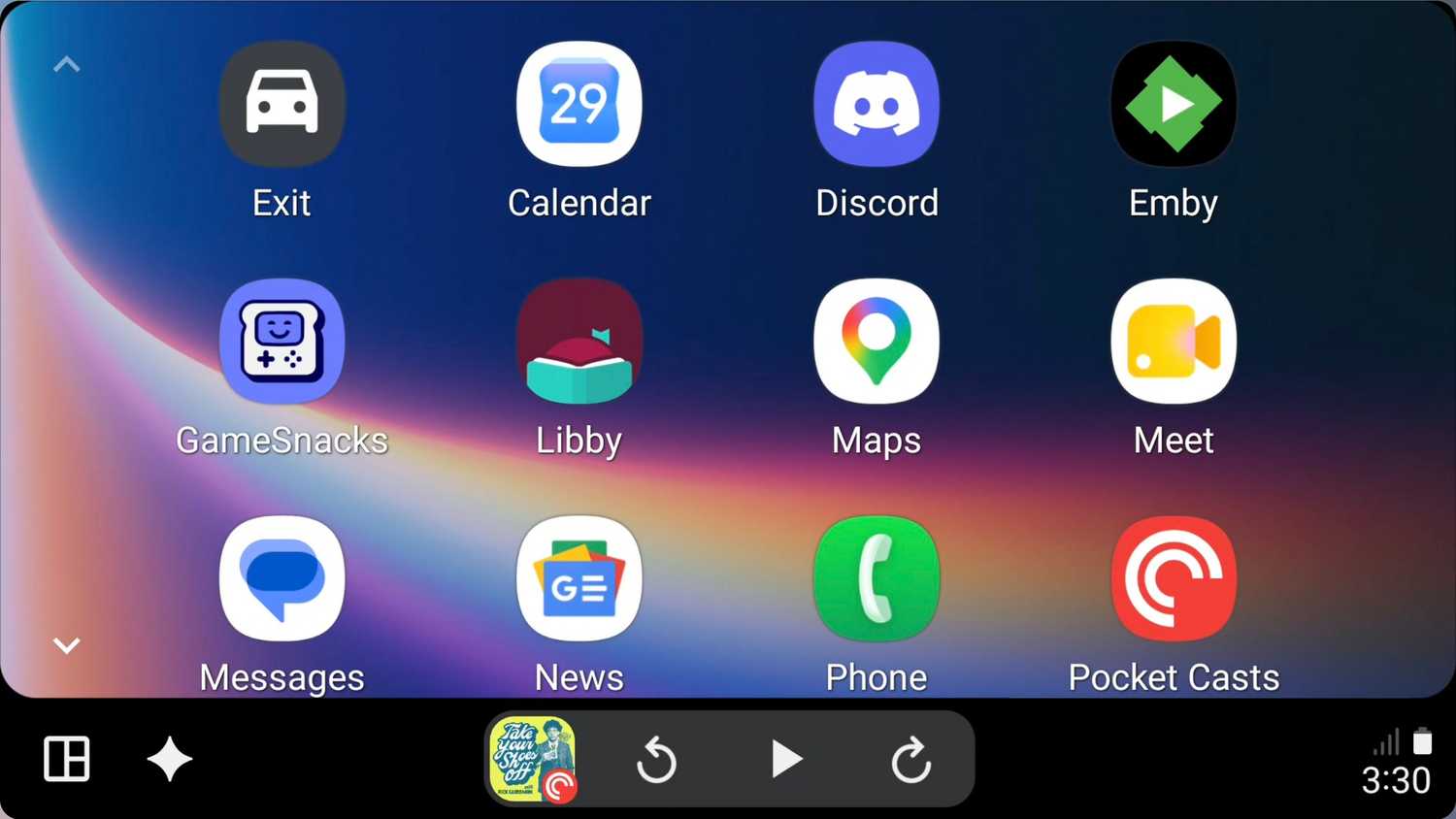
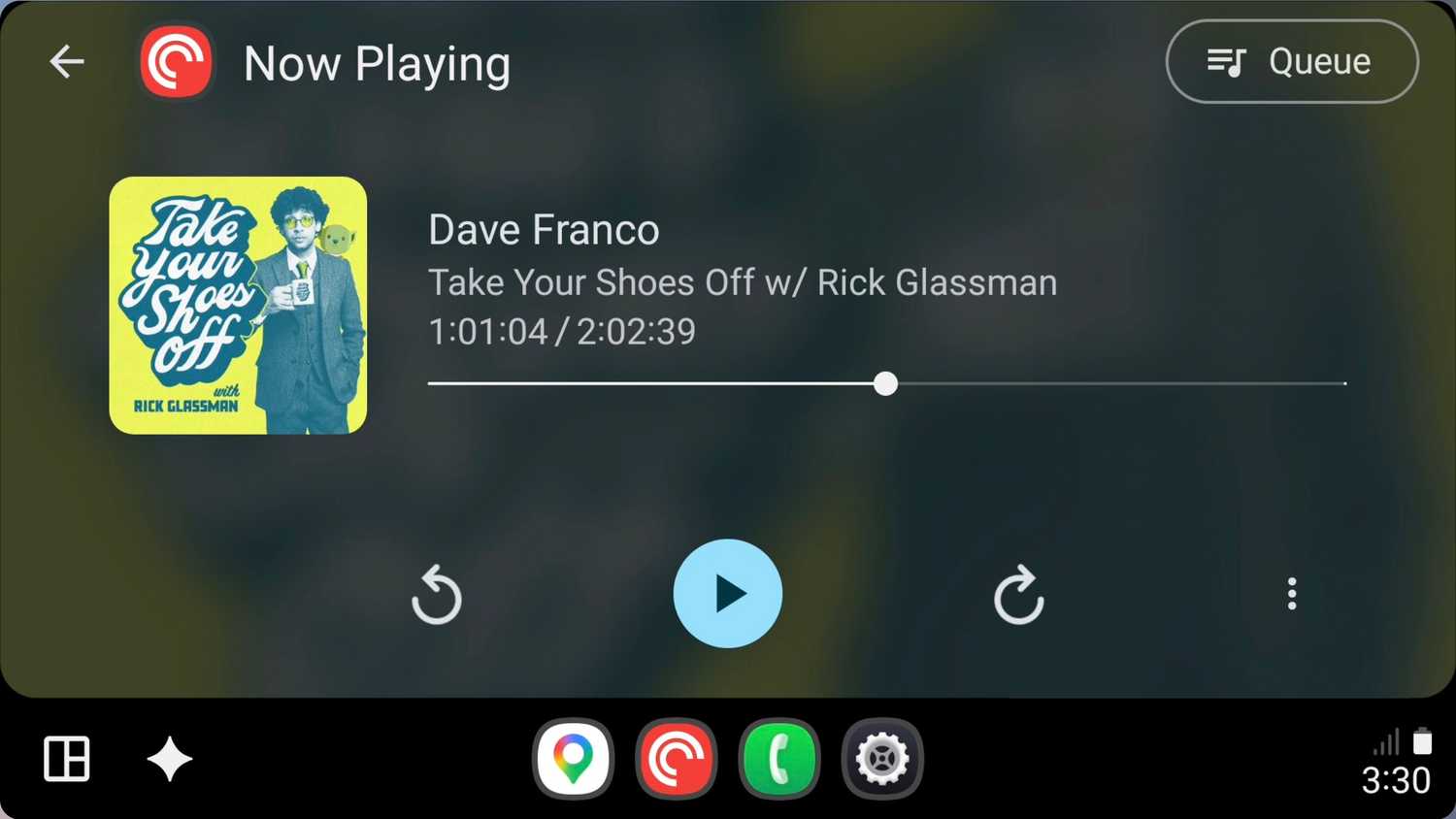
Having the taskbar stacked vertically on the side puts the primary app icons closer to the steering wheel, which is easier to reach while driving. Since split-screen mode already keeps the media app on screen, I don’t feel like I lose much without the Quick Controls.
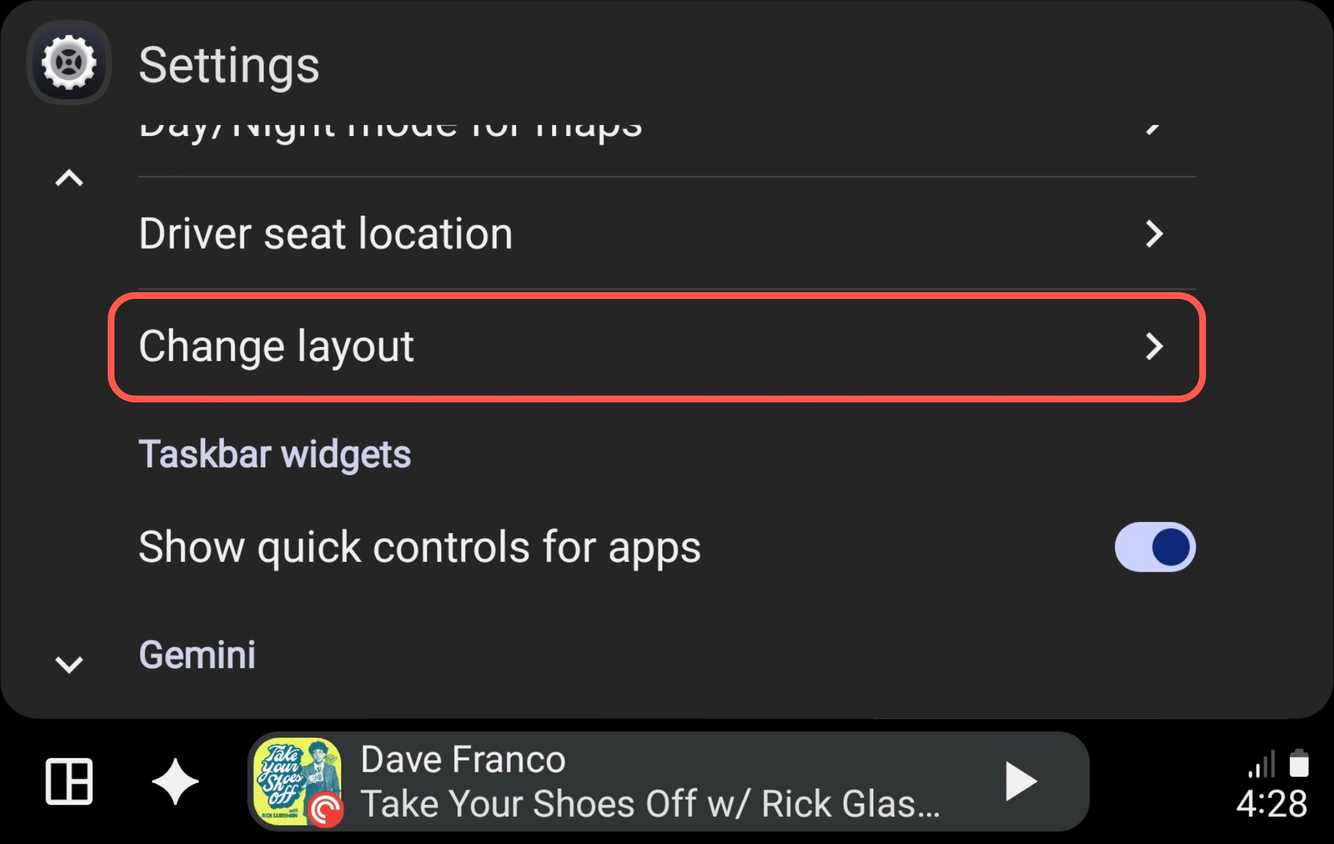
Speaking of media, there’s another option in the settings that lets you choose where the media app lives on the screen. You can decide if you want media or navigation close to the driver by going to Settings > Change layout.
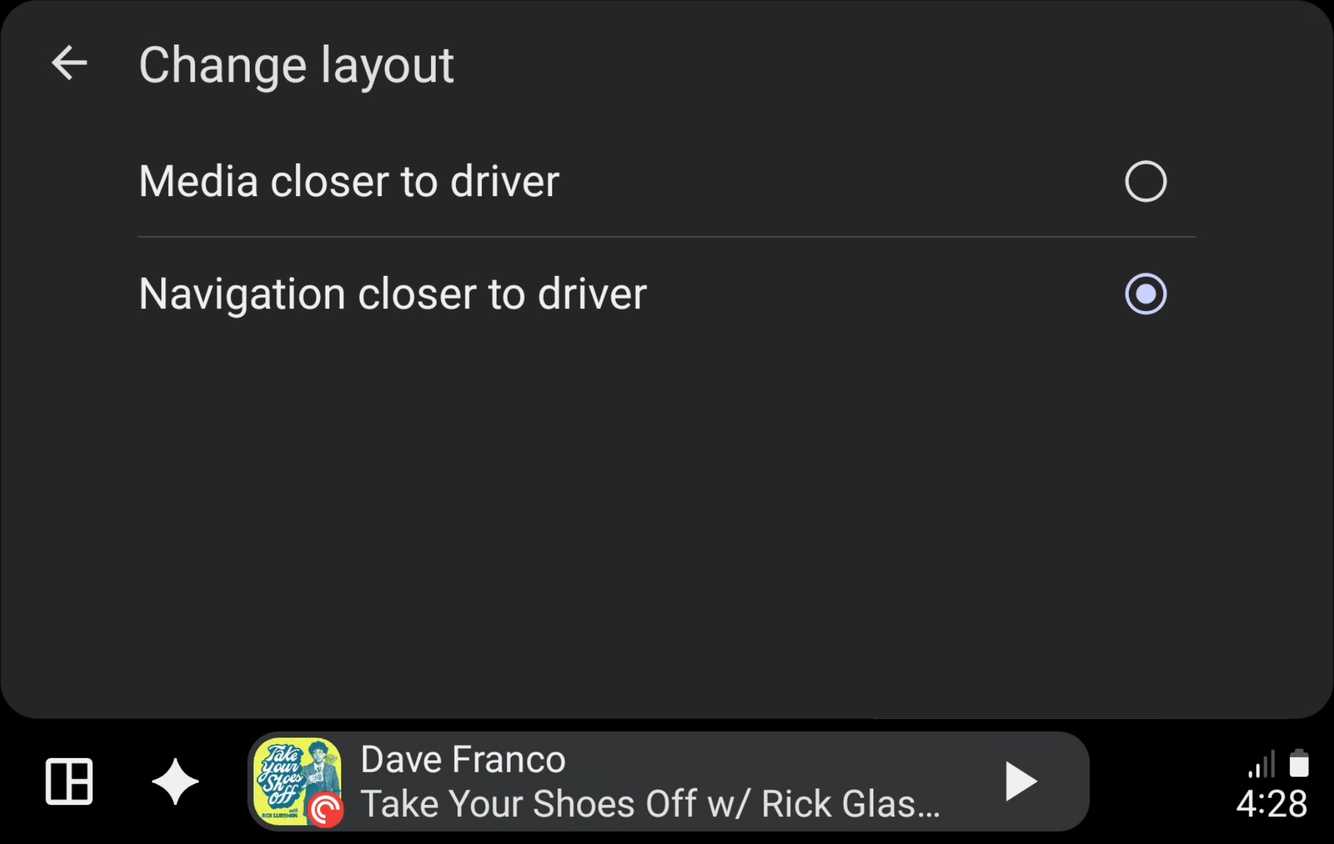
Not a one-size-fits-all solution
As I said, screen size and aspect ratio play a part in this as well. For most standard displays, Quick Controls does indeed determine the taskbar position. However, for unconventional displays, it’s possible the taskbar may stay on the bottom even with Quick Controls disabled. You can toggle back and forth to see which layout suits your driving habits best.
[mai mult...]