
Stații de lucru

OS - Windows 9179 Solutii

Reguli si plangeri 11 Solutii

OS - OS X 410 Solutii

Reguli de configurare 12 Solutii

Licentiere 18 Solutii

Securitate 182 Solutii

Copie de rezerva (Backup) 68 Solutii

Antivirus 72 Solutii

Aplicatii specifice 5303 Solutii

Hardware 291 Solutii

Cum creezi un Blade Template in Laravel?

Blade este motorul de șabloane simplu, dar puternic, care este inclus cu Laravel. Spre deosebire de unele motoare de șabloane PHP, Blade nu vă împiedică să utilizați cod PHP simplu în șabloane. De fapt, toate șabloanele Blade sunt compilate în cod PHP simplu și stocate în cache până când sunt modificate, ceea ce înseamnă că Blade adaugă practic zero overhead aplicației dvs. Fișierele șablon Blade folosesc extensia de fișier .blade.php și sunt de obicei stocate în directorul resurse/vizualizări.

[mai mult...]
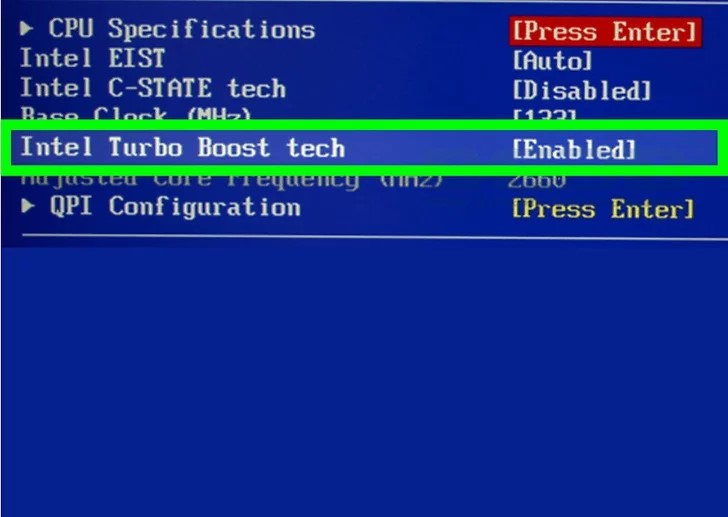
How to enable turbo boost on Intel Processor

1. Boot your PC into the BIOS. Here’s an easy way to do so from Windows 10:

  • Click the “Windows” icon menu.
  • Click Settings .
  • Click Update & security.
  • Click Recovery.
  • Click Restart now under ″Advanced Startup.″ The PC will reboot to a blue screen.
  • Click Troubleshoot on the blue screen.
  • Click Advanced options.
  • Click UEFI Firmware Settings.
  • Click Restart. The computer will now reboot into the BIOS.

2. Go to the CPU/processor configuration screen. The BIOS will look different depending on who manufactured your motherboard. In most cases, the setting for Turbo Boost will be in a menu called CPU Specifications, CPU Features, Advanced Core Features, or something similar.

  • Use the arrow keys on the keyboard to navigate the BIOS, and press ↵ Enter to make your selections.
  • Press Esc to go back a screen.

3. Locate ″Intel® Turbo Boost Technology″ in the menu. You’ll usually see either ″Enabled″ or ″Disabled″ beside it. If you see ″Enabled,″ you don’t need to change anything in the BIOS.

4.  Select Enabled from the menu.

5. Save your changes. The exact key to press should appear at the bottom of the BIOS. In most cases, it’ll be F10.

6. Exit the BIOS and reboot the computer. Press Esc and then follow the on-screen instructions to restart. When your PC comes back up, Turbo Boost will be enabled.
[mai mult...]