
Stații de lucru

OS - Windows 9182 Solutii

Reguli si plangeri 11 Solutii

OS - OS X 410 Solutii

Reguli de configurare 12 Solutii

Licentiere 18 Solutii

Securitate 182 Solutii

Copie de rezerva (Backup) 68 Solutii

Antivirus 72 Solutii

Aplicatii specifice 5306 Solutii

Hardware 291 Solutii

Adjust clock manually on Windows 11

To sync the clock manually to fix the time and date information on Windows 11, use these steps:

    1. Open Settings on Windows 11.
    2. Click on Time & language.
    3. Click the Date & time page on the right side.
    4. Turn off the Set time automatically toggle switch (if applicable).
    5. Under the “Additional settings” section, click the Sync now button.
    6. Clock sync manually
    7. (Optional) Turn on the Set time automatically toggle switch option.

Once you complete the steps, the system clock should start showing the correct time information in the Taskbar.

Adjust clock manually on Windows 11

To change the date and time manually on your computer, use these steps:

  1. Open Settings.
  2. Click on Time & language.
  3. Click the Date & time page on the right side.
  4. Turn off the Set time automatically toggle switch (if applicable).
  5. Click the Change button for the Set the date
  • and time manually setting.
  • Change date and time manually
  • Confirm the correct date and time.
  • Click the Change button.
    Change date and time setting
    Change date and time setting
  • Turn off the Set time zone automatically toggle switch.Disable automatic time zone
  • Select the correct time based on your location
  • using the Time zone setting (if applicable).
  • Turn on Adjust for daylight saving
  1. time automatically toggle switch (if applicable).

After you complete the steps, the Taskbar should display the correct date and time information.

[mai mult...]
Delete/remove a printer driver in Print Management

To completely remove the printer driver from the device, use these steps:

1. Open Start.

2. Search for Control Panel and click the top result to open the console

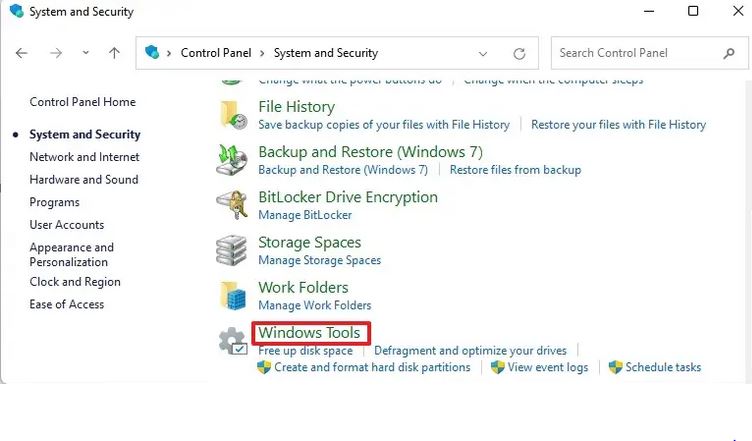
3.Click on System and Security.

4. Click on Windows Tools.

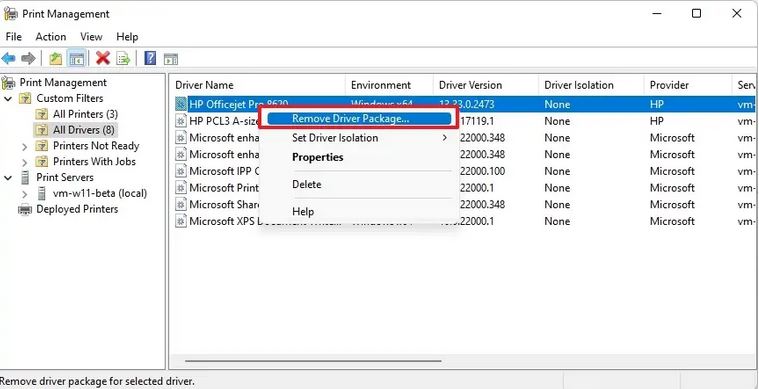
5. Double-click the Print Management option.

6. Expand the Custom Filters branch.

7. Click on All Drivers from the left navigation pane.

8.Right-click the printer driver on the right side, and select the Delete option.

9. Click the Yes button.

After you complete the steps, the printer driver will no longer be available on the device. If you need to reinstall the peripheral, Windows 11 will need to download the driver again, or you will need to provide them manually.

[mai mult...]

Cum sa eliminam cheile din registru ale pachetului Office in Win 10

Uneori in urma dezinstalarii versiunilor mai vechi de Microsoft Office sunt lasate in urma, chei de registri. Chiar daca fisierele de program reale sunt eliminate, puteti urma acesti pasi pentru a curata acele chei vechi de registrii, astfel incat să se poata obtine un inventar adecvat al software-ului pe masina.

Ar fi indicat sa faceti o copie de rezerva a Registrului inainte de a-i face modificari.

[mai mult...]