

Stații de lucru
OS - Windows 9182 Solutii
Reguli si plangeri 11 Solutii
OS - OS X 410 Solutii
Reguli de configurare 12 Solutii
Licentiere 18 Solutii
Securitate 182 Solutii
Copie de rezerva (Backup) 68 Solutii
Antivirus 72 Solutii
Aplicatii specifice 5306 Solutii
Hardware 291 Solutii
Instalarea utilitarului GameBoost pentru Gigabyte Z370-HD3 in Windows 10
[mai mult...]Update driver audio pe Gigabyte Z370-HD3 in Windows 10
[mai mult...]How to install and use Your Phone App on your Windows 10
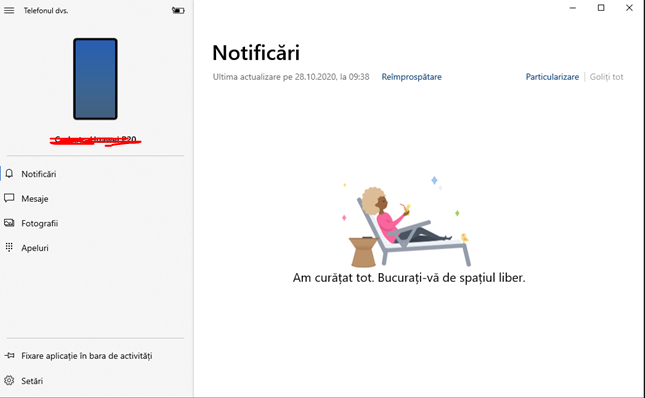
To make Your Phone App work, it’s necessary to link your Android Smartphone with your Windows 10. The process should be pretty intuitive once you open up the Your Phone App from your computer. After you’ve configured everything properly with your Windows 10, open up the Your Phone App and you should see something simillar as in the following screenshot:
How to change file associations in Windows 10
If you’ve ever run into the problem of Windows trying to open up a file in entirely the wrong application, you’re not alone. Although you can get around it using the “Open With” command, there is a way to make sure you don’t have to do that every time: Learn how to change file associations.
If you aren’t sure which file type you want to change the association of, right-click your desired file and click Properties from the resulting menu. Look for Type of File at the top of the window. The three-letter designation next to that is its file type. You can do it on an individual file type basis or change all of them from one location.
[mai mult...]Cum creati un shortcut VPN pe desktop in Windows 10
Pentru a începe, deschideți meniul “Start” și căutați “Control Panel”.

În Control Panel, faceți click pe opțiunea “View by” din colțul din dreapta sus al ferestrei și selectați “Category”. Apoi, selectați “Network and Internet”.

În setările “Network and Internet” (Rețea și Internet), selectați “Network and Sharing Center” (Centrul de rețea și partajare) în partea de sus a ecranului.

În fereastra Network and Sharing Center, căutați în bara laterală și selectați “Change adapter settings”

Găsiți VPN-ul (care arată ca o pictogramă cu două monitoare). Faceți click dreapta pe VPN și selectați “Create Shortcut”

Windows va afișa un avertisment care va spune că nu poate crea o comandă rapidă aici. Selectați “Yes” în această casetă de avertizare, iar Windows va plasa o comandă rapidă pe desktop.

Noul Shortcut VPN este acum disponibil pe desktop.
