
Situatie
There’s a reason why Outlook is one of the most widely used email providers. But it’s even better when you know how to get around it better. Here are 5 features you can use to actually get around it faster and way more efficiently.
Solutie
Sweep
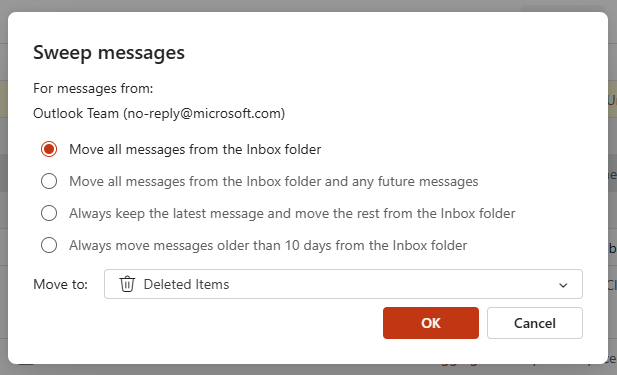
The Sweep feature is probably one of the most aggressive and effective ways to maintain inbox zero without constantly micromanaging your subscriptions. You can find this tool in the top ribbon of the Outlook web app or the New Outlook interface whenever you select an email from a newsletter or recurring notification.
You can choose to move all messages from a sender, but the real power lies in the option to always keep the latest message and delete the rest. This is invaluable for shipping notifications, daily news briefings, or system alerts where yesterday’s information is completely irrelevant today.
Another powerful Sweep configuration is the ability to automatically delete email older than ten days from a specific sender. This is perfect for limited-time offers or weekly coupons that clutter your storage space long after they expire. When you initiate a Sweep, Outlook runs the command immediately on your existing inbox to clear out the backlog, and then silently creates a backend rule to handle future instances. This saves you the initial time of purging hundreds of old emails manually.
Delay Delivery
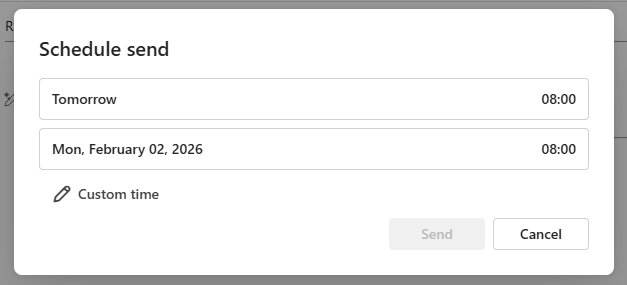
By using Delay Delivery, you can compose your thoughts when they are fresh or when you are working late, but schedule the message to arrive in the recipient’s inbox at a socially acceptable time, like 8:00 AM the next morning. In the classic version of Outlook, this is found under the Options tab as “Delay Delivery,” where you can set a specific “Do not deliver before” time.
The desktop version of Outlook requires the client to be open and running at sending time for the email to actually be delivered. To do it server-side, you can access the web version and by clicking the dropdown arrow next to the Send button, you can access the “Schedule send” feature. This version works server-side, meaning once you hit the schedule button, the email is held on the cloud server and will be delivered at the precise moment you selected, even if your computer is turned off.
Scheduling Polls
This tool looks at your Microsoft 365 calendar to propose times where you are free, but it also allows you to manually select specific slots you want to offer. When you send the poll, recipients—including those outside your organization who use Gmail or other services—receive a link to a voting page where they can select all the times that work for them and even vote for their preferred slot.
You do not need to constantly check the poll status because Outlook handles the consensus automatically. Once everyone has voted and a common time is found, the tool can automatically send out the meeting invite to all attendees and block the time on your calendar.
Quick Steps
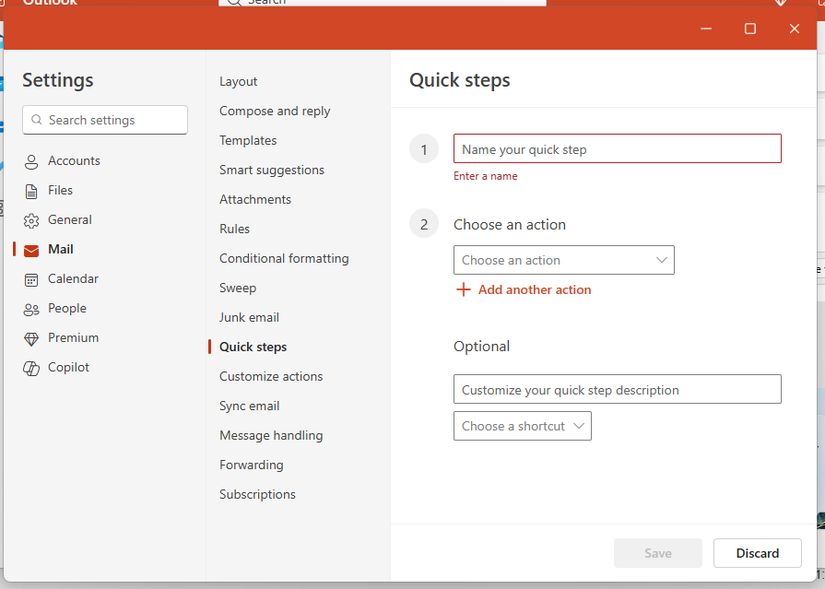
Quick Steps are essentially customized macros that allow you to perform multiple actions on an email with a single click or keyboard shortcut. While standard Rules are automatic and run as emails arrive, Quick Steps are manual triggers used for processing emails as you read them.
Setting this up is straightforward via the “Manage Quick Steps” interface, where you can build your own sequences from scratch. A highly effective workflow is to create “Done” Quick Steps for different contexts. You might have one button that marks the email complete and moves it to an Archive folder, and another that marks it as read and creates a calendar appointment from the email body. You can even assign these steps to shortcut keys like Ctrl+Shift+1, allowing you to process your inbox entirely from your keyboard.
Snooze Emails
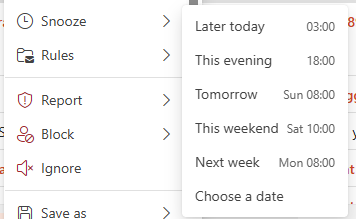
The Snooze feature is a critical component of the “Inbox Zero” methodology for modern Outlook users, specifically those on the mobile app, web, or New Outlook for Windows. Often, you receive emails that are important but cannot be acted upon immediately—perhaps a flight confirmation for a trip next month or a request for data that won’t be available until Tuesday. The Snooze function allows you to right-click an email and select a specific date and time for it to return. When you do this, the email is moved out of your Inbox and into a dedicated “Snoozed” folder, instantly decluttering your view.
Leave A Comment?