Stații de lucru

OS - Windows 9182 Solutii

Reguli si plangeri 11 Solutii

OS - OS X 410 Solutii

Reguli de configurare 12 Solutii

Licentiere 18 Solutii

Securitate 182 Solutii

Copie de rezerva (Backup) 68 Solutii

Antivirus 72 Solutii

Aplicatii specifice 5306 Solutii

Hardware 291 Solutii

Multiple monitors settings-Windows 10

How to change the resolution of a specific monitor,or how to change whre the information is shown

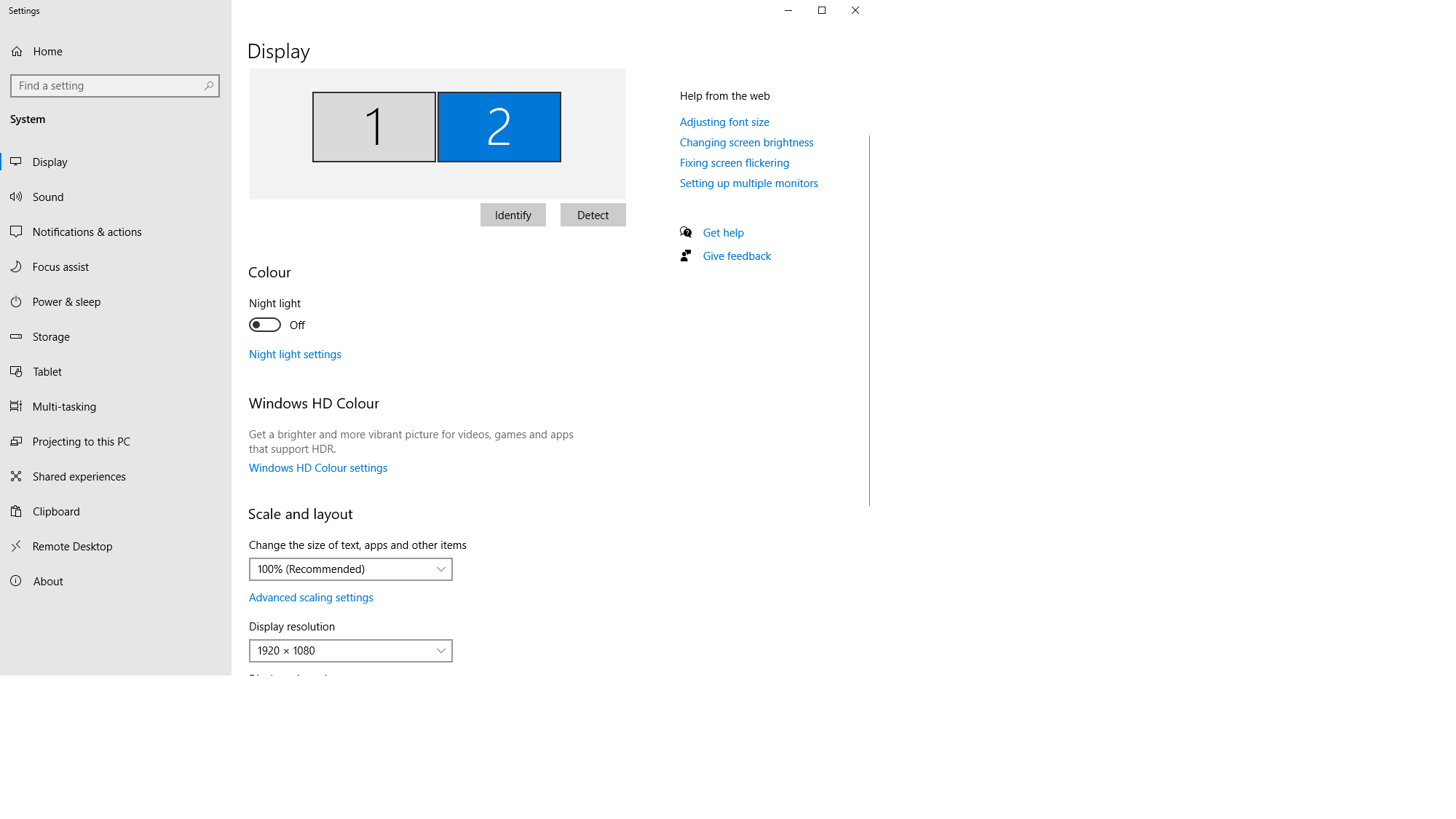
  • First,right click on your desktop,and go to display settings
  • To identify on which monitor you’re working on, just click identify a number which represents the monitor number will be shown on the bottom left.

From here,you can select your desired monitor to either change the resolution,make it your primary.

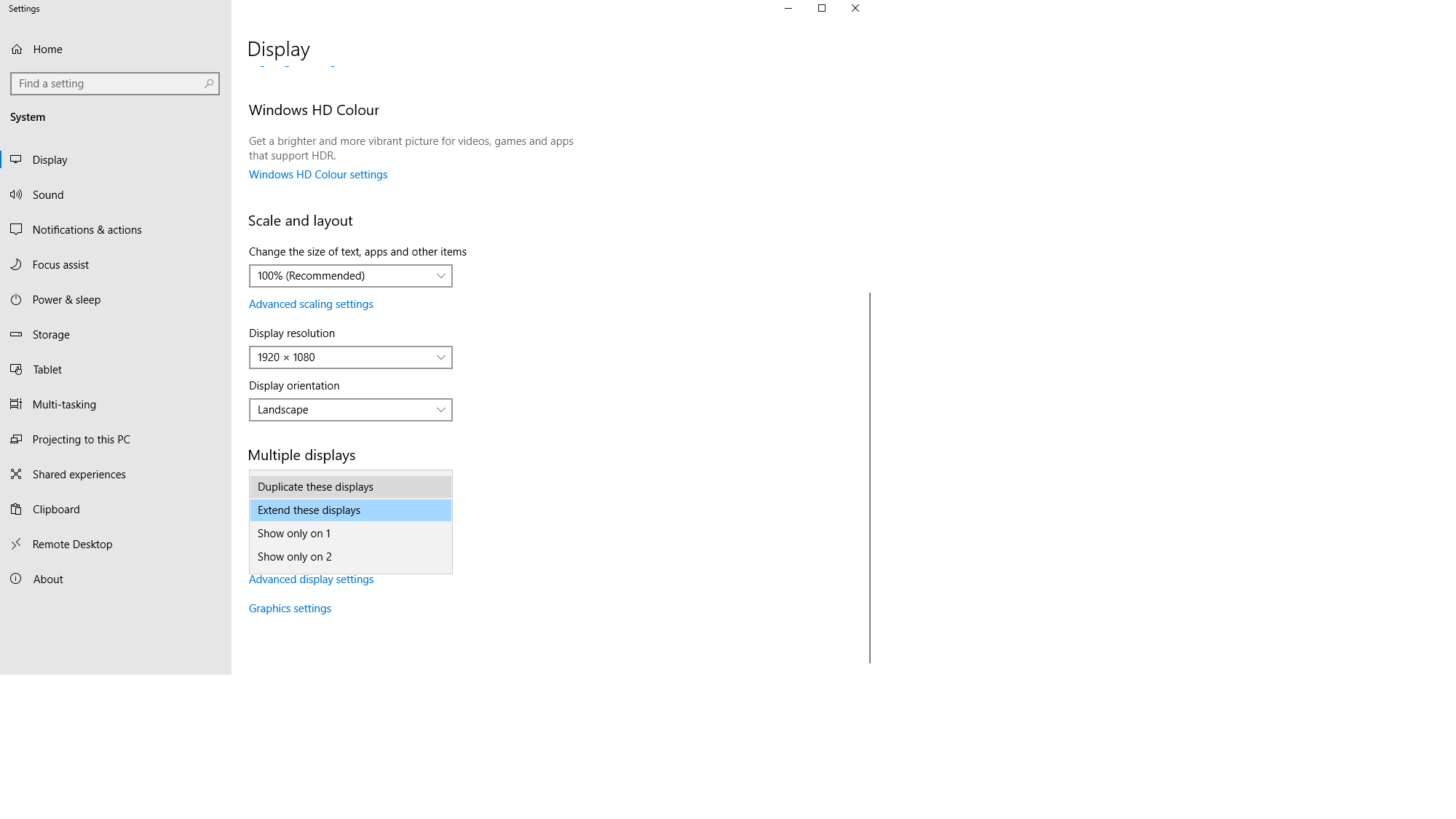
Under the “Multiple displays” option you can change what your monitors to, for example:

  • Duplicate these displays will show the same information on all your monitors
  • Extend these displays,all your monitors will act as one
  • Show only on 1-will only show information on monitor one,the other ones will show a black screen
  • Show only on 2-will only show information on monitor two,the other ones will show a black screen
  • And so on and so forth

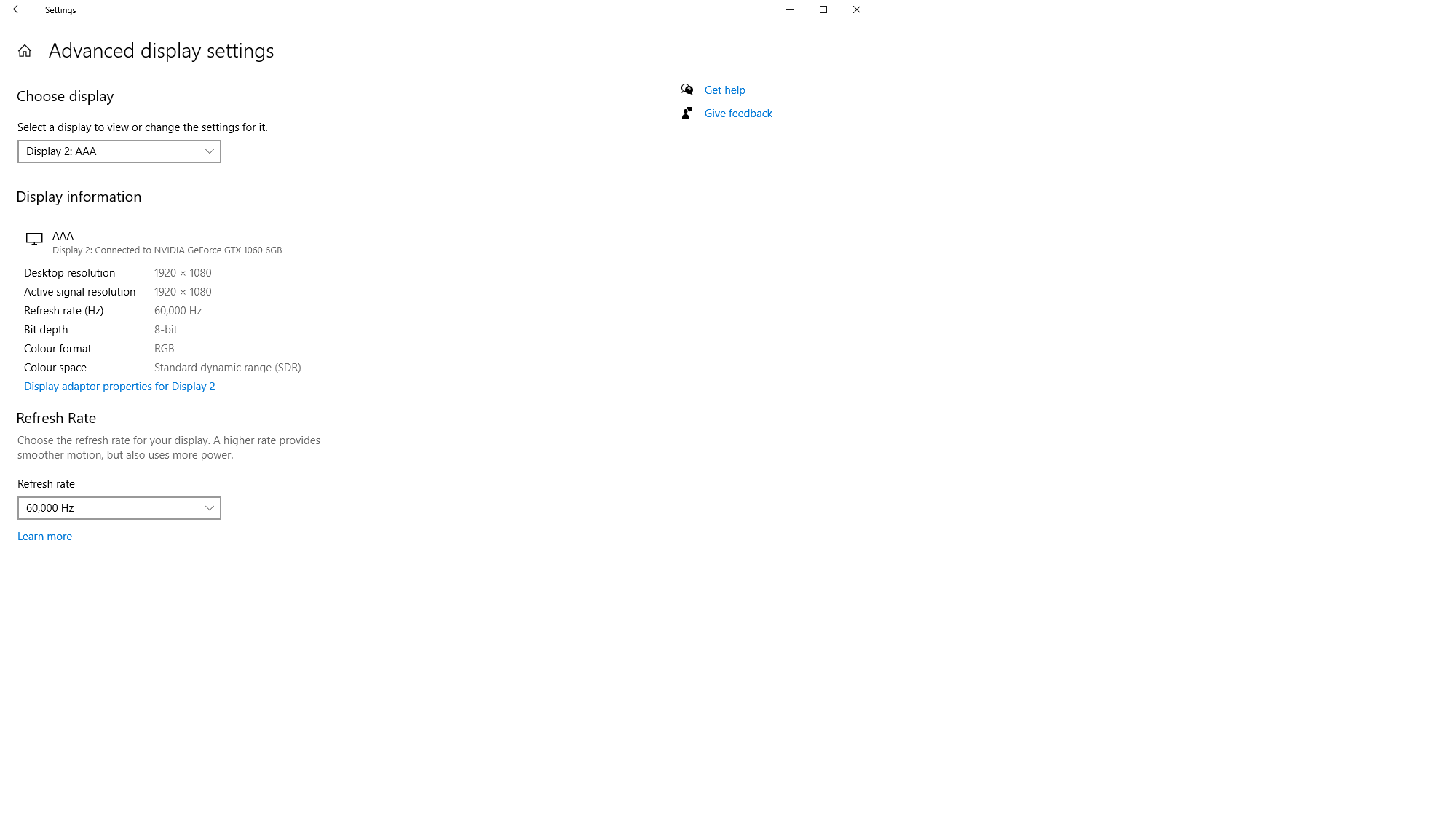
To change the monitor refresh rate(Hz) go to Advanced display settings, select the desired monitor.

[mai mult...]

How to Change Google Photos Backup Quality

Google Photos is one of the best services for backing up photos and videos to the cloud. There are a couple of upload quality options you can use to maximize your storage space. We’ll show you how it works.

Starting June 1, 2021, Google Photos no longer offers free unlimited storage. Previously, you could back up photos and videos at “High Quality” and they wouldn’t count toward your storage. Now, everything you upload counts, so you may want to adjust the upload quality. The one exception to this is if you use a Google Pixel phone. Those devices still get free unlimited backups with the “Storage Saver”—formerly “High Quality”—upload quality.

[mai mult...]