Stații de lucru

OS - Windows 9182 Solutii

Reguli si plangeri 11 Solutii

OS - OS X 410 Solutii

Reguli de configurare 12 Solutii

Licentiere 18 Solutii

Securitate 182 Solutii

Copie de rezerva (Backup) 68 Solutii

Antivirus 72 Solutii

Aplicatii specifice 5306 Solutii

Hardware 291 Solutii

How to Check What Graphics Card (GPU) Is in Your PC

All computers have graphics hardware that handles everything from drawing your desktop and decoding videos to rendering demanding PC games. Most modern PCs have graphics processing units (GPUs) made by Intel, NVIDIA, or AMD.

While your computer’s CPU and RAM are also important, the GPU is usually the most critical component when it comes to playing PC games. If you don’t have a powerful enough GPU, you can’t play newer PC games—or you may have to play them with lower graphical settings. Some computers have low-power “onboard” or “integrated” graphics, while others have powerful “dedicated” or “discrete” graphics cards (sometimes called video cards.) Here’s how to see what graphics hardware is in your Windows PC.

[mai mult...]

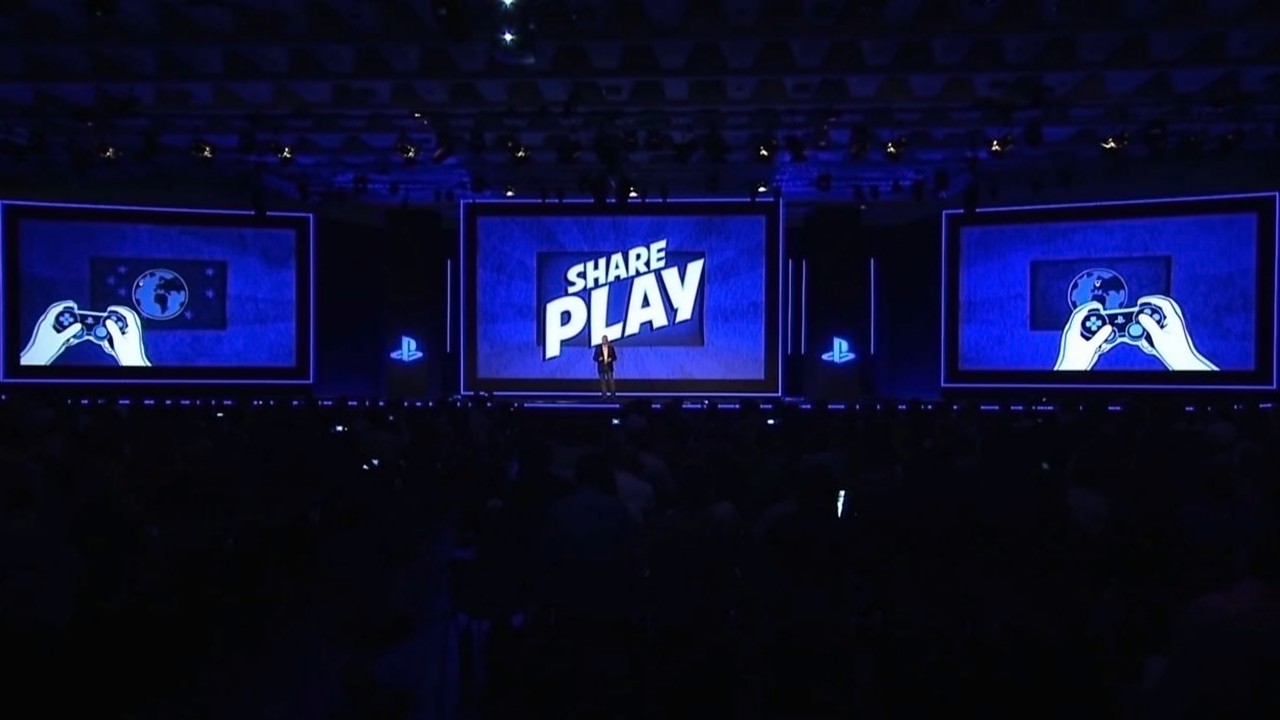
Share Play on PlayStation 4 and how it works

What is Share Play?


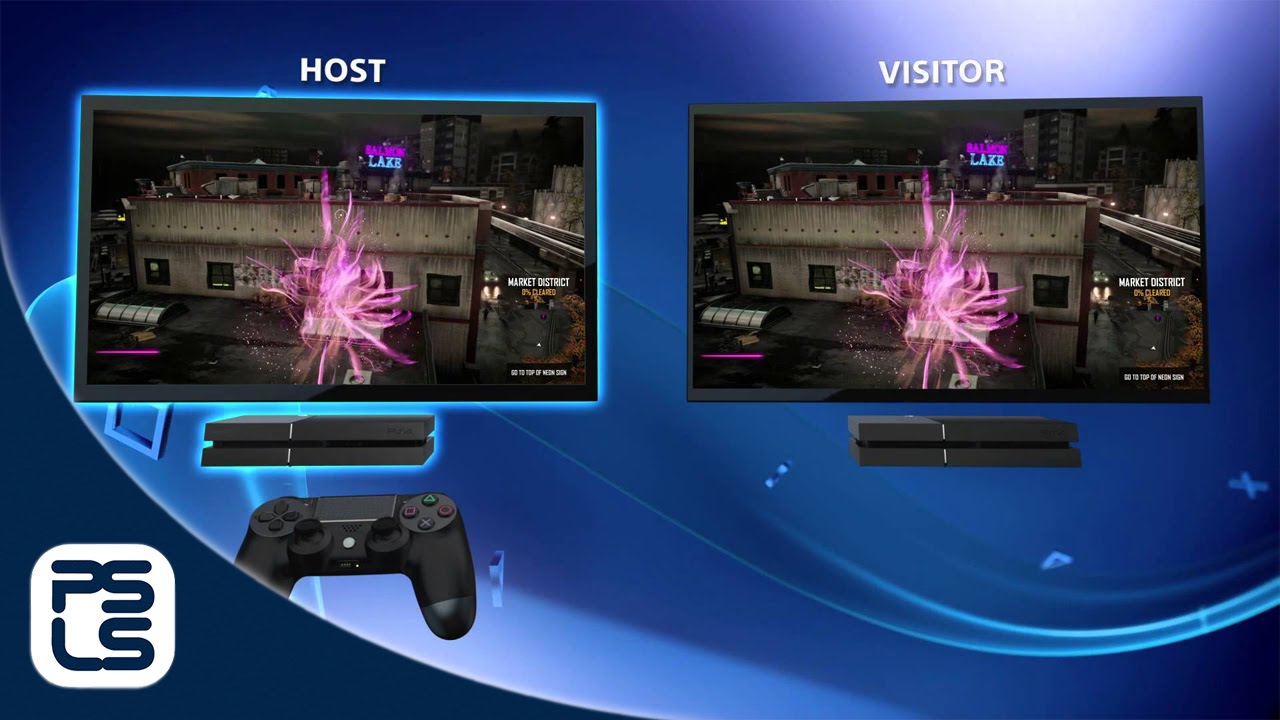
You can use Share Play to play with a friend as if you were in the same room. It allows you to invite a visitor to view your screen for up to 60 minutes a session. If you are stuck in a game or want the visitor to try a game, Share Play allows you to hand over your controller to a visitor so they can play instead. You can also invite your visitor to play a local multiplayer session over the internet even if the game does not support online multiplayer. The visitor does not need to own the game to use Share Play.


What is the minimum connection speed needed for Share Play?

To get the best experience from Share Play, both you and your friend will need a high speed internet connection. The conditions surrounding the home network of each player may also impact internet connectivity. As a guide a minimum connection speed of at least a 2Mbps is recommended. To check your upload speed, please check with your network service provider.

How do I hand over my controller?


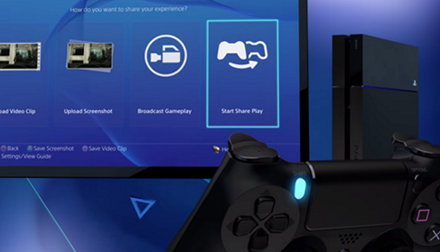
Simply press the SHARE button at any time, ‘Go to Party for Share Play’ and select the ‘Give Controller to Visitor’ option. On the next Screen you can chose to ‘Allow the Visitor to Play as You’. This hands over the controller and the visitor can now play the game while you watch. You can take back control at any time by pressing the SHARE button, accessing the Share Play menu and selecting ‘Take Back Controller’

How do I start a local multiplayer session via Share Play?


Access the Share menu by pressing the SHARE button and select “Go to  Party for Share Play”. Choose ‘Give Controller to Visitor’ and select ‘Play a Game Together’. Now an additional controller has been added to the game. You can play a game together or against each other. Depending on the title you might need to choose the controls in the games menu just as you were playing next to each other with two controllers.

What are Share Play’s Limitations?

  • The host and visitor have to be PlayStation Network friends.
  • The host and visitor have to be online.
  • The number of players who can use Share Play is 2.
  • Maximum length of one Share Play session is 60 minutes. When the session ends, you can restart Share Play immediately.
  • Only the host earns trophies.
  • Game saves will be saved only on the host’s PS4.


[mai mult...]