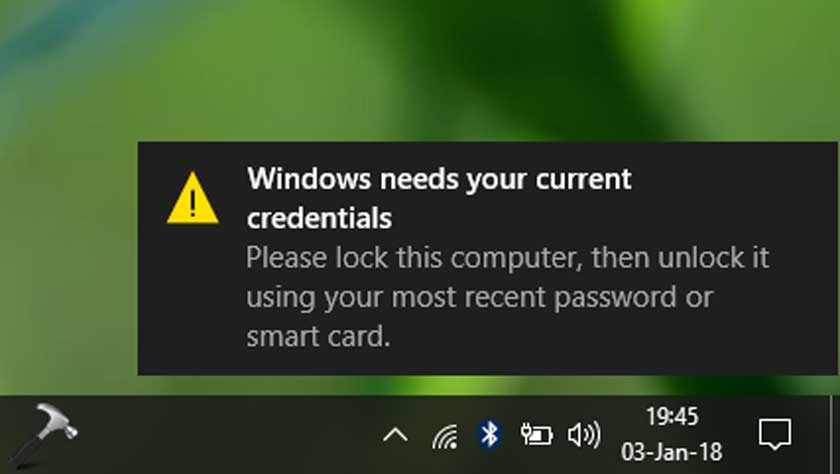
Windows Needs Your Current Credentials: ERROR FIXED

Soluții pentru problemele tale IT

The default slide size (16:9) in Google Slides works for most situations, but you may occasionally want to change the aspect ratio depending on the situation. There are a few presets, but you can also customize the slide size.
[mai mult...]The Downloads feature in Microsoft Edge it only shows up in the toolbar when you’re downloading something. Here’s how to pin the Downloads button to the Microsoft Edge toolbar so that you can always find it.
[mai mult...]By default, Windows 11 doesn’t display any special icons (such as “This PC” or “Recycle Bin”) on your desktop. If you’d like a classic Windows look, you can enable special desktop icons easily. Here’s how to do it.

The Windows Settings app will open to the “Personalization” page. In the list of Personalization categories, select “Themes.”

In Themes, scroll down and click “Desktop Icon Settings.”

A special window titled “Desktop Icon Settings” will appear. Using the “Desktop Icons” section near the top of the window, place check marks beside the special icons you’d like to appear on the desktop. For example, if you’d like to see the Recycle Bin on your desktop, check “Recycle Bin.” When you’re done, click “OK.”

After clicking “OK,” the window will close. You can close Settings as well. Take a look at your desktop, and you’ll see the special icons that you checked in the “Desktop Icon Settings” window.
Tip: You can make your desktop icons bigger or smaller by holding down the Ctrl key on your keyboard and scrolling your mouse wheel up or down.

If you change your mind and want to hide certain special desktop icons, just revisit Settings > Personalization > Themes > Desktop Icon Settings and uncheck the icons you no longer want to see.
[mai mult...]