Shortcut close the current window MS Edge v.2
Sa presupunem ca ne dorim sa inchdem browser-ul Edge. Apasand o combinatie de doua taste il putem inchide foarte rapid fara a ne ridica mainile de pe tastatura.
[mai mult...]
Soluții pentru problemele tale IT
Sa presupunem ca ne dorim sa inchdem browser-ul Edge. Apasand o combinatie de doua taste il putem inchide foarte rapid fara a ne ridica mainile de pe tastatura.
[mai mult...]Implicit level-ul de zoom este la 100% si sa presupunem ca am facut zoom in pana la 150%.
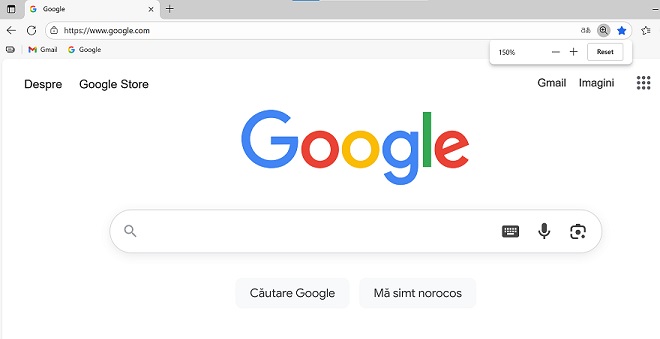
Daca vrem sa ne “jucam” cu zoom in si zoom out este foarte simplu si nici macar nu trebuie sa ne ridicam mainile de pe tastatura.
[mai mult...]Folosind combinatia de taste Ctrl + Enter in browser-ul Edge ne va completa automat www. si .com in adresa site-ului, noi trebuie doar sa completam denumirea lui.
[mai mult...]Implicit level-ul de zoom este la 100% si sa presupunem ca am facut zoom in pana la 150%.
Putem sa revenim inapoi la 100% prin mai multe metode: apasam butonul Reset sau –, sa folosim un keyboard shortcut, etc.
[mai mult...]What you need to check first
Compatibility
Make sure your Mac is officially supported by macOS 15 Sequoia. Supported models include:
• iMac (2019 or later)
• MacBook Air (2020 and later)
• MacBook Pro (2018 and later)
• Mac mini (2018 and later)
• Mac Pro (2019 and later)
• Mac Studio (all models)
Backup Your Data
Always back up your important files. Time Machine is a good option, or clone your drive. This protects against data loss if something goes wrong.
Free Space
Ensure you have enough free disk space. The installer itself requires several gigabytes, plus extra space for temporary files during installation.
Power
If using a laptop, keep it plugged into power throughout the update.
Software & Firmware Updates
It’s best to start from the latest version of your current macOS. Some firmware updates may be required before Sequoia can install properly.
Installation Methods
There are a few ways to install Sequoia:
Standard upgrade: from your current macOS via Software Update.
Clean install: erase the disk & install fresh.
Bootable installer: useful for multiple Macs, or offline reinstalls.
macOS Recovery: reinstall via recovery mode.
If you want to keep your apps, data, and settings:
Open System Settings (or System Preferences on older macOS versions) → General → Software Update
If Sequoia is available, click Upgrade Now (or “Update Now”)
Read & accept the license agreement
Enter your admin password if required
Wait for the installer to download. Time depends on your internet speed
Once the download finishes, the Mac will prompt you to restart and begin installation
The Mac will reboot several times during the process
After the final restart, follow setup prompts (region, Apple ID, etc.).
If you prefer a clean slate or need to install on multiple Macs:
Download the macOS Sequoia installer
It will appear as “Install macOS Sequoia” in your Applications folder.
Prepare a USB drive (16 GB or larger)
Format it as Mac OS Extended (Journaled) or APFS using Disk Utility.
Create the bootable installer
In Terminal, run:
Replace MyUSB with your USB drive’s name.
Boot from USB
Plug in the USB.
Restart while holding Option (⌥) on Intel Macs.
For Apple Silicon, hold the power button until startup options appear.
Choose the USB drive labeled “Install macOS Sequoia.”
Erase / format the internal drive (optional for clean install)
In macOS Utilities → Disk Utility → Show All Devices → select the internal drive → Erase → format as APFS. Warning: this erases all data.
Run the installer
Choose “Install macOS,” select your drive, and follow prompts.
Setup after installation completes.
If your Mac won’t boot or you need to reinstall:
Intel Macs: hold Command-R at startup.
Apple Silicon: hold the power button until startup options appear.
Choose “Reinstall macOS,” select your disk, and follow the prompts.
Troubleshooting / Tips
Installer doesn’t appear → check Mac compatibility, firmware updates, or free disk space
Slow download / installation → use reliable internet and keep plugged into power
Errors during install → run Disk Utility → First Aid on your drive
Post-install issues → update apps for Sequoia compatibility; some older apps may need patches.
Un SSD este una dintre cele mai importante componente dintr-un calculator modern. Pe el stă sistemul de operare, aplicațiile și datele utilizatorului. Totuși, uneori se întâmplă ceva neașteptat: pornești PC-ul sau laptopul și SSD-ul nu mai apare în BIOS.
[mai mult...]