OS - Windows

Depanare VPN 4 Solutii

instalare printer 50 Solutii

Optimizare pc 50 Solutii

Optimizare PC 103 Solutii

Scanare cu malwarebyte 4 Solutii

shareuire si mapare 15 Solutii

adaugare la domeniu 5 Solutii

Migrare profil 9 Solutii

Instalare/reinnoire certificate 2 Solutii

Personalizare sistem operare 274 Solutii

Configureaza si verifica setarile de boot 11 Solutii

Transfer de date 21 Solutii

Configurare OS 109 Solutii

Reparare OS 47 Solutii

Punct de restaurare OS 8 Solutii

Windows Event Viewer 6 Solutii

Reinstalare/reconfigurare VPN 8 Solutii

Optimizare client e-mail 12 Solutii

Optimizare PC 30 Solutii

Optimizare PC 20 Solutii

Reinstalare / Reconfigurare VPN 6 Solutii

Reinstalare OS 32 Solutii

Reparare sistem de operare 45 Solutii

Programare sistem operare 12 Solutii

Puncte de restaurare sistem de operare 14 Solutii

Instalare imprimanta 44 Solutii

Mapare si partajare 13 Solutii

Modificari firewall 12 Solutii

Migrare profil 8 Solutii

Transferuri de date 33 Solutii

Upgrade sistem operare 12 Solutii

Windows Event Viewer 7 Solutii

Verificare HDD 32 Solutii

Spatiu partitie 31 Solutii

Scanare cu MalwareBytes 5 Solutii

Setari servicii sistem operare 43 Solutii

Setari retea sistem operare 25 Solutii

Setari partitii 19 Solutii

Actualizare sistem operare 15 Solutii

Clonare HDD 11 Solutii

Compatibilitate program 13 Solutii

Instalare / Reinnoire Certificate 6 Solutii

Configurare si verificare setari de BOOT 15 Solutii

Configurare Sistem de operare 1448 Solutii

Identificare DLL-uri lipsa 2 Solutii

Depanare 1049 Solutii

Editarea politicilor de grup ale sistemului de operare 13 Solutii

Drivere 50 Solutii

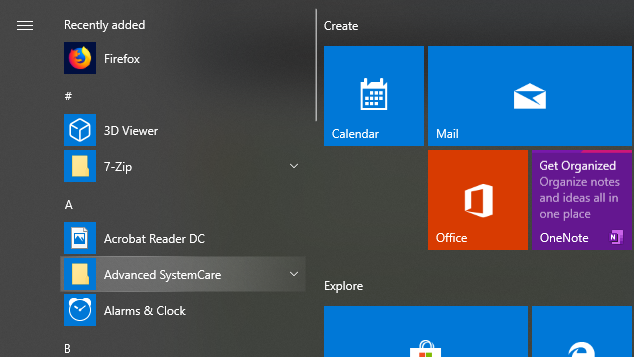
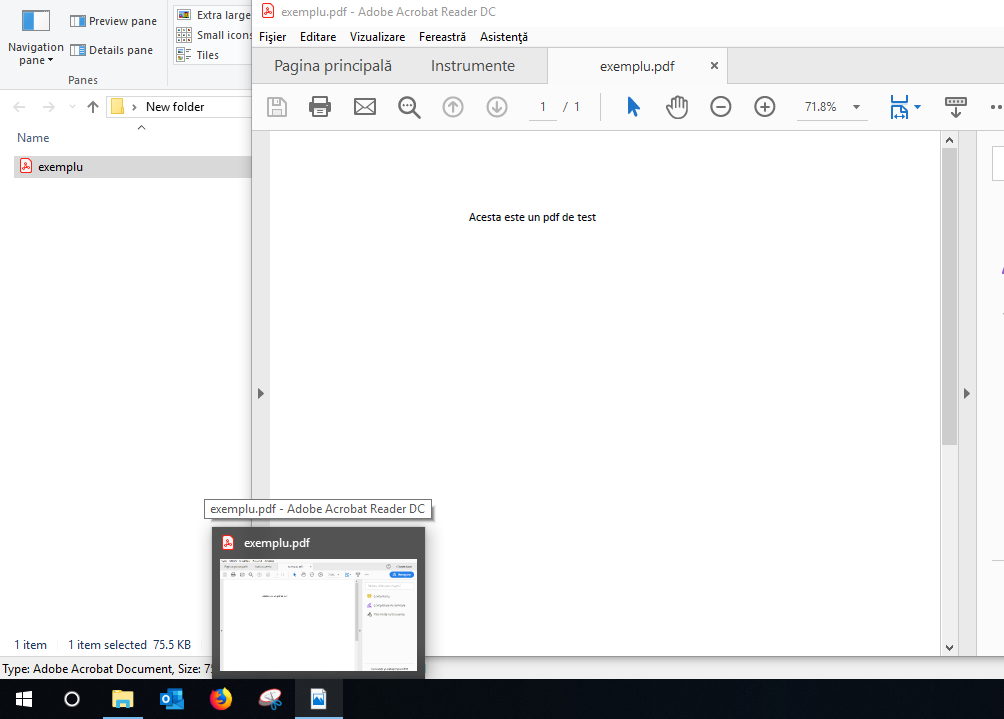
Repararea iconitei AdobeReaderDC din taskbar si start menu prin 2 metode

Marea majoritate a utilizatorilor lucreaza cu fisiere pdf, extensie deschisa cu ajutorul aplicatiei AdobeReader, cel mai folosit program pentru deschiderea acestui tip de extensie.Cu toate ca este cea mai raspandita aplicatie ce are acest rol, AdobeReader nu este scutit de situatii neplacute, chiar si de cele aparent minore, precum aceasta.

O problema de acest tip ar fi lipsa iconitei specifice ale AdobeReader DC in start menu si in taskbar, ce a fost inlocuita cu iconita specifica unei imagini deschise cu Windows Photos. Acest lucru pare nesemnificativ, dar poate incurca un utilizator de rand care lucreaza cu multe pdf-uri si cu imagini.

[mai mult...]

Windows 10 October 2018 Update (v1809) – Citrix Known Issues

Microsoft releases software updates for Windows 10 twice a year through the Semi-Annual Channel. On 2nd October 2018, Microsoft released its latest Semi-Annual Channel  release for Windows 10 called ‘October 2018 Update’ (v1809).

This article is intended to capture known issues with Windows 10 v1809 that have been identified so far through Citrix internal testing and customer reports.

  • Citrix Virtual Delivery Agent (VDA) for Windows Desktop OS
  • Citrix Receiver for Windows
  • Citrix Provisioning Services (PVS)
  • Citrix Workspace Environment Management (WEM)
  • Citrix User Profile Management (UPM)

Note:

  • This is a live article and is updated as and when new information is available.
[mai mult...]

How to Enable Ultra-Low Latency Mode for NVIDIA Graphics

NVIDIA GeForce RTX 2080 SUPER graphics card
NVIDIA

NVIDIA’s graphics drivers now offer a “Ultra-Low Latency mode” intended for competitive gamers and anyone else who wants the fastest input response times in their games. This feature is available for all NVIDIA GeForce GPUs in the NVIDIA Control Panel.

What Is Ultra-Low Latency Mode?

NVIDIA ultra-low latency response time testing benchmark results
NVIDIA

Graphics engines queue frames to be rendered by the GPU, the GPU renders them, and then they’re displayed on your PC.  As NVIDIA explains, this feature builds on the “Maximum Pre-Rendered Frames” feature that’s been found in the NVIDIA Control Panel for over a decade. That allowed you to keep the number of frames in the render queue down.

With “Ultra-Low Latency” mode, frames are submitted into the render queue just before the GPU needs them. This is “just in time frame scheduling,” as NVIDIA calls it. NVIDIA says it will “further [reduce] latency by up to 33%” over just using the Maximum Pre-Rendered Frames option.

NVIDIA render queue diagram
NVIDIA

This works with all GPUs. However, it only works with DirectX 9 and DirectX 11 games. In DirectX 12 and Vulkan games, “the game decides when to queue the frame” and the NVIDIA graphics drivers have no control over this.

Here’s when NVIDIA says you might want to use this setting:

“Low Latency modes have the most impact when your game is GPU bound, and framerates are between 60 and 100 FPS, enabling you to get the responsiveness of high-framerate gaming without having to decrease graphical fidelity. “

In other words, if a game is CPU bound (limited by your CPU resources instead of your GPU) or you have very high or very low FPS, this won’t help too much. If you have input latency in games—mouse lag, for example—that’s often simply a result of low frames per second (FPS) and this setting won’t solve that problem.

Warning: This will potentially reduce your FPS. This mode is off by default, which NVIDIA says leads to “maximum render throughput.” For most people most of the time, that’s a better option. But, for competitive multiplayer gaming, you’ll want all the tiny edges you can get—and that includes lower latency.

How to Enable Ultra-Low Latency Mode

You’ll need version 436.02 or newer of the NVIDIA graphics driver to take advantage of this. You can update your graphics driver through the GeForce Experience application or download the latest graphics driver directly from NVIDIA’s website.

Once you have, launch the NVIDIA Control Panel. To do so, right-click your Windows desktop and select “NVIDIA Control Panel.”

Launching the NVIDIA Control Panel

Click “Manage 3D Settings” under 3D Settings in the left sidebar.

Select how you want to enable Ultra-Low Latency Mode. To enable it for all games on your system, select “Global Settings.” To enable it for one or more specific games, select “Program Settings” and choose the game you want to enable it for.

Managing 3D settings in the NVIDIA Control Panel

Locate “Low Latency Mode” in the list of settings. Click the setting box to the right of the setting and select “Ultra” in the list.

With the default settings of “Off,” the game’s engine will queue one to three frames at a time. The “On” setting will force the game to only queue a single frame, which is the same as setting Max_Prerendered_Frames to 1 in older NVIDIA drivers. The Ultra setting submits the frame “just in time” for the GPU to pick it up—there will be no frame sitting in the queue and waiting.

Enabling Ultra Low Latency Mode for NVIDIA graphics

Click the “Apply” button to save your settings. You can now close the NVIDIA Control Panel.

Activating Ultra Low Latency Mode in NVIDIA's GeForce graphics drivers

Remember, as we pointed out above, this option can actually hurt performance in many situations! We recommend enabling it only for specific games and testing your settings to see how well it actually works.

If you want to undo your changes and use the NVIDIA graphics driver’s default settings, return here and click the “Restore” button.

[mai mult...]