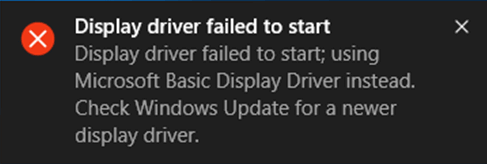
Fix Display Driver Failed to Start Error
Eroare de driver video

Soluții pentru problemele tale IT
Eroare de driver video
Eroarea 0xc0000006 apare în mod normal din cauza fișierelor de registry corupte. Poate fi cauzată și de anumite infecții virale. Această eroare poate fi cauzată și de drivere învechite, de fișiere DLL lipsă și de un ecran albastru pe computer.

Waiting for Chkdsk to scan your PC’s drive on startup can be time consuming, but having to wait for it on every startup can get frustrating very quickly. If you don’t want to have to skip the Chkdsk every time you’re starting up your PC using the Registry Editor.
[mai mult...]By default, Windows 10 displays notification pop-ups when the Store automatically installs app updates. You’ll see a notification saying an app “Just got updated, check it out.” If you’d rather not see those, here’s how to turn them off.
For example, we saw this notification when Windows 10 automatically updated “Gaming Services,” a background service. There’s no way to “check out” a background service—unless you want to fire up a game from Xbox Game Pass for PC—so we decided to just disable these.

The Store’s notification options are located in the “Settings” app. To launch it, open the “Start” menu and click the “Settings” icon at the left side of the screen, or press Windows+i.

In the “Settings” window, head to System > Notifications & Actions. Scroll down to the “Get Notifications From These Senders” section.
Look for the “Microsoft Store” option in the list. If the Store sent you a recent notification, you will see it at the top of the list is sorted by “Most Recent.” Click the “On” switch to turn it to “Off.” The Store won’t show you update notifications anymore.

That’s it. We still recommend you leave the Store’s automatic updates enabled for security reasons, as Microsoft now sometimes issues security updates through the store.
However, you don’t need the Store notifying you when it installs these updates.
(Also, if you do disable automatic updates, you won’t see notifications when updates are available. We’ve only seen the Store send notifications after installing an update—not when a notification is available—so these notifications won’t help you manually install updates.)
[mai mult...]You can create a shutdown / restart shortcut on your desktop. The following tutorial will walk you through the steps of creating a shortcut to shutdown / restart Windows 10 more quickly.
[mai mult...]By default, Windows 10 will display the folder name alone in the title bar of File Explorer. Sometimes you might need to know the absolute path of the location you are currently in. In this tutorial we’ll show you 2 ways to make Windows 10 display full path (file location) in the title bar of File Explorer.
[mai mult...]