
OS - Windows
Depanare VPN 4 Solutii
instalare printer 50 Solutii
Optimizare pc 50 Solutii
Optimizare PC 104 Solutii
Scanare cu malwarebyte 4 Solutii
shareuire si mapare 15 Solutii
adaugare la domeniu 5 Solutii
Migrare profil 9 Solutii
Instalare/reinnoire certificate 2 Solutii
Personalizare sistem operare 274 Solutii
Configureaza si verifica setarile de boot 11 Solutii
Transfer de date 21 Solutii
Configurare OS 109 Solutii
Reparare OS 47 Solutii
Punct de restaurare OS 8 Solutii
Windows Event Viewer 6 Solutii
Reinstalare/reconfigurare VPN 8 Solutii
Optimizare client e-mail 12 Solutii
Optimizare PC 30 Solutii
Optimizare PC 20 Solutii
Reinstalare / Reconfigurare VPN 6 Solutii
Reinstalare OS 32 Solutii
Reparare sistem de operare 45 Solutii
Programare sistem operare 12 Solutii
Puncte de restaurare sistem de operare 14 Solutii
Instalare imprimanta 44 Solutii
Mapare si partajare 13 Solutii
Modificari firewall 12 Solutii
Migrare profil 8 Solutii
Transferuri de date 33 Solutii
Upgrade sistem operare 12 Solutii
Windows Event Viewer 7 Solutii
Verificare HDD 32 Solutii
Spatiu partitie 31 Solutii
Scanare cu MalwareBytes 5 Solutii
Setari servicii sistem operare 43 Solutii
Setari retea sistem operare 25 Solutii
Setari partitii 19 Solutii
Actualizare sistem operare 15 Solutii
Clonare HDD 11 Solutii
Compatibilitate program 13 Solutii
Instalare / Reinnoire Certificate 6 Solutii
Configurare si verificare setari de BOOT 15 Solutii
Configurare Sistem de operare 1458 Solutii
Identificare DLL-uri lipsa 2 Solutii
Depanare 1058 Solutii
Editarea politicilor de grup ale sistemului de operare 13 Solutii
Drivere 50 Solutii
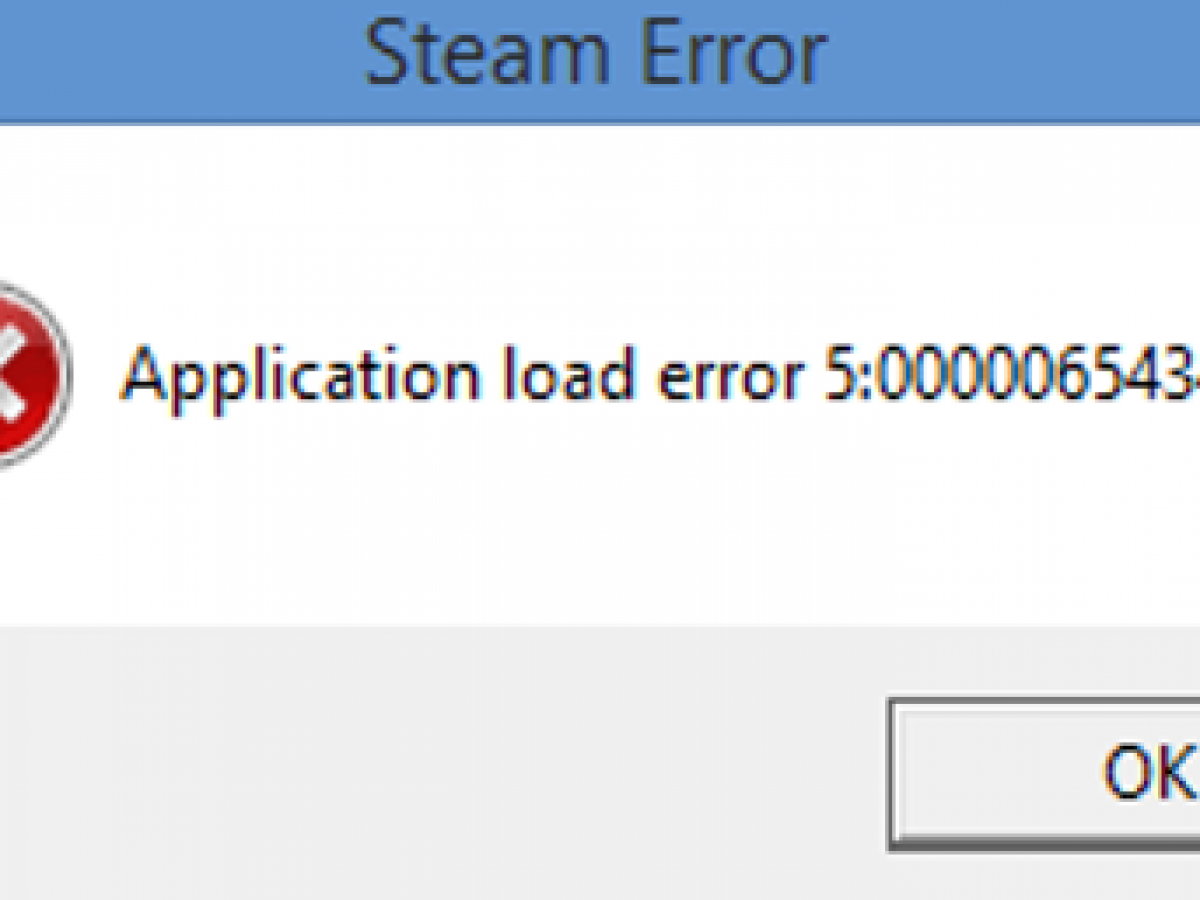
Fix: Application Load Error 5:0000065434
How to change slide size in Google Slides
The default slide size (16:9) in Google Slides works for most situations, but you may occasionally want to change the aspect ratio depending on the situation. There are a few presets, but you can also customize the slide size.
[mai mult...]How to pin the downloads button to Microsoft Edge toolbar
The Downloads feature in Microsoft Edge it only shows up in the toolbar when you’re downloading something. Here’s how to pin the Downloads button to the Microsoft Edge toolbar so that you can always find it.
[mai mult...]How to Upgrade Your PC to Windows 11
Windows 11 is now available. If you’ve decided you want to upgrade from Windows 10, here’s how you can get the free upgrade—even if Windows Update doesn’t offer it. This works if Windows 11 doesn’t officially support your PC, too.
The Safe and Slow Way: Windows Update
For the safest possible update process, go to Settings > Update & Security > Windows Update on your Windows 10 PC. (You can press Windows+i to quickly open the Settings app.)
Note: Microsoft is slowly offering this update to more and more PCs over time. If you don’t see the banner offering you the update here yet, you may see it in a few weeks—or a few months. For the best possible update experience on your hardware, Microsoft recommends waiting for Windows Update to offer the update to your PC. When Microsoft is confident your PC is ready, you’ll get the update.
If Windows 11 doesn’t officially support your PC, you will never see the update offered via Windows Update. (But don’t worry, Windows 10 will still be officially supported until October 2025).

The Fast Way: Download Windows 11
Microsoft offers a variety of tools for downloading Windows 11 immediately. These will skip the slow, careful upgrade process and let you skip the line and install Windows 11 right now—even if your PC doesn’t officially support Windows 11.
To get started, visit Microsoft’s Download Windows 11 page. We recommend you download and run the Windows 11 Update Assistant. It will update your current PC to Windows 11 for you. (You can also use the Create Windows 11 Installation Media tool to create installation media on a bootable USB or DVD, or download a Windows 11 ISO for use in a virtual machine).
Warning: By installing Windows 11 immediately, you’re skipping Microsoft’s slow-and-steady rollout process. You may encounter bugs with Windows 11 on your hardware. If that’s a deal-breaker for you, we encourage you to wait a few months before you’re offered the upgrade.
If you encounter a problem, note that you can downgrade back to Windows 10 within the first ten days after upgrading.
Microsoft says these tools will also let you upgrade a Windows 10 PC to Windows 11, even if the PC’s hardware isn’t officially supported by Windows 11. You’ll just have to agree to a warning first. (Whether you actually want to accept the risk of problems is up to you, but we encourage you to keep older PCs on Windows 10 unless you’re enthusiastic about upgrading them for a particular reason).
[mai mult...]How to rename audio devices in Windows 10
The main reason to rename your audio input and output devices is to make your devices easily recognizable.
[mai mult...]