
OS - Windows
Depanare VPN 4 Solutii
instalare printer 50 Solutii
Optimizare pc 50 Solutii
Optimizare PC 103 Solutii
Scanare cu malwarebyte 4 Solutii
shareuire si mapare 15 Solutii
adaugare la domeniu 5 Solutii
Migrare profil 9 Solutii
Instalare/reinnoire certificate 2 Solutii
Personalizare sistem operare 274 Solutii
Configureaza si verifica setarile de boot 11 Solutii
Transfer de date 21 Solutii
Configurare OS 109 Solutii
Reparare OS 47 Solutii
Punct de restaurare OS 8 Solutii
Windows Event Viewer 6 Solutii
Reinstalare/reconfigurare VPN 8 Solutii
Optimizare client e-mail 12 Solutii
Optimizare PC 30 Solutii
Optimizare PC 20 Solutii
Reinstalare / Reconfigurare VPN 6 Solutii
Reinstalare OS 32 Solutii
Reparare sistem de operare 45 Solutii
Programare sistem operare 12 Solutii
Puncte de restaurare sistem de operare 14 Solutii
Instalare imprimanta 44 Solutii
Mapare si partajare 13 Solutii
Modificari firewall 12 Solutii
Migrare profil 8 Solutii
Transferuri de date 33 Solutii
Upgrade sistem operare 12 Solutii
Windows Event Viewer 7 Solutii
Verificare HDD 32 Solutii
Spatiu partitie 31 Solutii
Scanare cu MalwareBytes 5 Solutii
Setari servicii sistem operare 43 Solutii
Setari retea sistem operare 25 Solutii
Setari partitii 19 Solutii
Actualizare sistem operare 15 Solutii
Clonare HDD 11 Solutii
Compatibilitate program 13 Solutii
Instalare / Reinnoire Certificate 6 Solutii
Configurare si verificare setari de BOOT 15 Solutii
Configurare Sistem de operare 1450 Solutii
Identificare DLL-uri lipsa 2 Solutii
Depanare 1051 Solutii
Editarea politicilor de grup ale sistemului de operare 13 Solutii
Drivere 50 Solutii
Cum se creează o pictogramă de închidere în Windows 10
Este adevărat că închiderea computerului Windows 10 în mod vechi nu face decât trei clicuri. Dar de ce să cheltuiți energia suplimentară când o puteți face în două? Tot ce trebuie să faci este să creezi o pictogramă de închidere și vei salva ceva timp.
[mai mult...]Cum sa adaugi un QR code in Power Point folosind QR4Office
QR code este o solutie foarte simpla de a partaja ce informatie dorim, cum ar fi un anumit website, numar de telefon, punct geografic. Spre exemplu, pentru a nu tasta un link mare catre o pagina web putem crea un QR code care va fi scanat cu telefonul si va intra automat pe acea pagina. In Power Point ne este util cand vrem ca ceilalti sa aiba acces la un website spre exemplu, fara a mai fi nevoie ca fiecare sa isi noteze link-ul.
[mai mult...]Microsoft store nu se deschide-Windows 10
Se intampla tot mai des ca utilizatorii Windows 10 sa intampine probleme in ceea ce priveste Microsoft Store. Pentru a veni in intampinarea voastra cu scopul de a va ajuta in remedierea problemei, am pregatit cateva solutii pentru dumneavoastra.
[mai mult...]How To Remove Segurazo Antivirus
Segurazo Antivirus is a potentially unwanted program (PUP) that people find hard to remove from the computer system. Cybersecurity experts agree that at most it can be called a system optimizer which tends to display fake positive scan results. Such a technique is often used by untrustworthy vendors to trick users into buying software license to fix computer problems that might not even exist.
The distribution of this potentially unwanted program started to rise in July 2019, therefore more and more users complain about it on various Internet forums such as Reddit.
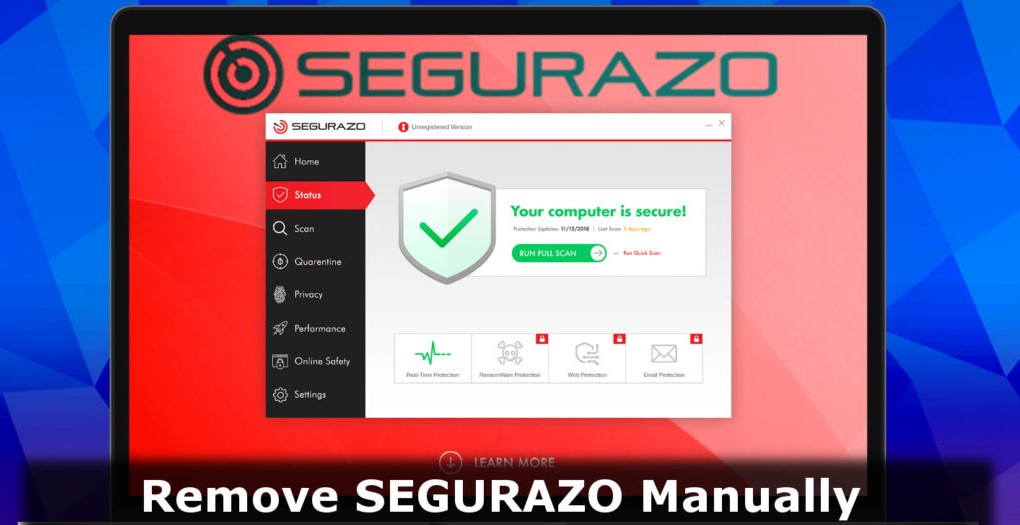
Remove Segurazo Virus Easily
Segurazo removal is a bit complicated since it tends to reinstall itself on the victim’s computer. This is done in order to prevent its complete elimination. Needless to say, this is what makes the program even more suspicious. However, we have prepared in-depth instructions on how to remove this program for good and prevent it from appearing on your screen with annoying ads ever again.
Please note that this tutorial includes detailed steps on how to eliminate files related to this “antivirus” and also a standard guide on how to clean your browsers and computer system from related software.
Please follow the given steps carefully for a successful removal of the potentially unwanted software. Make sure you complete ALL of the given steps!
[mai mult...]How to Change the Default Terminal in Ubuntu
Terminal is a crucial part of any Linux system. It allows you to access your Linux systems through a shell. There are several terminal applications (technically called terminal emulators) on Linux.
Most of the desktop environments have their own implementation of the terminal. It may look different and may have different keyboard shortcuts.For example, Guake Terminal is extremely useful for power users and
provides several features you might not get in your distribution’s terminal by default.
You can install other terminals on your system and use it as default that opens up with the usual keyboard shortcut of Ctrl+Alt+T.Now the question comes, how do you change the default terminal in Ubuntu.
It doesn’t follow the standard way of changing default applications in Ubuntu then how to do it?