OS - Windows

Depanare VPN 4 Solutii

instalare printer 50 Solutii

Optimizare pc 50 Solutii

Optimizare PC 103 Solutii

Scanare cu malwarebyte 4 Solutii

shareuire si mapare 15 Solutii

adaugare la domeniu 5 Solutii

Migrare profil 9 Solutii

Instalare/reinnoire certificate 2 Solutii

Personalizare sistem operare 274 Solutii

Configureaza si verifica setarile de boot 11 Solutii

Transfer de date 21 Solutii

Configurare OS 109 Solutii

Reparare OS 47 Solutii

Punct de restaurare OS 8 Solutii

Windows Event Viewer 6 Solutii

Reinstalare/reconfigurare VPN 8 Solutii

Optimizare client e-mail 12 Solutii

Optimizare PC 30 Solutii

Optimizare PC 20 Solutii

Reinstalare / Reconfigurare VPN 6 Solutii

Reinstalare OS 32 Solutii

Reparare sistem de operare 45 Solutii

Programare sistem operare 12 Solutii

Puncte de restaurare sistem de operare 14 Solutii

Instalare imprimanta 44 Solutii

Mapare si partajare 13 Solutii

Modificari firewall 12 Solutii

Migrare profil 8 Solutii

Transferuri de date 33 Solutii

Upgrade sistem operare 12 Solutii

Windows Event Viewer 7 Solutii

Verificare HDD 32 Solutii

Spatiu partitie 31 Solutii

Scanare cu MalwareBytes 5 Solutii

Setari servicii sistem operare 43 Solutii

Setari retea sistem operare 25 Solutii

Setari partitii 19 Solutii

Actualizare sistem operare 15 Solutii

Clonare HDD 11 Solutii

Compatibilitate program 13 Solutii

Instalare / Reinnoire Certificate 6 Solutii

Configurare si verificare setari de BOOT 15 Solutii

Configurare Sistem de operare 1453 Solutii

Identificare DLL-uri lipsa 2 Solutii

Depanare 1053 Solutii

Editarea politicilor de grup ale sistemului de operare 13 Solutii

Drivere 50 Solutii

Fix error 0xa0430721 when installing Edge or Chrome on Windows 10

If when you attempt installing Microsoft Edge or installing Google Chrome but encounter the error 0xa0430721, then this post is intended to help you. In this post, we will identify the possible causes for the error as is specific to each of the browsers, as well as provide the corresponding solutions to help you mitigate the issue whether you’re experiencing it on Edge or Chrome.

To successfully resolve the error 0xa0430721 when installing Edge or Chrome on Windows 10, you can follow the instructions outlined below associated with each browser.

[mai mult...]

How to install Ubuntu Linux on VirtualBox in Windows 10

Installing Linux inside Windows using VirtualBox

VirtualBox is free and open source virtualization software from Oracle. It enables you to install other operating systems in virtual machines. It is recommended that your system should have at least 4GB of RAM to get decent performance from the virtual operating system.

Requirements

  • Good internet connection to download software and Linux ISO. (You can also use some other computer with an internet connection to download these files.)
  • Windows system with at least 12 GB of free space.
  • Windows system with 4GB of rRAM. (It can work with less RAM as well, but your system will start to lag while using Linux in the virtual machine.)

Step 1: Download and install VirtualBox

Go to the website of Oracle VirtualBox and get the latest stable version from here:

Download VirtualBox

Installing VirtualBox is not rocket science. Just double-click on the downloaded .exe file and follow the instructions on the screen. It is like installing any regular software on Windows.

Step 2: Download the Linux ISO

Next, you need to download the ISO file of the Linux distribution. You can get this image from the official website of the Linux distribution you are trying to use.

I am using Ubuntu in this example, and you can download ISO images for Ubuntu from the link below:

Download Ubuntu Linux

Step 3: Install Linux using VirtualBox

You have installed VirtualBox and you have downloaded the ISO for Linux. You are now set to install Linux in VirtualBox.

Start VirtualBox, and click on the New symbol. Give the virtual OS a relevant name.

Allocate RAM to the virtual OS. My system has 8GB of RAM and I decided to allocate 2GB of it. You can use more RAM if your system has enough extra.

Create a virtual disk. This serves as the hard disk of the virtual Linux system. It is where the virtual system will store its files.

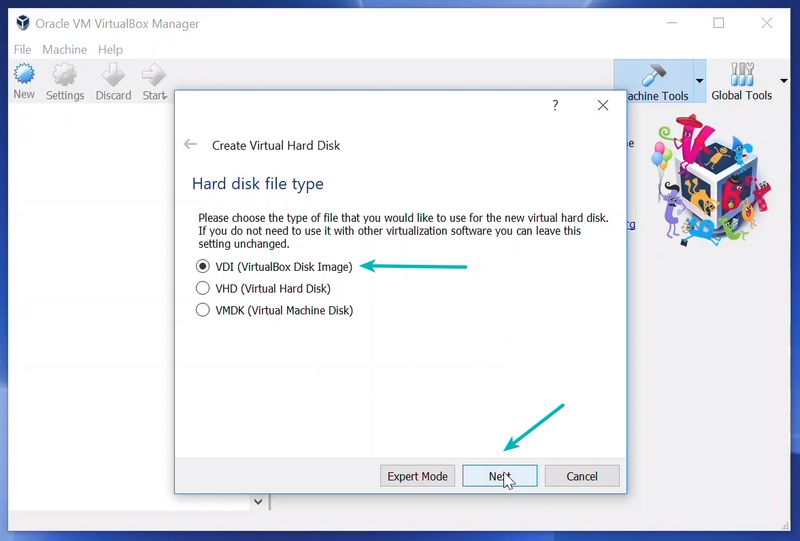
I recommend using the VDI file type here.

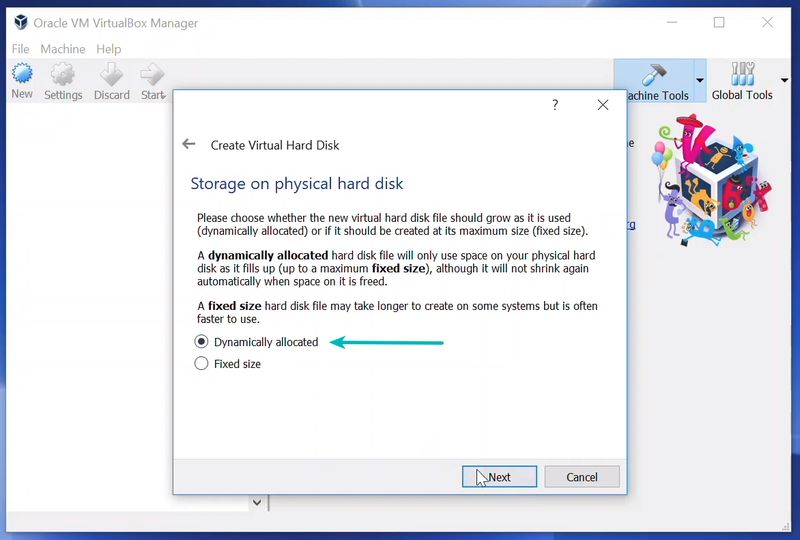
You can choose either the “Dynamically allocated” or the “Fixed size” option for creating the virtual hard disk.

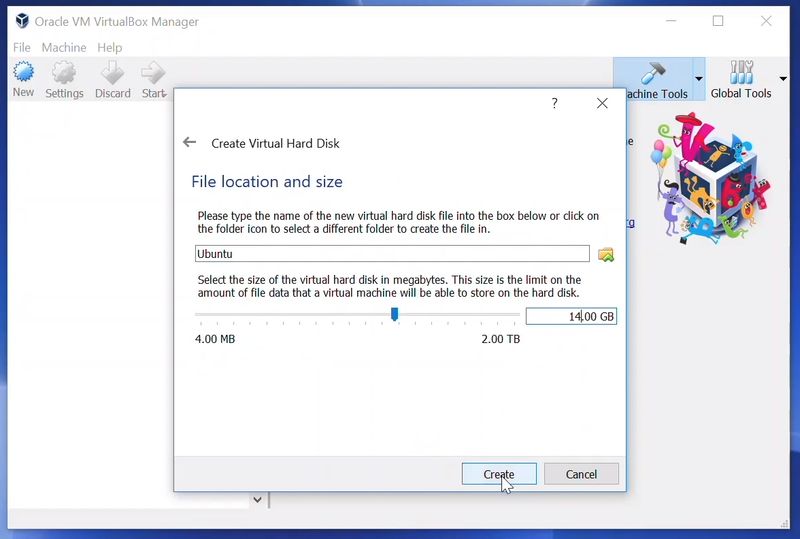
The recommended size is 10 GB. However, I suggest giving it more space if possible. 15-20 GB is preferable.

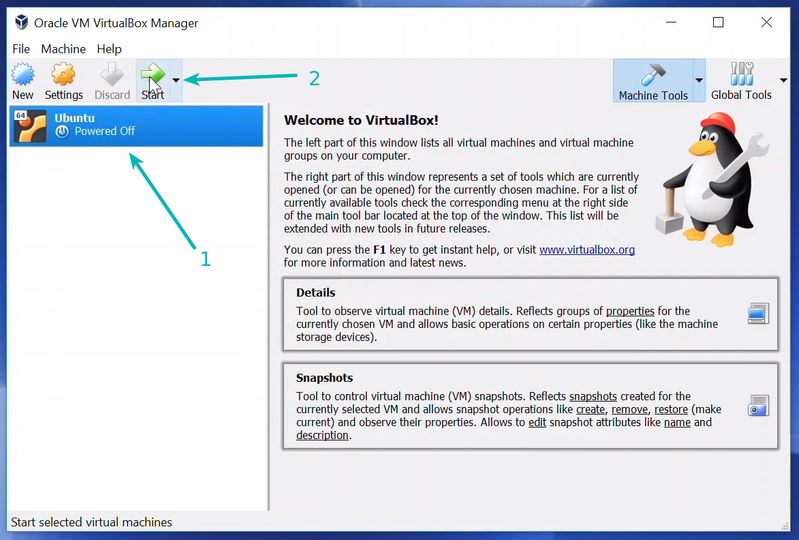
Once everything is in place, it’s time to boot that ISO and install Linux as a virtual operating system.

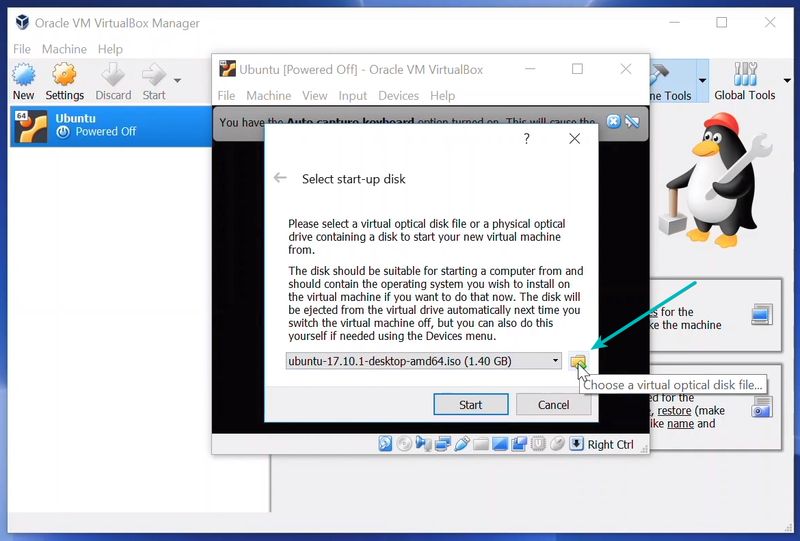
If VirtualBox doesn’t detect the Linux ISO, browse to its location by clicking the folder icon as shown in the picture below:

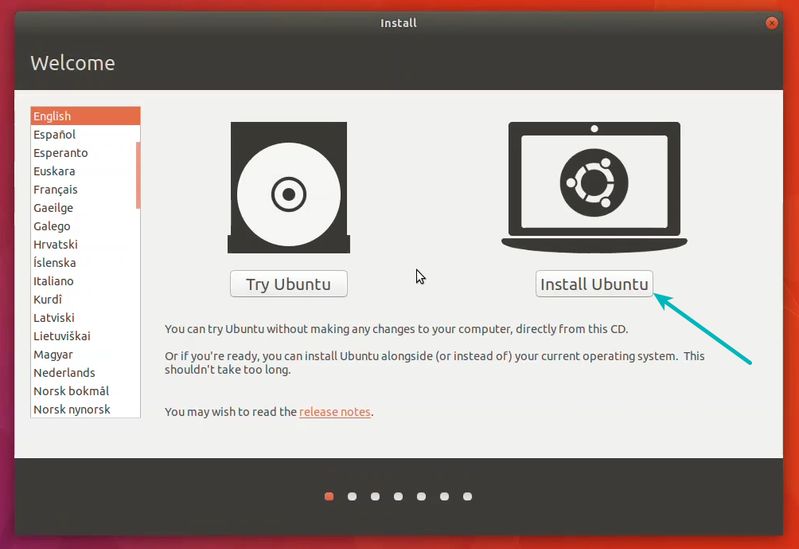
Soon you’ll find yourself inside Linux. You should be presented with the option to install it.

Things from here are Ubuntu-specific. Other Linux distributions may have slightly different looking steps, but it won’t be complicated at all.

You can skip to Continue.

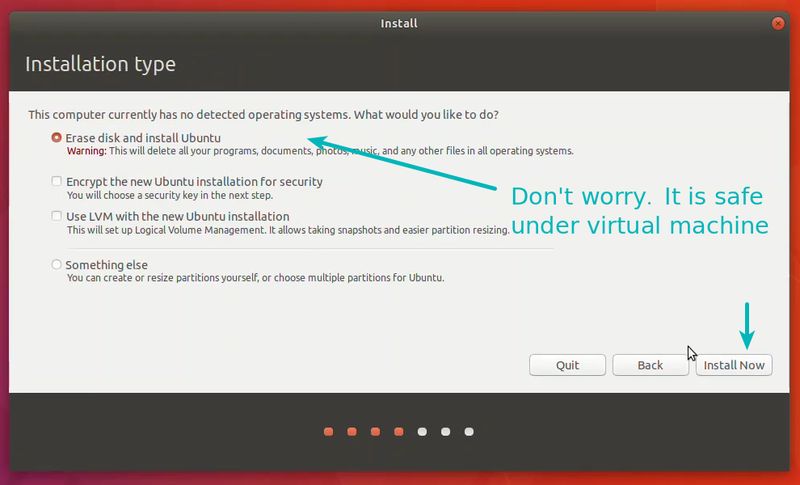
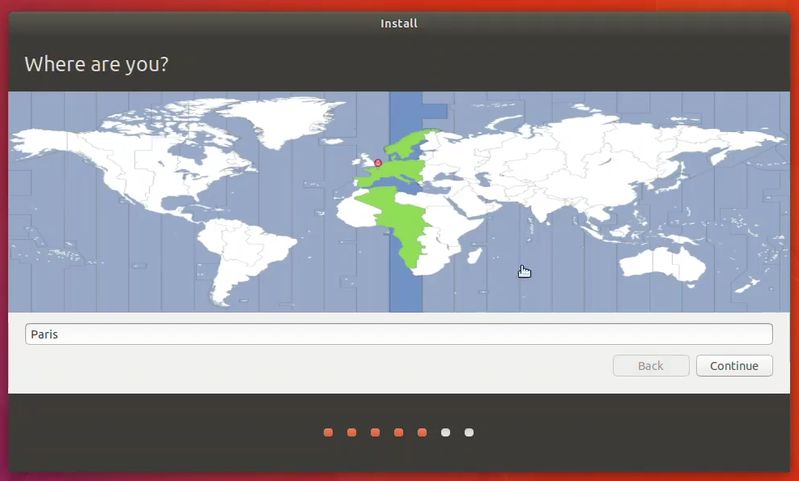
Select ‘Erase disk and install Ubuntu’. Don’t worry. It won’t delete anything on your Windows operating system. You are using the virtual disk space of 15-20GB that we created in previous steps. It won’t impact the real operating system.

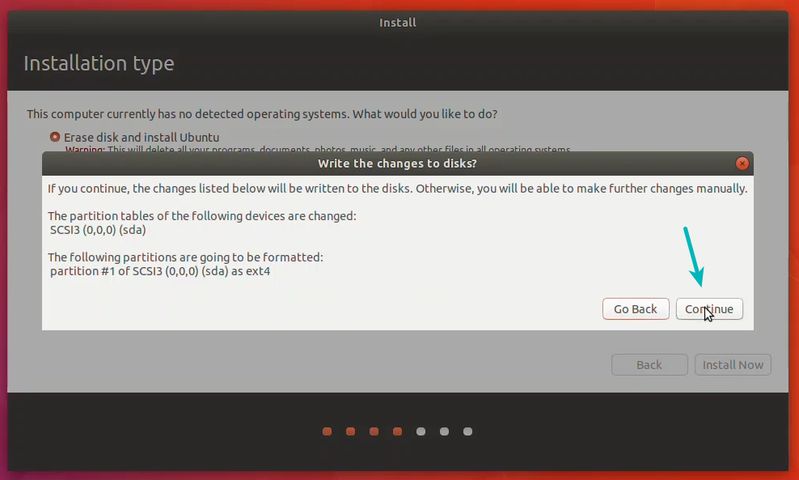
Just click on Continue.

Things are pretty straightforward from here.

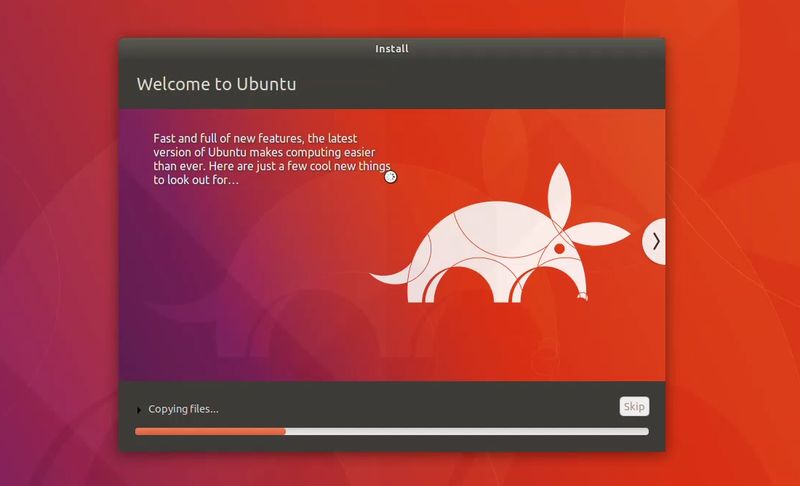
You are almost done. It may take 10-15 minutes to complete the installation.

Once the installation finishes, restart the virtual system.

[mai mult...]

How to Set Up a Media Server Using Plex

A Media Server is a server that is set up to stream media files (like music, movies) over the internet to a number of devices from anywhere. As long as the server remains on, you will have access to your files from anywhere. One such media server option, Plex, allows you to organize and categorize your files and then play them back from a variety of devices for a small fee.

[mai mult...]